Home
» WINDOWS
»
How to Find Your MAC Address in Windows 10: 5 Easy Methods
How to Find Your MAC Address in Windows 10: 5 Easy Methods
To find a MAC address in Windows 10, open Settings > Network & Internet, select the Wi-Fi or Ethernet connection you use, and look for Physical address (MAC). For a quicker list of all adapters, open Command Prompt and run getmac /v. Check the adapter name before copying the value: a PC with Wi-Fi and Ethernet has a different MAC address for each network interface.
What the MAC address is—and which one to use
A MAC address is the link-layer address assigned to a network interface. Windows usually labels it Physical address. It appears as six pairs of hexadecimal characters, such as 34-AB-56-CD-78-EF. That is different from an IP address, which identifies a device’s connection on an IP network.
A computer can show several MAC addresses. Wi-Fi and Ethernet each have their own, and Windows may also list Bluetooth, VPN, or virtual network adapters. If a router, school, or workplace asks for the Wi-Fi MAC address, choose the Wi-Fi adapter—not Ethernet or a virtual adapter.
Windows 10 can use random hardware addresses for Wi-Fi. When that option is on, the address used for a network may differ from the adapter’s permanent factory address. For router access lists or device registration, use the address Windows presents for the Wi-Fi profile you are registering. Microsoft explains the per-network option in its Windows Wi-Fi guidance.
1. Find it in Windows Settings
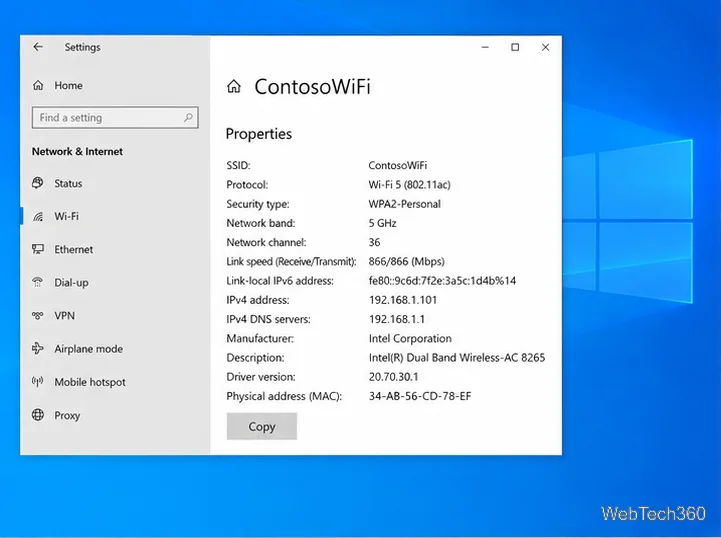
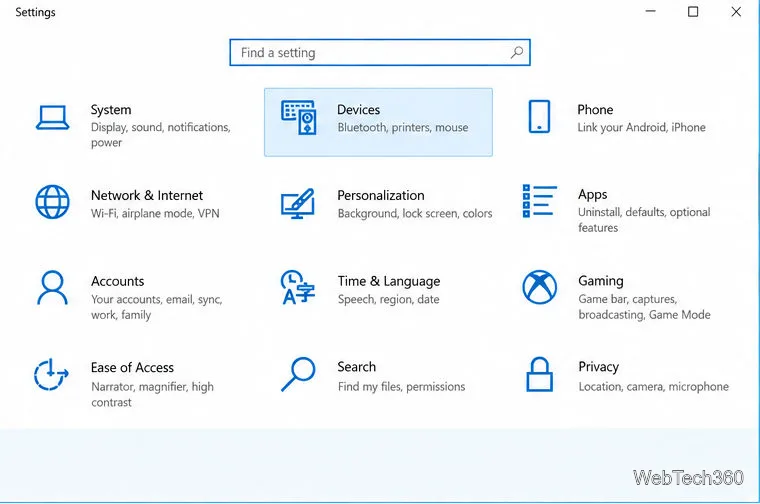
Select Start > Settings > Network & Internet.
For Wi-Fi, select Wi-Fi, then select the connected network or its Properties link. For a wired connection, select Ethernet and open the connected network’s properties.
Scroll to Physical address (MAC) and copy the value. The other nearby fields—such as IPv4 address—are not the MAC address.
The exact link placement can vary slightly by Windows 10 build. Microsoft’s Network & Internet settings guide describes opening the connected Wi-Fi or Ethernet properties.
The selected Wi-Fi profile lists its Physical address (MAC) in the network properties.
2. Use Command Prompt with getmac
Open Start, type Command Prompt, and launch the app.
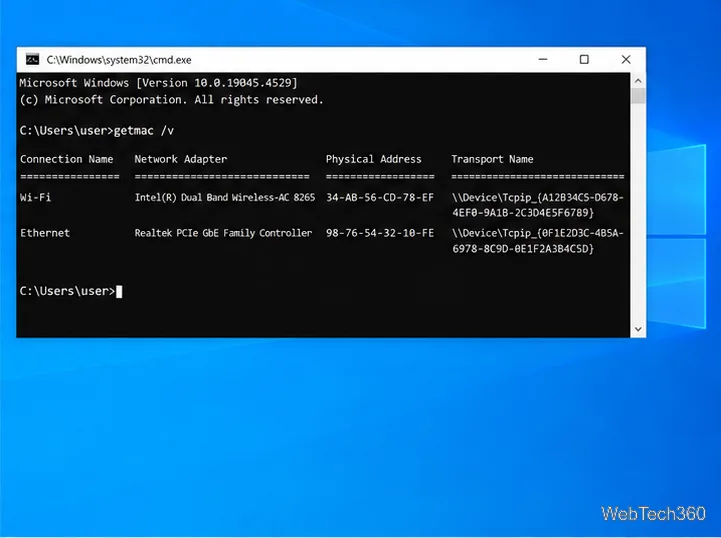
Enter getmac /v and press Enter.
Match the Connection Name or Network Adapter to the connection you need. Copy the value under Physical Address.
This is usually the fastest option when you just need a MAC address. If several rows appear, do not assume the first one is the active adapter. Microsoft documents the getmac command and its verbose output.
The verbose getmac output pairs each physical address with its connection and adapter name.
3. Use Command Prompt with ipconfig /all
Use this command when you also need to inspect IP settings, DHCP, or DNS details:
In Command Prompt, enter ipconfig /all.
Find the section named for your adapter, such as Wireless LAN adapter Wi-Fi or Ethernet adapter Ethernet.
Read the Physical Address line in that section.
The output can be long, so match the heading to the connection you are using. Microsoft’s wireless report documentation confirms that ipconfig /all includes each adapter’s physical (MAC) address along with IP and DNS information.
Open Start, type PowerShell, and open Windows PowerShell.
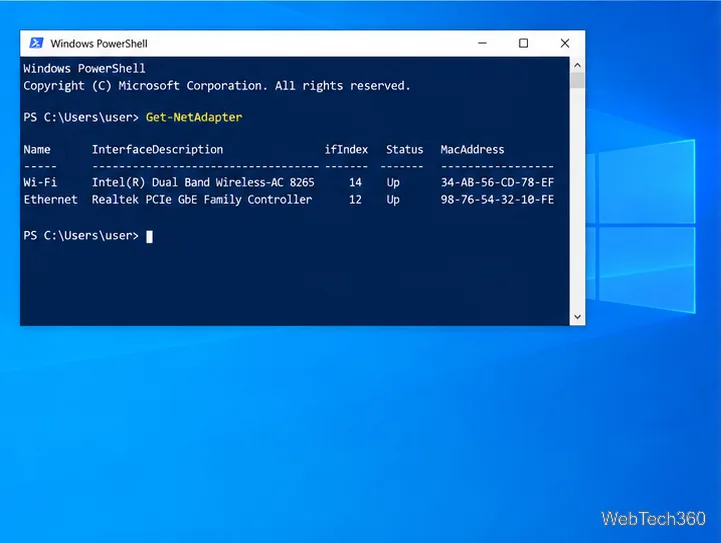
Run Get-NetAdapter.
Read the MacAddress column. Check Name and Status to identify the correct adapter.
To focus on physical network hardware, run Get-NetAdapter -Physical. If you want a compact list, use Get-NetAdapter | Format-Table Name, Status, MacAddress. Microsoft’s Get-NetAdapter reference describes the adapter properties and physical-adapter filter.
PowerShell lists adapter status beside each MAC address, helping you identify the active connection.
5. Use Control Panel
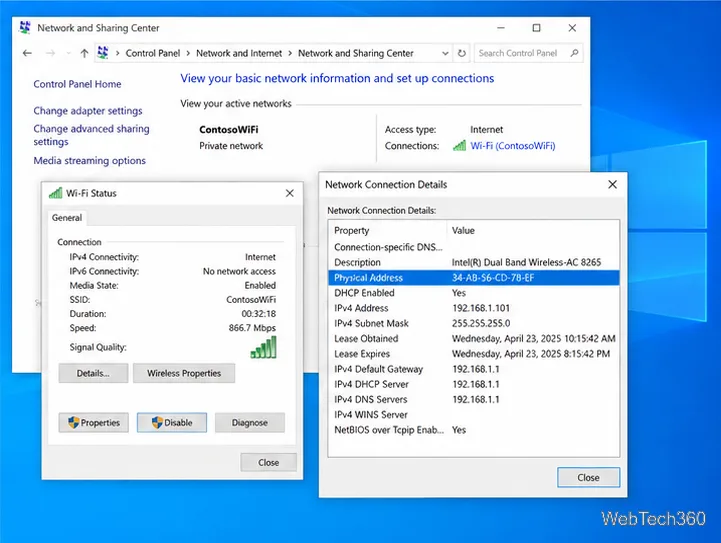
Press Windows key + R, type ncpa.cpl, and press Enter. This opens Network Connections.
Right-click the Wi-Fi or Ethernet connection you want and choose Status.
Select Details. Find Physical Address in the Network Connection Details list.
This route is useful if you prefer the older Windows networking dialogs. You can also reach the connection status from Network and Sharing Center. Confirm the connection name in the dialog before copying the address.
In Network Connection Details, Physical Address is the MAC address for the selected connection.
Quick checks before you copy the address
Several addresses are listed: choose the interface that matches your task—Wi-Fi for a wireless network, Ethernet for a cable, and so on.
The router does not recognize it: check whether random hardware addresses are enabled for that Wi-Fi network, then verify the address currently shown for that profile.
You need a physical adapter only: use Get-NetAdapter -Physical in PowerShell; virtual, VPN, and disconnected interfaces can otherwise make the list harder to read.
These steps still work on existing Windows 10 installations. Microsoft ended standard Windows 10 support on October 14, 2025; see its current Windows 10 support notice for update options.