How to Fix Snipping Tool Issues on Windows 11
Fix common Snipping Tool problems in Windows 11 with steps to test the shortcut, update or repair the app, reinstall it, and restore missing capture notifications.
If the Snipping Tool will not open, capture a blank screen, or seems to stop saving screenshots, start by identifying which part is failing. In Windows 11, the quickest checks are to launch the app from Start, try the screenshot shortcut, and confirm that the capture is reaching the app or clipboard. Then update or repair the app before moving on to a reinstall or Windows file repair.
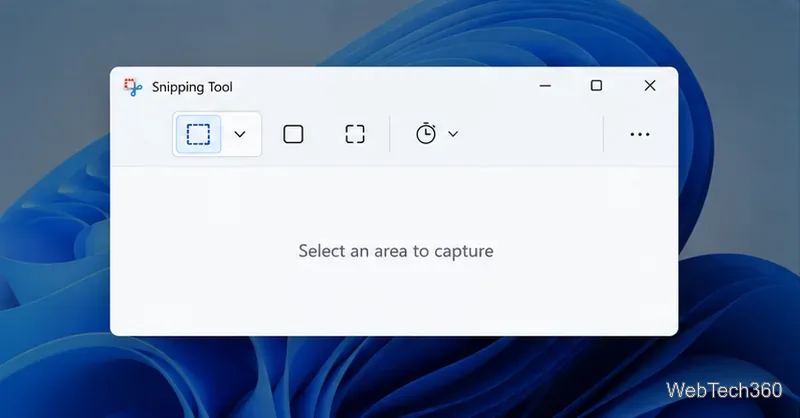
Press Windows + Shift + S to open the snipping overlay. You can also open Start, search for Snipping Tool, and select New in the app. If one route fails, test the other; that helps distinguish a keyboard shortcut problem from an app problem.
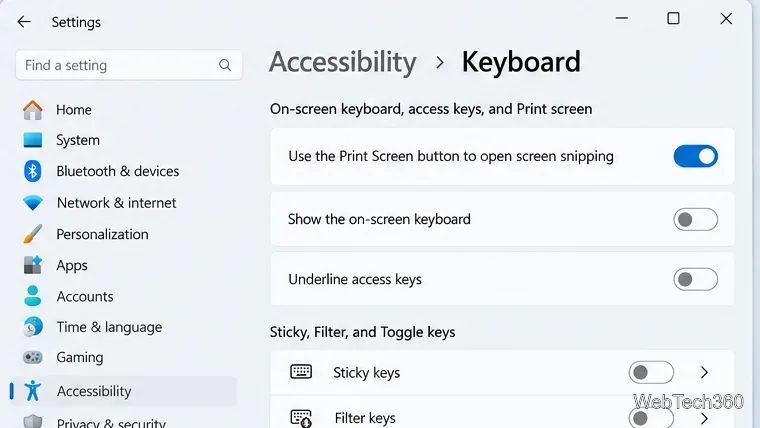
If the PrtSc key is the only control that fails, open Settings > Accessibility > Keyboard and turn on Use the Print Screen button to open screen snipping. Keyboard behavior can vary by device and setting. Microsoft lists Windows + Shift + S as the shortcut for selecting a screen region and copying it to the clipboard in its Windows keyboard shortcuts guide.
After you select an area, check the Snipping Tool window and try Ctrl + S to save. A captured snip is copied so you can also paste it with Ctrl + V into Paint or another image app. If the capture appears but you do not see a pop-up, troubleshoot notifications separately below.
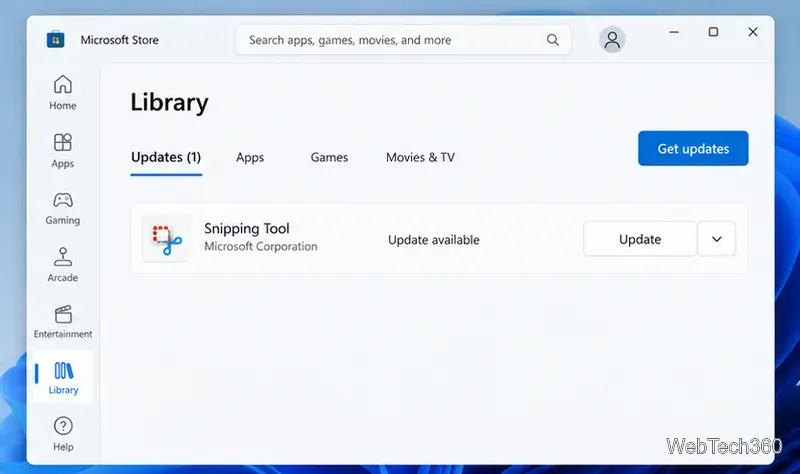
Restart Windows once, then check for pending updates. Snipping Tool is updated through Microsoft Store: open Store, choose Library, and select Get updates. If Snipping Tool is listed, install its update and try another capture. Microsoft’s Store update instructions explain how to check for app updates.
Windows can repair some installed apps without removing them. Go to Settings > Apps > Installed apps, find Snipping Tool, select its three-dot menu, and choose Advanced options. Select Repair first. This attempts to fix the app while keeping its data. If the issue remains, select Reset; Windows warns that resetting deletes the app’s data.
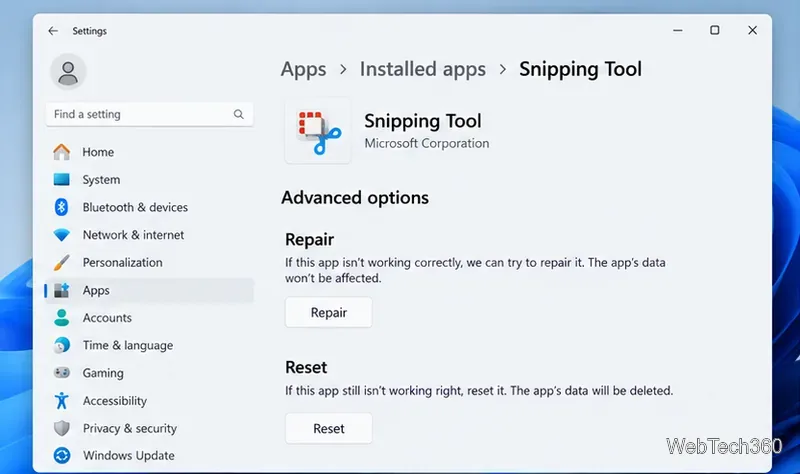
These are Microsoft’s recommended app-level options when they are available. See Repair apps and programs in Windows for the current Settings path.
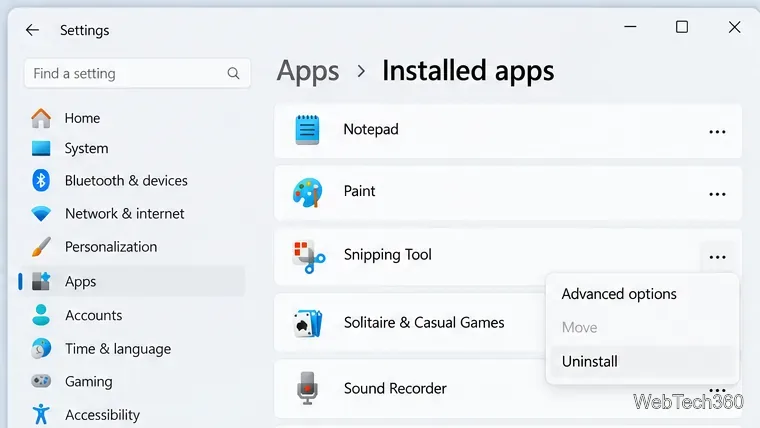
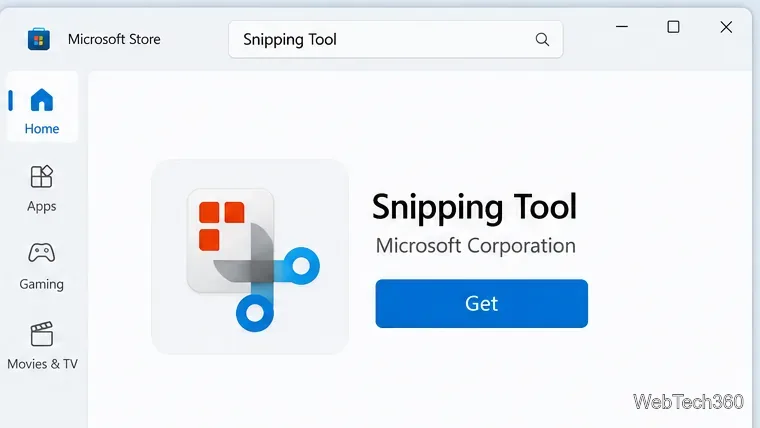
If the app is missing, will not launch after a reset, or still fails, reinstall it. In Settings > Apps > Installed apps, open the three-dot menu beside Snipping Tool, choose Uninstall, and confirm. Then reinstall the official app. If Microsoft Store offers the Snipping Tool listing published by Microsoft Corporation, select Get. Otherwise, follow Microsoft’s Snipping Tool reinstall instructions and use the installer that matches your PC. Avoid third-party download sites.
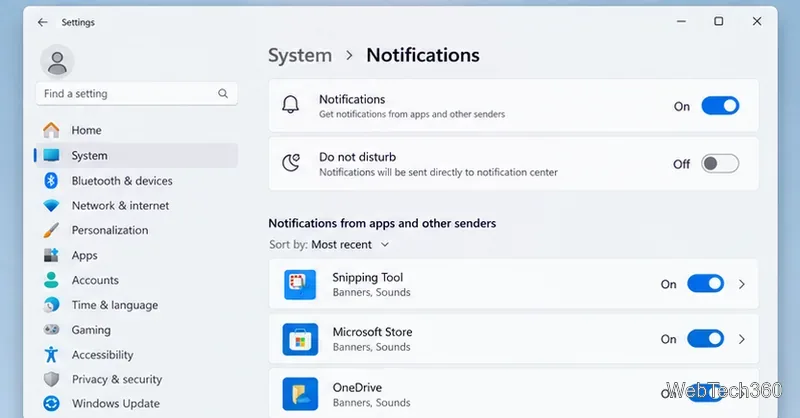
Do this only if a snip is captured but its notification banner does not appear. Open Settings > System > Notifications, make sure notifications are enabled, and confirm Snipping Tool is allowed to show banners. Turn off Do not disturb temporarily and check the notification center for a missed alert. Do not disturb can send notifications directly to the notification center; it does not repair a capture or prevent the shortcut from taking a snip. See Microsoft’s Windows notifications and Do not disturb guide.
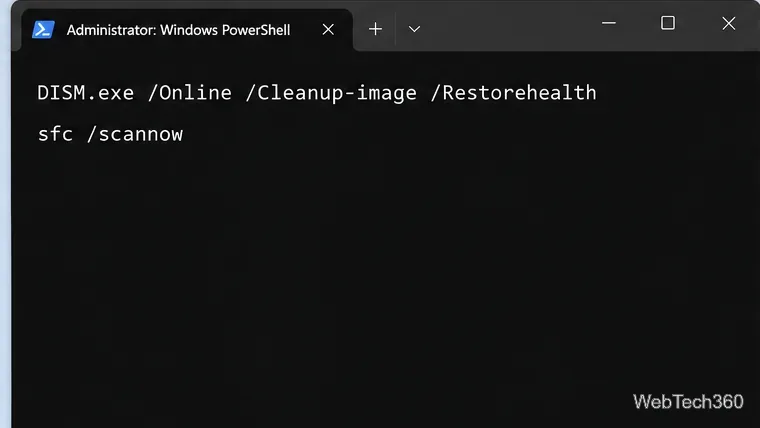
If Snipping Tool still crashes or will not start, run Microsoft’s built-in DISM and System File Checker tools from an administrator Command Prompt. Search for Command Prompt, right-click it, and choose Run as administrator. Run this command first and wait for it to finish:
DISM.exe /Online /Cleanup-image /Restorehealth
Then run:
sfc /scannow
Keep the window open until the scan completes, then restart Windows and test Snipping Tool again. Microsoft recommends running DISM before SFC because DISM can repair the files SFC uses. Follow the full System File Checker instructions if either command reports that it could not complete.
If the problem began after installing screen-capture, keyboard-remapping, overlay, or security software, a clean boot can help test whether another service or startup app is interfering. Microsoft’s clean boot instructions explain the full process. In brief, use System Configuration, hide all Microsoft services before disabling other services, and disable startup apps in Task Manager for the test. A clean boot temporarily changes startup behavior, so record what you disable and restore a normal startup afterward. If the Snipping Tool still fails after these checks, use the Microsoft Support or Get Help app to investigate a Windows-specific issue.
These steps focus on current Windows 11 settings and official repair paths. You do not need to change the system clock to an old date or edit a registry policy to troubleshoot an ordinary Snipping Tool failure.
Fix common Snipping Tool problems in Windows 11 with steps to test the shortcut, update or repair the app, reinstall it, and restore missing capture notifications.
Choose a color-capable printer, enable Word’s background-print setting, and check the preview so page colors, images, and graphics print as expected.
Learn how to use WinX DVD Ripper to convert a DVD you’re entitled to copy into an MP4 file, choose the right title and destination, and troubleshoot playback problems on Windows 10 or 11.
Troubleshoot OpenGL errors in Windows 10 by checking graphics drivers, repairing system files, reinstalling the affected app, and reviewing graphics settings.
Learn when to use net user, lusrmgr.msc, and net localgroup to view, create, disable, and manage local Windows accounts safely.
Resolve Windows Update error 0x800705b4 with practical checks for connectivity, update services, cached files, and damaged Windows system components.
Find words or phrases across multiple text files on Windows 10 with grepWin. Learn how to choose folders, filter file types, include subfolders, and read matches safely.
Capture your PC’s playback with FFmpeg on Windows 10. Enable Stereo Mix or use a loopback device, find its DirectShow name, and save clean audio.
Learn how to adjust Windows 10 mouse pointer speed, change pointer precision, and set hardware DPI with a supported gaming mouse or manufacturer app.
Learn what the legacy Edge blocker registry setting does, how to set it safely, and why it will not stop updates for Microsoft Edge already installed.