Home
» WINDOWS
»
How to Set a Default Printer in Windows 10 and Keep It From Changing
How to Set a Default Printer in Windows 10 and Keep It From Changing
To set a default printer in Windows 10, open Settings > Devices > Printers & scanners, turn off Let Windows manage my default printer, select your printer, and choose Manage > Set as default. When the printer is marked Default, Windows has saved your choice. If that button is missing, the automatic-management option is usually still on.
The steps below use the Windows 10 interface. Microsoft ended support for Windows 10 on October 14, 2025; the operating system still works, but Microsoft no longer provides regular free software and security updates. See Microsoft’s Windows 10 end-of-support notice.
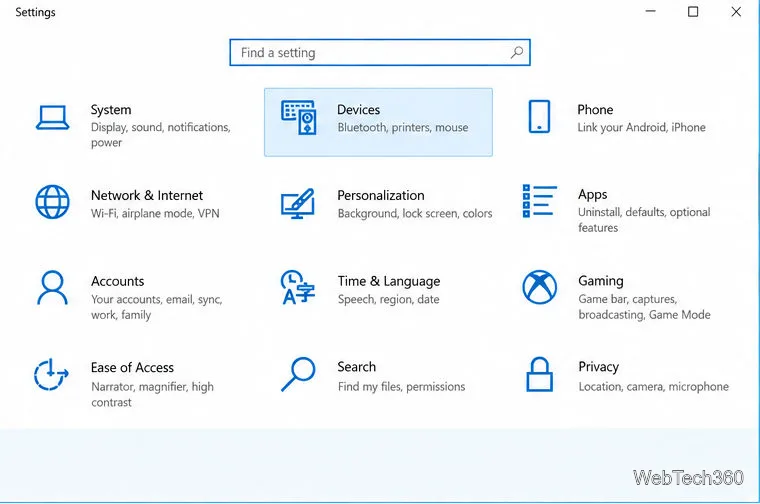
Open Settings and choose Devices to reach the printer controls.
Set a specific printer as the default
A default printer is Windows’ starting choice when an app opens its print dialog. You can still choose another printer for an individual job, but setting a default saves you from selecting the same device each time.
Open Settings. Press Windows key + I, then select Devices. You can also open Start and choose the gear-shaped Settings icon.
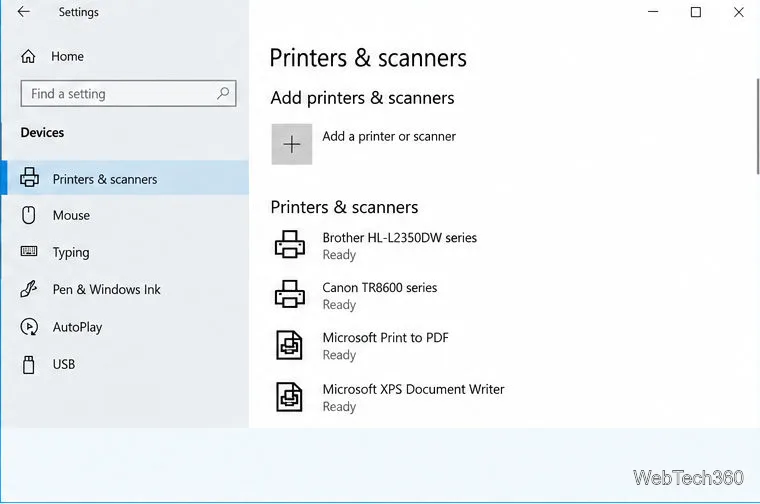
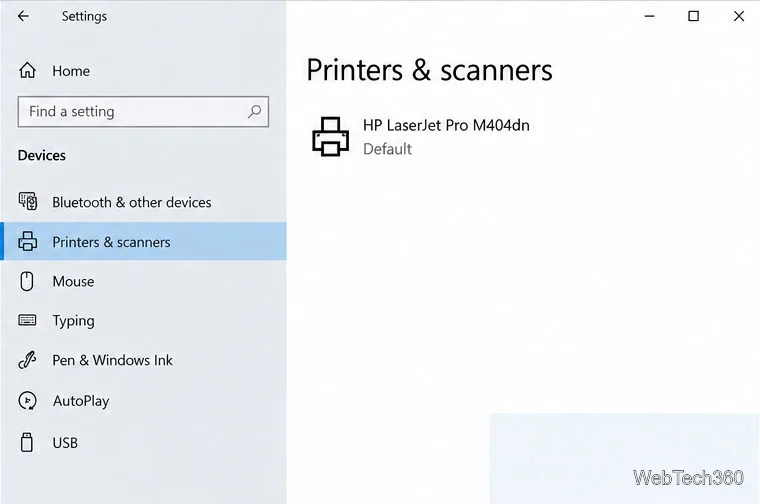
Open Printers & scanners. Select it in the left pane. The right pane lists printers Windows has installed, including virtual options such as Microsoft Print to PDF.
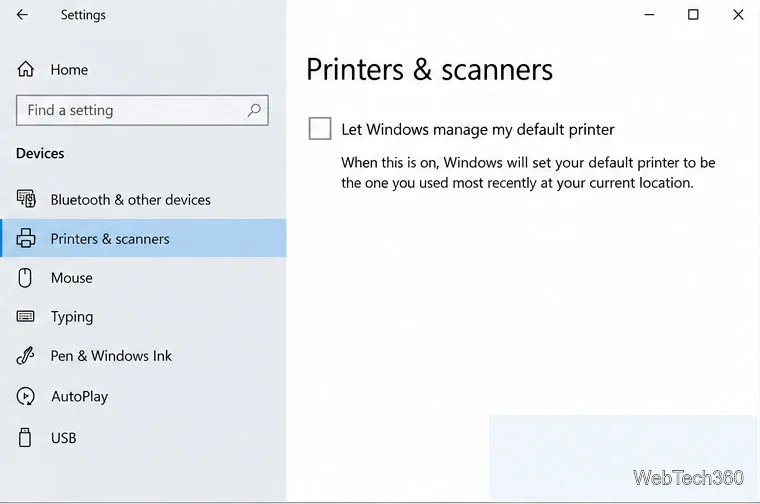
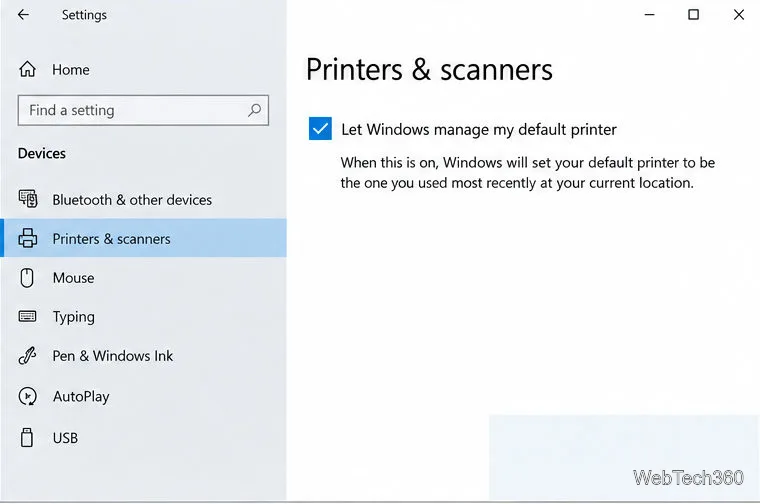
Turn off automatic printer management. Under the printer preferences, clear Let Windows manage my default printer. This step allows you to choose and keep a specific default. The checkbox is shown unchecked below.
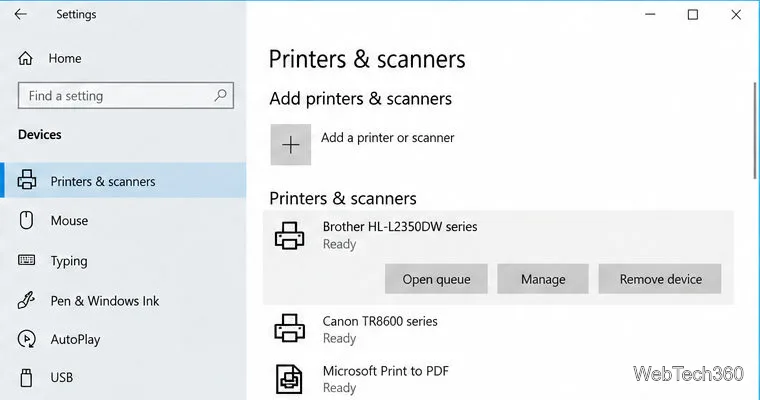
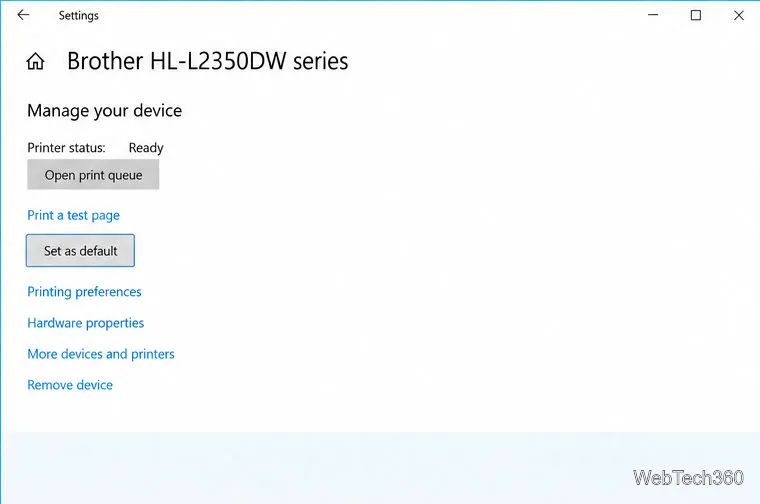
Select your printer. Click the device in the list, then choose Manage from its expanded options.
Set it as default. On the printer’s management page, select Set as default. The status beneath the printer name should change to Default.
Find the installed printer you want to make the default.Turn this option off before choosing a fixed default printer.Select the printer and open Manage.Choose Set as default on the printer management page.Confirm that Windows now marks your chosen printer as Default.
If you prefer the classic interface, many Windows 10 installations also expose Control Panel > Hardware and Sound > View devices and printers. You can right-click a printer there and choose Set as default printer. Menu availability can vary by driver; the Settings steps above are the current Microsoft-documented route. Microsoft’s default-printer guide also explains the manual and automatic options.
Let Windows use the last printer you used
If you move between locations with different printers, you may prefer Windows to select the most recently used printer instead of keeping one fixed choice. Return to Settings > Devices > Printers & scanners and turn on Let Windows manage my default printer.
Turn this option on to use the last printer you used as the default.
With this option enabled, Windows updates the default to the last printer used at the current location. On a mobile Windows device, the default may change to the last printer used at a new location. This is automatic behavior, not a fixed preference. To pin one printer again, turn the option off and repeat the manual steps above. The unchecked view shows the setting you need for a fixed default.
Fix common default-printer problems
“Set as default” is missing
First, check Let Windows manage my default printer. If it is on, turn it off, then select the printer again. Windows may show Manage before the Set as default control appears. Confirm that you selected a printer installed on this PC rather than an unrelated device entry.
Your printer does not appear
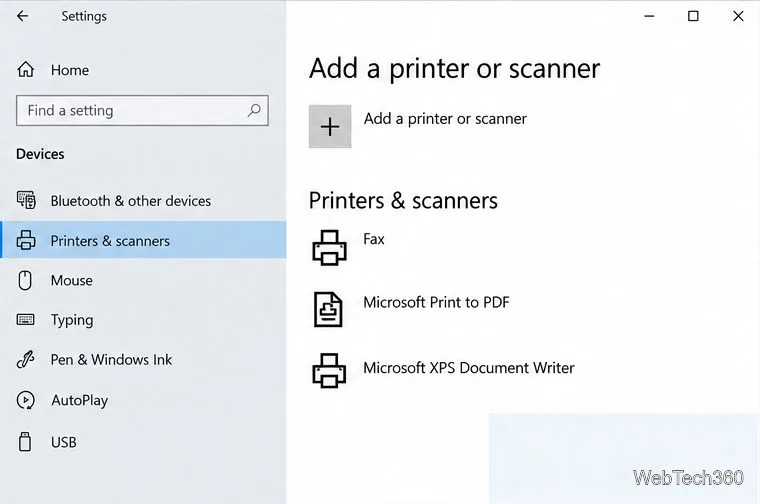
Select Add a printer or scanner at the top of the Printers & scanners page and wait while Windows searches. Choose the printer when it appears and follow the prompts. For a USB printer, check that the cable is connected and the device is powered on. For a Wi-Fi printer, make sure it is connected to the same network as the PC. Microsoft’s Add or install a printer in Windows instructions cover detection and setup.
Use Add a printer or scanner if the device is missing from the list.
The default is correct, but printing still fails
Check the printer name in the app’s print dialog before sending the job; an app can let you choose a different device for that print. If Windows cannot find the printer or reports it offline, restart the printer, check its cable or network connection, and try Microsoft’s printer connection troubleshooting steps. If the device is installed but still misbehaves, use Windows Update for a driver or get a compatible driver from the printer manufacturer; Microsoft explains the recommended printer-driver options.
For a fixed choice, leave Windows management off and confirm the printer’s status says Default. For automatic switching, leave the option on and expect Windows to follow the last printer you used.