Home
» WINDOWS
»
How to Turn On Screen Recording on Windows 10 or 11
How to Turn On Screen Recording on Windows 10 or 11
To turn on screen recording on Windows 10 or Windows 11, use Xbox Game Bar for a supported game or app. Windows 11 also includes Snipping Tool video capture for a selected screen area. Choose by what you need to show: Game Bar will not record the desktop or File Explorer.
Choose the right built-in recorder
Use Game Bar for an app or game; on Windows 11, choose Snipping Tool for a selected screen area.
Windows version
Built-in option
What it records
Windows 10
Xbox Game Bar
A compatible game or app
Windows 11
Xbox Game Bar or Snipping Tool
A compatible game or app, or a selected rectangular screen area
Game Bar is designed for capturing an active game or app. It may show a message that recording is unavailable if the desktop, File Explorer, or an unsupported window is selected. For those recordings, switch to Snipping Tool on Windows 11 or use a recorder that supports desktop capture.
Check that Xbox Game Bar is enabled
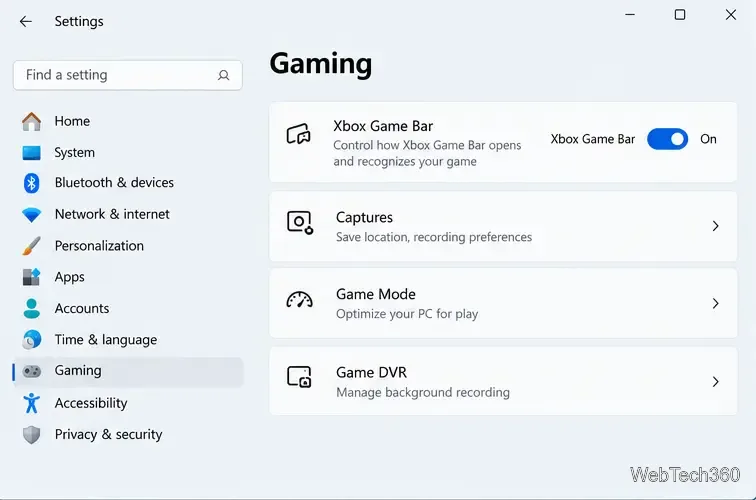
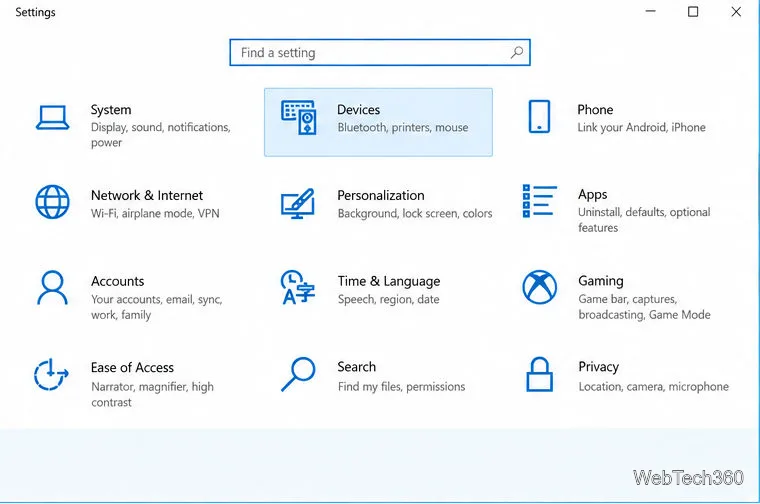
Press Windows + G while a game or app is open. If the Game Bar overlay appears, you can start recording. If it does not open, search the Start menu for Xbox Game Bar and launch it. You can also open Settings with Windows + I, search for “Xbox Game Bar,” and turn on the Game Bar setting if your Windows build shows one. On Windows 10, this control is usually under Settings > Gaming > Xbox Game Bar; labels and layout can vary by version.
Check the Xbox Game Bar switch in Windows Settings if the overlay is disabled.
Record an app or game with Xbox Game Bar
Open the game or app you want to capture, then click inside its window so it is active.
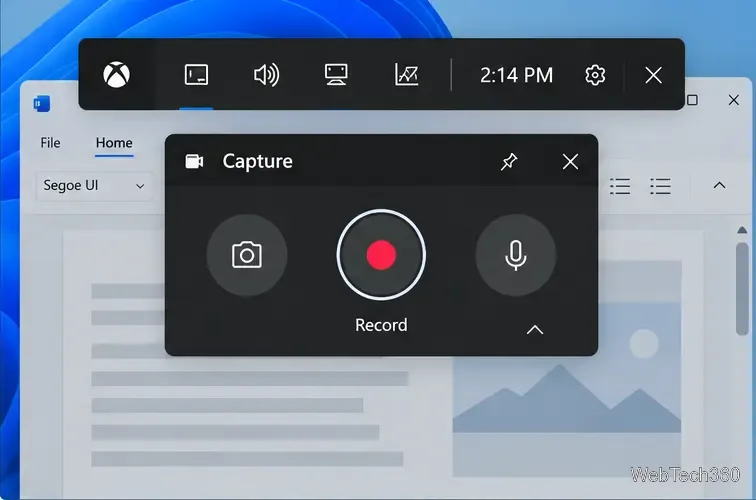
Press Windows + G to open Game Bar. If the Capture widget is not visible, select the Capture icon from the Game Bar toolbar.
Select the round Record button to begin. You can also start or stop recording with Windows + Alt + R. A recording indicator appears while the clip is being captured.
When you have the footage you need, select Stop in the recording indicator or press Windows + Alt + R again.
The Capture widget includes the recording button and microphone control.
To record your voice, turn on the Capture widget’s microphone or press Windows + Alt + M. For system sound, open Game Bar settings, go to Capturing, and choose All under audio options if available.
Record a screen area with Snipping Tool on Windows 11
For desktop actions, use Snipping Tool video recording on Windows 11. On Windows 10, Game Bar records compatible apps and games, not a selected desktop region.
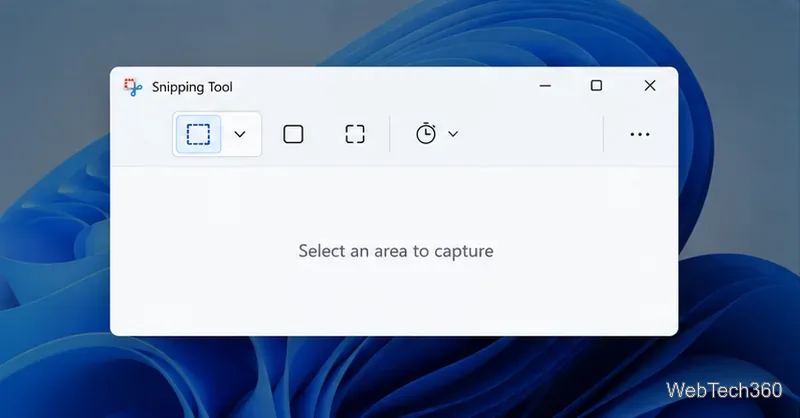
Open Snipping Tool from Start, or press Windows + Shift + R to open the video snipping overlay.
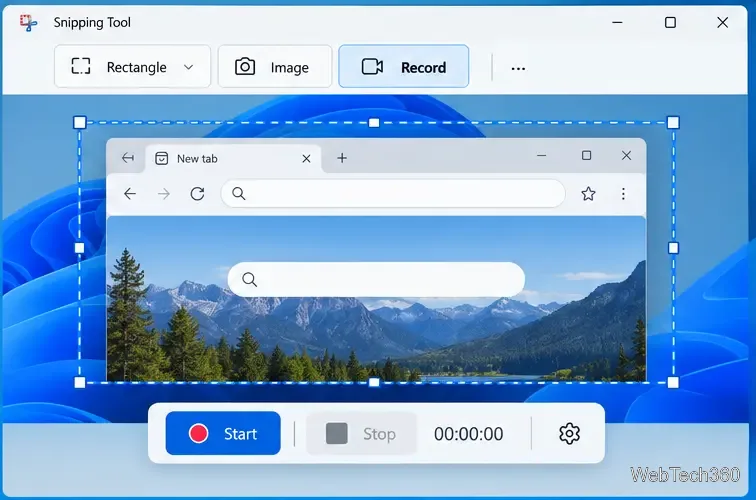
Select Record, then New. Drag to select the rectangular area you want in the video.
Select Start, complete the action you want to show, and select Stop when finished.
Review the clip, then save it from Snipping Tool. You can also choose Edit in Clipchamp if you want to continue editing.
Select the screen area first, then start the Snipping Tool recording.
Find your recording and adjust settings
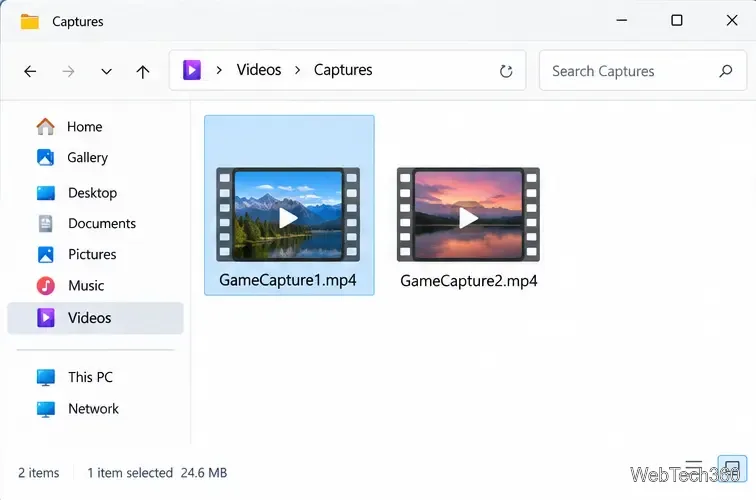
Xbox Game Bar saves video clips as MP4 files in Videos > Captures by default. Open File Explorer and go to that folder to play, rename, or share a clip. The folder can also be opened from Game Bar’s captures gallery.
Game Bar clips appear in the Captures folder under Videos by default.
To change Game Bar preferences, open Settings > Gaming > Captures or search Settings for “Captures.” Available options vary by Windows build and may include the save folder, recording length, frame rate, and audio. Check free disk space before a long session.
Quick fixes if screen recording will not start
Game Bar opens but Record is unavailable: select a game or app window first. Game Bar cannot capture the Windows desktop or File Explorer.
Windows + G does nothing: launch Xbox Game Bar from Start and check its setting in Windows Settings. If the app is missing, check Windows Update and Microsoft Store for app updates.
Your voice is missing: turn on the mic in the Capture widget or use Windows + Alt + M, then confirm the correct microphone is selected in Windows sound settings.
The clip has no system sound: review Game Bar’s Capturing audio option before recording and select the option that includes system audio.
Frequently asked questions
What is the shortcut to record a screen on Windows?
For a supported game or app, press Windows + Alt + R to start or stop Xbox Game Bar recording. Press Windows + G to open its controls. On Windows 11, Windows + Shift + R opens the Snipping Tool video capture overlay.
Can Xbox Game Bar record the whole desktop?
No. Game Bar captures a compatible active game or app, not the Windows desktop or File Explorer. On Windows 11, use Snipping Tool to select a screen area that includes the desktop actions you need.
Where does Windows save Game Bar screen recordings?
By default, Game Bar saves MP4 clips in Videos\Captures. If you changed the capture location, use Settings > Gaming > Captures or the Game Bar gallery to find the current folder.