How to Access a Network Location in Command Prompt on Windows 10

Use pushd to open a UNC network path in Windows 10 Command Prompt, run commands in the shared folder, and return with popd.
If your monitor shows No Signal when it is connected to a Windows 10 PC through DisplayPort, start with the physical connection and input source, then check Windows display settings. In many cases, the fix is as simple as selecting DisplayPort on the monitor, reseating the cable, or pressing Windows + P and choosing Extend or Second screen only.
If that does not work, use the steps below in order. Microsoft’s current guidance for external-monitor problems also recommends checking cables and ports, trying another cable, detecting the display in Settings, and repairing the graphics driver when necessary.
Note: Microsoft ended standard support for Windows 10 on October 14, 2025. Windows 10 PCs still run, but Microsoft recommends moving to a supported Windows version or using an eligible Extended Security Updates option. See Microsoft’s Windows 10 end-of-support information.
Open the monitor’s on-screen menu and make sure its input source is set to DisplayPort. Many monitors can switch automatically, but a manually selected HDMI or USB-C input will leave the screen showing No Signal even when the DisplayPort cable is connected correctly.
Next, push the DisplayPort connector firmly into both the PC and the monitor. If the PC has more than one DisplayPort output, try another one. If you are using a dock, hub, dongle, or adapter, temporarily connect the monitor directly to the PC when possible; Microsoft specifically recommends disconnecting accessories while isolating external-display problems.
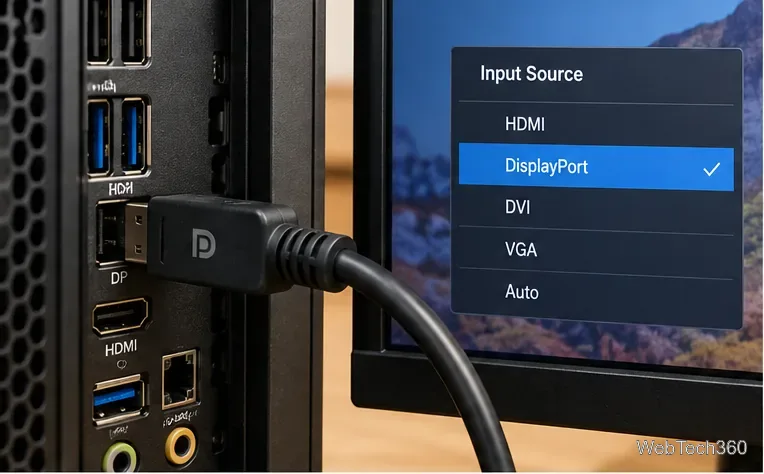
If you have a spare cable, test it. A damaged or poor-quality cable can interrupt the video link. VESA also recommends choosing properly tested DisplayPort cables; see its DisplayPort cable guidance.
Turn off the monitor and PC, disconnect the DisplayPort cable, reconnect it firmly, then power the monitor and PC back on. If the connection runs through a dock or adapter, bypass that device for this test. You can also test the monitor on another computer, or connect a different monitor to the same PC, to determine whether the problem follows the monitor, cable, or computer.
On a desktop with a separate graphics card, make sure you are using the DisplayPort connector on the graphics card if that is where the active display outputs are provided.
Windows can be connected to a monitor but still be set to show the desktop only on the main screen.
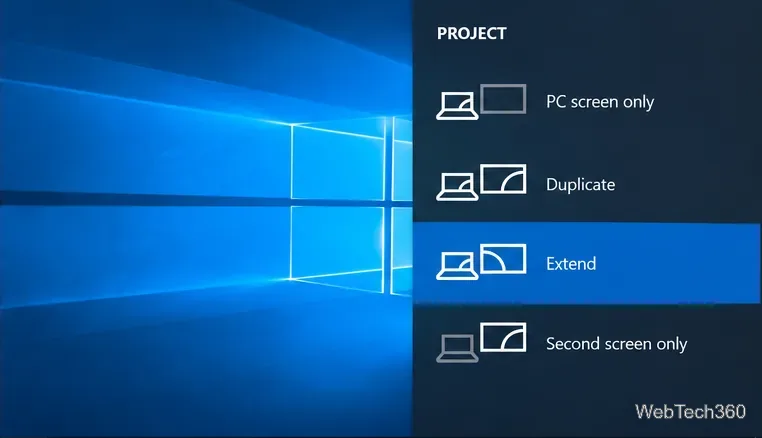
Microsoft documents these projection modes in its multiple-monitor setup guide.
If the monitor is still blank, Windows may not have enumerated it correctly.
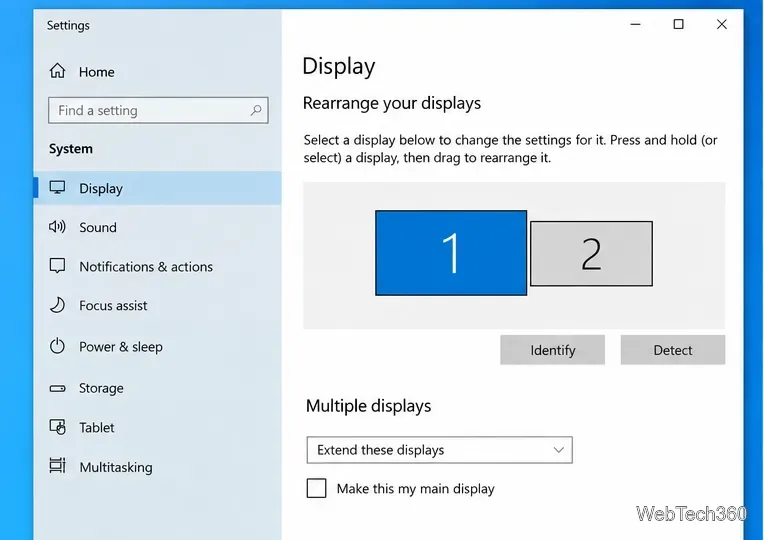
If Windows finds the display, use the same Display page to arrange the screens and select the appropriate multiple-display mode.
If the DisplayPort connection used to work and suddenly stopped, try resetting the graphics driver by pressing Windows + Ctrl + Shift + B. The screen may briefly blink or go dark while the driver resets.
If the issue began after a graphics-driver update, open Device Manager, expand Display adapters, right-click your graphics adapter, choose Properties, open the Driver tab, and use Roll Back Driver when that option is available.
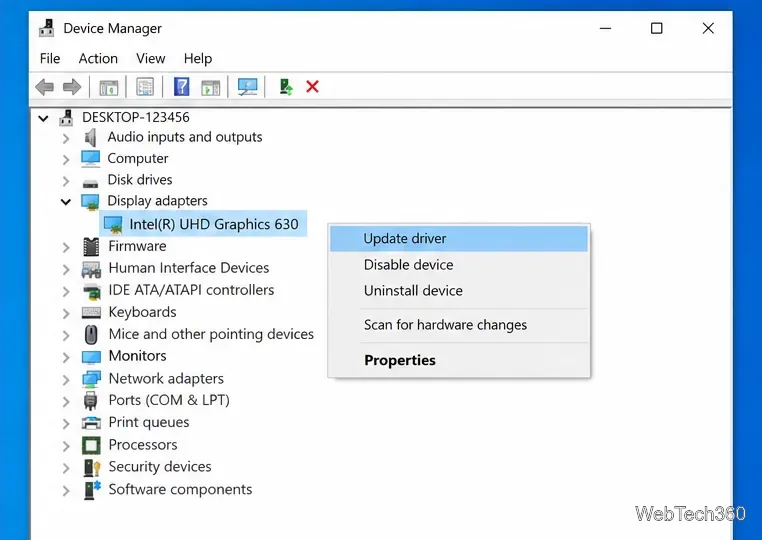
If rollback is unavailable, Microsoft’s external-monitor troubleshooting guide explains how to reinstall the display driver. For a desktop or gaming PC, you can also obtain the appropriate driver from the PC or graphics-card manufacturer.
| Symptom | Best next check |
|---|---|
| Monitor immediately says No Signal | Confirm the monitor is on the DisplayPort input and reseat the cable. |
| Monitor works through HDMI but not DisplayPort | Try another DisplayPort cable and another DP output on the PC. |
| Windows sees only one display | Use Windows + P, then Settings > System > Display > Detect. |
| Problem started after an update | Reset the graphics driver, then consider rolling back or reinstalling it. |
| Connection works only without a dock or adapter | Troubleshoot or replace the dock, adapter, or its cable. |
No. A No Signal message only means the monitor is not receiving a usable video signal on the selected input. The cause can be the selected input, cable, adapter, PC port, Windows projection mode, or graphics driver. If the monitor also fails with a known-good cable and a second computer, then the monitor or its DisplayPort input becomes a stronger suspect.
Use pushd to open a UNC network path in Windows 10 Command Prompt, run commands in the shared folder, and return with popd.
Learn how to install a Rainmeter skin from an INI file by placing it in the right Skins folder, preserving its resources, refreshing Rainmeter, and loading it in Manage.
Open one folder in its own File Explorer window with Shift or the context menu, or change Folder Options to make every folder open separately.
Pin a frequently used Control Panel applet, such as Power Options or Sound, to the Windows 10 Start menu for one-click access.
Choose a supported Windows 10 hotkey for switching input languages, assign shortcuts to individual layouts, or disable an accidental shortcut.
Move a Windows 10 app to the display you want, use its game monitor setting, and handle full-screen apps with a practical primary-monitor workaround.
Use a transparent PNG and a Rainmeter skin to keep an image watermark above windows, adjust its transparency, and make it click-through on Windows 10.
Convert stereo audio to mono on Windows 10 with Audacity. Mix both channels into one mono track, export a new file, and verify the channel count.
Use Windows 10 Clipboard history to save recent text and images, paste an earlier clip with Windows key + V, and manage sync, pinned items, and privacy.
Learn how to zoom in on a video in Windows 10 with VLC’s Interactive Zoom, or use Windows Magnifier when the clip is playing in another app.








