How to Fix Lines on a Monitor Screen in Windows 10

Use a screenshot test, cable and port checks, monitor diagnostics, display settings, and driver rollback to pinpoint lines on a Windows 10 monitor.
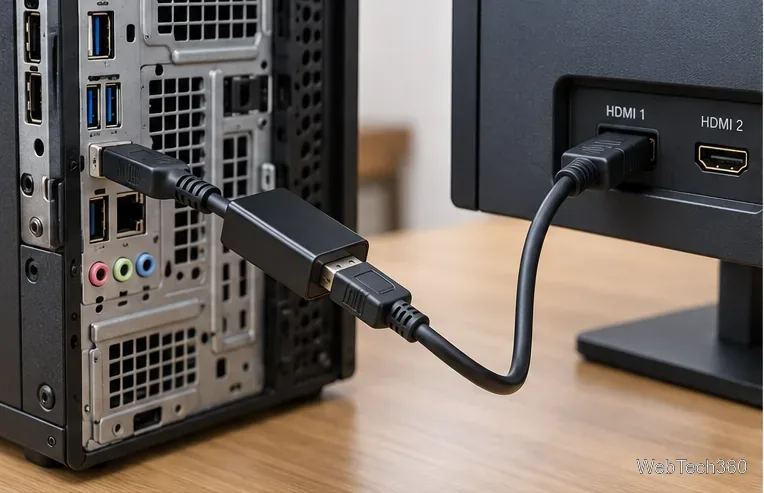
If your DisplayPort-to-HDMI adapter is not working or the monitor says “No Signal,” start with the connection direction: the computer or dock should provide the DisplayPort output, and the monitor or TV should receive the signal through an HDMI input. Many video adapters are one-way devices, so an HDMI-to-DisplayPort converter cannot usually be used in reverse.
After confirming the direction, select the correct HDMI input on the display, reconnect the cable and adapter, and have Windows detect the monitor again. If that does not help, test the cable and adapter separately and confirm that the adapter supports your source, resolution, and refresh rate.
Trace the connection from beginning to end. For the setup covered here, it should be DisplayPort source → DisplayPort-to-HDMI adapter → HDMI cable → HDMI display. If the product is labeled for HDMI-to-DisplayPort instead, it is a different conversion path and may require active electronics.
Push every connector in fully. If the DisplayPort plug has a locking latch, release it before unplugging rather than pulling on the cable. Also make sure the cable is connected to a video output on the computer, not to an unrelated port that only looks similar.
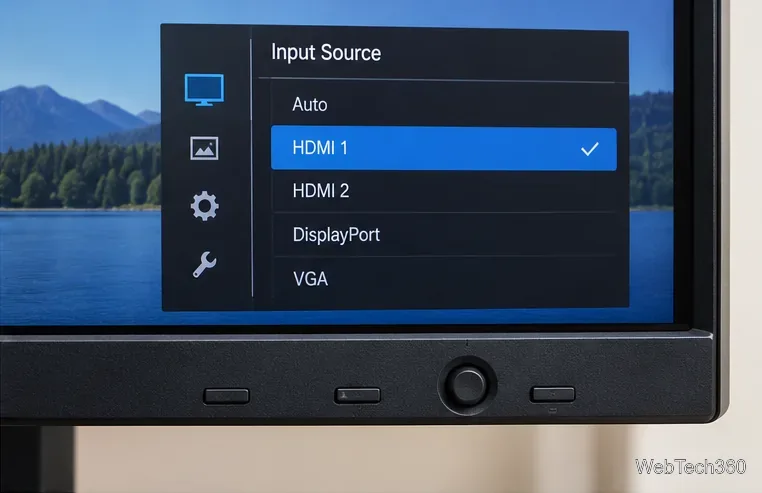
A monitor can be connected correctly and still show no picture if it is listening to another input. Open the display’s on-screen menu using its physical buttons or joystick and choose the HDMI port you actually used, such as HDMI 1 or HDMI 2. If automatic input switching is unreliable, select the input manually.
Disconnect the adapter and HDMI cable, shut down the computer, and turn the monitor off. Reconnect the DisplayPort adapter firmly, attach the HDMI cable, turn the monitor on, and then start the computer. This can restore the display handshake when a hot-plug connection was not detected correctly.
If the setup includes a dock, KVM, extender, or additional dongle, remove it temporarily and connect as directly as possible. Microsoft specifically recommends disconnecting accessories when troubleshooting an external monitor because docks and adapters can introduce another failure point.
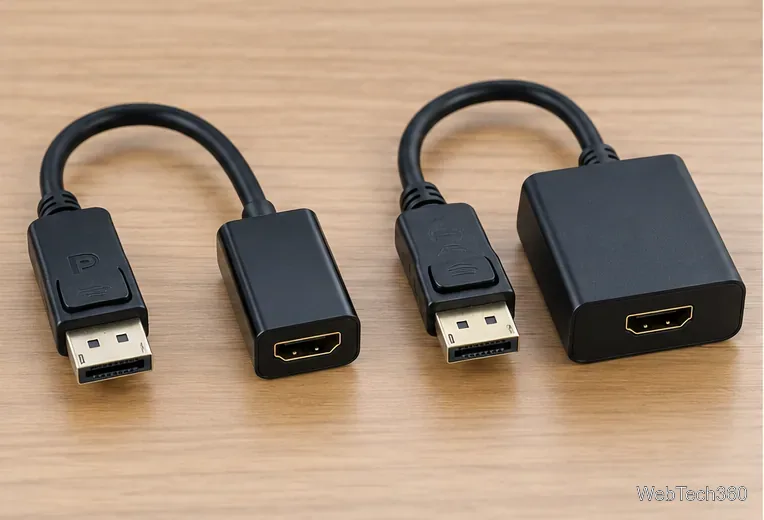
Not every DisplayPort source handles HDMI conversion the same way. A passive DisplayPort-to-HDMI adapter relies on a source that supports Dual-Mode DisplayPort, commonly called DP++. An active adapter performs the conversion inside the adapter and can work with DisplayPort sources that do not provide a DP++ HDMI-compatible signal.
Do not rely only on the symbol printed next to the port; check the computer, graphics card, or dock specifications and the adapter’s own compatibility list. Also verify its stated maximum resolution and refresh rate. An adapter that works at 1080p may not necessarily support the 4K or high-refresh mode you are trying to use.
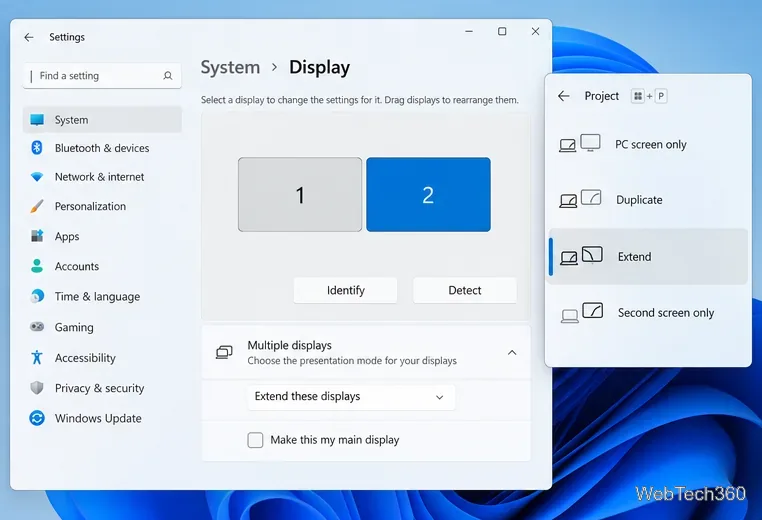
On Windows 11 or Windows 10, press Windows + P and choose Duplicate or Extend. You can also open Settings > System > Display, expand Multiple displays, and choose Detect if the second screen is missing.
If a previously working display suddenly went blank, Microsoft also suggests pressing Windows + Ctrl + Shift + B to reset the graphics driver, then restarting the PC if necessary.
Replace one component at a time. Try another HDMI cable, another HDMI input on the monitor, and another DisplayPort output on the computer if one is available. Test the monitor with a different source, and test the adapter with another compatible display. Microsoft recommends this kind of swap testing because it quickly separates a bad cable or monitor from a PC-side problem.
If Windows detects the display but it stays blank, flickers, or drops out, temporarily choose a lower resolution or refresh rate that the monitor supports. Then check the adapter’s published limits before raising the setting again.
Install current Windows updates and the graphics driver recommended by your PC or GPU manufacturer. If the problem began immediately after a driver update, Microsoft documents rolling the display driver back in Device Manager. Reinstalling the display driver is another option when the physical connection has already been ruled out.
Replace the adapter when the same computer port, HDMI cable, and monitor work with another known-good adapter, or when your current passive adapter is incompatible with the DisplayPort source. A replacement should explicitly support DisplayPort output to HDMI input and the resolution, refresh rate, HDR, and audio features you need.
For additional guidance, see Microsoft’s external monitor troubleshooting guide and multiple-monitor setup instructions. VESA’s DisplayPort connection guidance explains DP++ interoperability with HDMI, while StarTech’s active-versus-passive DisplayPort adapter reference describes when each adapter type is used.
Use a screenshot test, cable and port checks, monitor diagnostics, display settings, and driver rollback to pinpoint lines on a Windows 10 monitor.
Show two other time zones beside your Windows 10 clock. Set up each additional clock, give it a clear label, and find it in the taskbar calendar.
Find the File Explorer extension that delays right-click menus in Windows 10, test it safely with ShellExView, and restore any menu features you still need.
Stop Windows 10 from powering down a specific network adapter or USB device with plan-level settings and Device Manager controls, plus tips to avoid excess battery drain.
Check whether Windows 10 uses a digital license or product key, find a firmware-stored OEM key, and save license details securely for a reinstall.
Identify a Windows 10 Task Manager process by checking its executable path, file properties, publisher, linked services, and a Microsoft Defender scan.
Create a searchable Windows 10 folder inventory with PowerShell. Save every file and subfolder path as plain text or export details to a sortable CSV.
Add a custom reminder, quote, or label to your Windows 10 desktop with a Rainmeter text skin. Create the INI file, load it, then adjust its font and position.
Use Bluetooth Swift Pair on Windows 10 to pair a compatible accessory from a notification, with setup steps and fixes when the prompt does not appear.
Learn what common laptop function key symbols mean, how Fn and Fn Lock affect them, and how to confirm the right shortcut for your Windows 10 laptop model.








