How to Open a Linux Shell in a Folder on Windows 10

Open a Linux shell in any Windows 10 folder with File Explorer, PowerShell, and WSL. Check the Linux path and fix common setup issues.
A file system error in Windows 10 can appear when you open a photo or document, start an app, or run an executable. The wording sounds like a disk failure, but the cause can also be a damaged app, corrupted Windows components, malware, or a software conflict. If the error affects only one app, repair that app first. If it affects several apps or files, move on to the system and disk checks below.
Before changing recovery settings, back up important files and write down the exact error code. Restart the PC once, then try the same file or app again.
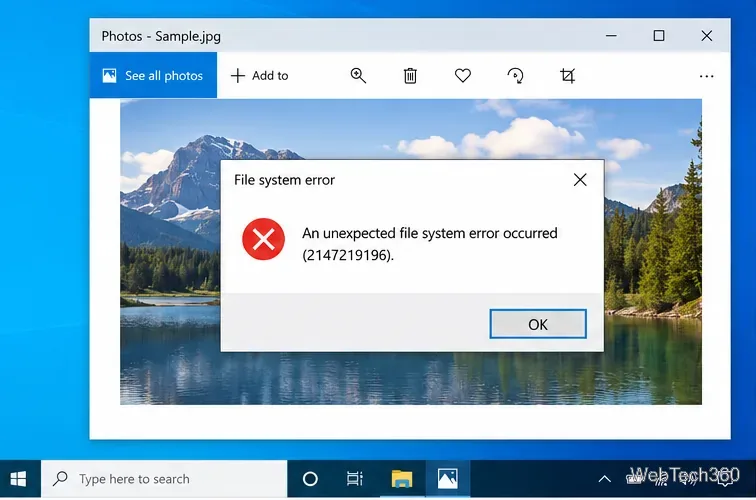
Windows 10 support note: Microsoft ended standard support for Windows 10 on October 14, 2025. The operating system still runs, but normal free security updates ended for most editions. If your PC is eligible, use Extended Security Updates (ESU) while you plan a move to a supported Windows version. See Microsoft's Windows 10 end-of-support guidance.
If the error appears only in Photos, Movies & TV, Calculator, or another app, fix the app before touching the disk. In Windows 10, open Settings > Apps > Apps & features, select the app, choose Advanced options, then select Repair. If Repair does not help, use Reset; this can remove that app's local data or settings. Microsoft documents these options in Repair apps and programs in Windows.
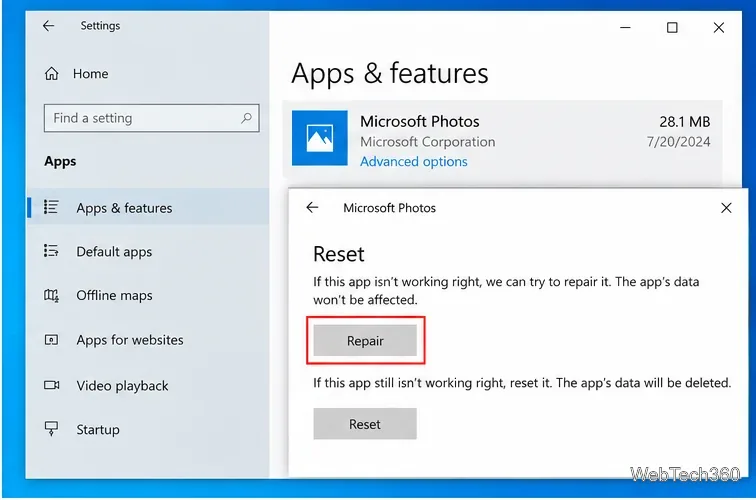
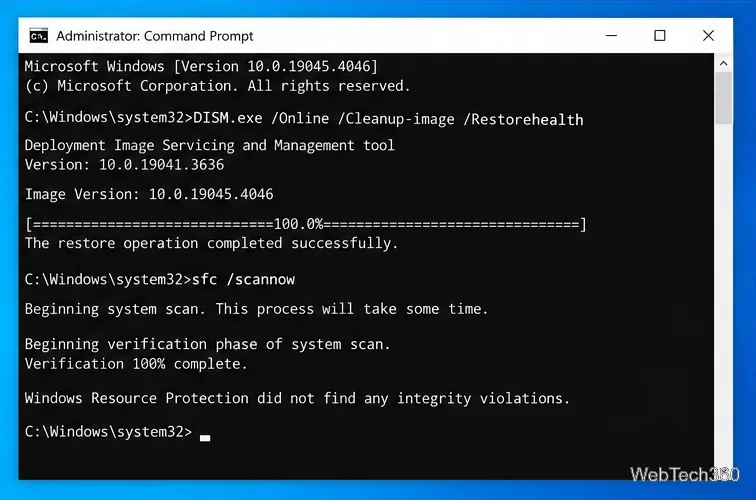
Corrupted Windows components can trigger errors across multiple apps. Open Command Prompt as administrator and run these commands in order:
DISM.exe /Online /Cleanup-Image /RestoreHealth
sfc /scannow
Let each command finish before closing the window. Microsoft recommends running DISM before SFC because DISM repairs the component source that SFC may need. See the official DISM and System File Checker instructions.
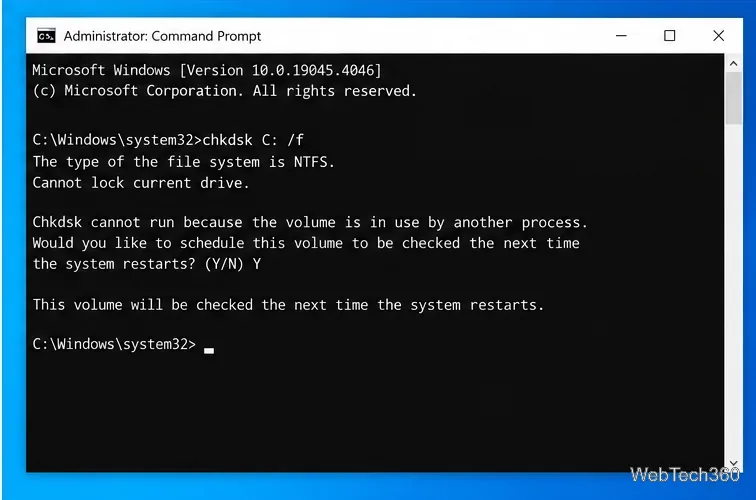
If files are unreadable, the PC reports disk errors, or the problem affects many files on the same drive, run chkdsk C: /f from an elevated Command Prompt. Replace C: if Windows is installed elsewhere. If the drive is in use, type Y when asked to schedule the check, then restart. The /f switch fixes logical file-system errors; /r also searches for bad sectors and can take much longer. Microsoft explains the switches in the CHKDSK reference.
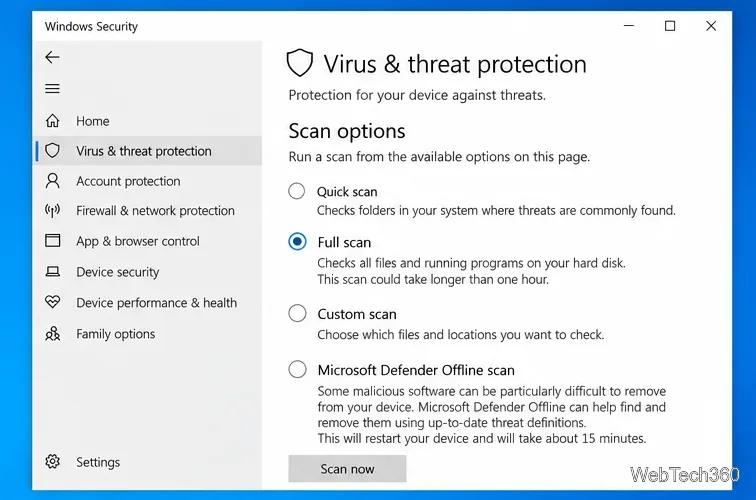
Open Windows Security > Virus & threat protection > Scan options. Start with a Quick scan or Full scan. If you suspect persistent malware, choose Microsoft Defender Offline scan; Windows restarts and scans before the normal desktop loads. Save open work first. Microsoft describes the choices in Virus & threat protection in Windows Security.
Go to Settings > Update & Security > Windows Update and install updates that are offered to your device. Also open Microsoft Store and update the affected Store app. On Windows 10 systems enrolled in ESU or still covered by an applicable servicing channel, current updates can fix known reliability and security problems. Restart after updating and test again.
Press Win + R, enter msconfig, open the Services tab, check Hide all Microsoft services, and then choose Disable all. On the Startup tab, open Task Manager and disable enabled startup items. Restart and test the problem. If it disappears, re-enable items in groups to find the conflict. Follow Microsoft's clean-boot procedure; do not disable Microsoft services indiscriminately.

If normal startup is too unstable to troubleshoot, use Windows Startup Settings to enter Safe Mode and repeat the repair steps there.
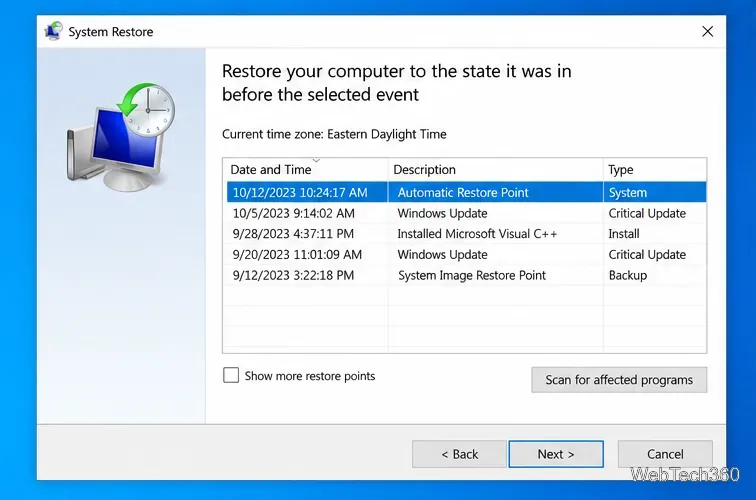
System Restore can roll back system files, drivers, registry settings, and installed programs to an earlier restore point without deleting your personal documents. Search for Recovery in Control Panel, choose Open System Restore, select a restore point from before the error began, and review affected programs before continuing. Microsoft includes System Restore in its Windows recovery options.
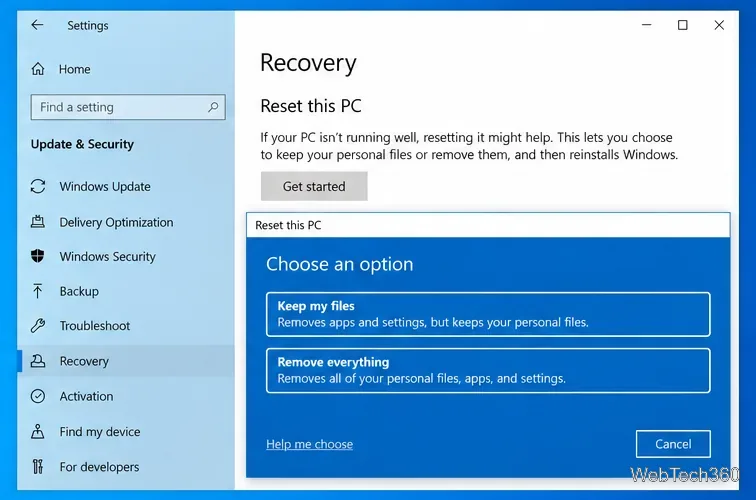
If the error remains system-wide after the checks above, open Settings > Update & Security > Recovery > Reset this PC. The Keep my files option reinstalls Windows while preserving personal files, but it removes apps and settings. Back up first, and make sure you have the BitLocker recovery key if device encryption is enabled. See Microsoft's Reset your PC guide.
Do not use registry cleaners or blindly copy registry hives from Windows\System32\config\RegBack. Microsoft stopped automatically backing up the registry to RegBack starting with Windows 10 version 1803, so those files may be empty unless periodic backup was explicitly enabled. Microsoft recommends System Restore for registry-hive recovery; see the RegBack behavior documentation.
For most cases, the best order is: repair the affected app, run DISM and SFC, use CHKDSK only when disk symptoms point to the volume, then try malware scanning and startup isolation. Reserve System Restore or Reset this PC for problems that continue across multiple apps and files.
Open a Linux shell in any Windows 10 folder with File Explorer, PowerShell, and WSL. Check the Linux path and fix common setup issues.
Use a screenshot test, cable and port checks, monitor diagnostics, display settings, and driver rollback to pinpoint lines on a Windows 10 monitor.
Show two other time zones beside your Windows 10 clock. Set up each additional clock, give it a clear label, and find it in the taskbar calendar.
Find the File Explorer extension that delays right-click menus in Windows 10, test it safely with ShellExView, and restore any menu features you still need.
Stop Windows 10 from powering down a specific network adapter or USB device with plan-level settings and Device Manager controls, plus tips to avoid excess battery drain.
Check whether Windows 10 uses a digital license or product key, find a firmware-stored OEM key, and save license details securely for a reinstall.
Identify a Windows 10 Task Manager process by checking its executable path, file properties, publisher, linked services, and a Microsoft Defender scan.
Create a searchable Windows 10 folder inventory with PowerShell. Save every file and subfolder path as plain text or export details to a sortable CSV.
Add a custom reminder, quote, or label to your Windows 10 desktop with a Rainmeter text skin. Create the INI file, load it, then adjust its font and position.
Use Bluetooth Swift Pair on Windows 10 to pair a compatible accessory from a notification, with setup steps and fixes when the prompt does not appear.








