How to Create a List of All Items in a Folder on Windows 10

Create a searchable Windows 10 folder inventory with PowerShell. Save every file and subfolder path as plain text or export details to a sortable CSV.
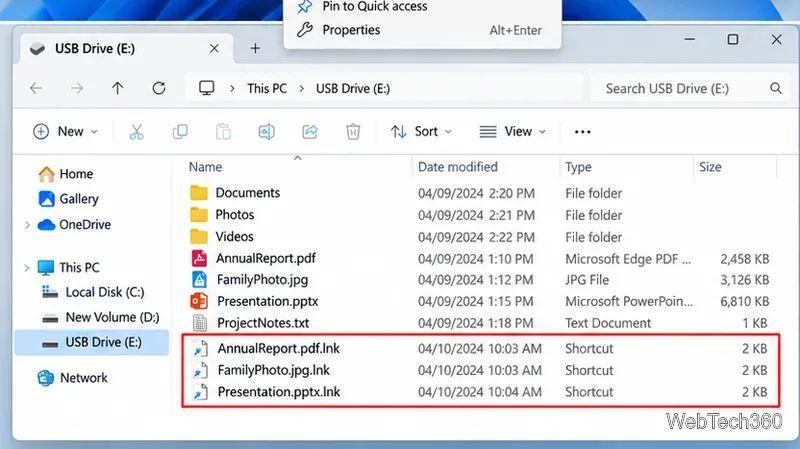
If the files on a USB flash drive suddenly appear as shortcuts, do not open the .lnk files. A common type of USB malware hides the original files or folders and replaces what you see with shortcuts that can launch malicious code. In many cases, the original data is still on the drive and can be recovered.
The safest order is: scan the computer and USB drive, restore hidden file attributes, copy only the recovered data you trust, scan it again, and then format the USB drive. The steps below work with current Windows 11 and Windows 10 tools.
Start by treating both the flash drive and the computer as potentially exposed. Open Windows Security > Virus & threat protection, check for current protection updates, and run a scan. To target the USB drive, use Scan options > Custom scan and choose the removable drive. Windows can also offer Scan with Microsoft Defender when you right-click a file, folder, or drive.
Microsoft documents on-demand scanning in Windows Security. If threats are found, let Windows Security quarantine or remove them before continuing. Then run a full scan of the PC if you had already clicked one of the suspicious shortcuts.
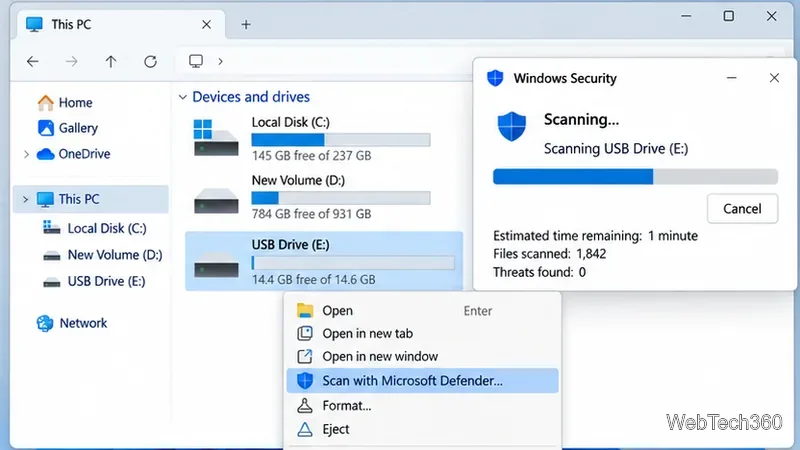
After the malware scan is clean, check whether the original folders are simply hidden. In File Explorer, you can choose View > Show > Hidden items. Microsoft lists that path in its current File Explorer guidance.
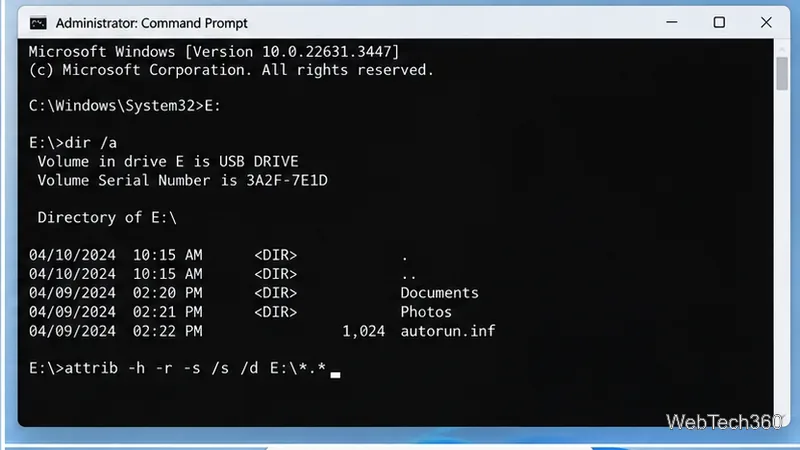
If the files still do not appear normally, use the built-in attrib command. First confirm the USB drive letter in This PC. Then open Command Prompt. Replace E: below with the actual flash-drive letter:
dir /a E:attrib -h -s -r /s /d E:\*.*The command clears the Hidden, System, and Read-only attributes and applies the change through subfolders. Those switches are documented in Microsoft's attrib command reference. Do not run the command on the wrong drive letter.
Return to the USB drive in File Explorer. You may now see both the real folders or documents and the unwanted shortcut files. Do not copy the .lnk shortcuts as part of your recovery. Also avoid unknown executables or scripts such as .exe, .cmd, .bat, .vbs, .js, and .scr unless you know exactly what they are.
Create a temporary recovery folder on the internal drive and copy only your expected documents, photos, videos, and other personal data into it. Scan that recovery folder with Windows Security again before opening the files. If a file is detected, leave it quarantined rather than trying to force it open.
An autorun.inf file can exist on removable media, but deleting that one file is not a complete malware-removal method. Focus on the security scan and on recovering clean data instead of assuming the infection is fixed because one autorun file is gone.
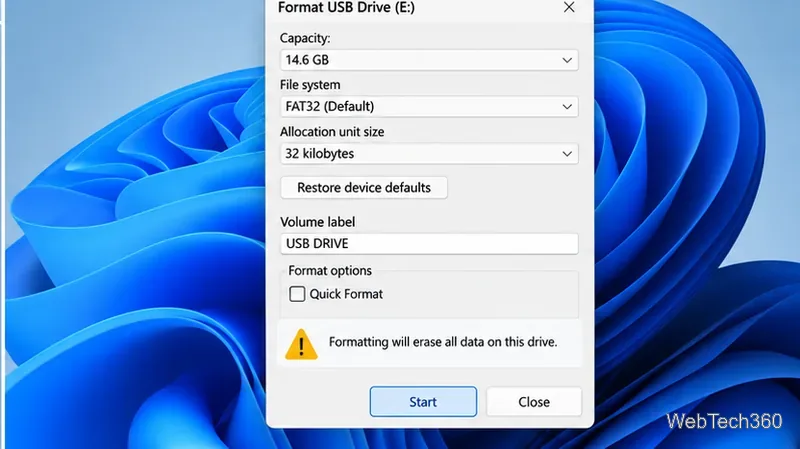
Once the files you need are backed up and scanned, formatting the USB drive is the cleanest way to remove the remaining shortcut files and rebuild the file system. In File Explorer > This PC, right-click the USB drive, choose Format, verify that you selected the correct drive, and start the format.
Formatting erases the data on that drive, so do this only after recovery. Microsoft's format documentation explains that a quick format removes the file table but does not perform a sector-by-sector check for bad areas. For routine cleanup after a malware incident, a quick format is generally sufficient once the drive has been scanned; use a full format if you also suspect media or bad-sector problems.
If the drive shows used space but the files remain missing after a clean malware scan and the attrib command, stop making changes to the USB drive. Repeated writes can reduce the chance of recovering deleted data. At that point, use a trusted read-only recovery workflow or a professional recovery service for important files.
If the drive reports hardware errors, disconnects repeatedly, or shows the wrong capacity, the problem may be more than shortcut malware. Recover what you can before attempting repairs or formatting.
The key point is to remove the threat before restoring hidden files. The attrib command can make your originals visible again, but it does not disinfect them. Scan first, recover carefully, scan the recovered copy, and format the USB drive only when your data is safe elsewhere.
Create a searchable Windows 10 folder inventory with PowerShell. Save every file and subfolder path as plain text or export details to a sortable CSV.
Add a custom reminder, quote, or label to your Windows 10 desktop with a Rainmeter text skin. Create the INI file, load it, then adjust its font and position.
Use Bluetooth Swift Pair on Windows 10 to pair a compatible accessory from a notification, with setup steps and fixes when the prompt does not appear.
Learn what common laptop function key symbols mean, how Fn and Fn Lock affect them, and how to confirm the right shortcut for your Windows 10 laptop model.
Turn off your Windows 10 display instantly with ScreenSleep, set a keyboard shortcut, and see when to use the built-in screen timeout instead.
Fix the “running scripts is disabled on this system” PowerShell error on Windows 10 with a current-user policy, a temporary session option, and safe steps for downloaded scripts.
Change the Windows 10 drag-selection color with a backup-first registry walkthrough, RGB examples, troubleshooting tips, and steps to restore your original values.
Check your router’s connected-device list or scan a local network with Fing Desktop on a supported PC. Learn what each method can show and how to verify unfamiliar entries.
Messenger does not offer a documented per-friend online alert. Learn how Active Status works, where to check the green dot, and which notifications you can enable instead.
Use 7-Zip to find an exact filename or wildcard match inside a ZIP or other supported archive on Windows 10 without unpacking its files.








