How to Open a Linux Shell in a Folder on Windows 10

Open a Linux shell in any Windows 10 folder with File Explorer, PowerShell, and WSL. Check the Linux path and fix common setup issues.
If the NVIDIA Control Panel is missing on Windows 10, first confirm that Windows can see an NVIDIA GPU. On systems using NVIDIA DCH drivers, the Control Panel is distributed through the Microsoft Store rather than bundled directly inside the driver package. In most cases, reinstalling that app or repairing the NVIDIA driver restores it.
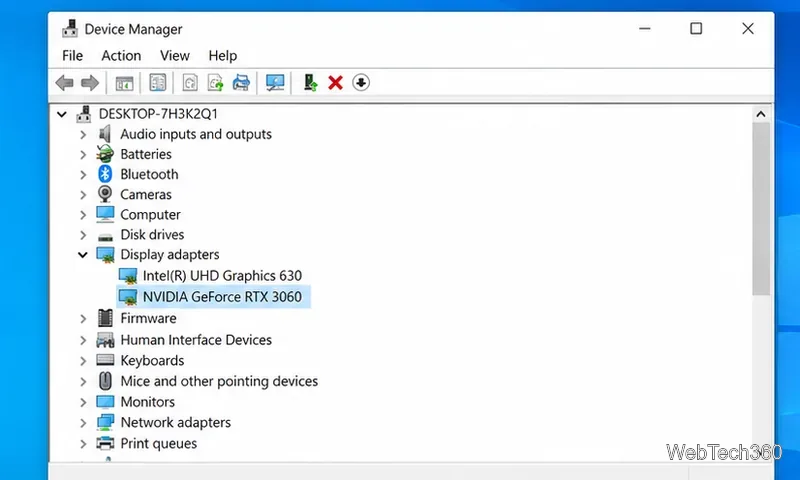
Press Windows + X, open Device Manager, and expand Display adapters. You should see an NVIDIA device such as a GeForce, RTX, or professional NVIDIA GPU. A laptop with hybrid graphics can show both Intel or AMD integrated graphics and an NVIDIA GPU.
If no NVIDIA device appears at all, the missing Control Panel is probably a driver or hardware-detection problem rather than an app problem. Do not install the Control Panel on a PC that has only Intel or AMD graphics.
Open Start and search for NVIDIA Control Panel. A missing desktop right-click shortcut does not always mean the app itself is gone. If the app opens from Start, the core installation is present.
You can also check Settings > Apps > Apps & features. If NVIDIA Control Panel is listed there but will not launch, skip to the repair steps below.
NVIDIA states that its DCH display drivers use the Microsoft Store version of NVIDIA Control Panel. The app normally installs automatically after the display driver finishes installing, provided Windows has an internet connection and the Windows Update service is available. If it is missing, install it manually from the official Microsoft Store listing for NVIDIA Control Panel.
NVIDIA's Control Panel Windows Store guidance lists Windows 10 version 1803 build 17134 or later, an x64 CPU, an NVIDIA GPU, and a DCH driver as requirements for the Store app.
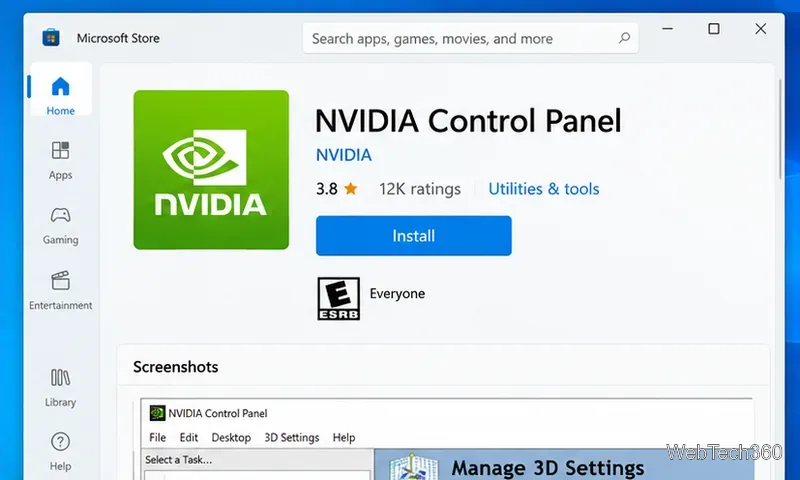
If you changed the default location for new Microsoft Store apps, set it back to the C: drive before reinstalling. NVIDIA's DCH driver FAQ says the Control Panel must be installed on C: for DCH driver installations.
If NVIDIA Control Panel is installed but does not open, go to Settings > Apps > Apps & features > NVIDIA Control Panel > Advanced options. Select Repair first. If that does not help, use Reset. Microsoft documents this repair/reset flow for Windows 10 Store apps in its Windows app repair guidance.
If Microsoft Store itself is malfunctioning, press Windows + R, run wsreset.exe, wait for Store to reopen, and try the installation again. Microsoft recommends this cache reset when Store apps cannot be found or installed.
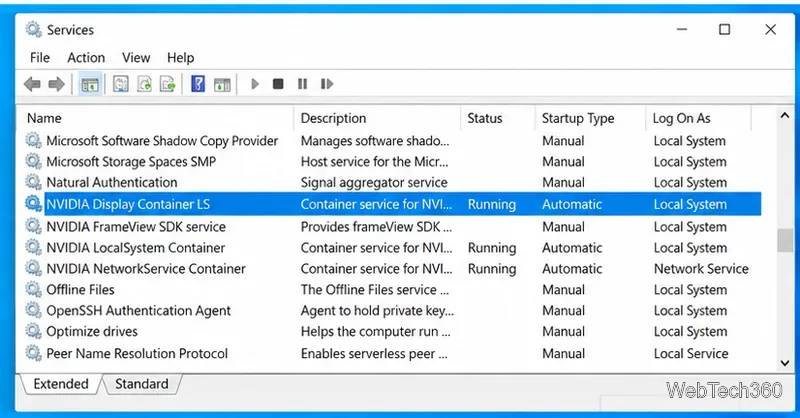
Also open services.msc and verify that NVIDIA Display Container LS has not been disabled by a cleanup or optimization tool. If it is stopped, start it and retry the Control Panel before reinstalling the driver.
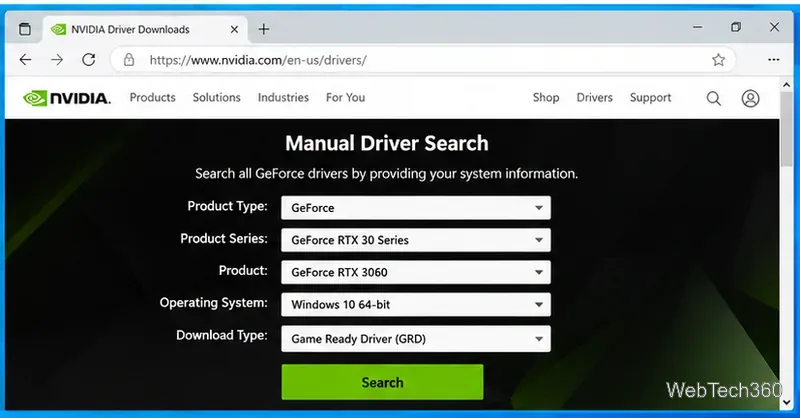
If the app is still missing, refresh the NVIDIA display driver. Use the official NVIDIA driver download page or the Drivers section of NVIDIA App. Choose the driver that matches your GPU and Windows 10 edition, install it, then restart the PC.
For DCH installations, keep the PC online after the driver setup completes so Windows can obtain the Control Panel app. If the installer fails on a laptop, check the PC manufacturer's support page for an OEM-qualified graphics driver.
Do not download repackaged Control Panel installers from software mirrors. For a DCH system, use Microsoft Store; for the display driver, use NVIDIA or your PC manufacturer's support site. This avoids mismatched packages and unnecessary bundled software.
Microsoft ended general Windows 10 support on October 14, 2025. NVIDIA's published GeForce support plan for Windows 10 says regular Game Ready and Studio driver support runs through October 2026, followed by quarterly security updates through October 2029. The steps above still apply to supported NVIDIA hardware, but moving to a supported Windows version is the better long-term option when your PC is eligible.
Open a Linux shell in any Windows 10 folder with File Explorer, PowerShell, and WSL. Check the Linux path and fix common setup issues.
Use a screenshot test, cable and port checks, monitor diagnostics, display settings, and driver rollback to pinpoint lines on a Windows 10 monitor.
Show two other time zones beside your Windows 10 clock. Set up each additional clock, give it a clear label, and find it in the taskbar calendar.
Find the File Explorer extension that delays right-click menus in Windows 10, test it safely with ShellExView, and restore any menu features you still need.
Stop Windows 10 from powering down a specific network adapter or USB device with plan-level settings and Device Manager controls, plus tips to avoid excess battery drain.
Check whether Windows 10 uses a digital license or product key, find a firmware-stored OEM key, and save license details securely for a reinstall.
Identify a Windows 10 Task Manager process by checking its executable path, file properties, publisher, linked services, and a Microsoft Defender scan.
Create a searchable Windows 10 folder inventory with PowerShell. Save every file and subfolder path as plain text or export details to a sortable CSV.
Add a custom reminder, quote, or label to your Windows 10 desktop with a Rainmeter text skin. Create the INI file, load it, then adjust its font and position.
Use Bluetooth Swift Pair on Windows 10 to pair a compatible accessory from a notification, with setup steps and fixes when the prompt does not appear.








