How to Set Different Scaling Levels for Multiple Monitors in Windows 10

Adjust each Windows 10 monitor independently with per-display scaling, keep text readable, and troubleshoot custom scaling or blurry apps.
If your keyboard’s number pad will not enter digits in Windows 10, start by pressing Num Lock once. If that does not restore number entry, test the keypad in Notepad, check whether Mouse Keys is using it to move the pointer, and then isolate the app or keyboard hardware. These checks help distinguish a setting problem from a broken key.
Press Num Lock and try a few keypad digits in a text field. On many full-size keyboards, turning Num Lock off switches the number keys to navigation functions such as Home, End, Page Up, Page Down, or the arrow keys. Some keyboards show an indicator light; others do not, so confirm by typing. If the keypad still behaves like navigation keys, press Num Lock again.
On some laptops, a number-pad function shares keys with another feature. Look for a Num Lock label or a small secondary marking and check the laptop maker’s guide before trying an Fn combination. The key sequence varies by model.
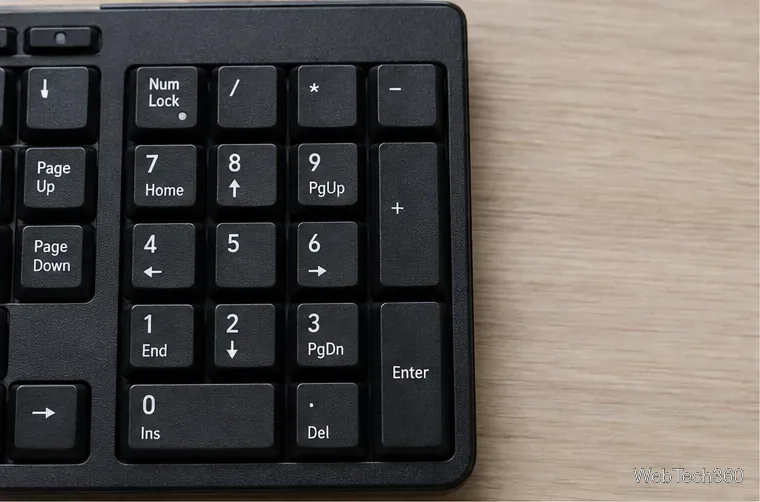
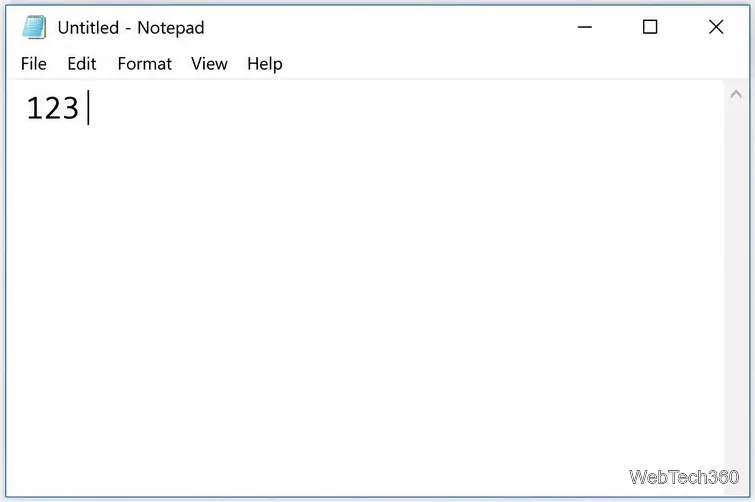
If the digits appear in Notepad, Windows is receiving those key presses. The problem is more likely limited to the app where you first noticed it: its field may not have focus, may reject numeric input, or may be using a different keyboard shortcut. If the number row works but the keypad does not, continue with the Windows settings and hardware checks below.
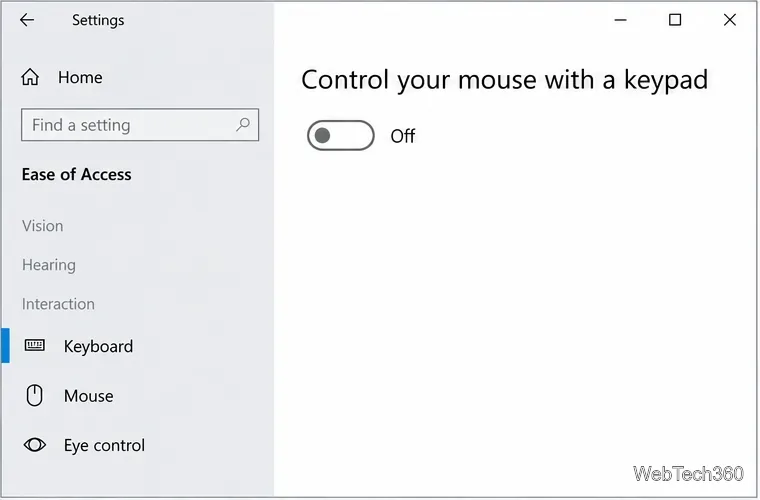
Mouse Keys lets you control the pointer with the numeric keypad. If it is enabled, the keypad may move the pointer instead of entering digits, depending on its current state. In Windows 10, open Start > Settings > Ease of Access > Mouse. Turn off Control your mouse with a keypad if it is on, then test the keypad again. Microsoft describes this feature in its Mouse Keys guide.
If Notepad accepts keypad digits but a particular program does not, click the program’s intended number field and check whether that field accepts numbers. Some apps use the keypad for shortcuts or behave differently while a dialog, menu, or cell is selected.
If you use keyboard-remapping software, macro tools, or scripts that change key behavior, quit them temporarily and test again. Close one at a time so you can identify whether a specific tool is intercepting the keypad. If the number pad starts working, review that tool’s mapping or script before turning it back on. Do not remove a script or remapper you rely on without first saving its configuration.
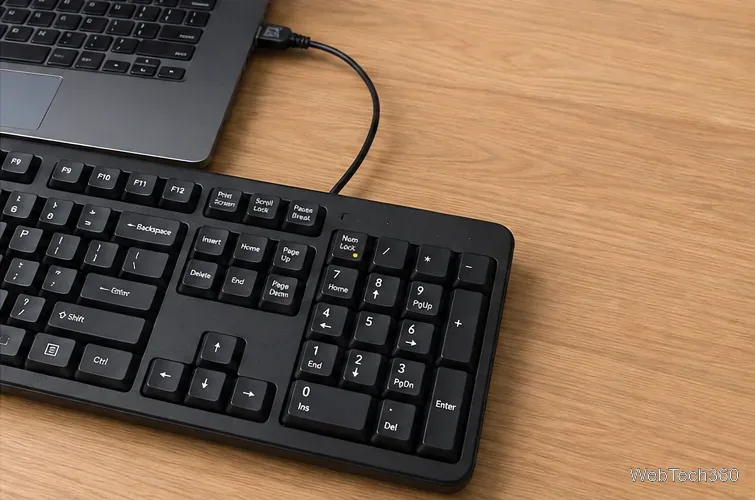
For a wired external keyboard, unplug it, reconnect it, and try a different USB port directly on the PC. If it is connected through a hub or dock, bypass that device for the test. For a wireless keyboard, check its power switch and battery, then reconnect the USB receiver or Bluetooth connection. Microsoft’s mouse and keyboard troubleshooting guide recommends checking connections, power, USB ports, batteries, and blocked or dirty keys.
When possible, test the keyboard on another computer and try a known-good keyboard on the Windows 10 PC. If the same keypad keys fail across apps and on another computer, while another keyboard works on this PC, the original keypad or its connection is likely the cause. Check the manufacturer’s cleaning instructions and remove visible debris with the keyboard unplugged; avoid liquids around the keys.
If you need to enter numbers before the physical keypad is fixed, open the On-Screen Keyboard with Windows logo key + Ctrl + O. In Windows 10, you can also go to Start > Settings > Ease of Access > Keyboard and turn on Use the On-Screen Keyboard. In the on-screen keyboard, select Options and enable Turn on numeric keypad to display a keypad you can click. Microsoft’s On-Screen Keyboard instructions cover the layout options.
Start with the setting or test that matches what you see. Replacing a keyboard is usually unnecessary until the Num Lock state, Mouse Keys, app behavior, and connection have been ruled out.
Adjust each Windows 10 monitor independently with per-display scaling, keep text readable, and troubleshoot custom scaling or blurry apps.
Use AirType’s browser pairing setup to type on an iPhone from a Windows 10 PC, with current setup steps, troubleshooting, and privacy limits.
Hide the mouse pointer in Windows 10 videos, games, and other apps with built-in typing controls or PowerToys CursorHide’s adjustable inactivity timer.
Find Control Panel Power Options on a Windows 10 desktop, open the page with a Run command, and adjust power plans, display timeouts, sleep, and button behavior.
Learn what Windows 10 deletion leaves behind, how to use SDelete on an HDD, and why SSDs and cloud backups need separate treatment.
Use FFmpeg’s DirectShow tools to open an integrated webcam’s driver properties in Windows 10, find the correct device, and troubleshoot missing controls.
Identify a keypress in Windows 10 with a browser event tester or SharpKeys, then separate layout, software, and keyboard hardware issues.
Use double quotes around each complete path with spaces in Command Prompt. Learn how to list, change to, copy, and troubleshoot Windows 10 files and folders.
Turn off the Windows 10 Start menu’s hover-to-expand behavior with a legacy Mach2 command, check build limits, and see the built-in app-list alternative.
Fix the iTunes Library.itl read error on Windows 10 by updating iTunes, restoring a compatible backup, or safely creating a new library without deleting media files.








