How to Open a Linux Shell in a Folder on Windows 10

Open a Linux shell in any Windows 10 folder with File Explorer, PowerShell, and WSL. Check the Linux path and fix common setup issues.
If your PC automatically goes to BIOS or UEFI instead of loading the operating system, the firmware is usually failing to find a usable boot target or is using the wrong boot configuration. Do not reinstall Windows immediately. Start with removable devices, confirm that the system SSD or hard drive is detected, check the boot order, and only then move on to startup repair or hardware service.
Menu names vary by PC maker. Modern PCs generally use UEFI firmware, although many menus still use the word BIOS.
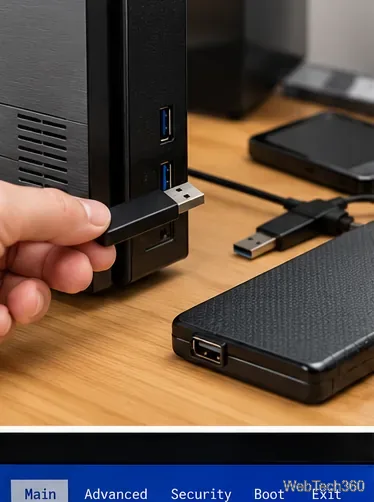
Shut down the PC and unplug USB flash drives, external SSDs or hard drives, memory cards, optical discs, docks, and other nonessential peripherals. Then power the computer on again. A removable device can appear before the internal system drive in the boot sequence or interfere with startup. ASUS includes removing accessories among its first troubleshooting steps for systems that boot directly into firmware; see ASUS troubleshooting for devices that boot directly into BIOS.
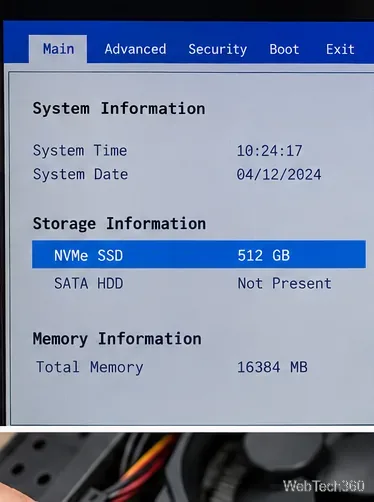
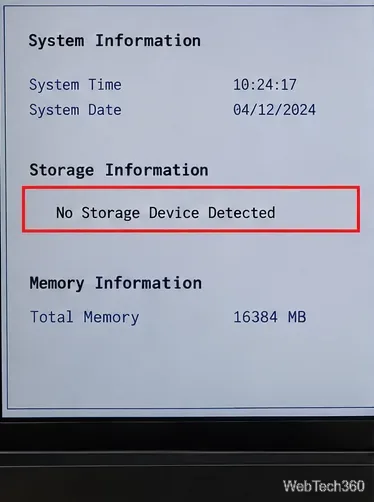
Open the firmware page that lists storage or system information. Look for the internal NVMe SSD, SATA SSD, or hard drive that contains the operating system. If the drive is listed with the expected capacity, firmware can at least see the hardware. If it is missing entirely, skip ahead to the hardware checks below rather than repeatedly changing boot-order settings.
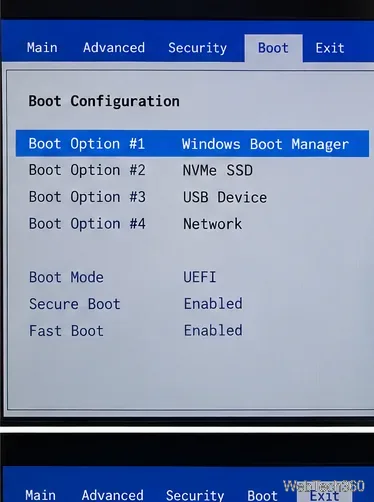
Open the Boot section and set the installed operating system as the first boot target. On a typical UEFI Windows PC, this is often Windows Boot Manager associated with the internal SSD, not simply a generic USB or network entry. MSI's current boot-order documentation likewise shows the system disk or Windows Boot Manager as the preferred boot target: MSI: How to Set the Boot Device Order.
Do not blindly switch between UEFI and Legacy/CSM modes or change RAID/AHCI storage-controller settings. Those options can affect whether an existing installation remains bootable.
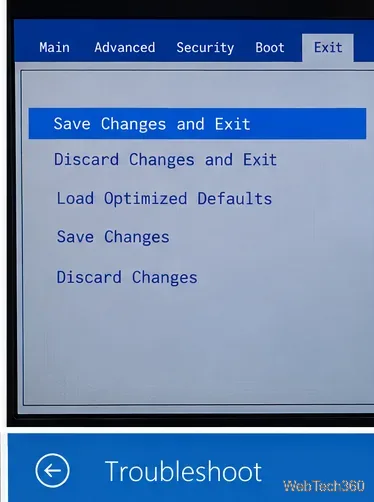
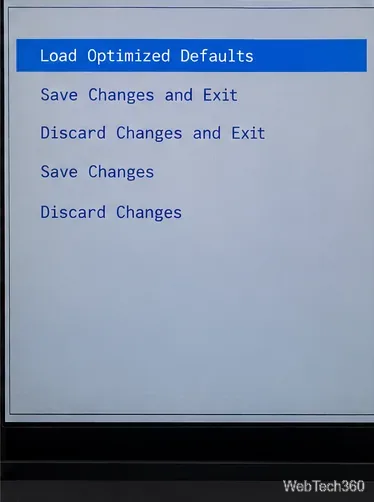
Use Save Changes and Exit or the equivalent command. If the PC loads the operating system, the problem was a saved boot-order setting. If it immediately returns to BIOS, continue troubleshooting instead of repeatedly exiting without changing anything.
A drive that does not appear anywhere in firmware points to a detection problem rather than a damaged Windows desktop. Check the connection and run the maker’s built-in preboot diagnostics. Dell recommends confirming drive detection in BIOS and using hardware diagnostics when Windows will not boot; see Dell's no-boot troubleshooting guide.
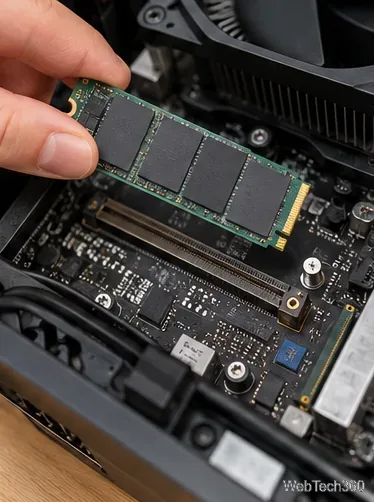
For a desktop PC, shut it down, unplug power, and—only if you are comfortable working inside the case—check the SATA data and power cables or reseat an M.2 SSD. Follow the PC or motherboard service manual and use basic anti-static precautions. For a sealed laptop or a system under warranty, professional service is the safer choice.
If the drive is detected but the firmware configuration looks unusual, loading Optimized Defaults or Restore Defaults can clear a bad setting. Afterward, recheck the boot entry before saving. Be cautious on PCs with custom storage, virtualization, Secure Boot, or enterprise settings because defaults can change more than the boot order.
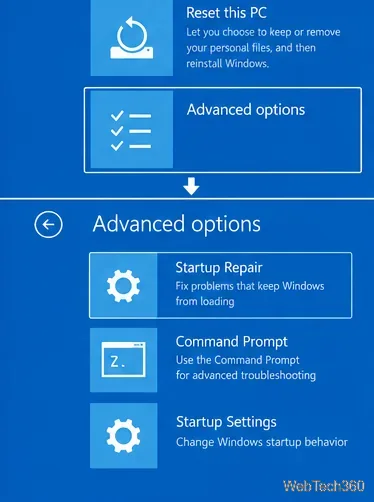
If BIOS sees the system drive and the correct boot entry is selected, the next problem may be the Windows boot files. Microsoft's Startup Repair can diagnose common startup problems, including damaged system or boot configuration files.
Enter Windows Recovery Environment, then choose Troubleshoot > Advanced options > Startup Repair. If the PC never reaches Windows recovery on its own, create Windows installation media on another computer, boot from that USB, and choose the repair option instead of starting a new installation. BitLocker-protected systems may ask for the recovery key.
Run the manufacturer's preboot hardware diagnostics and check for a model-specific BIOS update using only the PC or motherboard maker's instructions. If the system clock, boot order, or other firmware settings reset after power is removed, an aging RTC/CMOS battery or another firmware hardware problem may also be involved. At that point, use repair service instead of repeatedly reinstalling the OS.
The key distinction is simple: a missing drive is primarily a hardware/detection problem; a detected drive with the wrong boot target is a firmware configuration problem; and a detected drive with the correct boot target that still will not start Windows is a boot-repair problem.
Open a Linux shell in any Windows 10 folder with File Explorer, PowerShell, and WSL. Check the Linux path and fix common setup issues.
Use a screenshot test, cable and port checks, monitor diagnostics, display settings, and driver rollback to pinpoint lines on a Windows 10 monitor.
Show two other time zones beside your Windows 10 clock. Set up each additional clock, give it a clear label, and find it in the taskbar calendar.
Find the File Explorer extension that delays right-click menus in Windows 10, test it safely with ShellExView, and restore any menu features you still need.
Stop Windows 10 from powering down a specific network adapter or USB device with plan-level settings and Device Manager controls, plus tips to avoid excess battery drain.
Check whether Windows 10 uses a digital license or product key, find a firmware-stored OEM key, and save license details securely for a reinstall.
Identify a Windows 10 Task Manager process by checking its executable path, file properties, publisher, linked services, and a Microsoft Defender scan.
Create a searchable Windows 10 folder inventory with PowerShell. Save every file and subfolder path as plain text or export details to a sortable CSV.
Add a custom reminder, quote, or label to your Windows 10 desktop with a Rainmeter text skin. Create the INI file, load it, then adjust its font and position.
Use Bluetooth Swift Pair on Windows 10 to pair a compatible accessory from a notification, with setup steps and fixes when the prompt does not appear.








