How to Fix Lines on a Monitor Screen in Windows 10

Use a screenshot test, cable and port checks, monitor diagnostics, display settings, and driver rollback to pinpoint lines on a Windows 10 monitor.
If your mouse cursor shakes, jitters, or makes tiny movements on Windows 10, start by checking the mouse itself before changing sensitivity. A cursor that moves while the mouse is completely still usually points to a tracking, power, connection, driver, or hardware problem rather than ordinary pointer-speed settings.
Use the steps below in order. After each change, leave the mouse untouched for a few seconds and then move it slowly across the desktop to see whether the jitter is gone.
Erratic tracking often starts at the sensor. Put the mouse on a flat, matte mouse pad or a plain sheet of paper. Avoid glass, highly reflective finishes, or badly worn surfaces while testing. Microsoft recommends checking that dirt is not blocking a mouse sensor, and Logitech lists a dirty sensor lens as a common cause of jitter or random cursor movement.
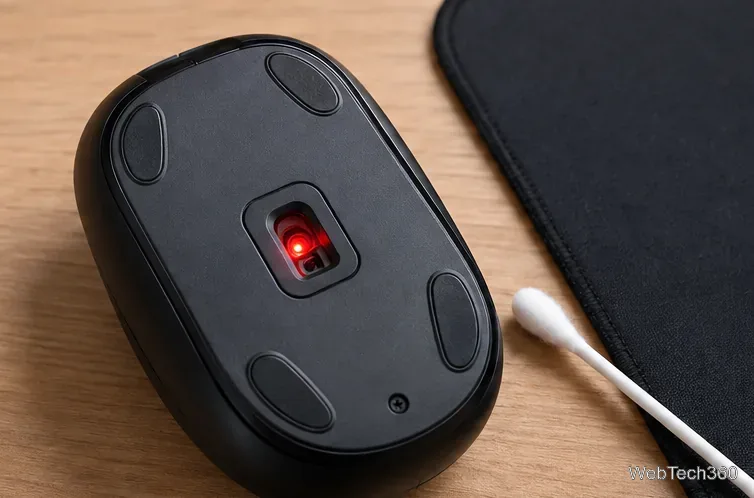
For additional hardware checks, see Microsoft's mouse and keyboard troubleshooting guide.
For a wireless mouse, low battery power or an unstable connection can look like a shaky cursor. Recharge the mouse or install fresh batteries, then reconnect it. If it uses a USB receiver, unplug the receiver, wait about 10 seconds, and reconnect it directly to another USB port on the PC instead of a hub while testing.
For a Bluetooth mouse in Windows 10, open Settings > Devices > Bluetooth & other devices. Select the mouse, choose Remove device, and then pair it again. Microsoft also recommends keeping a Bluetooth device within range and checking its battery when connections are unreliable.
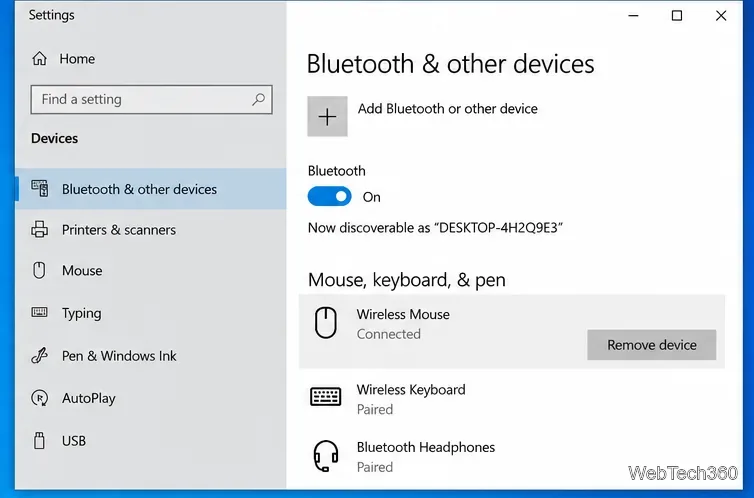
If you use Bluetooth, Microsoft's Bluetooth connection troubleshooting covers re-pairing and driver checks.
If the cursor is steady when the mouse is untouched but feels jumpy only while you move it, review Windows pointer settings. Open Settings > Devices > Mouse > Additional mouse options, then select the Pointer Options tab.
Lower the pointer speed if movement is too sensitive. You can also temporarily toggle Enhance pointer precision off and compare the feel. This setting changes how pointer movement is interpreted; it is not a reliable fix for a cursor that physically jitters while the mouse is sitting still. If pointer trails are enabled, turn them off during diagnosis so the visual trail is not mistaken for shaking.
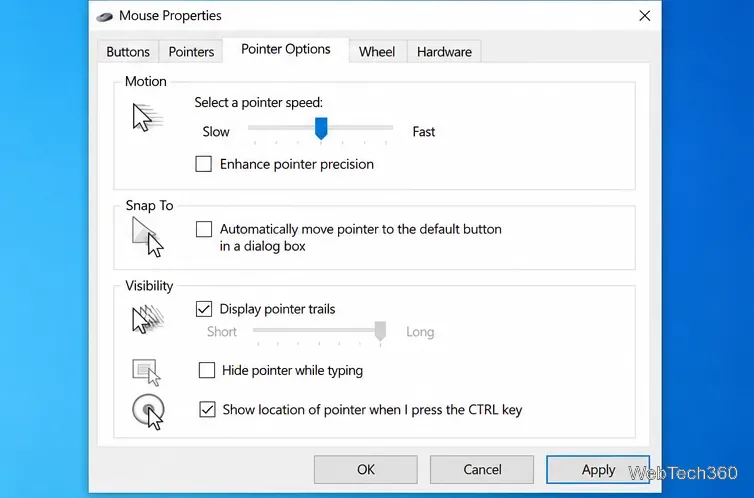
Microsoft documents these controls in Change mouse settings.
If the hardware checks do not help, refresh the driver. First use Settings > Update & Security > Windows Update to install any available driver updates. Microsoft notes that Windows Update is normally the preferred way to receive current hardware drivers.
To reinstall the mouse driver, right-click Start and open Device Manager. Expand Mice and other pointing devices, right-click the relevant mouse, choose Uninstall device, confirm, and restart Windows. Windows should attempt to reinstall the device driver after the restart. If you use a gaming or specialty mouse, also check the mouse manufacturer's support page for the correct device software or firmware.
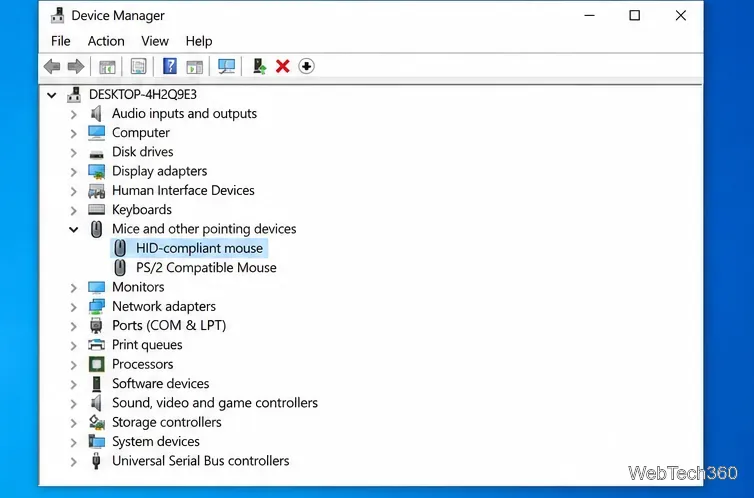
See Microsoft's Device Manager driver guide for the official reinstall procedure.
Finally, test a second known-good mouse on the same PC. If the second mouse is stable, the original mouse is probably the problem. If possible, test the shaky mouse on another computer as well. A mouse that jitters on multiple PCs after cleaning and reconnecting is a strong sign of sensor, cable, receiver, or internal hardware failure.
If multiple mice shake only on one Windows 10 PC, close mouse utilities, remote-control tools, macro software, screen overlays, or other programs that can inject pointer input. If the problem disappears after those programs are closed, re-enable them one at a time. For a persistent software conflict, Microsoft's clean boot procedure can help isolate a background app or service.
One current Windows 10 note: Microsoft ended standard Windows 10 support on October 14, 2025. Windows 10 PCs still run, but Microsoft recommends moving to a supported Windows version or using an applicable Extended Security Updates option. See Microsoft's Windows 10 end-of-support notice for details.
Use a screenshot test, cable and port checks, monitor diagnostics, display settings, and driver rollback to pinpoint lines on a Windows 10 monitor.
Show two other time zones beside your Windows 10 clock. Set up each additional clock, give it a clear label, and find it in the taskbar calendar.
Find the File Explorer extension that delays right-click menus in Windows 10, test it safely with ShellExView, and restore any menu features you still need.
Stop Windows 10 from powering down a specific network adapter or USB device with plan-level settings and Device Manager controls, plus tips to avoid excess battery drain.
Check whether Windows 10 uses a digital license or product key, find a firmware-stored OEM key, and save license details securely for a reinstall.
Identify a Windows 10 Task Manager process by checking its executable path, file properties, publisher, linked services, and a Microsoft Defender scan.
Create a searchable Windows 10 folder inventory with PowerShell. Save every file and subfolder path as plain text or export details to a sortable CSV.
Add a custom reminder, quote, or label to your Windows 10 desktop with a Rainmeter text skin. Create the INI file, load it, then adjust its font and position.
Use Bluetooth Swift Pair on Windows 10 to pair a compatible accessory from a notification, with setup steps and fixes when the prompt does not appear.
Learn what common laptop function key symbols mean, how Fn and Fn Lock affect them, and how to confirm the right shortcut for your Windows 10 laptop model.








