How to Open a Linux Shell in a Folder on Windows 10

Open a Linux shell in any Windows 10 folder with File Explorer, PowerShell, and WSL. Check the Linux path and fix common setup issues.
If Windows Update is stuck on “Pending install,” restart the PC first, then check Windows Update again. That status usually means the update has downloaded but Windows has not started the installation phase. If a restart does not clear it, work through storage, the built-in troubleshooter, system-file repair, and finally a Windows Update component reset.
The steps below apply to Windows 11 and Windows 10, with path differences noted. Microsoft ended regular Windows 10 support on October 14, 2025, so a Windows 10 PC normally needs Windows 11, an eligible Extended Security Updates (ESU) enrollment, or another supported Windows edition to keep receiving applicable security updates. See Microsoft’s Windows 10 end-of-support guidance.

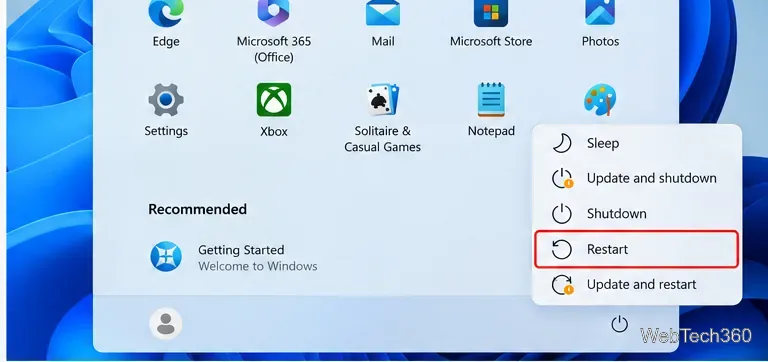
Some updates cannot continue until an earlier update finishes during a reboot. Do a real restart rather than shutting the lid or putting the PC to sleep.
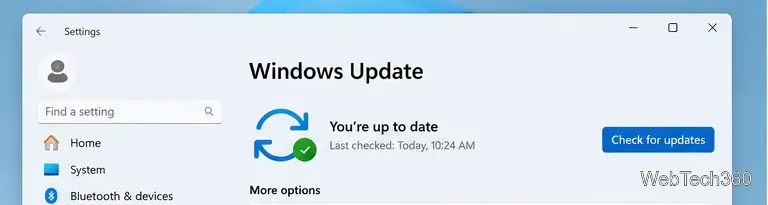
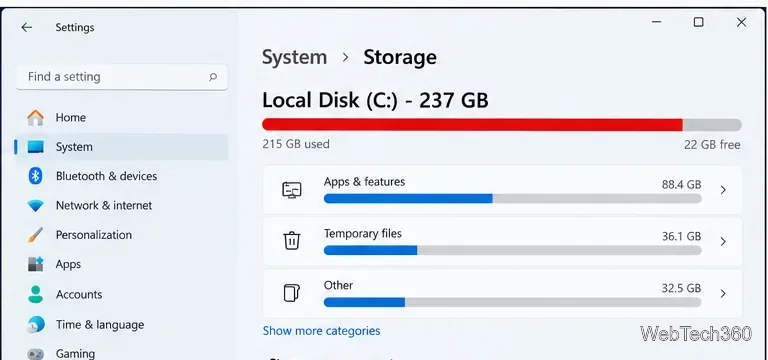
Microsoft’s current Windows Update troubleshooting guidance recommends a stable internet connection, power for portable devices, administrator access when required, and disconnecting nonessential external hardware while troubleshooting. Low free space can also prevent Windows from staging or installing an update.
Windows can remove temporary files through Storage settings and Storage Sense. Microsoft documents the supported cleanup methods in Free up drive space in Windows.
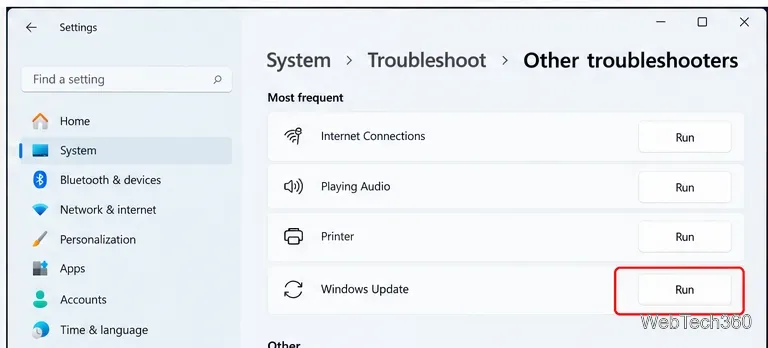
Use Microsoft’s automated troubleshooter before changing services or deleting update folders manually.
Follow any recommended fix, restart, and check for updates again. Microsoft maintains the current procedure in Troubleshoot problems updating Windows.
If the update repeatedly remains pending or fails after downloading, damaged Windows component files may be involved. Microsoft recommends running DISM before System File Checker.
DISM.exe /Online /Cleanup-Image /RestoreHealth and let it finish.sfc /scannow and keep the window open until verification reaches 100%.These commands and their expected behavior are documented by Microsoft in Use the System File Checker tool to repair missing or corrupted system files.
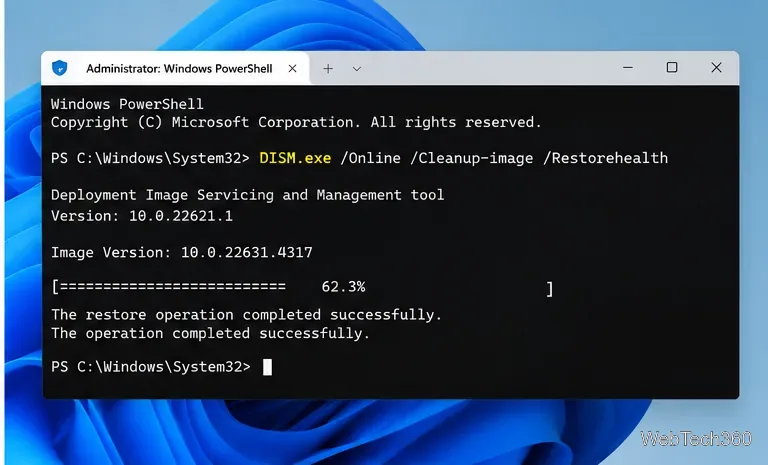
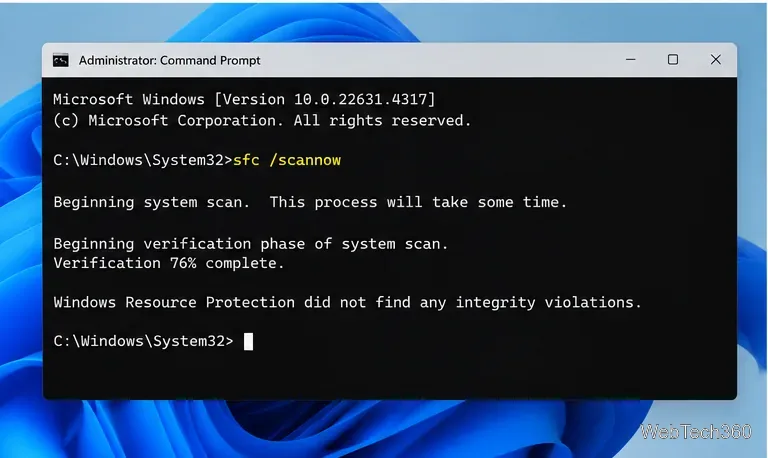
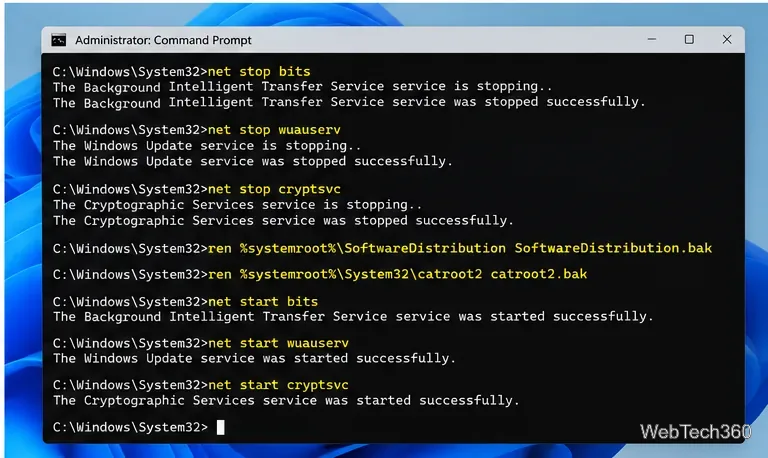
If the earlier fixes do not work, reset the update cache from an elevated Command Prompt. Microsoft lists this as a fallback after the troubleshooter. This removes cached update files so Windows can download clean copies; it does not delete your personal documents.
net stop wuauserv
rd /s /q %systemroot%\SoftwareDistribution
net start wuauserv
Restart the PC after the commands finish, return to Windows Update, and select Check for updates. For the longer component-reset procedure, use Microsoft’s current Windows Update component reset instructions rather than copying an old script from another version of Windows.
Open Update history and note the update’s KB number and any error code. Search that exact KB on Microsoft Support to check for prerequisites or known issues, and use Microsoft’s Windows Update troubleshooting page for the specific error code. If Windows itself is unstable after DISM, SFC, and an update-component reset, back up important files before moving to Windows recovery or repair-install options.
Avoid randomly deleting other folders under C:\Windows or forcing old service-startup tweaks. Windows Update manages several services and components itself, and current Microsoft troubleshooting starts with restart, connectivity and storage checks, the troubleshooter, repair tools, and only then a component reset.
Open a Linux shell in any Windows 10 folder with File Explorer, PowerShell, and WSL. Check the Linux path and fix common setup issues.
Use a screenshot test, cable and port checks, monitor diagnostics, display settings, and driver rollback to pinpoint lines on a Windows 10 monitor.
Show two other time zones beside your Windows 10 clock. Set up each additional clock, give it a clear label, and find it in the taskbar calendar.
Find the File Explorer extension that delays right-click menus in Windows 10, test it safely with ShellExView, and restore any menu features you still need.
Stop Windows 10 from powering down a specific network adapter or USB device with plan-level settings and Device Manager controls, plus tips to avoid excess battery drain.
Check whether Windows 10 uses a digital license or product key, find a firmware-stored OEM key, and save license details securely for a reinstall.
Identify a Windows 10 Task Manager process by checking its executable path, file properties, publisher, linked services, and a Microsoft Defender scan.
Create a searchable Windows 10 folder inventory with PowerShell. Save every file and subfolder path as plain text or export details to a sortable CSV.
Add a custom reminder, quote, or label to your Windows 10 desktop with a Rainmeter text skin. Create the INI file, load it, then adjust its font and position.
Use Bluetooth Swift Pair on Windows 10 to pair a compatible accessory from a notification, with setup steps and fixes when the prompt does not appear.








