How to Create a List of All Items in a Folder on Windows 10

Create a searchable Windows 10 folder inventory with PowerShell. Save every file and subfolder path as plain text or export details to a sortable CSV.
Access Denied on Windows 10 usually means your account or the app you are using does not have the permission required to open, change, delete, or run something. The fastest fix is to identify whether the block comes from administrator rights, NTFS permissions, file ownership, encryption, damaged Windows components, or a broken user profile.
Before changing permissions, make sure the file or folder is yours to manage. Avoid granting broad access to system folders or using these steps to bypass restrictions on a work-managed PC. Also note that standard Windows 10 support ended on October 14, 2025. Consider moving to a supported Windows version or an eligible Extended Security Updates option.
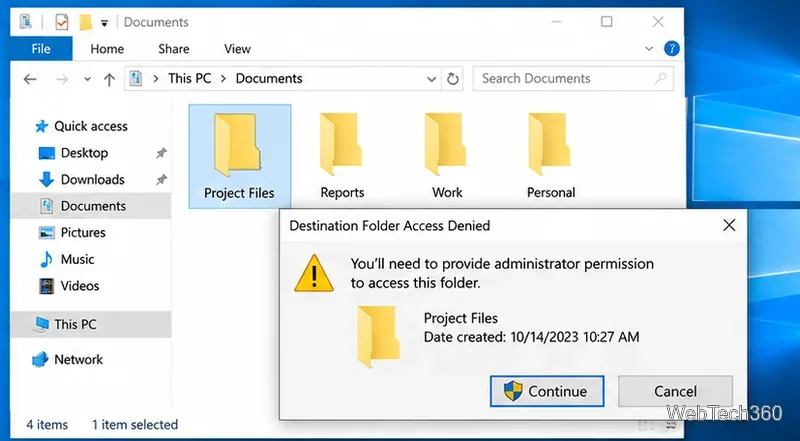
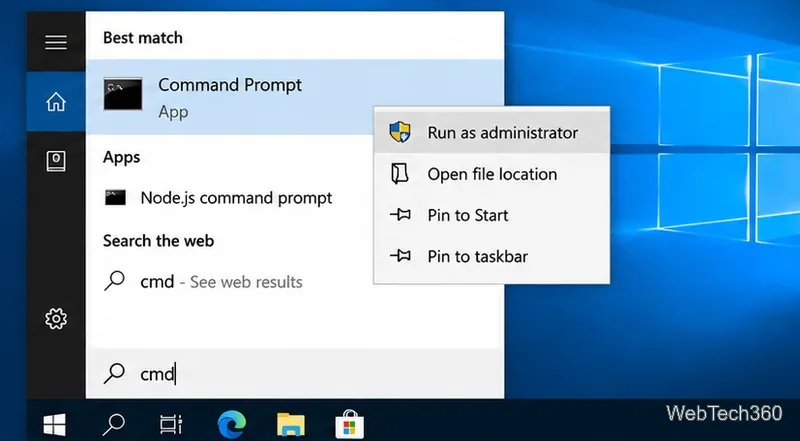
If the error appears only when launching a program, installer, Command Prompt, or maintenance tool, try elevation first. Sign in with an administrator account if the task genuinely requires administrative access, then search for the app, right-click it, and choose Run as administrator.
Elevation does not change file ownership or decrypt encrypted data. If File Explorer still says Access Denied, continue below.
Windows controls file access through permissions, ownership, and access control lists (ACLs). See Microsoft’s access control overview.
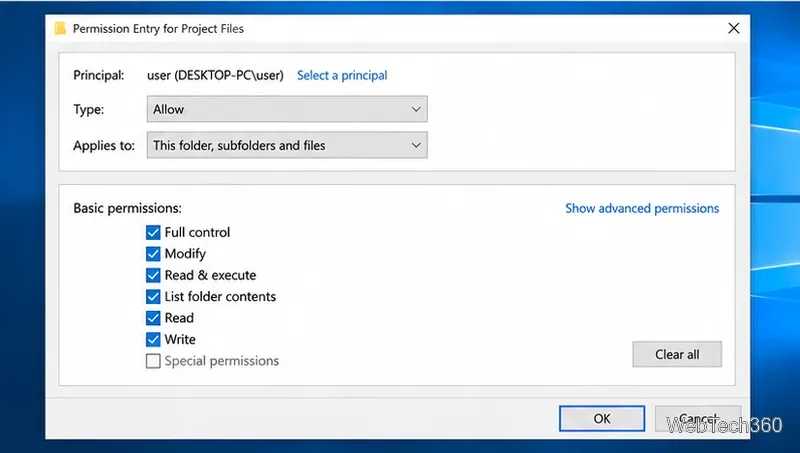
For a network share, share permissions and NTFS permissions are separate; a managed folder may require its owner or IT administrator to change access.
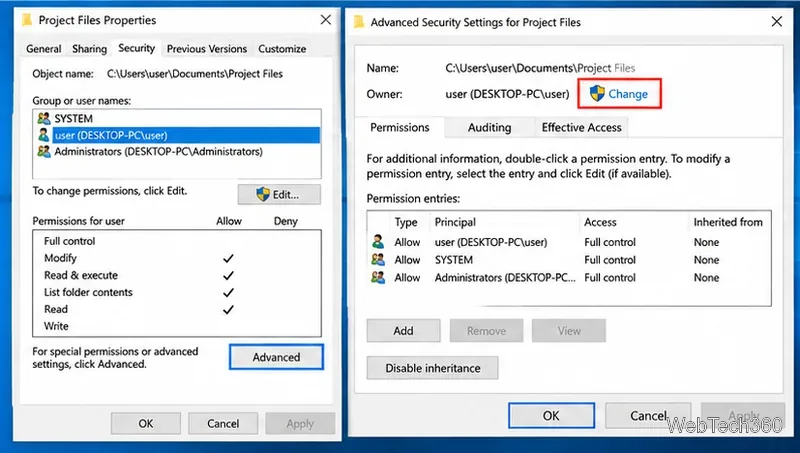
If files came from another Windows installation, backup, or old account, the recorded owner may be wrong. In Properties > Security > Advanced, choose Change next to Owner, select your account, and apply it. For a folder tree, replace the owner on subcontainers and objects only when you intend to change the whole tree.
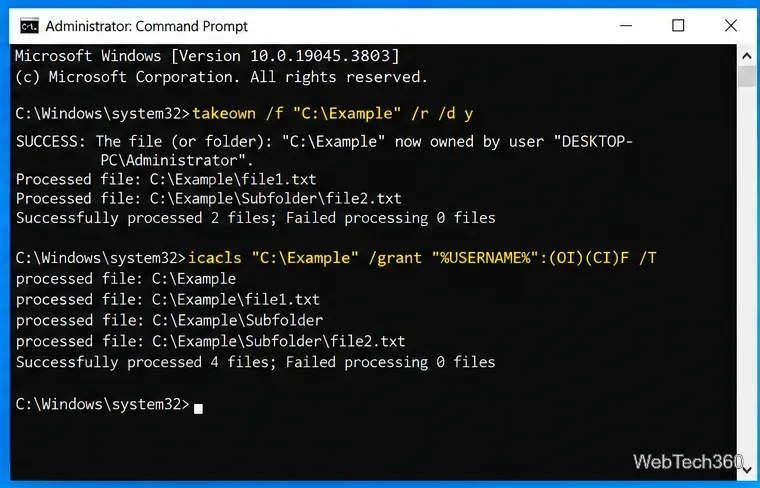
You can also use an elevated Command Prompt. Microsoft documents takeown for recovering ownership and icacls for modifying file permissions:
takeown /f "C:\Example" /r /d y
icacls "C:\Example" /grant "%USERNAME%":(OI)(CI)F /t
Replace C:\Example with the exact target path. The second command grants Full control recursively, so use it only on data you are authorized to manage. Do not run recursive ownership or Full control changes against C:\Windows, C:\Program Files, or an entire system drive just to fix one inaccessible folder.
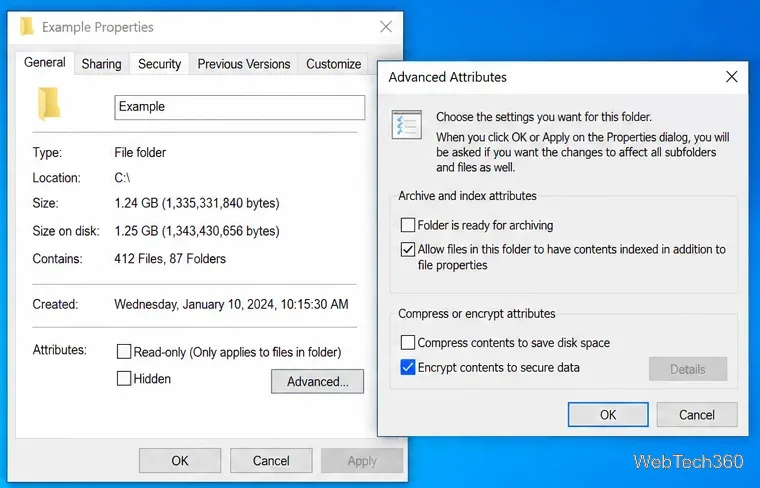
Ownership is not the same as decryption. Windows Encrypting File System (EFS) protects data with a certificate and private key. Right-click the file or folder, choose Properties > Advanced, and check Encrypt contents to secure data. Microsoft notes that this file-encryption feature is not available in Windows Home editions; see the official file encryption guide.
If EFS is enabled under another account or installation, taking ownership will not decrypt the data. You need the original EFS certificate/private key or a configured recovery certificate. Do not delete old profiles or certificates until recovery is complete.
If Access Denied affects built-in Windows tools or appears with other operating-system errors, damaged system files may be involved. Skip this step for a single personal file with a simple permission problem.
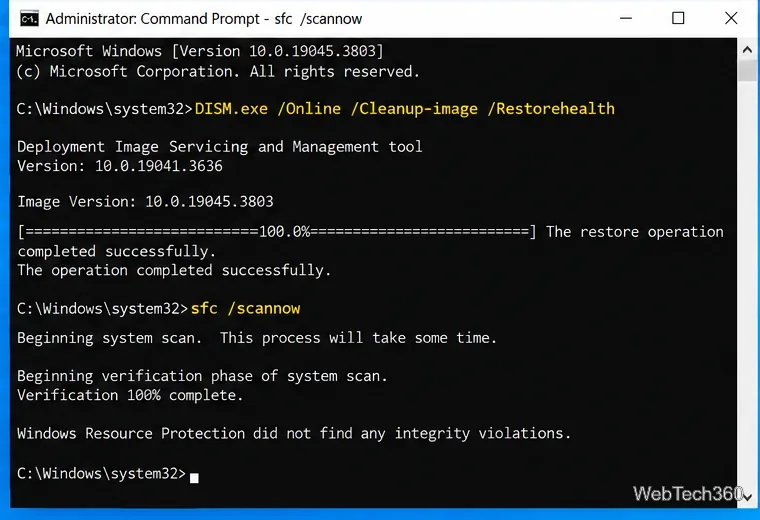
Open Command Prompt as administrator and run Microsoft’s recommended repair sequence:
DISM.exe /Online /Cleanup-image /Restorehealth
sfc /scannow
Run DISM first, wait for it to finish, then run SFC and allow verification to reach 100%. Microsoft explains the sequence in its System File Checker repair instructions.
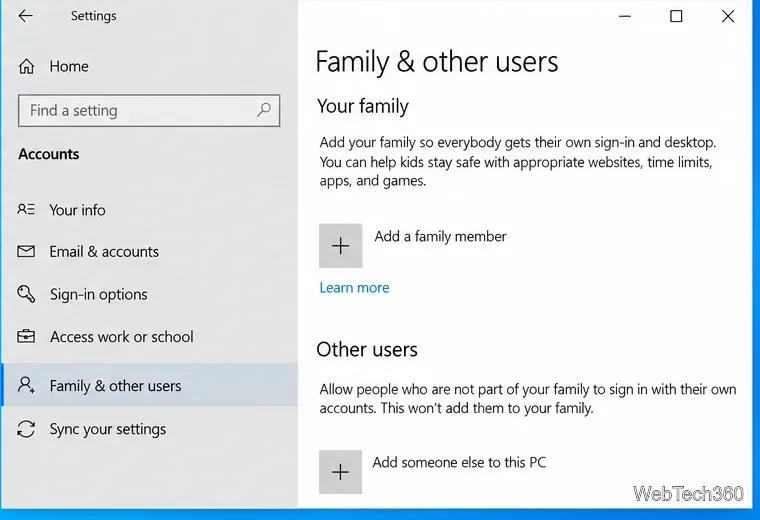
If the same files work for another administrator but repeatedly fail under your normal account, the user profile or its permission mappings may be damaged. On Windows 10, open Settings > Accounts > Family & other users, choose Add someone else to this PC, and create a test account. Microsoft’s user account guide explains how to add local and Microsoft accounts.
Sign in to the new account and test the same file or app. If it works there, migrate your personal data carefully. Do not delete the old profile until required files and encryption keys are safely recovered.
For most Windows 10 Access Denied errors, the correct fix is narrow: elevate the specific app when needed, repair the target folder’s permissions or owner, and use system repair only when Windows itself is malfunctioning.
Create a searchable Windows 10 folder inventory with PowerShell. Save every file and subfolder path as plain text or export details to a sortable CSV.
Add a custom reminder, quote, or label to your Windows 10 desktop with a Rainmeter text skin. Create the INI file, load it, then adjust its font and position.
Use Bluetooth Swift Pair on Windows 10 to pair a compatible accessory from a notification, with setup steps and fixes when the prompt does not appear.
Learn what common laptop function key symbols mean, how Fn and Fn Lock affect them, and how to confirm the right shortcut for your Windows 10 laptop model.
Turn off your Windows 10 display instantly with ScreenSleep, set a keyboard shortcut, and see when to use the built-in screen timeout instead.
Fix the “running scripts is disabled on this system” PowerShell error on Windows 10 with a current-user policy, a temporary session option, and safe steps for downloaded scripts.
Change the Windows 10 drag-selection color with a backup-first registry walkthrough, RGB examples, troubleshooting tips, and steps to restore your original values.
Check your router’s connected-device list or scan a local network with Fing Desktop on a supported PC. Learn what each method can show and how to verify unfamiliar entries.
Messenger does not offer a documented per-friend online alert. Learn how Active Status works, where to check the green dot, and which notifications you can enable instead.
Use 7-Zip to find an exact filename or wildcard match inside a ZIP or other supported archive on Windows 10 without unpacking its files.








