How to Fix Lines on a Monitor Screen in Windows 10

Use a screenshot test, cable and port checks, monitor diagnostics, display settings, and driver rollback to pinpoint lines on a Windows 10 monitor.
If Windows 10 keeps showing an “Adobe software is not genuine” warning, the right fix is to correct the license or installation problem—not disable Adobe’s validation service. Adobe says the Adobe Genuine Service (AGS) checks installed Adobe apps for license validity and software integrity. If it detects a non-genuine or modified copy, it can display warnings and Adobe may eventually disable that app. See Adobe’s Genuine software FAQ for the current policy.
If you already pay for Creative Cloud, work through the steps below. They refresh your Adobe sign-in, correct Windows settings that can interfere with licensing, update Adobe components, and remove old or unlicensed copies that may still be installed.
First, sign in to your Adobe account and confirm that the expected plan is active. If your subscription was suspended because of a payment problem, update the billing method before troubleshooting the PC. If the computer belongs to a company or school, ask the administrator which Adobe profile or organization account you should use.
If the warning names an older Adobe installation or a serial-number product that you did not install yourself, do not assume your current Creative Cloud subscription covers it. Adobe specifically recommends removing unlicensed versions before downloading a genuine copy.
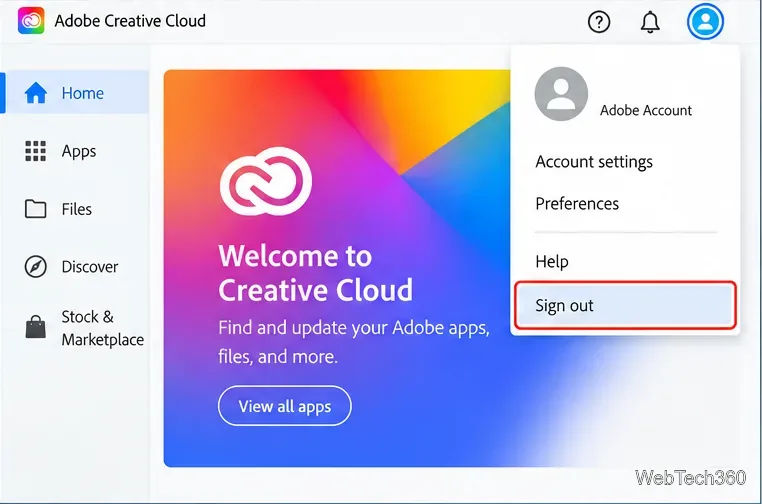
Adobe recommends signing out and back in when licensing or subscription information is not refreshing correctly. Its current guidance is documented in Creative Cloud subscription troubleshooting.
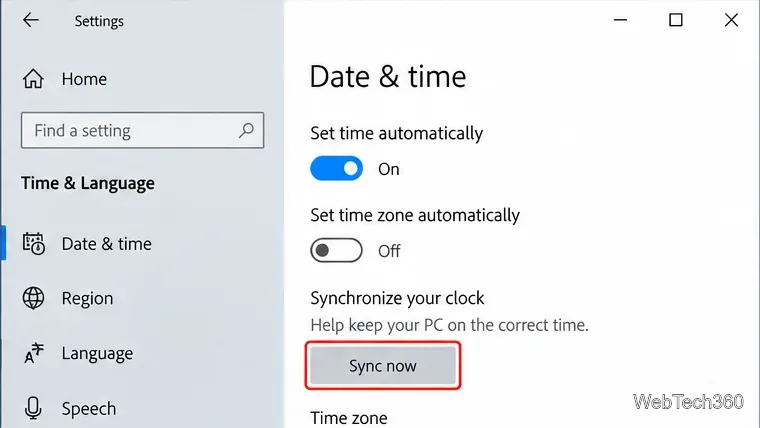
Licensing checks can fail when the PC clock is significantly wrong. In Windows 10, open Start > Settings > Time & Language > Date & time. Turn on Set time automatically. Make sure the time zone is correct, then use Sync now if it is available.
Microsoft documents these settings in its Windows date and time guide. After correcting the clock, restart Creative Cloud and try the Adobe app again.
Do not delete AGSService, Adobe Genuine folders, or Adobe updater tasks just to make the message disappear. That does not make an invalid installation genuine and can leave Adobe components damaged or unable to update.
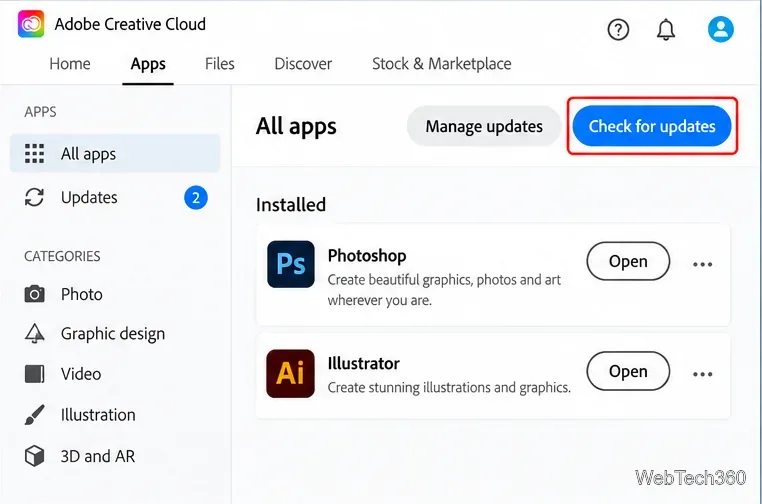
Instead, open Creative Cloud, go to Apps, open Manage updates, and select Check for updates. Install the available updates, then restart the PC if Adobe asks you to. Adobe’s current instructions are in Check for app updates. Adobe also documents cases where updating Creative Cloud repairs a damaged Adobe Genuine Service component.
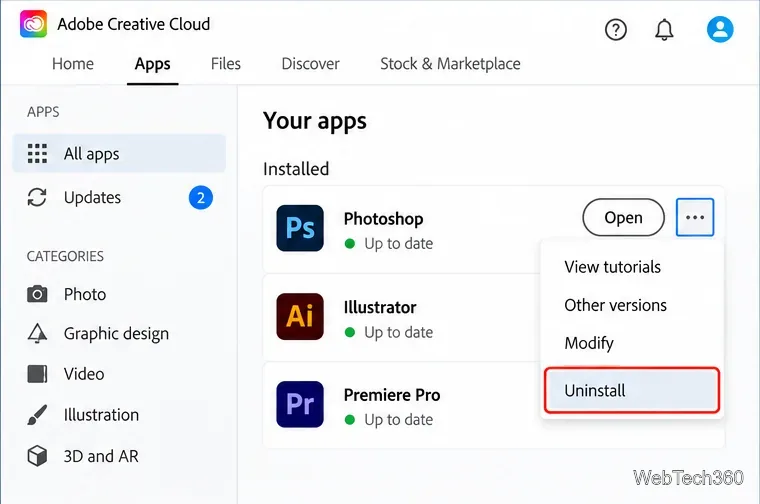
If the genuine-software warning remains, look for an older, modified, or separately installed copy of the same Adobe product. Adobe recommends uninstalling unlicensed versions before installing a genuine copy.
Adobe’s current uninstall steps are available in Uninstall Creative Cloud apps.
For a corrupted installation that will not uninstall cleanly, Adobe provides the Creative Cloud Cleaner tool for advanced troubleshooting. Adobe recommends backing up important files and settings before using it. Follow the official preparation instructions for the Creative Cloud Cleaner tool, then reinstall Creative Cloud and the affected app from Adobe.
Contact Adobe Support or your organization’s IT administrator if the warning persists after a clean reinstall while your plan is active. This is especially important if Adobe reports a blocked serial number, the license belongs to a business or school, or the software came from a reseller and you need to verify that the license is legitimate.
Avoid old workarounds that stop or delete Adobe Genuine Service, remove Adobe licensing folders, or delete updater services merely to hide the notification. Those steps can suppress a symptom without fixing the license, interfere with updates, and the warning may return. The durable fix is to use a valid Adobe license, keep the system clock and Creative Cloud components healthy, and reinstall any app that Adobe identifies as unlicensed or modified.
Use a screenshot test, cable and port checks, monitor diagnostics, display settings, and driver rollback to pinpoint lines on a Windows 10 monitor.
Show two other time zones beside your Windows 10 clock. Set up each additional clock, give it a clear label, and find it in the taskbar calendar.
Find the File Explorer extension that delays right-click menus in Windows 10, test it safely with ShellExView, and restore any menu features you still need.
Stop Windows 10 from powering down a specific network adapter or USB device with plan-level settings and Device Manager controls, plus tips to avoid excess battery drain.
Check whether Windows 10 uses a digital license or product key, find a firmware-stored OEM key, and save license details securely for a reinstall.
Identify a Windows 10 Task Manager process by checking its executable path, file properties, publisher, linked services, and a Microsoft Defender scan.
Create a searchable Windows 10 folder inventory with PowerShell. Save every file and subfolder path as plain text or export details to a sortable CSV.
Add a custom reminder, quote, or label to your Windows 10 desktop with a Rainmeter text skin. Create the INI file, load it, then adjust its font and position.
Use Bluetooth Swift Pair on Windows 10 to pair a compatible accessory from a notification, with setup steps and fixes when the prompt does not appear.
Learn what common laptop function key symbols mean, how Fn and Fn Lock affect them, and how to confirm the right shortcut for your Windows 10 laptop model.








