How to Open a Linux Shell in a Folder on Windows 10

Open a Linux shell in any Windows 10 folder with File Explorer, PowerShell, and WSL. Check the Linux path and fix common setup issues.
If your Amazon account is temporarily locked, the safest fix is to follow the recovery instructions shown when you sign in or in a verified Amazon message. Do not use phone numbers, email addresses, or “unlock services” from random websites. Amazon can require a password reset, a one-time code, identity verification, or additional account information depending on why access was restricted.
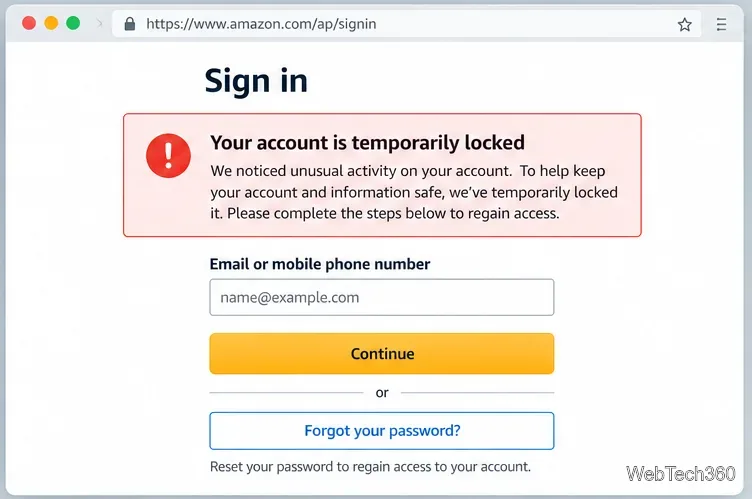
Go directly to Amazon in your browser or app and try to sign in with the email address or mobile number connected to the account. Amazon’s current sign-in help notes that accounts may use a password, a one-time security code, or a passkey. If your credentials are rejected, use the password reset or recovery option instead of repeatedly guessing.
Amazon’s official guidance is available in Why Can’t I Sign into My Account?.
If the lock is tied to two-step verification, first try a registered backup method or a trusted device. If you reach the verification screen but cannot receive the code, Amazon provides an account-recovery path from the “Didn’t Receive the Code” option.
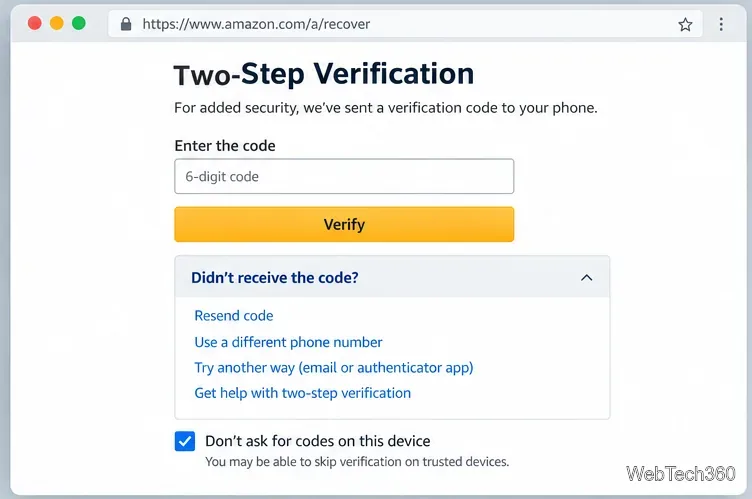
Amazon says it cannot change two-step verification settings until the account owner’s identity has been successfully verified. See Recover Your Account after Two-Step Verification Fails.
Account-lock scams are common, so do not click a link in an unexpected email or text just because it says your Amazon account is suspended. Amazon recommends checking your account’s Message Center: legitimate Amazon emails should appear there. Also inspect the sender and destination carefully. Amazon warns that fake messages often use look-alike domains, urgency, or requests for sensitive information.
For current anti-phishing guidance, see How to identify fake emails and Report a scam.
If self-service recovery does not resolve the lock, use Amazon’s official Customer Service page. Current Amazon support documentation says assistance is available through phone, chat, email, and self-service options. Available choices can vary by issue and region, so avoid relying on an old phone number copied from a third-party article.
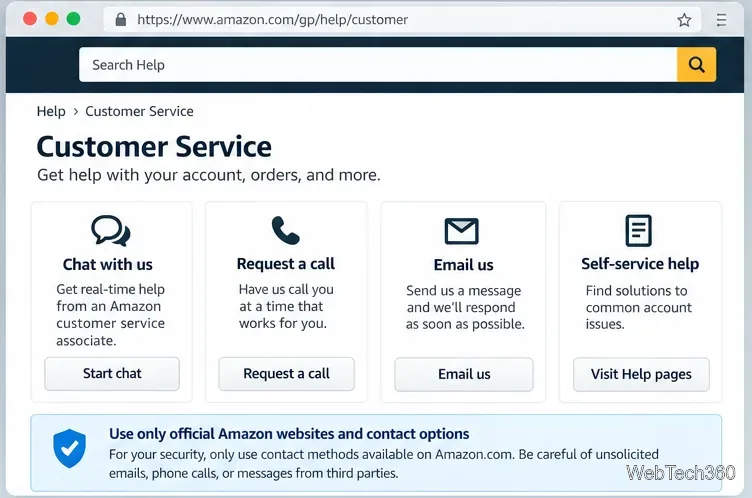
When you contact support, explain the exact message you see and be prepared to verify that you own the account. Do not create a second Amazon account simply to bypass a lock unless Amazon specifically instructs you to do so. Use Amazon Support Options and Customer Service to reach the current support flow.
A shopping-account lock and a Seller Central deactivation are not the same problem. If your Amazon Seller account has been deactivated, use Seller Central’s official appeal workflow rather than general shopping-account recovery.
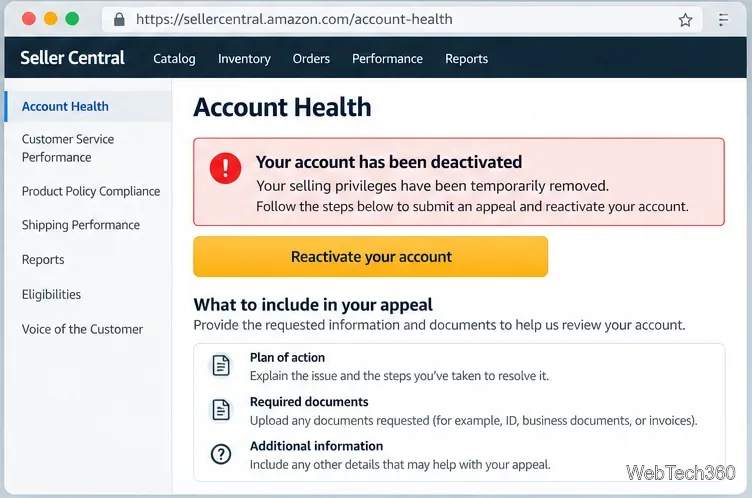
Amazon’s Seller Forums moderator guidance documents this process in How to appeal an account deactivation. The Seller Central Account Health dashboard is at Account Health.
Change your password if you suspect anyone else may have known it, review your recent orders and payment methods, and enable two-step verification from Your Account > Login & security. Amazon describes two-step verification as an added layer that requires a security code in addition to your normal sign-in credentials.
Most importantly, continue using only Amazon’s own recovery and support channels. The old advice to call a hard-coded support number, create another account to reach chat, or pay a third-party “unlock” company is unnecessary and can expose your account or personal information to additional risk.
Open a Linux shell in any Windows 10 folder with File Explorer, PowerShell, and WSL. Check the Linux path and fix common setup issues.
Use a screenshot test, cable and port checks, monitor diagnostics, display settings, and driver rollback to pinpoint lines on a Windows 10 monitor.
Show two other time zones beside your Windows 10 clock. Set up each additional clock, give it a clear label, and find it in the taskbar calendar.
Find the File Explorer extension that delays right-click menus in Windows 10, test it safely with ShellExView, and restore any menu features you still need.
Stop Windows 10 from powering down a specific network adapter or USB device with plan-level settings and Device Manager controls, plus tips to avoid excess battery drain.
Check whether Windows 10 uses a digital license or product key, find a firmware-stored OEM key, and save license details securely for a reinstall.
Identify a Windows 10 Task Manager process by checking its executable path, file properties, publisher, linked services, and a Microsoft Defender scan.
Create a searchable Windows 10 folder inventory with PowerShell. Save every file and subfolder path as plain text or export details to a sortable CSV.
Add a custom reminder, quote, or label to your Windows 10 desktop with a Rainmeter text skin. Create the INI file, load it, then adjust its font and position.
Use Bluetooth Swift Pair on Windows 10 to pair a compatible accessory from a notification, with setup steps and fixes when the prompt does not appear.








