How to Open a Linux Shell in a Folder on Windows 10

Open a Linux shell in any Windows 10 folder with File Explorer, PowerShell, and WSL. Check the Linux path and fix common setup issues.
Quick answer: The “Another program is being installed” message usually means Windows Installer is already busy with an install, update, repair, or uninstall. Let the current job finish first. If nothing appears to be running, restart Windows. If the message returns, close only the stuck installer process, restart the Windows Installer service, and use Microsoft’s installer troubleshooter.
For MSI-based setups, Microsoft documents this condition as ERROR_INSTALL_ALREADY_RUNNING (error 1618): another installation is already in progress. This does not mean Windows blocks every possible installer at once; it specifically indicates that the Windows Installer engine is occupied.
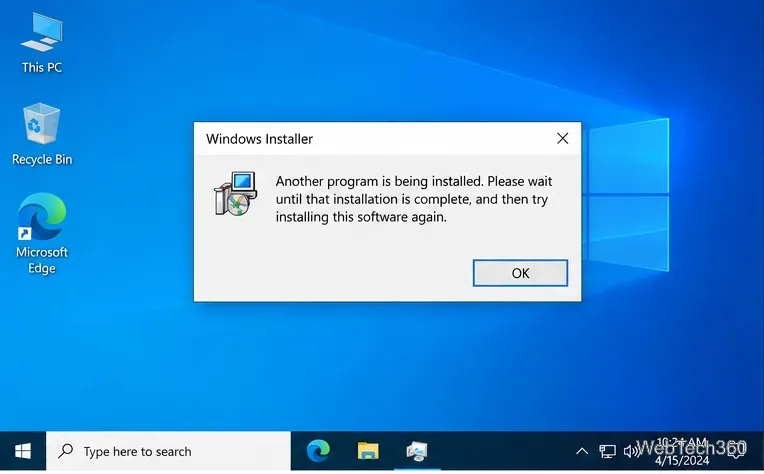
The most common causes are straightforward: another MSI setup is still running, a program is being updated or removed in the background, a setup process did not exit cleanly, or Windows is waiting for a restart before setup can continue. Less commonly, damaged installer data or a Windows Installer service problem can keep the busy state from clearing.
First, close any installer windows you do not need and check whether another app, driver package, or update is still installing. Some installers spend several minutes working in the background without showing a progress window, so avoid launching the same setup repeatedly.
If no installation is visibly active, save your work and restart the PC. A restart ends stalled setup processes and can complete pending file-replacement operations; Microsoft notes that Windows Installer can require a reboot when files in use must be replaced. After signing back in, wait for startup tasks to settle before launching the installer again.
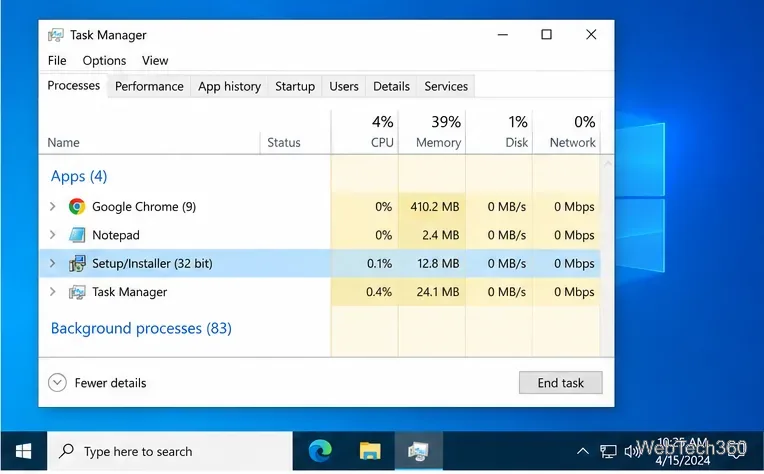
If the error remains and you can identify a setup that has frozen, you can stop that specific process:
Important: Ending an installer abruptly can leave a partially installed program. Use the installer’s own Cancel button first when it responds, and do not terminate unrelated system processes.
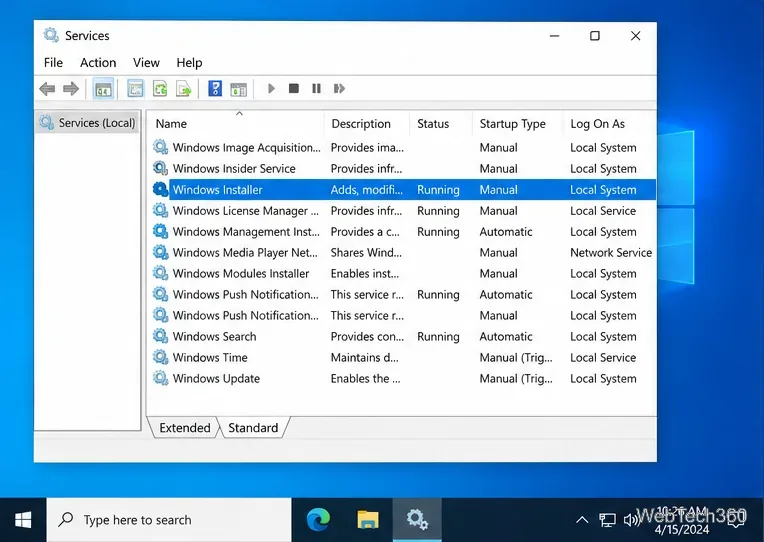
If no setup is active but Windows still reports that another installation is running, reset the Windows Installer service:
If the service refuses to start or immediately fails again, move to the repair tool below instead of deleting installer folders or registry keys manually.
Microsoft still provides the Program Install and Uninstall troubleshooter for Windows desktop programs. It can repair corrupted registry keys and installation data that prevent programs from being installed, updated, or removed.
Download the troubleshooter from Microsoft, open it, choose Installing, and follow the prompts for the affected program. If the program is not listed, the tool may ask for its MSI product code, which is mainly useful for advanced troubleshooting.
If the error happens only with one app, discard the old setup file and download a fresh copy from the software publisher’s official site. A damaged or incomplete package can fail repeatedly even after Windows Installer itself is working normally.
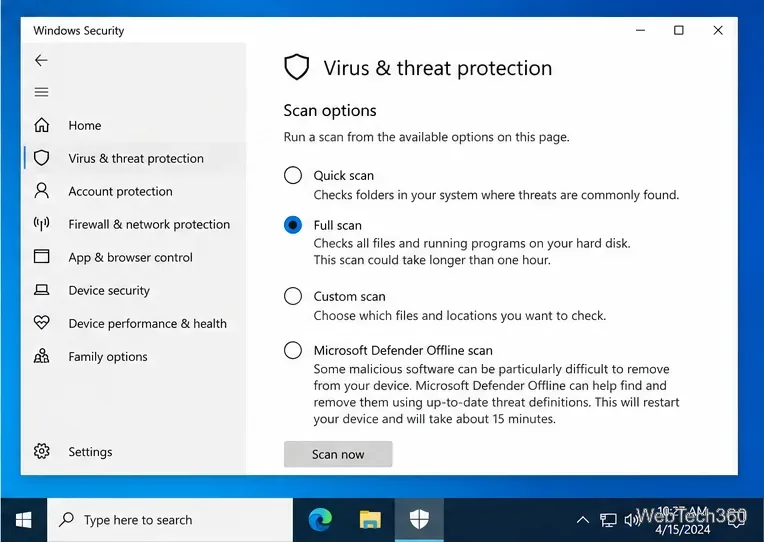
If the installer came from an unfamiliar source or behaves suspiciously, do not disable antivirus protection to force it through. Windows 10’s Windows Security app can run a Quick scan, Full scan, Custom scan, or Microsoft Defender Offline scan. You can also right-click a downloaded file and scan that item with Microsoft Defender.
If every MSI package fails with error 1618 even after a restart and the troubleshooter, a background service may be launching an installer automatically. Microsoft’s clean boot procedure can help isolate that kind of software conflict. If only one installer fails, contact that program’s publisher and verify that the package supports your edition and architecture of Windows.
Avoid advice that tells you to delete C:\Windows\Installer or remove Windows Installer registry entries by hand. Those changes can break repairs, updates, and uninstall operations for software already on the PC.
Windows 10 support note: Microsoft ended general Windows 10 support on October 14, 2025. The operating system still runs, but Microsoft recommends moving to Windows 11 where possible or using an eligible Extended Security Updates option during the transition. See Microsoft’s Windows support lifecycle guidance for current details.
Open a Linux shell in any Windows 10 folder with File Explorer, PowerShell, and WSL. Check the Linux path and fix common setup issues.
Use a screenshot test, cable and port checks, monitor diagnostics, display settings, and driver rollback to pinpoint lines on a Windows 10 monitor.
Show two other time zones beside your Windows 10 clock. Set up each additional clock, give it a clear label, and find it in the taskbar calendar.
Find the File Explorer extension that delays right-click menus in Windows 10, test it safely with ShellExView, and restore any menu features you still need.
Stop Windows 10 from powering down a specific network adapter or USB device with plan-level settings and Device Manager controls, plus tips to avoid excess battery drain.
Check whether Windows 10 uses a digital license or product key, find a firmware-stored OEM key, and save license details securely for a reinstall.
Identify a Windows 10 Task Manager process by checking its executable path, file properties, publisher, linked services, and a Microsoft Defender scan.
Create a searchable Windows 10 folder inventory with PowerShell. Save every file and subfolder path as plain text or export details to a sortable CSV.
Add a custom reminder, quote, or label to your Windows 10 desktop with a Rainmeter text skin. Create the INI file, load it, then adjust its font and position.
Use Bluetooth Swift Pair on Windows 10 to pair a compatible accessory from a notification, with setup steps and fixes when the prompt does not appear.








