How to Open a Linux Shell in a Folder on Windows 10

Open a Linux shell in any Windows 10 folder with File Explorer, PowerShell, and WSL. Check the Linux path and fix common setup issues.
If the arrow keys are not moving the active cell in Microsoft Excel, start with Scroll Lock. When Scroll Lock is on, the arrow keys scroll the worksheet instead of moving the selection. If the arrows move a text cursor inside a cell, Excel is probably in Edit mode instead. The steps below cover both cases and the less common causes.
| What happens | Most likely cause | First fix |
|---|---|---|
| The whole sheet scrolls, but the selected cell stays put | Scroll Lock is on | Turn off Scroll Lock |
| The cursor moves inside cell text or a formula | Excel is in Edit mode | Press Enter or select another cell |
| Arrow keys fail in Excel and other apps | Keyboard or Windows input issue | Test the keys outside Excel |
| The problem disappears in Excel Safe Mode | Add-in or startup customization | Disable add-ins and retest |
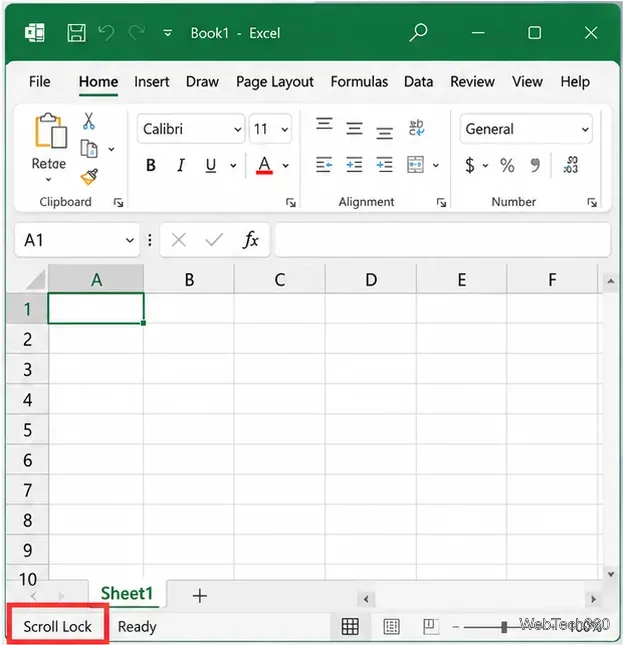
Press the Scroll Lock or ScrLk key once. On some laptop keyboards, you may need to hold Fn while pressing the key. Microsoft confirms that Scroll Lock changes the arrow keys from cell navigation to worksheet scrolling. You can also right-click Excel’s status bar and make sure Scroll Lock is enabled in the status-bar menu so its state is visible. See Microsoft’s Scroll Lock instructions for Excel.
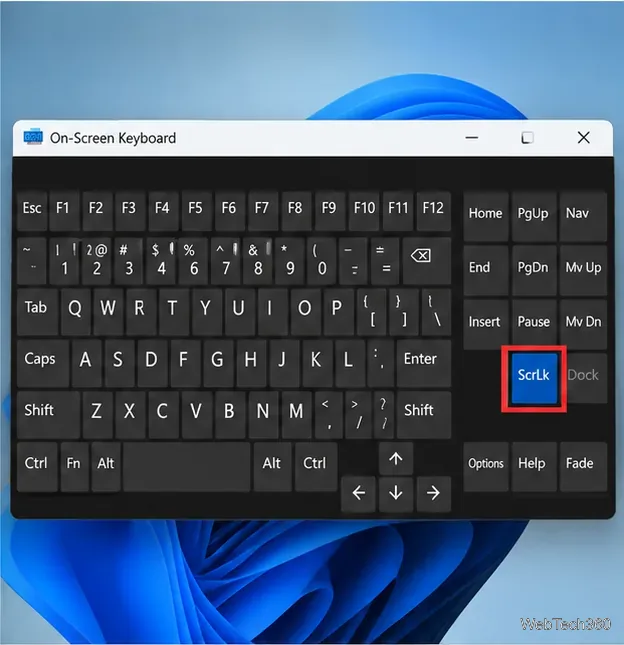
Press Windows + Ctrl + O to open the Windows On-Screen Keyboard, then select ScrLk. Return to Excel and test the arrow keys again. This is especially useful on compact laptops and keyboards that omit a dedicated Scroll Lock key.
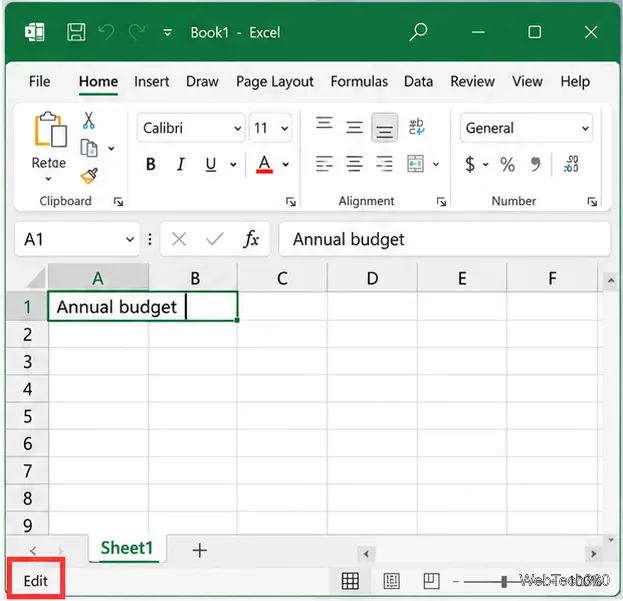
If an arrow key moves the insertion cursor within a cell or formula, Excel is in Edit mode. Press Enter to finish the edit, press Tab to finish and move right, or click another cell. Microsoft documents that arrow-key behavior changes while a cell is being edited; see Edit cell contents in Excel.
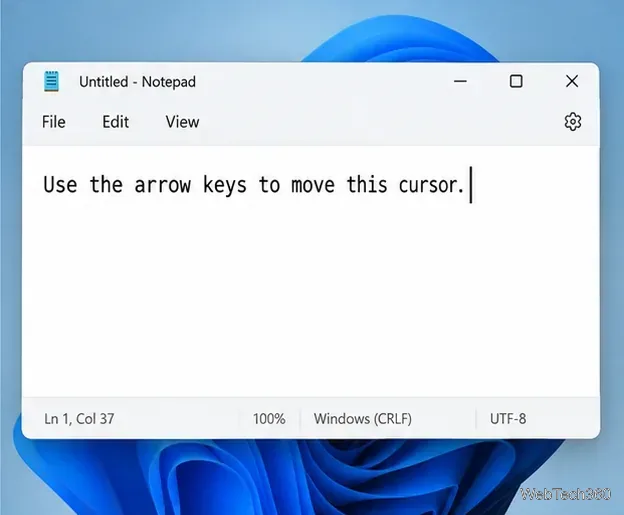
Open Notepad or another simple text editor and test all four arrow keys. If they also fail there, the problem is not specific to Excel. Reconnect the keyboard, try another USB port or another keyboard if available, and check Settings > Accessibility > Keyboard. Sticky Keys is not required for normal Excel arrow navigation, and Filter Keys can alter how repeated or brief keystrokes are handled. Microsoft explains these controls in its Windows keyboard accessibility guide.
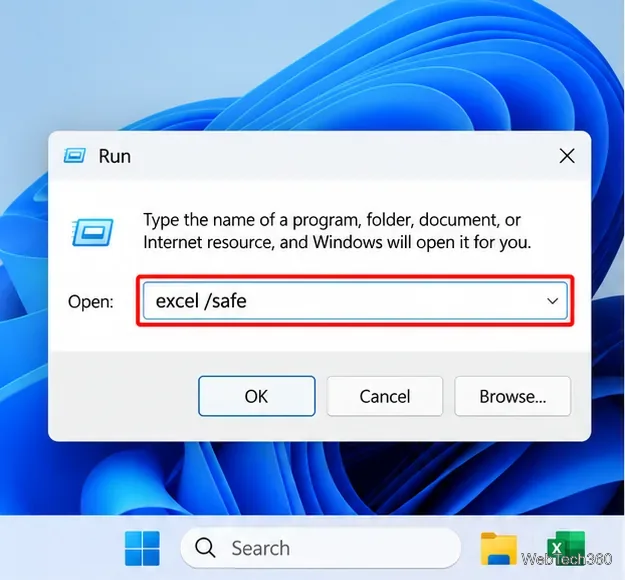
If the keys work in Safe Mode, an add-in, startup file, or customization is a likely cause. Microsoft uses Safe Mode as a standard isolation step for Excel problems in its Excel troubleshooting guidance.
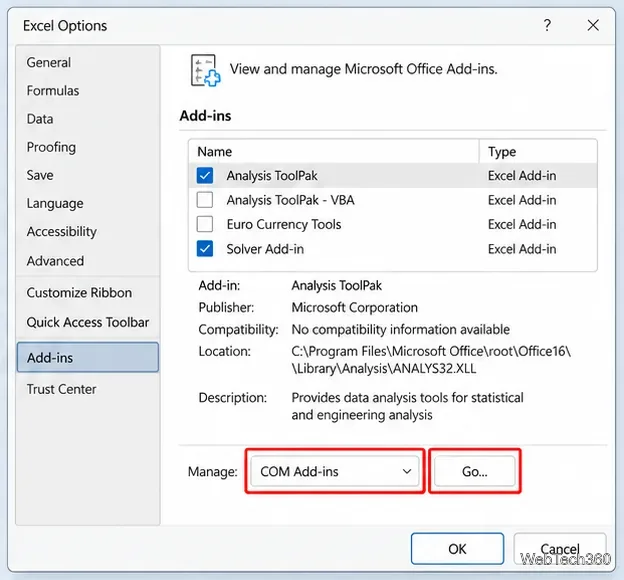
In normal Excel, go to File > Options > Add-ins. At the bottom, choose COM Add-ins from the Manage list and select Go. Clear the enabled add-ins, restart Excel, and test the arrows. If the issue is gone, re-enable add-ins one at a time and restart Excel after each change until you find the conflict. Repeat with Excel Add-ins if necessary.
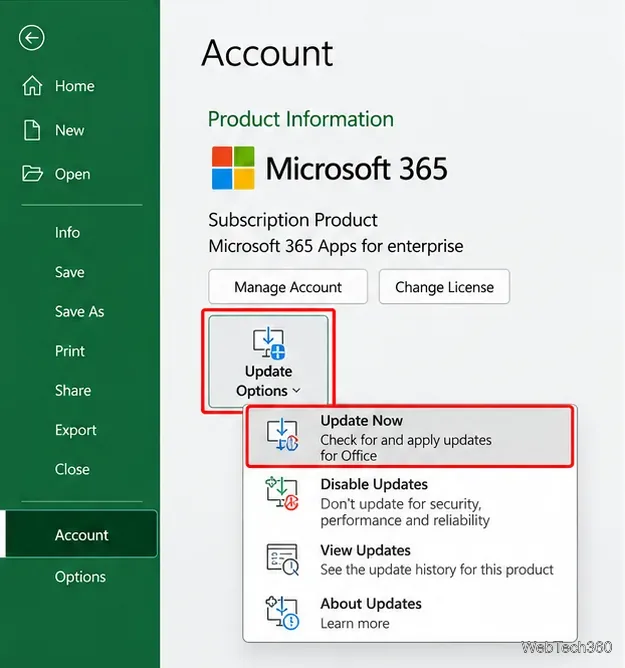
Open File > Account, then choose Update Options > Update Now. If Update Now is not available, updates may be managed by your organization. Microsoft’s current Office update instructions note that managed installations may require help from an administrator.
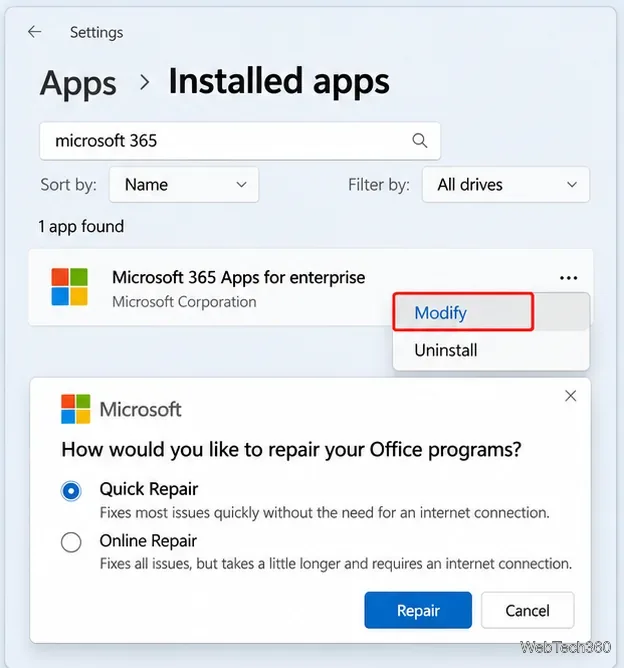
On Windows 11, open Settings > Apps > Installed apps, find Microsoft 365 or Office, open its menu, and choose Modify. Start with Quick Repair. If that does not help, use Online Repair, which is more thorough and requires an internet connection. Microsoft notes that repairing an Office product repairs the suite, not only Excel; follow its Office repair instructions.
You do not need to enable Sticky Keys to make Excel’s arrow keys work, and the Excel option Enable fill handle and cell drag-and-drop controls mouse-based filling and dragging rather than arrow-key navigation. If Scroll Lock is off, Excel is not in Edit mode, and the keyboard works in other apps, Safe Mode and add-in troubleshooting are the better next steps.
Open a Linux shell in any Windows 10 folder with File Explorer, PowerShell, and WSL. Check the Linux path and fix common setup issues.
Use a screenshot test, cable and port checks, monitor diagnostics, display settings, and driver rollback to pinpoint lines on a Windows 10 monitor.
Show two other time zones beside your Windows 10 clock. Set up each additional clock, give it a clear label, and find it in the taskbar calendar.
Find the File Explorer extension that delays right-click menus in Windows 10, test it safely with ShellExView, and restore any menu features you still need.
Stop Windows 10 from powering down a specific network adapter or USB device with plan-level settings and Device Manager controls, plus tips to avoid excess battery drain.
Check whether Windows 10 uses a digital license or product key, find a firmware-stored OEM key, and save license details securely for a reinstall.
Identify a Windows 10 Task Manager process by checking its executable path, file properties, publisher, linked services, and a Microsoft Defender scan.
Create a searchable Windows 10 folder inventory with PowerShell. Save every file and subfolder path as plain text or export details to a sortable CSV.
Add a custom reminder, quote, or label to your Windows 10 desktop with a Rainmeter text skin. Create the INI file, load it, then adjust its font and position.
Use Bluetooth Swift Pair on Windows 10 to pair a compatible accessory from a notification, with setup steps and fixes when the prompt does not appear.








