How to Create a List of All Items in a Folder on Windows 10

Create a searchable Windows 10 folder inventory with PowerShell. Save every file and subfolder path as plain text or export details to a sortable CSV.
COM Surrogate is a normal Windows process, not a virus by itself. Windows uses it to host certain COM components outside the app that requested them, so a faulty component can fail without necessarily taking the main app down with it. The process is commonly associated with dllhost.exe, and seeing more than one COM Surrogate instance in Task Manager can be normal.
If COM Surrogate repeatedly crashes, uses unusually high CPU, or makes File Explorer freeze while opening folders, the real cause is often a thumbnail handler, media component, third-party shell extension, damaged file, corrupted cache, or a Windows component problem. The fixes below focus on finding that cause instead of disabling COM Surrogate.
COM stands for Component Object Model, a Windows technology that lets software components work with one another. Microsoft documents a system-supplied DLL surrogate that can load DLL-based COM servers in a separate process. One important benefit is fault isolation: if the hosted component crashes, the calling application has a better chance of staying open. See Microsoft's DLL Surrogates documentation for the underlying design.
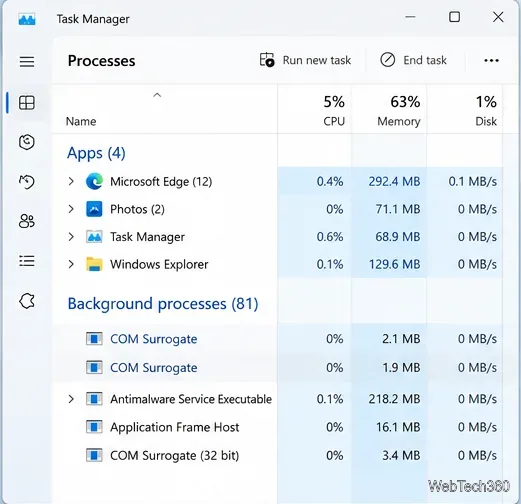
Press Ctrl + Shift + Esc to open Task Manager. Under Processes, select a COM Surrogate instance that is clearly stuck or consuming resources and choose End task. Then reopen the folder or app that triggered the issue. Windows can start another surrogate when it is needed.
Do not repeatedly terminate every instance as routine maintenance. Ending the process only resets the symptom; if the problem returns, continue with the checks below.
COM Surrogate problems often show up while File Explorer is generating previews for photos, videos, PDFs, or other files. As a diagnostic step, open File Explorer, choose ... > Options, open the View tab, and enable Always show icons, never thumbnails. On Windows 10, Folder Options is available from File Explorer's View ribbon.
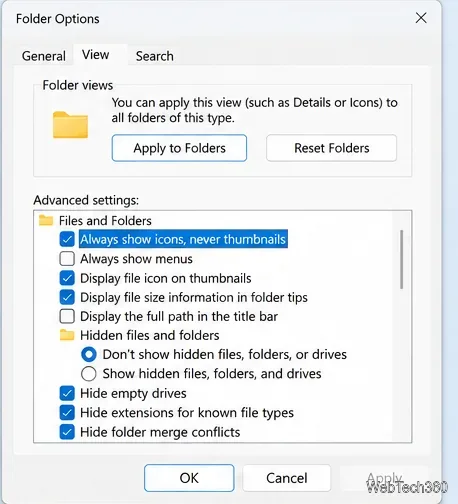
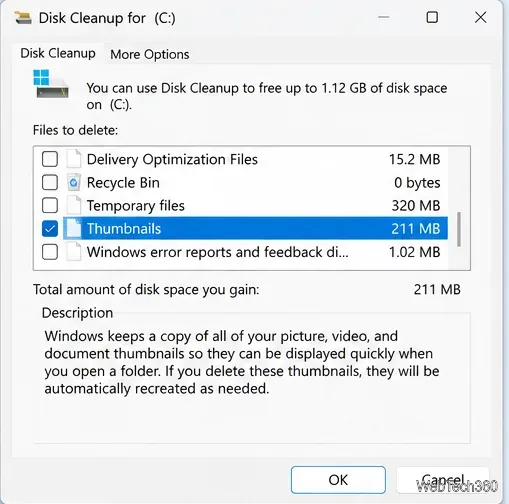
If File Explorer stops crashing with thumbnails disabled, clear the thumbnail cache. Search Windows for Disk Cleanup, select the Windows drive, check Thumbnails, and run the cleanup. Microsoft confirms that Disk Cleanup can remove the thumbnail cache in its drive-space cleanup guidance. Re-enable thumbnails afterward and test the folder again.
When the crash is tied to one folder or file type, use Microsoft's free Sysinternals Process Monitor. Add a filter for Process Name is dllhost.exe, reproduce the problem, and inspect the file-system activity immediately before the error.
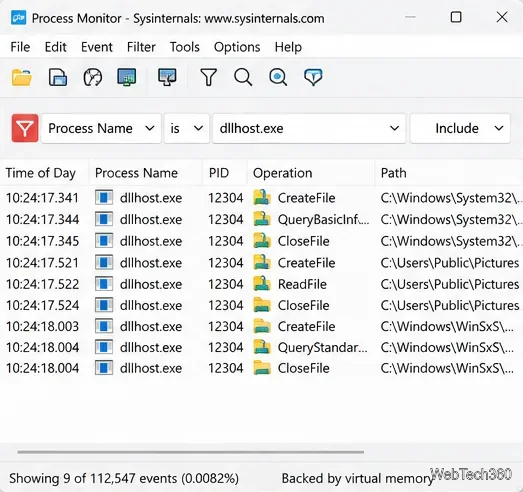
If the same media file is repeatedly accessed just before the crash, move that file out of the folder and test again. If Process Monitor points to a third-party program folder or codec, update, repair, or remove that software from its official installer. Do not delete Windows DLLs or unfamiliar system files just because they appear in the trace.
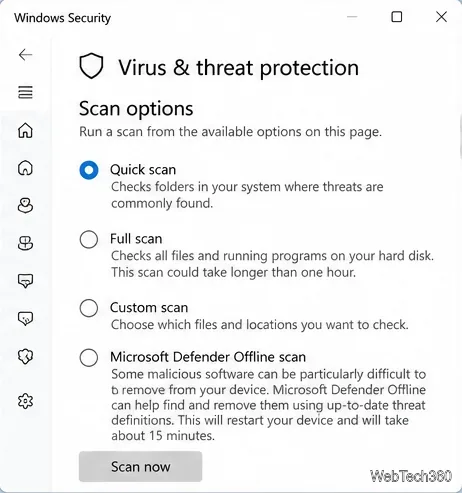
Because legitimate Windows processes can be imitated by malware, run a security scan if the behavior is unusual or the executable looks suspicious. Open Windows Security > Virus & threat protection and run a Quick scan; use Full scan or Microsoft Defender Offline when a deeper check is warranted. Microsoft's Windows Security guidance explains the available scan options.
Avoid adding a blanket antivirus exclusion for COM Surrogate or turning off protection as a general fix. If a third-party security product is blocking a legitimate component, review its detection history, update the product, and follow the vendor's instructions for that specific detection.
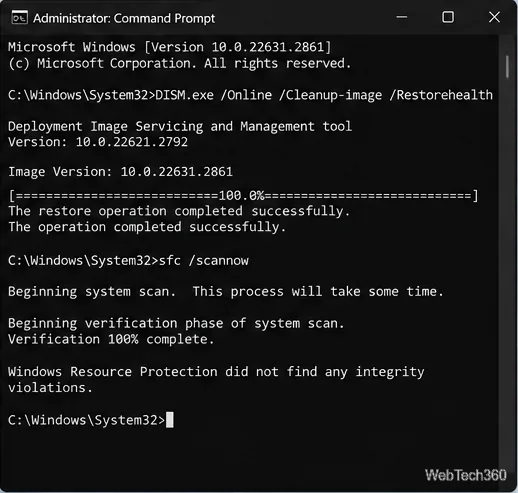
If COM Surrogate errors occur across many folders and apps, repair the Windows component store and protected system files. Open Command Prompt as administrator and run these commands in order:
DISM.exe /Online /Cleanup-image /Restorehealth
sfc /scannow
Microsoft recommends running DISM before System File Checker because DISM supplies files that SFC can use for repair. Full instructions and result messages are in Microsoft's System File Checker documentation.
In most cases, COM Surrogate itself is only the host. The lasting fix is to identify the thumbnail provider, file, codec, shell extension, security conflict, or damaged Windows component that is causing the surrogate to fail.
Create a searchable Windows 10 folder inventory with PowerShell. Save every file and subfolder path as plain text or export details to a sortable CSV.
Add a custom reminder, quote, or label to your Windows 10 desktop with a Rainmeter text skin. Create the INI file, load it, then adjust its font and position.
Use Bluetooth Swift Pair on Windows 10 to pair a compatible accessory from a notification, with setup steps and fixes when the prompt does not appear.
Learn what common laptop function key symbols mean, how Fn and Fn Lock affect them, and how to confirm the right shortcut for your Windows 10 laptop model.
Turn off your Windows 10 display instantly with ScreenSleep, set a keyboard shortcut, and see when to use the built-in screen timeout instead.
Fix the “running scripts is disabled on this system” PowerShell error on Windows 10 with a current-user policy, a temporary session option, and safe steps for downloaded scripts.
Change the Windows 10 drag-selection color with a backup-first registry walkthrough, RGB examples, troubleshooting tips, and steps to restore your original values.
Check your router’s connected-device list or scan a local network with Fing Desktop on a supported PC. Learn what each method can show and how to verify unfamiliar entries.
Messenger does not offer a documented per-friend online alert. Learn how Active Status works, where to check the green dot, and which notifications you can enable instead.
Use 7-Zip to find an exact filename or wildcard match inside a ZIP or other supported archive on Windows 10 without unpacking its files.








