How to Open a Linux Shell in a Folder on Windows 10

Open a Linux shell in any Windows 10 folder with File Explorer, PowerShell, and WSL. Check the Linux path and fix common setup issues.
Error code 0x800704cf on Windows 10 usually means Windows or an app cannot reach a required network location. Microsoft maps Win32 error 1231 (0x4CF) to ERROR_NETWORK_UNREACHABLE, so the message can appear even when a browser still seems to work. It is especially common during Microsoft Store or Microsoft-account sign-in failures. Start with the network fixes below, then use the Store-specific steps only if other apps can get online normally. See Microsoft's system error-code reference for the underlying error.
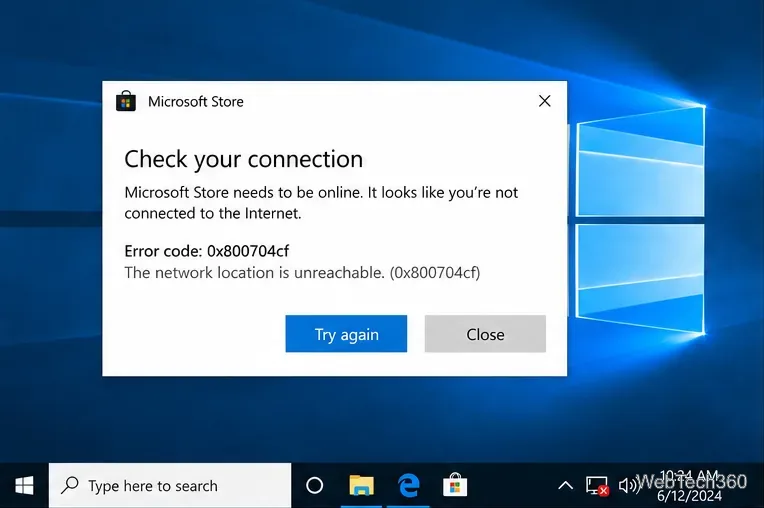
Restart the PC first. If other devices on the same network also fail, restart the modem or router and check with your Internet provider. If the problem affects only this PC, temporarily disconnect any VPN and make sure Windows is not intentionally using an offline or restricted connection.
In Windows 10, open Settings > Network & Internet > Status and run the available network troubleshooter. You can also follow Microsoft's current Windows network troubleshooting guidance.
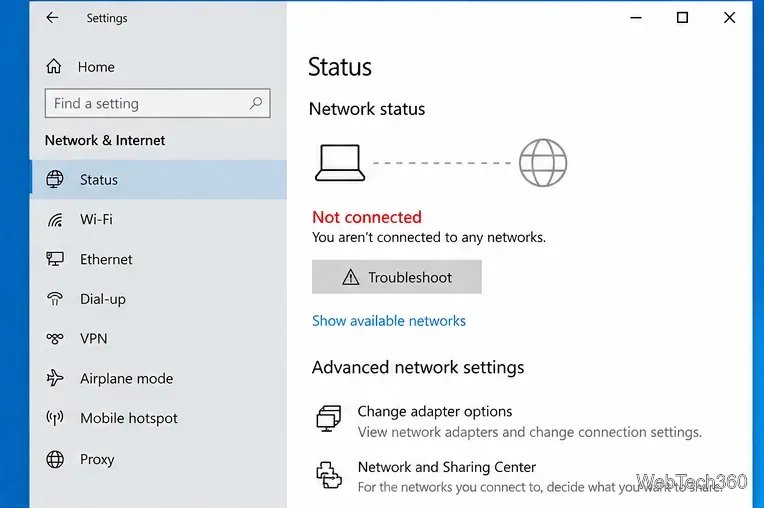
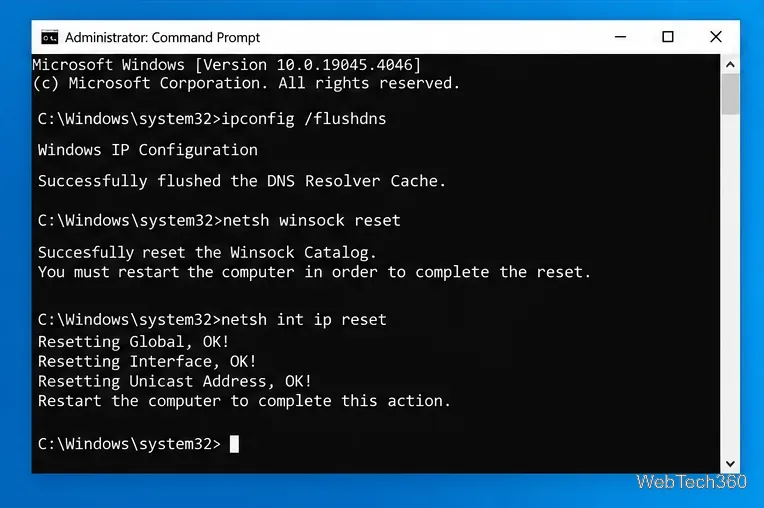
If the connection works inconsistently or Microsoft apps still say you are offline, reset the local networking components. Search for Command Prompt, choose Run as administrator, then run these commands one at a time:
ipconfig /flushdns
netsh winsock reset
netsh int ip reset resetlog.txt
Restart Windows afterward. Microsoft documents ipconfig /flushdns, netsh winsock reset, and the TCP/IP reset procedure. These commands clear cached DNS data and restore parts of the Windows network stack; they do not erase your personal files.
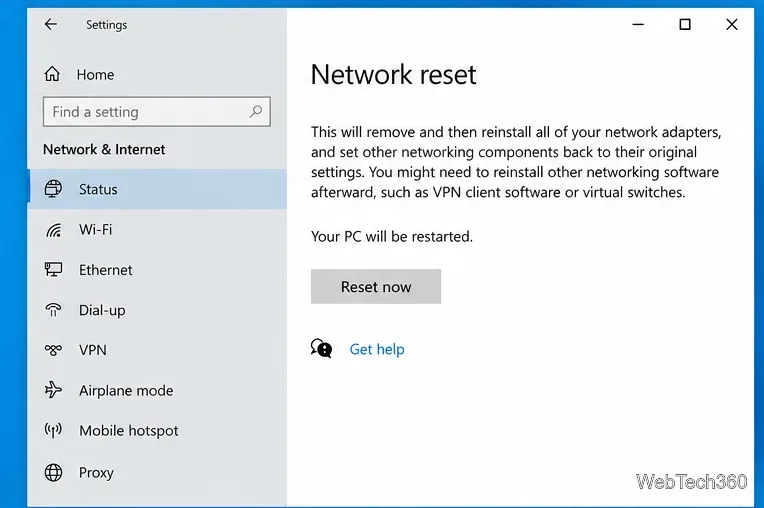
Go to Settings > Network & Internet > Status > Network reset, select Reset now, and confirm. Windows removes and reinstalls network adapters and restores their settings to defaults. Microsoft recommends Network reset as a later troubleshooting step because VPN clients, Hyper-V virtual switches, or other networking software may need to be reconfigured afterward.
Right-click Start, open Device Manager, expand Network adapters, and identify the Wi-Fi or Ethernet adapter you actually use. If the error began after a driver problem, right-click the adapter, choose Uninstall device, and restart the PC. Windows should detect the adapter again and reinstall a driver.
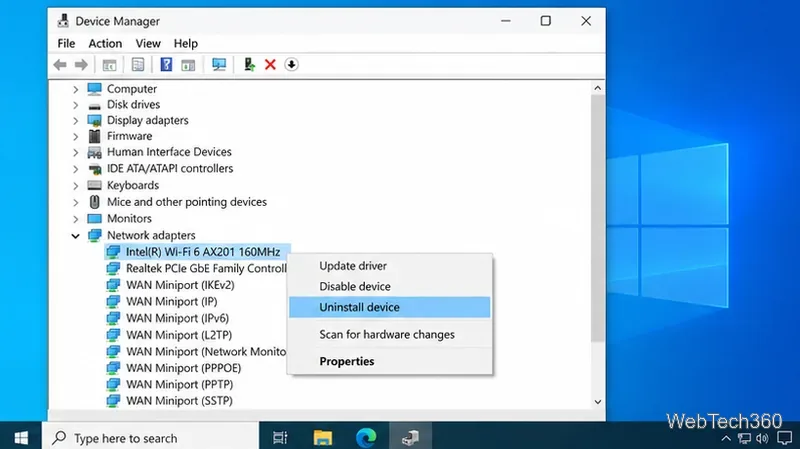
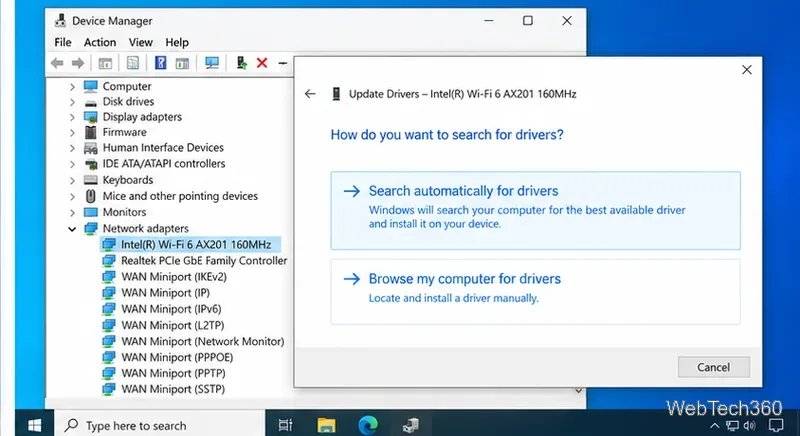
You can also choose Update driver > Search automatically for drivers. If Windows does not find a newer driver and the adapter manufacturer provides one for your exact model, use the manufacturer's official support page rather than a third-party driver updater. Microsoft's Ethernet troubleshooting guide also documents uninstalling the adapter and restarting so Windows can reinstall it.
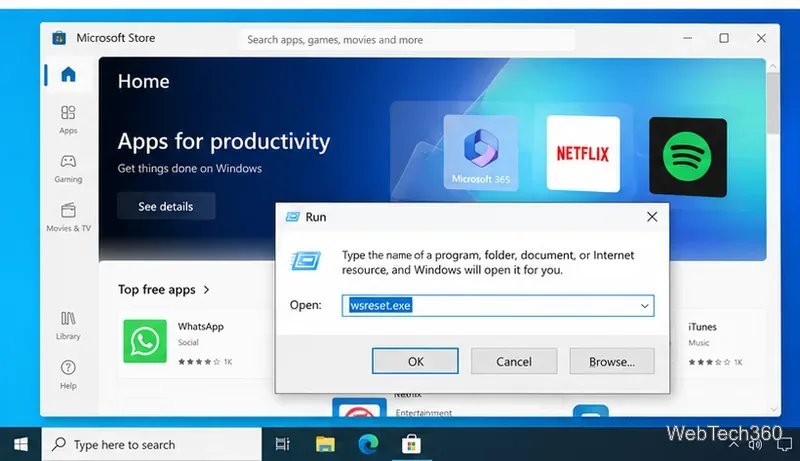
Press Windows + R, type wsreset.exe, and select OK. Microsoft says this clears the Store cache and then opens Microsoft Store again. If the problem remains, go to Settings > Apps > Apps & features, select Microsoft Store > Advanced options, try Repair if available, then Reset if Repair does not help. See Microsoft's Microsoft Store reset instructions and app repair guidance.
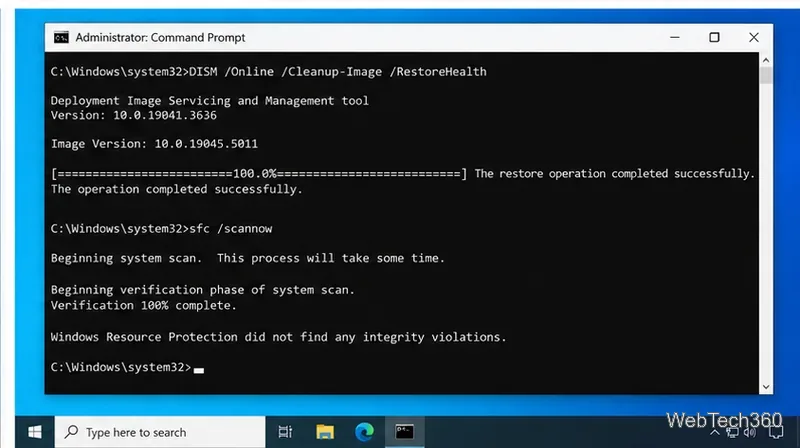
If networking and Store repairs do not help, damaged Windows components may be involved. Open Command Prompt as administrator and run:
DISM.exe /Online /Cleanup-image /Restorehealth
sfc /scannow
Microsoft recommends running DISM before SFC. Let each command finish, then restart Windows and test the app again. The official DISM and System File Checker instructions explain the possible scan results.
Older guides sometimes recommend disabling Client for Microsoft Networks in adapter properties or making broad firewall changes. Those are not general Microsoft-documented fixes for 0x800704cf and can interfere with Windows networking or file sharing. Prefer the targeted resets above, and change firewall or proxy settings only when you know a specific product or policy is blocking access.
Microsoft ended Windows 10 support on October 14, 2025. PCs still run, but standard Windows 10 installations no longer receive free feature or security updates. Eligible systems can use the temporary Extended Security Updates program, but Microsoft recommends moving to Windows 11 when possible. See the official Windows 10 end-of-support notice. If 0x800704cf keeps returning after the fixes above, upgrading to a supported Windows version is the safer long-term path.
Open a Linux shell in any Windows 10 folder with File Explorer, PowerShell, and WSL. Check the Linux path and fix common setup issues.
Use a screenshot test, cable and port checks, monitor diagnostics, display settings, and driver rollback to pinpoint lines on a Windows 10 monitor.
Show two other time zones beside your Windows 10 clock. Set up each additional clock, give it a clear label, and find it in the taskbar calendar.
Find the File Explorer extension that delays right-click menus in Windows 10, test it safely with ShellExView, and restore any menu features you still need.
Stop Windows 10 from powering down a specific network adapter or USB device with plan-level settings and Device Manager controls, plus tips to avoid excess battery drain.
Check whether Windows 10 uses a digital license or product key, find a firmware-stored OEM key, and save license details securely for a reinstall.
Identify a Windows 10 Task Manager process by checking its executable path, file properties, publisher, linked services, and a Microsoft Defender scan.
Create a searchable Windows 10 folder inventory with PowerShell. Save every file and subfolder path as plain text or export details to a sortable CSV.
Add a custom reminder, quote, or label to your Windows 10 desktop with a Rainmeter text skin. Create the INI file, load it, then adjust its font and position.
Use Bluetooth Swift Pair on Windows 10 to pair a compatible accessory from a notification, with setup steps and fixes when the prompt does not appear.








