How to Set Different Scaling Levels for Multiple Monitors in Windows 10

Adjust each Windows 10 monitor independently with per-display scaling, keep text readable, and troubleshoot custom scaling or blurry apps.
If File Explorer closes or restarts every time you right-click a file, folder, or empty space, a third-party context-menu extension is a common cause. Right-click menus can load add-ons installed by archive tools, cloud-sync apps, media software, and other utilities. Start with a clean boot to check for background conflicts, then disable a suspicious Explorer extension one at a time. Run Windows repair commands if the crash continues.
These steps are for Windows 10. Save your work before restarting. If the desktop or taskbar briefly disappears after a crash, Explorer may be restarting along with the File Explorer window.
A clean boot starts Windows with essential drivers and services while temporarily turning off third-party services and startup apps. It helps determine whether another program is interfering with Explorer. Microsoft notes that some PC functions may be unavailable until normal startup is restored. On a work-managed PC, check with your administrator before changing startup settings. See Microsoft's clean-boot instructions.
msconfig, then open System Configuration.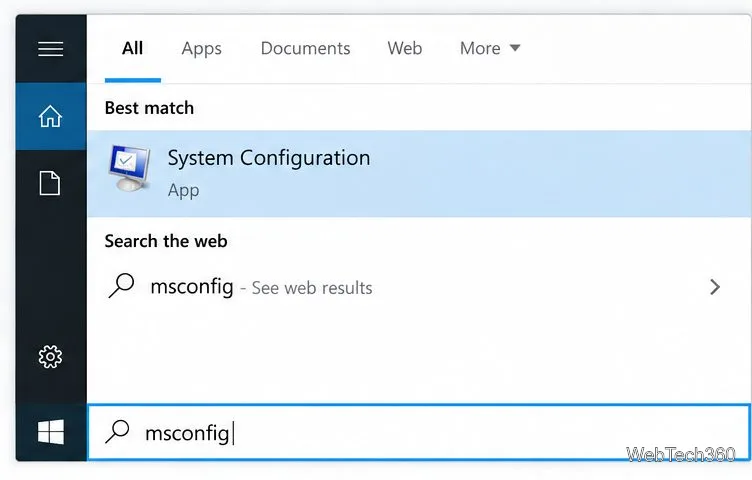
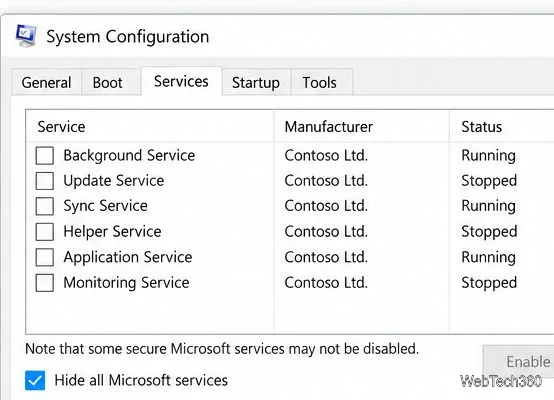
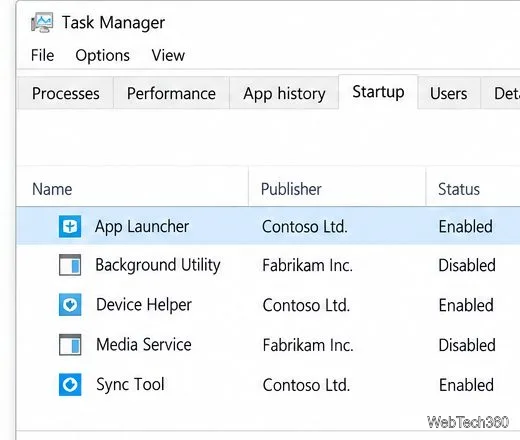
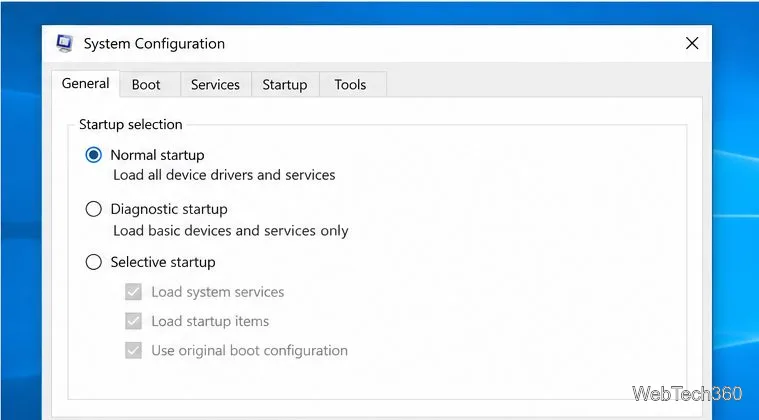
If the crash stops in a clean boot, a third-party service or startup app is involved. Re-enable items in small groups and restart between tests to narrow down the cause. When finished, restore normal startup: open msconfig, choose Normal startup on the General tab, restore the services and startup items you changed, and restart.
If right-clicking still crashes Explorer, or the problem affects only certain file types, inspect shell extensions. Microsoft's free Sysinternals Autoruns lists Explorer shell extensions and can disable an entry by clearing its checkbox.
Autoruns64.exe as administrator.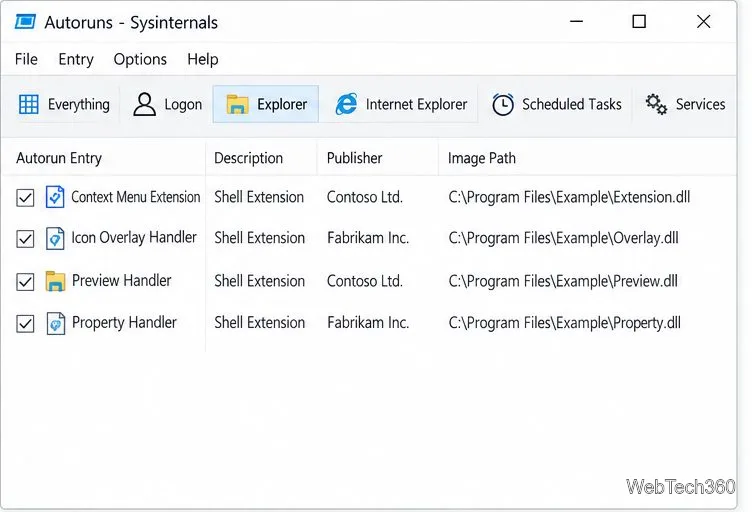
Once you identify the likely extension, update or uninstall the app that installed it, or leave only that extension disabled. Avoid turning off unrelated entries.
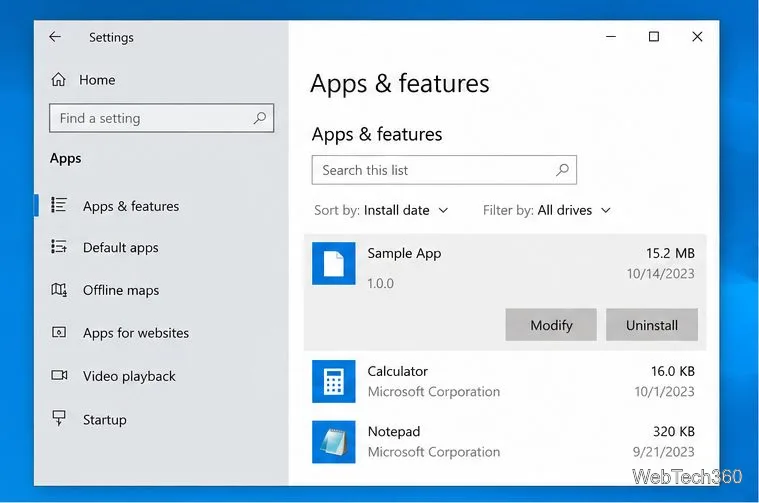
If the crashes began after installing or updating a program, start with that app instead of removing several programs at once. Open Start > Settings > Apps > Apps & features, sort by install date if useful, select the likely app, and choose Uninstall. Restart and test the context menu. If the app offers a repair option or has a newer version, try that when you need to keep it. Microsoft's Windows app removal guide covers other uninstall paths.
If the crash continues after checking third-party software, run Deployment Image Servicing and Management (DISM) before System File Checker (SFC). DISM repairs the Windows component store that SFC uses. Use an administrator Command Prompt and let each command finish before starting the next.
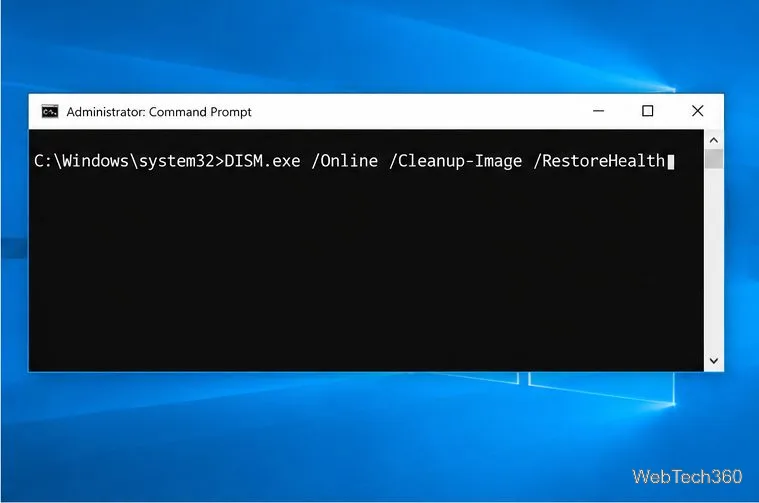
DISM.exe /Online /Cleanup-Image /RestoreHealth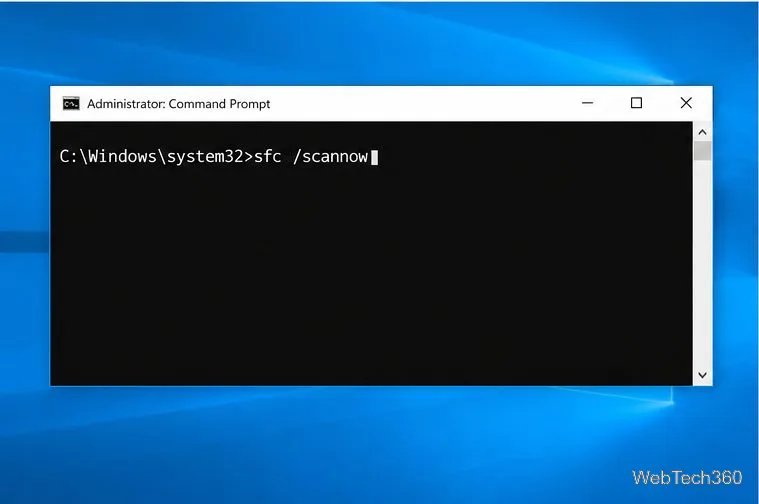
sfc /scannowKeep the Command Prompt open until SFC reaches 100 percent. Restart Windows afterward and test right-click again. If SFC reports that it repaired files, the restart loads those repairs. If it reports no integrity violations, the crash may be caused by an extension or profile issue instead. Follow Microsoft's DISM and SFC guidance if either scan cannot complete or reports files it could not repair.
Test right-clicking an empty area, a folder, and different file types. A crash limited to one file type points toward an extension associated with that format. If it happens across the system after a clean boot, extension checks, and file repair, try another Windows account to see whether the issue is profile-specific. Back up important files before using Windows recovery options, and consult Microsoft's File Explorer troubleshooting guide.
Windows 10 still runs, but standard support ended on October 14, 2025. A device not enrolled in Extended Security Updates no longer receives regular security updates; see Microsoft's Windows 10 support notice.
Adjust each Windows 10 monitor independently with per-display scaling, keep text readable, and troubleshoot custom scaling or blurry apps.
Use AirType’s browser pairing setup to type on an iPhone from a Windows 10 PC, with current setup steps, troubleshooting, and privacy limits.
Hide the mouse pointer in Windows 10 videos, games, and other apps with built-in typing controls or PowerToys CursorHide’s adjustable inactivity timer.
Find Control Panel Power Options on a Windows 10 desktop, open the page with a Run command, and adjust power plans, display timeouts, sleep, and button behavior.
Learn what Windows 10 deletion leaves behind, how to use SDelete on an HDD, and why SSDs and cloud backups need separate treatment.
Use FFmpeg’s DirectShow tools to open an integrated webcam’s driver properties in Windows 10, find the correct device, and troubleshoot missing controls.
Identify a keypress in Windows 10 with a browser event tester or SharpKeys, then separate layout, software, and keyboard hardware issues.
Use double quotes around each complete path with spaces in Command Prompt. Learn how to list, change to, copy, and troubleshoot Windows 10 files and folders.
Turn off the Windows 10 Start menu’s hover-to-expand behavior with a legacy Mach2 command, check build limits, and see the built-in app-list alternative.
Fix the iTunes Library.itl read error on Windows 10 by updating iTunes, restoring a compatible backup, or safely creating a new library without deleting media files.








