How to Fix Lines on a Monitor Screen in Windows 10

Use a screenshot test, cable and port checks, monitor diagnostics, display settings, and driver rollback to pinpoint lines on a Windows 10 monitor.
If Google Chrome is not responding, start by closing the stuck browser process and reopening Chrome. If the problem returns, update Chrome, disable extensions, reduce memory pressure, test graphics acceleration, clear cached files, and reset Chrome before reinstalling it. These steps are aimed at desktop Chrome on Windows 10 and Windows 11.
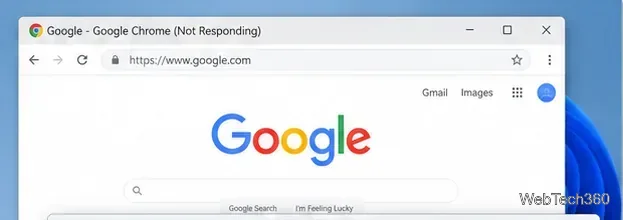
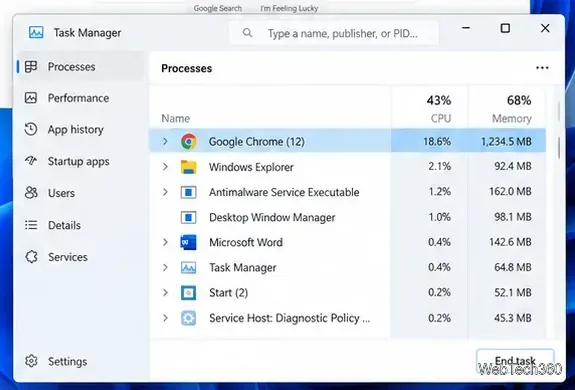
If the whole browser is frozen, do not keep clicking the window. On Windows, press Ctrl + Alt + Delete, open Task Manager, select Google Chrome or chrome.exe under Processes, and choose End task. Reopen Chrome afterward. Unsaved work in a frozen tab can be lost.
Google also recommends closing unnecessary tabs, pausing large downloads, quitting other programs, and restarting the computer when memory pressure is causing Chrome to hang. See the official Chrome crash troubleshooting guide.
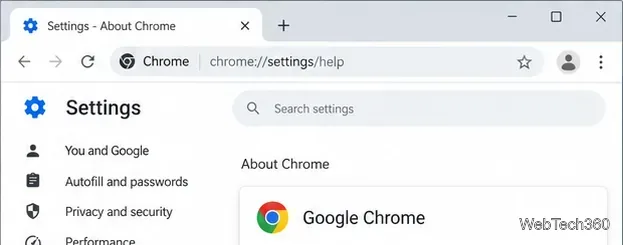
Chrome normally updates in the background, but an update may still be waiting for a restart. Open the three-dot menu, choose Help > About Google Chrome, and let Chrome check for an update. If Relaunch appears, select it. Google documents the current process on its Chrome update page.
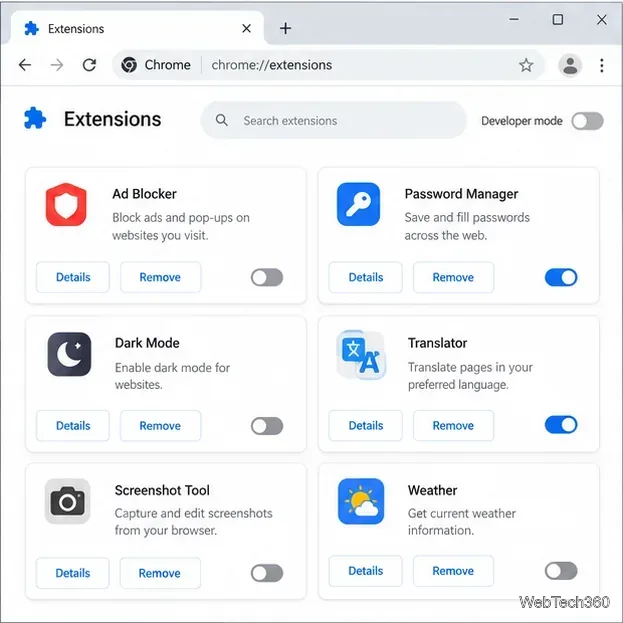
An extension can freeze Chrome even when websites themselves are working normally. Open the three-dot menu and select Extensions > Manage extensions. Turn every extension off, restart Chrome, and test again. If Chrome becomes stable, re-enable extensions one at a time until the problem returns, then remove or replace the culprit. Google’s extension management instructions use this current menu path.
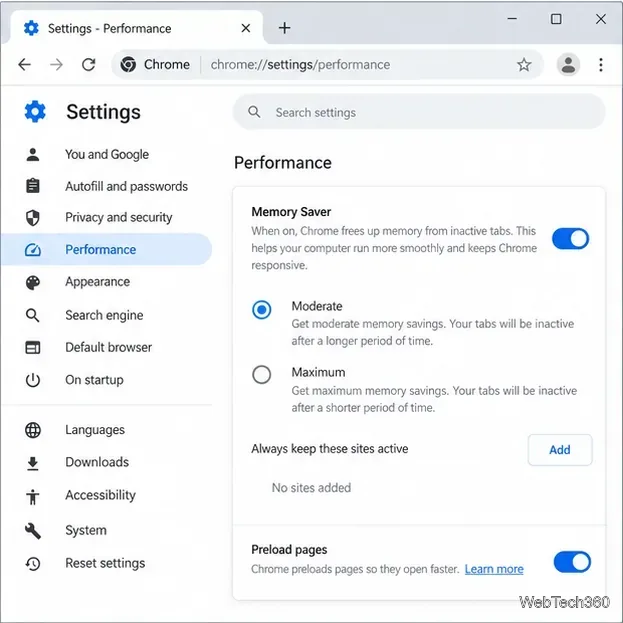
When Chrome freezes with many tabs open, close tabs and apps you no longer need. You can also go to Settings > Performance and turn on Memory Saver. Chrome can then deactivate inactive tabs so active tabs have more memory available. Google’s performance settings guide explains the available Memory Saver levels.
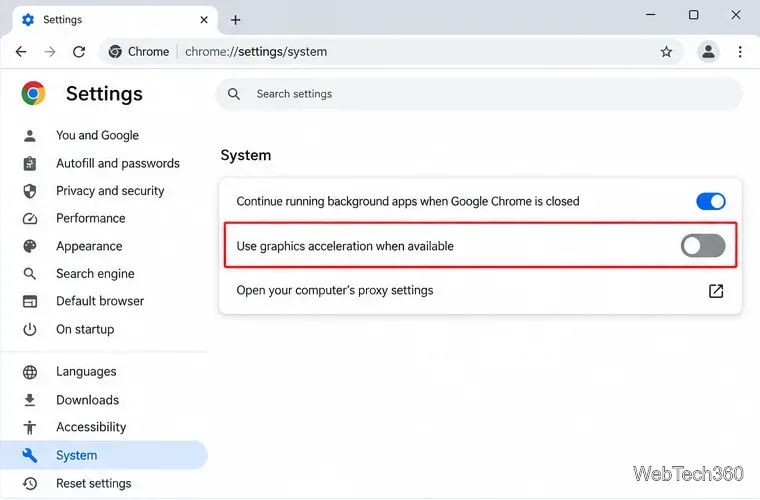
GPU or graphics-driver conflicts can make Chrome freeze, flicker, or crash. Go to Settings > System, turn off Use graphics acceleration when available, and relaunch Chrome. If this makes no difference, you can restore the setting. Google’s crash guidance recommends disabling hardware acceleration as a troubleshooting test.
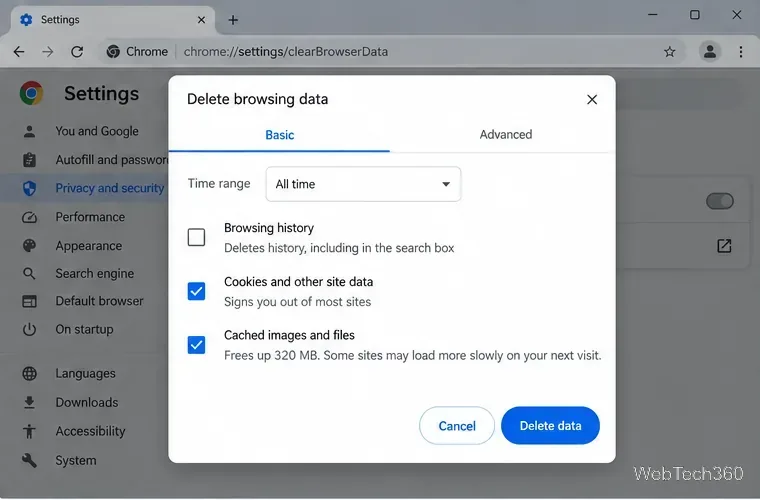
Open the three-dot menu and choose Delete browsing data. Select a time range and start with Cached images and files. If the problem is limited to one website, clearing that site’s stored data may be more targeted than wiping everything.
Only select Cookies and other site data if needed, because deleting cookies can sign you out of websites and remove saved site preferences. Google explains the effects of each option in its browsing data guide.
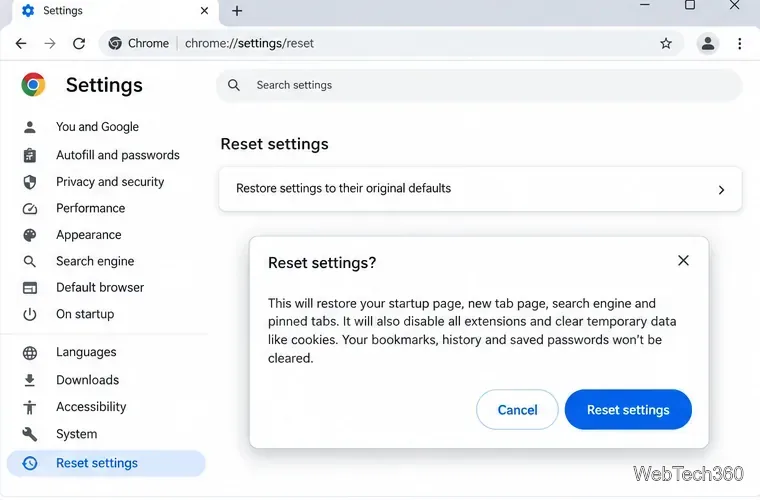
If extensions and cached data are not the cause, open Settings > Reset settings > Restore settings to their original defaults, then confirm. According to Google, this resets settings such as the startup page, search engine, content settings, extensions, and themes, while bookmarks and saved passwords are not deleted. Review Google’s reset instructions before continuing.
If Chrome still stops responding, test the same page in another browser. If that browser also fails, the problem may be the website or your network rather than Chrome; restart your modem or router and try again. If you suspect unwanted software, run a full scan with Windows Security. Microsoft recommends keeping Windows, browsers, and apps updated and using Microsoft Defender Antivirus to check for unwanted software; see Microsoft’s malware protection guidance.
Reinstall Chrome only after the steps above. Close Chrome, uninstall it from Settings > Apps in Windows, then download a fresh installer from Google Chrome. Google’s uninstall instructions note that deleting profile information is optional. If you choose that option, make sure any important local-only data is backed up or synced first.
If Chrome works everywhere except one site, avoid reinstalling the browser immediately. Try the page in another browser, clear only that site’s data, and check whether the site is having an outage. A single broken web app, script, or network path can look like a Chrome problem even when the browser itself is healthy.
Use a screenshot test, cable and port checks, monitor diagnostics, display settings, and driver rollback to pinpoint lines on a Windows 10 monitor.
Show two other time zones beside your Windows 10 clock. Set up each additional clock, give it a clear label, and find it in the taskbar calendar.
Find the File Explorer extension that delays right-click menus in Windows 10, test it safely with ShellExView, and restore any menu features you still need.
Stop Windows 10 from powering down a specific network adapter or USB device with plan-level settings and Device Manager controls, plus tips to avoid excess battery drain.
Check whether Windows 10 uses a digital license or product key, find a firmware-stored OEM key, and save license details securely for a reinstall.
Identify a Windows 10 Task Manager process by checking its executable path, file properties, publisher, linked services, and a Microsoft Defender scan.
Create a searchable Windows 10 folder inventory with PowerShell. Save every file and subfolder path as plain text or export details to a sortable CSV.
Add a custom reminder, quote, or label to your Windows 10 desktop with a Rainmeter text skin. Create the INI file, load it, then adjust its font and position.
Use Bluetooth Swift Pair on Windows 10 to pair a compatible accessory from a notification, with setup steps and fixes when the prompt does not appear.
Learn what common laptop function key symbols mean, how Fn and Fn Lock affect them, and how to confirm the right shortcut for your Windows 10 laptop model.








