How to Open a Linux Shell in a Folder on Windows 10

Open a Linux shell in any Windows 10 folder with File Explorer, PowerShell, and WSL. Check the Linux path and fix common setup issues.
If GTA Online is stuck on the loading screen, start by checking Rockstar's service status. If GTA Online is up, fully close the game, restart your PC or console, power-cycle your router, and then verify the game files if you play on PC. Those checks quickly separate a Rockstar-side outage from a local game or network problem.
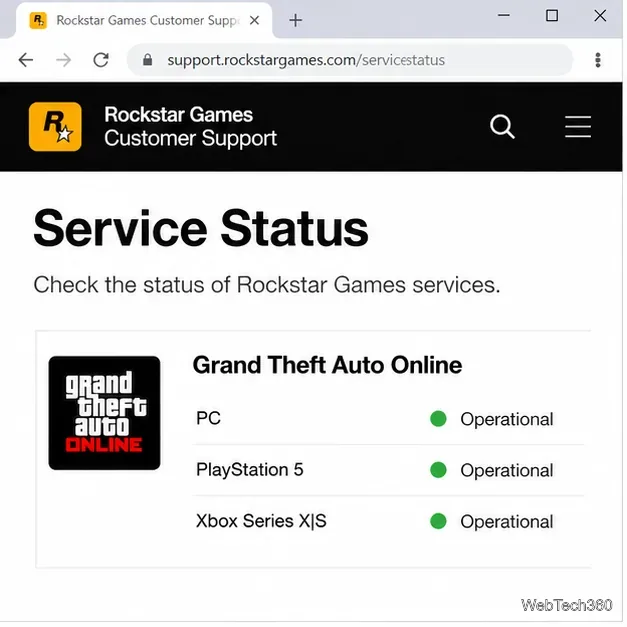
Do not spend time changing Windows or router settings while Rockstar is having an outage. Open the Rockstar Games Service Status page and check the GTA Online entry for your platform, plus Rockstar Games Launcher if you are on PC.
If the relevant service is degraded or unavailable, the practical fix is to wait until Rockstar restores it. If the page shows the service as operational, continue with the local checks below.
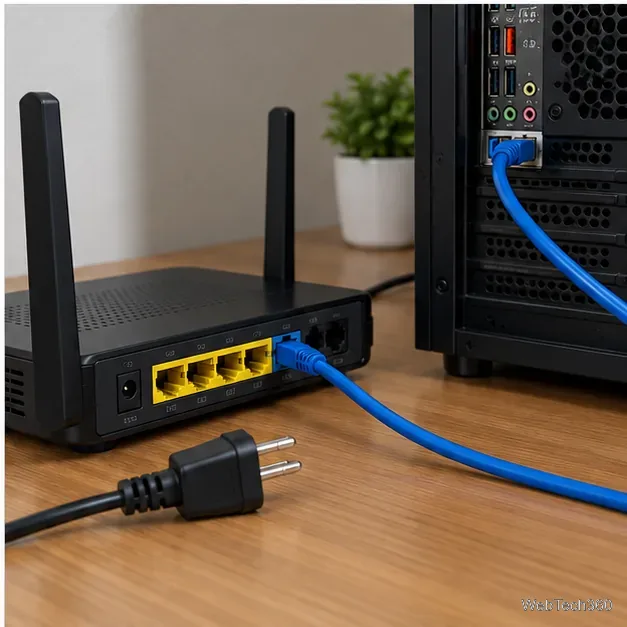
Exit GTA V completely rather than leaving it suspended. Restart the PC or console, then power-cycle your network equipment. Rockstar's current connection troubleshooting recommends unplugging the router for about 10 minutes before reconnecting it and trying GTA Online again.
Do not press the router's recessed factory-reset button as a routine GTA Online fix. A factory reset can erase your network configuration; a normal power-cycle is the safer troubleshooting step.
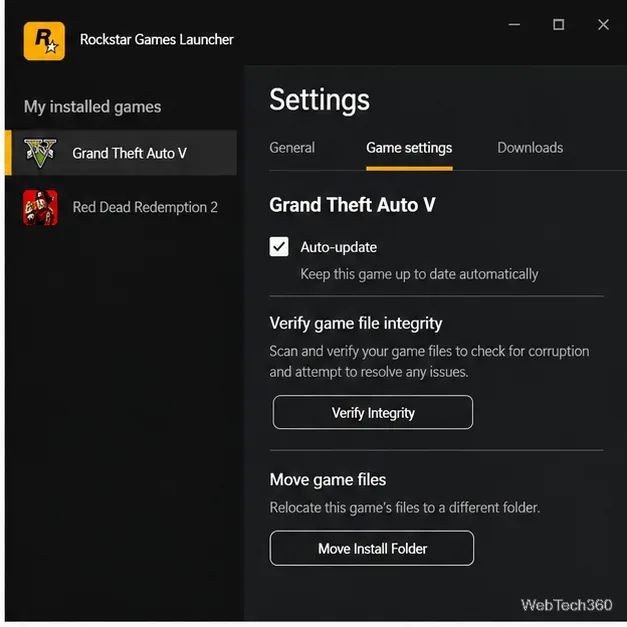
Damaged or incomplete local files can interfere with loading. If you use Rockstar Games Launcher, sign in, open Settings, select Grand Theft Auto V under My installed games, and choose Verify Integrity. Rockstar says file verification checks the installation and supporting files and can resolve multiple game issues.
If your copy is managed by another storefront, use the verification option it provides. Steam currently uses Library > Properties > Installed Files > Verify integrity of game files. Epic normally places Verify under Library > three dots > Manage, but Epic notes that some titles using an additional launcher must instead be verified in that native launcher. See the official Steam instructions, Epic verification instructions, and Epic guidance for games with additional launchers.
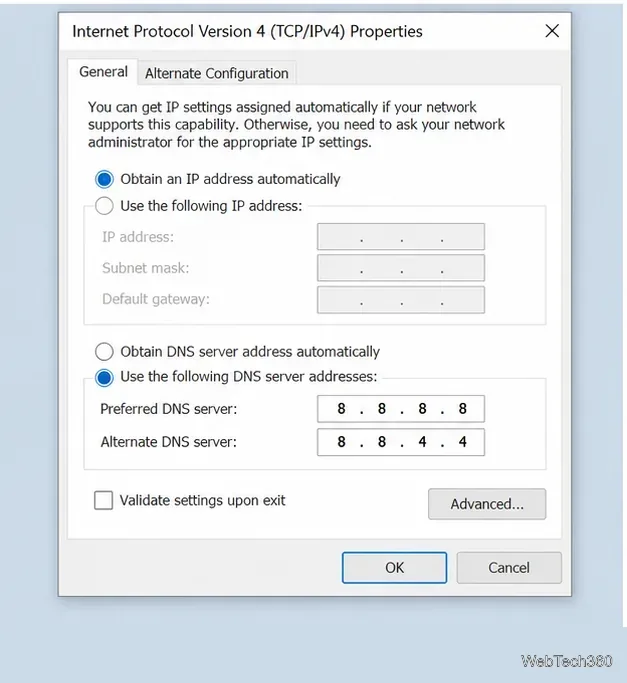
If the service is up and other websites work but GTA Online still hangs while connecting, test a different DNS resolver. On Windows, press Win + R, enter ncpa.cpl, open the active adapter's Properties, then open Internet Protocol Version 4 (TCP/IPv4). Write down the existing DNS values first, then test:
These are the Google DNS addresses Rockstar currently includes in its GTA Online troubleshooting. You can restore your previous DNS or automatic DNS later if the change makes no difference.
Rockstar also documents a Windows network reset. Open Command Prompt as administrator, run the following commands in order, and restart the PC:
ipconfig /release
ipconfig /flushdns
ipconfig /renew
ipconfig /registerdns
netsh winsock reset
For the official sequence and explanation, see Rockstar's Winsock troubleshooting page.
A restrictive NAT can prevent reliable connections to other players. Rockstar's current PC guidance recommends an Open or Moderate NAT rather than Strict NAT. On PlayStation, Type 3 is the restrictive state; on Xbox, Strict NAT is the most limited.
Before manually forwarding anything, enable UPnP on the router if your network policy allows it and retest. If you must inspect ports, Rockstar lists these GTA Online UDP ports: 6672, 61455, 61456, 61457, and 61458. The platform itself may require additional PlayStation or Xbox network ports, so follow the matching official console guide rather than copying a random port list.
Rockstar's Strict NAT guide explains the current PC recommendations. If GTA Online still never gets past the loading screen after the service, files, connection, DNS, and NAT checks are clean, use Rockstar Support and include your platform, launcher, exact error text, and which troubleshooting steps you already completed.
Open a Linux shell in any Windows 10 folder with File Explorer, PowerShell, and WSL. Check the Linux path and fix common setup issues.
Use a screenshot test, cable and port checks, monitor diagnostics, display settings, and driver rollback to pinpoint lines on a Windows 10 monitor.
Show two other time zones beside your Windows 10 clock. Set up each additional clock, give it a clear label, and find it in the taskbar calendar.
Find the File Explorer extension that delays right-click menus in Windows 10, test it safely with ShellExView, and restore any menu features you still need.
Stop Windows 10 from powering down a specific network adapter or USB device with plan-level settings and Device Manager controls, plus tips to avoid excess battery drain.
Check whether Windows 10 uses a digital license or product key, find a firmware-stored OEM key, and save license details securely for a reinstall.
Identify a Windows 10 Task Manager process by checking its executable path, file properties, publisher, linked services, and a Microsoft Defender scan.
Create a searchable Windows 10 folder inventory with PowerShell. Save every file and subfolder path as plain text or export details to a sortable CSV.
Add a custom reminder, quote, or label to your Windows 10 desktop with a Rainmeter text skin. Create the INI file, load it, then adjust its font and position.
Use Bluetooth Swift Pair on Windows 10 to pair a compatible accessory from a notification, with setup steps and fixes when the prompt does not appear.








