How to Access a Network Location in Command Prompt on Windows 10

Use pushd to open a UNC network path in Windows 10 Command Prompt, run commands in the shared folder, and return with popd.
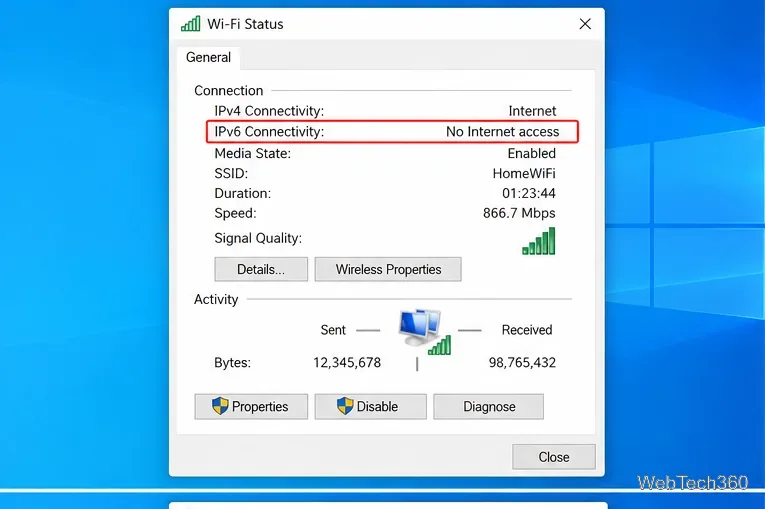
If Windows 10 shows IPv6 Connectivity: No Internet access, first see whether websites still load. If they do, IPv4 is probably carrying your traffic and only IPv6 is unavailable. That often points to the router or ISP, not a broken Windows connection.
Press Win+R, enter ncpa.cpl, and press Enter. Double-click the active Wi-Fi or Ethernet adapter. Windows can report IPv4 and IPv6 separately. If IPv4 says Internet while IPv6 says No Internet access, the PC can still be online through IPv4.
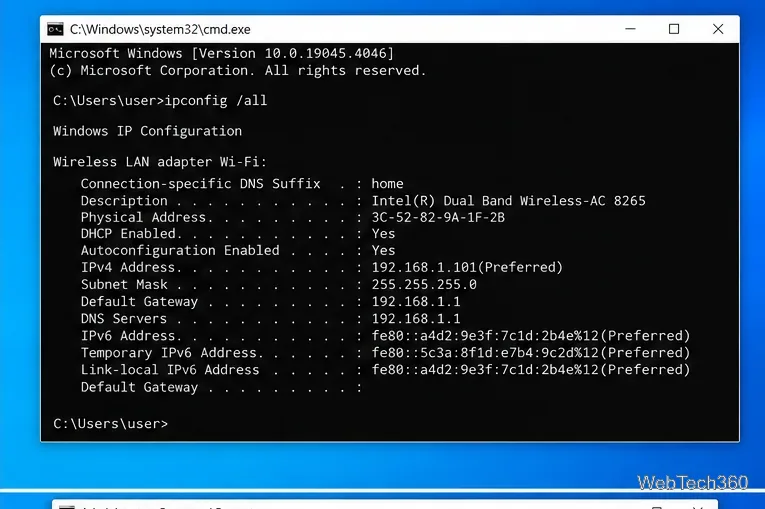
Open Command Prompt and run ipconfig /all. Inspect the active adapter for its IPv6 address, default gateway, and DNS information. A link-local address beginning with fe80:: is normal, but by itself it does not provide routed IPv6 Internet access.
If you see only link-local IPv6 information and another device on the same router also lacks IPv6, focus on the router or ISP. Microsoft documents the available fields and IPv6-specific renewal options in the ipconfig command reference.
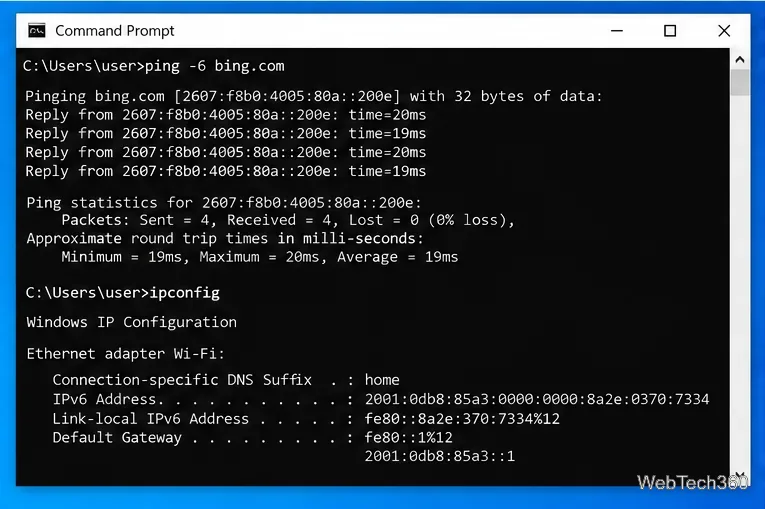
For a quick end-to-end test, run ping -6 bing.com. A successful reply proves IPv6 works for that test. A failure alone is not definitive because ICMP can be filtered. Microsoft’s ping documentation confirms that -6 forces IPv6 for a host name.
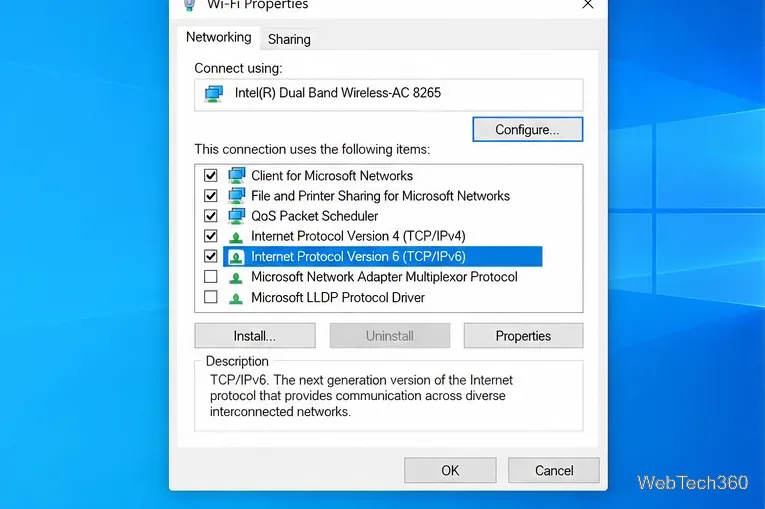
Open ncpa.cpl, right-click the active adapter, choose Properties, and make sure Internet Protocol Version 6 (TCP/IPv6) is checked. If it was disabled, enable it and restart the PC.
Do not disable IPv6 just to hide the warning. Microsoft says IPv6 is a required Windows component and recommends leaving it enabled. See Microsoft’s IPv6 configuration guidance.
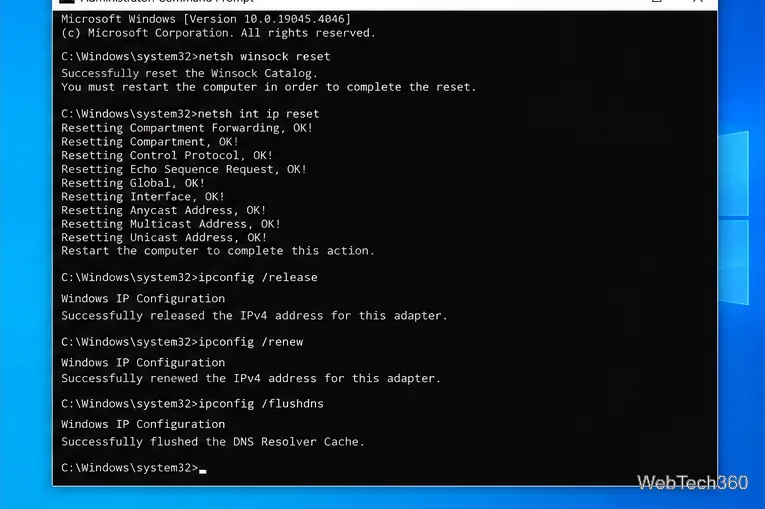
If IPv6 used to work, or other devices on the same network still have IPv6, open Command Prompt as administrator and run:
netsh winsock reset
netsh int ip reset
ipconfig /release
ipconfig /renew
ipconfig /flushdns
Restart Windows afterward. Microsoft includes this sequence in its current Windows network troubleshooting guidance.
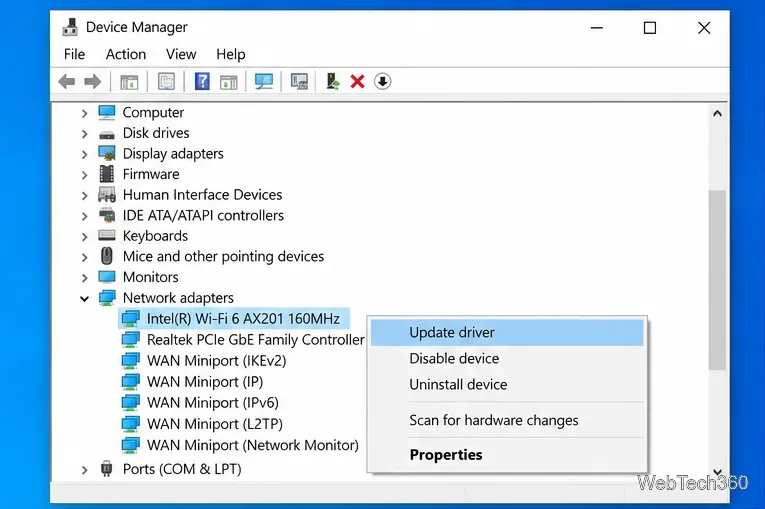
Open Device Manager > Network adapters. If the issue began after an update, install the current Windows 10 driver from the PC or adapter manufacturer. You can also uninstall the physical network adapter and restart so Windows can reinstall it. Keep a driver installer available first if this PC has no other Internet connection.
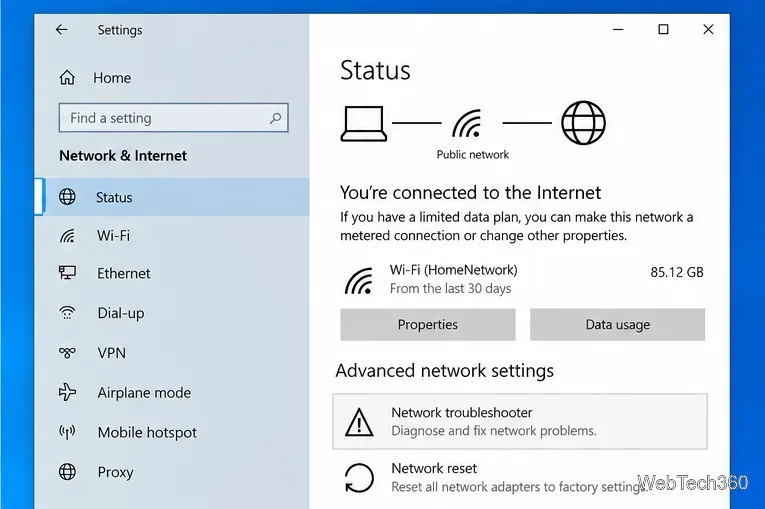
Go to Settings > Network & Internet > Status and run the Network troubleshooter. If the problem remains, use Network reset only after the earlier steps.
Network reset removes and reinstalls network adapters and restores their settings. VPN software or virtual switches may need to be set up again afterward. Microsoft lists Network reset as a last step in its official Windows connection troubleshooting guide.
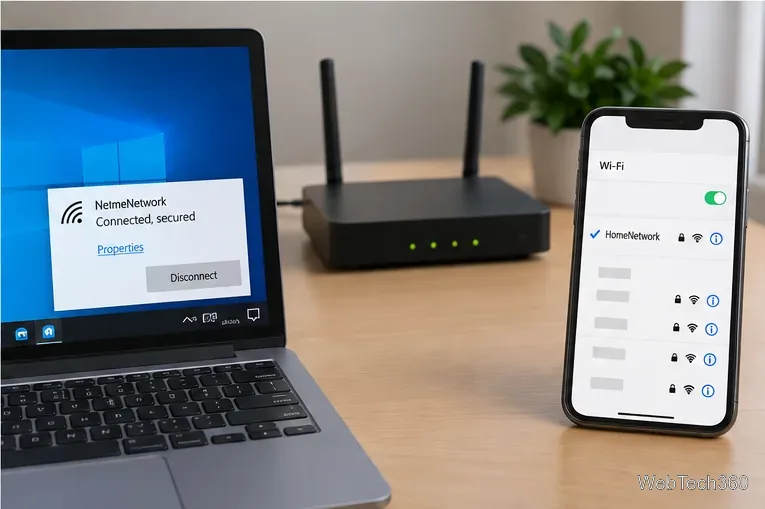
If several devices have normal IPv4 Internet access but none has IPv6, the Windows PC is unlikely to be the cause. Check the router’s documented WAN IPv6 settings and whether it received IPv6 information from the ISP. Menu names vary by router, so use the manufacturer’s instructions.
If the router never receives IPv6 service, ask the ISP whether native IPv6 is available and whether your plan or router needs special configuration. Changing DNS servers cannot create a missing IPv6 route.
Bottom line: if IPv4 works, first verify that the router and ISP actually offer IPv6. If other devices have working IPv6 but this PC does not, keep TCP/IPv6 enabled, reset the Windows network stack, repair the driver, and reserve Network reset for last.
Support note: standard Windows 10 support ended on October 14, 2025. See Microsoft’s Windows 10 end-of-support information for current options.
Use pushd to open a UNC network path in Windows 10 Command Prompt, run commands in the shared folder, and return with popd.
Learn how to install a Rainmeter skin from an INI file by placing it in the right Skins folder, preserving its resources, refreshing Rainmeter, and loading it in Manage.
Open one folder in its own File Explorer window with Shift or the context menu, or change Folder Options to make every folder open separately.
Pin a frequently used Control Panel applet, such as Power Options or Sound, to the Windows 10 Start menu for one-click access.
Choose a supported Windows 10 hotkey for switching input languages, assign shortcuts to individual layouts, or disable an accidental shortcut.
Move a Windows 10 app to the display you want, use its game monitor setting, and handle full-screen apps with a practical primary-monitor workaround.
Use a transparent PNG and a Rainmeter skin to keep an image watermark above windows, adjust its transparency, and make it click-through on Windows 10.
Convert stereo audio to mono on Windows 10 with Audacity. Mix both channels into one mono track, export a new file, and verify the channel count.
Use Windows 10 Clipboard history to save recent text and images, paste an earlier clip with Windows key + V, and manage sync, pinned items, and privacy.
Learn how to zoom in on a video in Windows 10 with VLC’s Interactive Zoom, or use Windows Magnifier when the clip is playing in another app.








