How to Open a Linux Shell in a Folder on Windows 10

Open a Linux shell in any Windows 10 folder with File Explorer, PowerShell, and WSL. Check the Linux path and fix common setup issues.
If the Japanese keyboard IME is not working, start by confirming that Japanese and Microsoft IME are installed, then switch to Japanese with Windows key + Spacebar and select a Japanese input mode such as Hiragana. If the language switcher or IME icon does not respond, check the Windows text-input service. Reinstalling Japanese or temporarily using the previous Microsoft IME version can fix the remaining cases.
The steps below apply to Windows 11 and Windows 10. Microsoft ended regular Windows 10 support on October 14, 2025, so the current Windows 11 menus are shown first. You do not have to change the Windows display language just to type Japanese; Microsoft documents Japanese IME as a separate input feature.
On Windows 11, open Settings > Time & language > Language & region. If Japanese is missing, choose Add a language, search for Japanese, and install it. If you only need Japanese typing, the extra display-language features are not required.
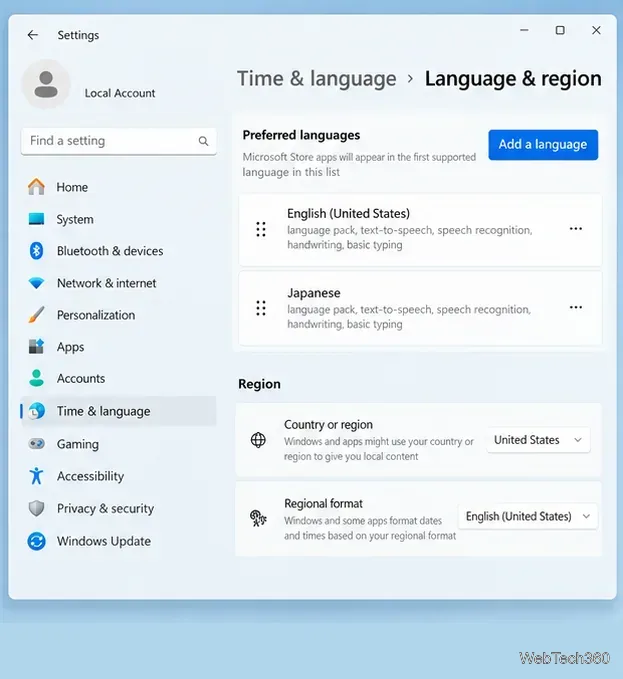
Next, select the three-dot menu beside Japanese and open Language options. Under Keyboards, confirm that Microsoft IME is present. Windows 10 uses the older path Settings > Time & language > Language > Japanese > Options.
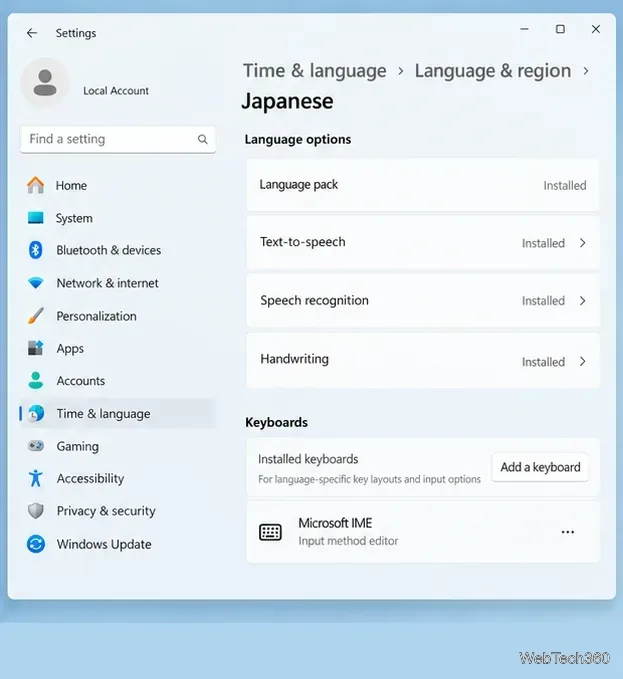
Microsoft's current setup instructions are available in its Japanese IME documentation and Windows language and keyboard settings guide.
Installing Japanese is not the same as actively typing in Japanese. Press Windows key + Spacebar until Japanese - Microsoft IME is selected. The language picker should show Japanese as the active keyboard.
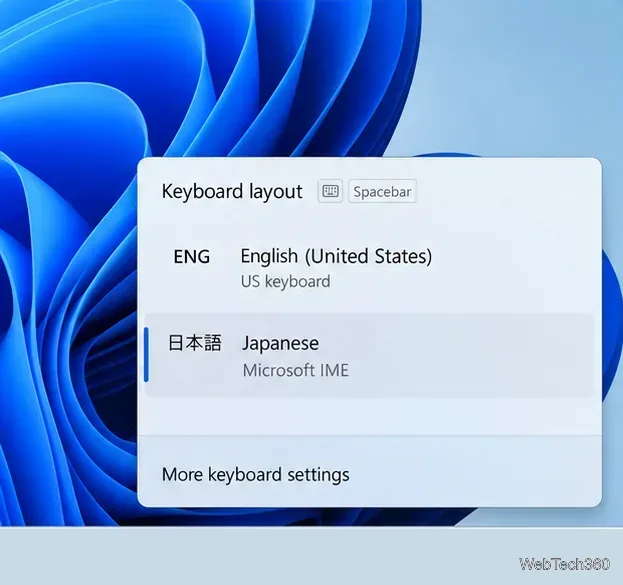
If you still type Latin letters, check the IME indicator on the taskbar. An A indicates alphanumeric input; switch the IME to Hiragana so the indicator changes to あ. You can right-click the IME icon to choose an input mode. Microsoft also documents Alt + backquote (`) as a shortcut to turn Japanese input on or off on standard keyboards.
If Windows + Space does nothing, the IME icon cannot be clicked, or input modes refuse to change, Microsoft identifies the Windows text-input service as a common cause.
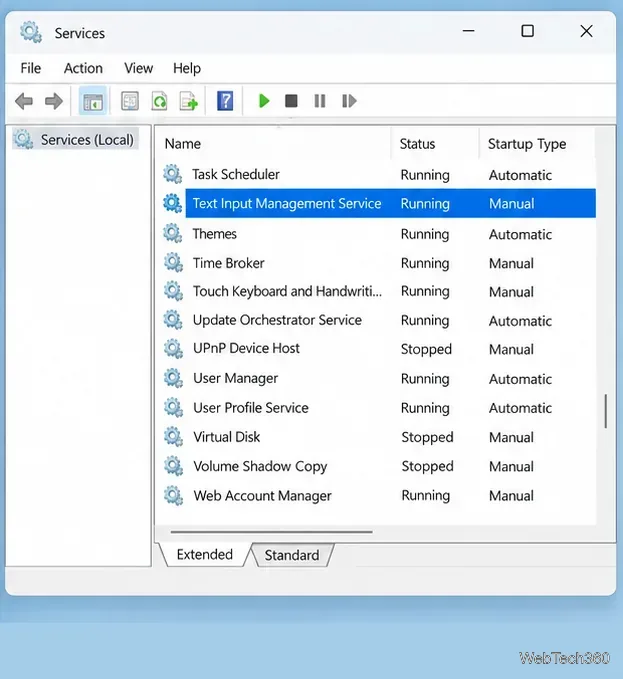
These service-name details and recovery steps come from Microsoft's IME common issues and solutions guidance.
If Microsoft IME is missing, settings do not open, or Japanese input still fails after the service check, reinstall the language.
This is safer than downloading third-party IME files or copying DLLs from another PC.
If Japanese works in Notepad or a browser but fails only in one desktop app, the problem may be application compatibility rather than the keyboard setup. Install current Windows updates first. Microsoft previously documented a Windows Presentation Foundation issue that could affect Japanese and other IMEs; fixes were delivered in Windows updates released in December 2024 and January 2025.
If a current IME build still conflicts with a specific app, open Microsoft IME settings > General and enable Use previous version of Microsoft IME. Microsoft provides this as a compatibility option, but it is best treated as a temporary fallback while keeping Windows updated. See the official Microsoft Japanese IME settings guide.
For most systems, the fix is simply selecting the correct Japanese input mode. When the switcher itself is unresponsive, restoring the text-input service is the most important next step.
Open a Linux shell in any Windows 10 folder with File Explorer, PowerShell, and WSL. Check the Linux path and fix common setup issues.
Use a screenshot test, cable and port checks, monitor diagnostics, display settings, and driver rollback to pinpoint lines on a Windows 10 monitor.
Show two other time zones beside your Windows 10 clock. Set up each additional clock, give it a clear label, and find it in the taskbar calendar.
Find the File Explorer extension that delays right-click menus in Windows 10, test it safely with ShellExView, and restore any menu features you still need.
Stop Windows 10 from powering down a specific network adapter or USB device with plan-level settings and Device Manager controls, plus tips to avoid excess battery drain.
Check whether Windows 10 uses a digital license or product key, find a firmware-stored OEM key, and save license details securely for a reinstall.
Identify a Windows 10 Task Manager process by checking its executable path, file properties, publisher, linked services, and a Microsoft Defender scan.
Create a searchable Windows 10 folder inventory with PowerShell. Save every file and subfolder path as plain text or export details to a sortable CSV.
Add a custom reminder, quote, or label to your Windows 10 desktop with a Rainmeter text skin. Create the INI file, load it, then adjust its font and position.
Use Bluetooth Swift Pair on Windows 10 to pair a compatible accessory from a notification, with setup steps and fixes when the prompt does not appear.








