How to Open a Linux Shell in a Folder on Windows 10

Open a Linux shell in any Windows 10 folder with File Explorer, PowerShell, and WSL. Check the Linux path and fix common setup issues.
KERNEL_MODE_HEAP_CORRUPTION is Windows bug check 0x0000013A. It means the kernel-mode heap manager detected corrupted heap data; the stop code identifies the type of failure, but it usually does not identify the exact driver or hardware component that corrupted memory. Microsoft notes that stop errors can be caused by hardware, a device driver, or software, so the best approach is to work backward from whatever changed before the crashes began.
Before troubleshooting, save important files and remove any unnecessary external devices. Microsoft documents the 0x13A bug check in its KERNEL_MODE_HEAP_CORRUPTION reference.
If the PC crashes during normal startup, booting into Safe Mode can help separate a third-party driver or service problem from a basic Windows problem. Hold Shift while selecting Power > Restart, then choose Troubleshoot > Advanced options > Startup Settings > Restart. After the PC restarts, press 4 or F4 for Safe Mode.
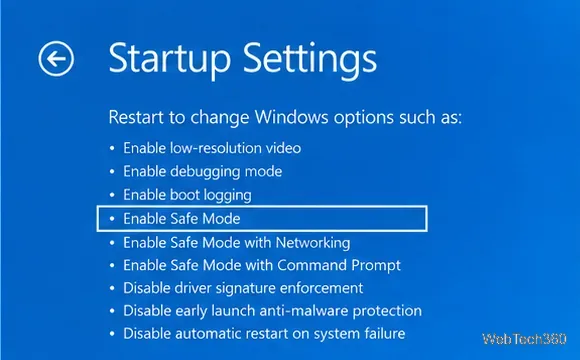
If the BSOD disappears in Safe Mode, focus first on recently installed drivers, security tools, VPN clients, hardware-monitoring utilities, or other low-level software. See Microsoft's Windows Startup Settings guide for the supported startup options.
Do not assume the graphics driver is guilty just because the crash happens during a game. Check what changed shortly before the first 0x13A crash: GPU, Wi-Fi, storage, audio, USB, and chipset drivers are all worth considering.
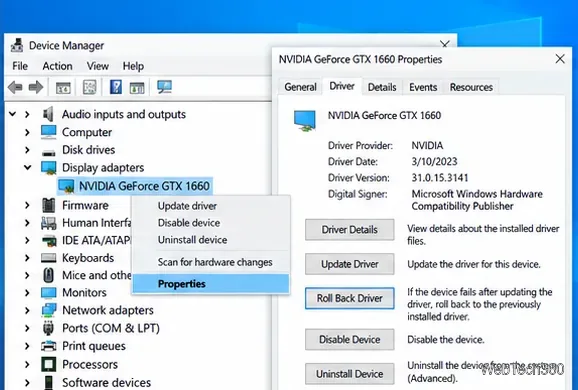
Microsoft's Device Manager driver guidance covers update, rollback, and reinstall options.
Corrupted Windows components can contribute to instability. Open Command Prompt as administrator and run DISM first, then System File Checker:
DISM.exe /Online /Cleanup-Image /RestoreHealth
sfc /scannow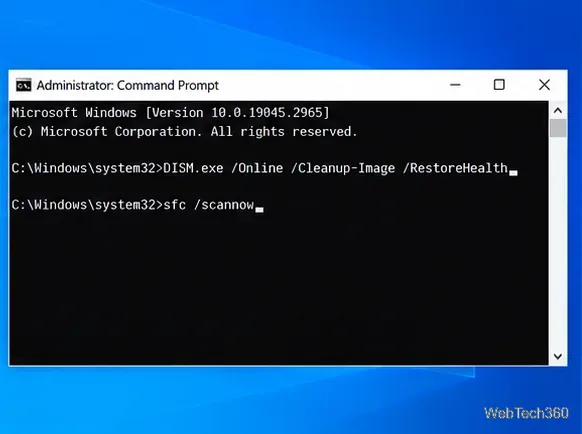
Wait for each command to finish, then restart the PC. Microsoft's SFC support page specifically recommends running DISM /RestoreHealth before sfc /scannow.
Heap corruption can also be a symptom of unstable or failing memory. Save your work, press Win + R, type mdsched, and choose Restart now and check for problems. Windows will reboot, run the memory test, and then start normally.
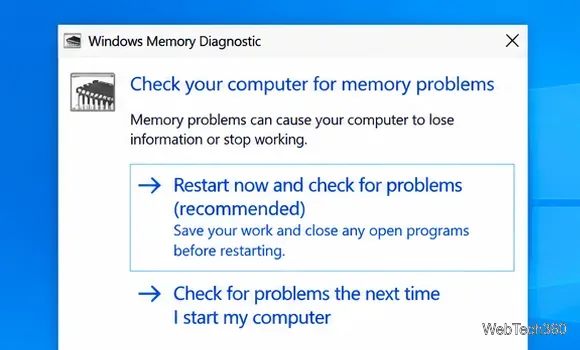
If the test reports errors, stop overclocking and return CPU, GPU, and RAM settings to their defaults before testing again. On a desktop, reseating or testing memory modules individually can help isolate a bad module if you are comfortable working inside the PC. A clean memory test does not rule out every hardware fault, so recurring crashes may still require manufacturer diagnostics.
If 0x13A started after installing an app, security product, driver, or Windows update, remove that specific change rather than uninstalling random software. If a suitable restore point exists, press Win + R, run rstrui.exe, and choose a restore point from before the crashes began. System Restore can roll back system files, registry settings, drivers, and installed programs without changing personal files. See Microsoft's System Restore instructions.
If the BSOD returns, open Event Viewer > Windows Logs > System and check entries around the crash time. When small memory dumps are enabled, Windows normally stores them in C:\Windows\Minidump. Advanced users can analyze a dump with WinDbg; Microsoft's 0x13A documentation recommends the !analyze debugger extension. If the same third-party .sys driver repeatedly appears in crash analysis, update or remove the associated software instead of deleting the driver file manually.
Microsoft ended standard Windows 10 support on October 14, 2025. Some eligible systems can continue receiving security updates through Extended Security Updates (ESU), and certain LTSC editions have separate lifecycles. End of support does not itself cause KERNEL_MODE_HEAP_CORRUPTION, but moving to a supported Windows version is the better long-term choice when your hardware is eligible. See Microsoft's Windows 10 end-of-support notice.
Open a Linux shell in any Windows 10 folder with File Explorer, PowerShell, and WSL. Check the Linux path and fix common setup issues.
Use a screenshot test, cable and port checks, monitor diagnostics, display settings, and driver rollback to pinpoint lines on a Windows 10 monitor.
Show two other time zones beside your Windows 10 clock. Set up each additional clock, give it a clear label, and find it in the taskbar calendar.
Find the File Explorer extension that delays right-click menus in Windows 10, test it safely with ShellExView, and restore any menu features you still need.
Stop Windows 10 from powering down a specific network adapter or USB device with plan-level settings and Device Manager controls, plus tips to avoid excess battery drain.
Check whether Windows 10 uses a digital license or product key, find a firmware-stored OEM key, and save license details securely for a reinstall.
Identify a Windows 10 Task Manager process by checking its executable path, file properties, publisher, linked services, and a Microsoft Defender scan.
Create a searchable Windows 10 folder inventory with PowerShell. Save every file and subfolder path as plain text or export details to a sortable CSV.
Add a custom reminder, quote, or label to your Windows 10 desktop with a Rainmeter text skin. Create the INI file, load it, then adjust its font and position.
Use Bluetooth Swift Pair on Windows 10 to pair a compatible accessory from a notification, with setup steps and fixes when the prompt does not appear.








