How to Fix Lines on a Monitor Screen in Windows 10

Use a screenshot test, cable and port checks, monitor diagnostics, display settings, and driver rollback to pinpoint lines on a Windows 10 monitor.
If a Minecraft LAN game is not showing up, first make sure the host actually opened the world to the local network and that every player is using the same Minecraft edition on the same LAN. If that is correct, the usual causes are a Windows firewall rule, an untrusted/public network profile, guest Wi-Fi or client isolation, or a version mismatch.
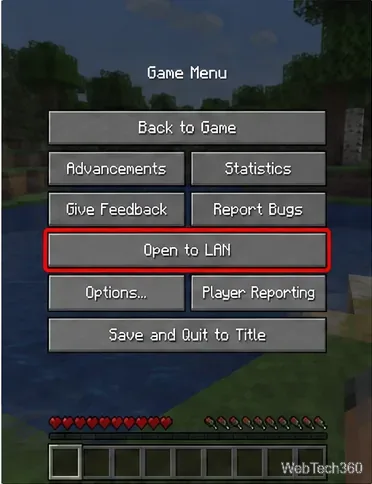
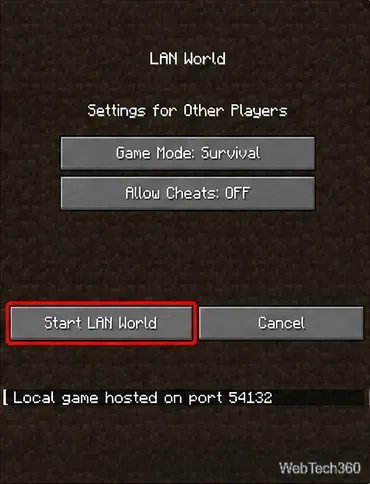
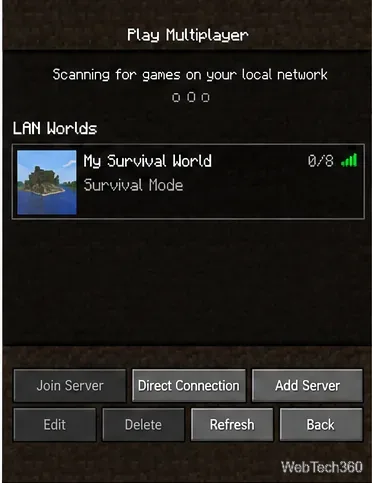
Minecraft's current Java LAN instructions are straightforward: open a single-player world, press Esc, choose Open to LAN, adjust the LAN options if needed, and select Start LAN World. Minecraft then reports the port used for that session. Mojang's Java Edition LAN guide says other players on the same local network should see the world automatically from Multiplayer.
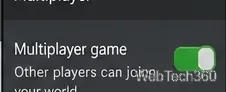
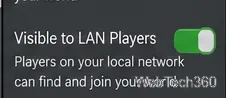
For Bedrock Edition, open Play, select the pencil icon for the world, open Multiplayer, and turn on both Multiplayer Game and Visible to LAN Players. Then start the world. Mojang's Bedrock Edition LAN guide says another supported device on the same LAN can find the world from the Worlds tab with a LAN label.
Java Edition players can join Java Edition LAN worlds; Bedrock Edition players join Bedrock Edition worlds. Mojang also recommends using the latest Minecraft release. Check that every device is connected to the same home or office LAN, not a guest Wi-Fi network or a second router that isolates devices. The official Minecraft multiplayer requirements confirm that matching editions, current versions, and a stable LAN connection matter.
On Windows 11, open Settings > Network & internet, select the connected Wi-Fi network or Ethernet connection, and set Network profile type to Private only if you trust that network. Microsoft explains that Private networks make the PC discoverable to other devices, while Public networks use stricter protections. See Microsoft's network profile guidance.
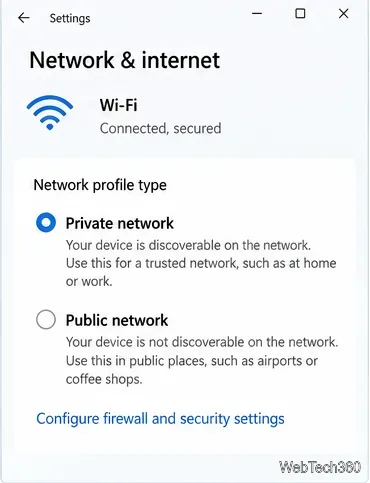
If local devices still cannot discover one another, open Settings > Network & internet > Advanced network settings > Advanced sharing settings and turn on Network discovery for Private networks. Microsoft's Windows network sharing documentation describes the current path.
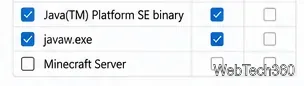
Do not solve the problem by permanently disabling Microsoft Defender Firewall. Instead, open Windows Security > Firewall & network protection > Allow an app through firewall and make sure Minecraft for Windows or the Java runtime used by Minecraft is allowed on the trusted Private network. If you use a third-party security suite, check its firewall rules too. Microsoft's firewall guidance recommends allowing the required app rather than turning the firewall off.
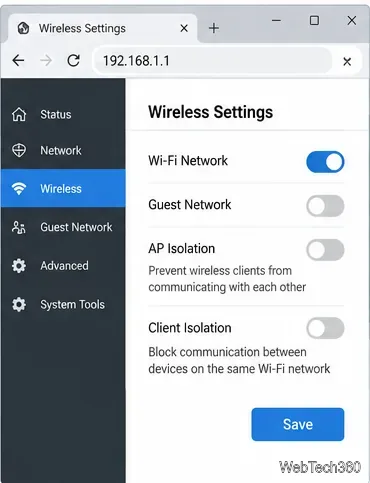
If both devices have internet access but cannot see each other, check the router. Guest networks commonly separate clients from the main LAN, and settings called AP Isolation, Client Isolation, or similar can prevent wireless devices from communicating with one another. Router menus vary by manufacturer, so change these settings only on a network you administer.
If a Java LAN world is running but automatic discovery still fails, use Multiplayer > Direct Connection as a diagnostic. On the host PC, run ipconfig and note its local IPv4 address. Combine that address with the port Minecraft displayed when the LAN world started, for example 192.168.1.23:54132. This works only while the host world is open and reachable on the same local network.
Restart Minecraft on the host after changing firewall or network settings, then reopen the world to LAN. Temporarily disconnect VPN software if it changes local routing, and check any third-party firewall for local-network blocks. If several devices cannot communicate with one another at all, troubleshoot the router or network first; if only Minecraft is affected, focus on the edition/version match and the host's firewall rule.
Use a screenshot test, cable and port checks, monitor diagnostics, display settings, and driver rollback to pinpoint lines on a Windows 10 monitor.
Show two other time zones beside your Windows 10 clock. Set up each additional clock, give it a clear label, and find it in the taskbar calendar.
Find the File Explorer extension that delays right-click menus in Windows 10, test it safely with ShellExView, and restore any menu features you still need.
Stop Windows 10 from powering down a specific network adapter or USB device with plan-level settings and Device Manager controls, plus tips to avoid excess battery drain.
Check whether Windows 10 uses a digital license or product key, find a firmware-stored OEM key, and save license details securely for a reinstall.
Identify a Windows 10 Task Manager process by checking its executable path, file properties, publisher, linked services, and a Microsoft Defender scan.
Create a searchable Windows 10 folder inventory with PowerShell. Save every file and subfolder path as plain text or export details to a sortable CSV.
Add a custom reminder, quote, or label to your Windows 10 desktop with a Rainmeter text skin. Create the INI file, load it, then adjust its font and position.
Use Bluetooth Swift Pair on Windows 10 to pair a compatible accessory from a notification, with setup steps and fixes when the prompt does not appear.
Learn what common laptop function key symbols mean, how Fn and Fn Lock affect them, and how to confirm the right shortcut for your Windows 10 laptop model.








