How to Fix Lines on a Monitor Screen in Windows 10

Use a screenshot test, cable and port checks, monitor diagnostics, display settings, and driver rollback to pinpoint lines on a Windows 10 monitor.
If Minecraft Marketplace is not working or will not connect, start with the fixes that Minecraft currently recommends for Bedrock Edition: fully restart the game and device, verify your connection, clear the Marketplace cache, update Minecraft, and refresh your Microsoft account sign-in. Marketplace is a Minecraft: Bedrock Edition feature; Java Edition does not use the same in-game Marketplace.
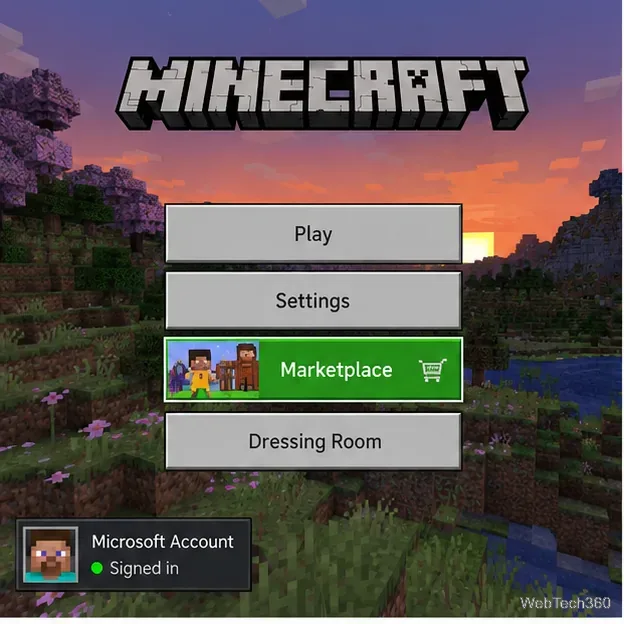
If you see a Marketplace error code beginning with B-, D-, F-, L-, P-, or S-, Minecraft says it usually points to a temporary sign-in or server-connection problem. Work through the steps below in order before considering more disruptive fixes.
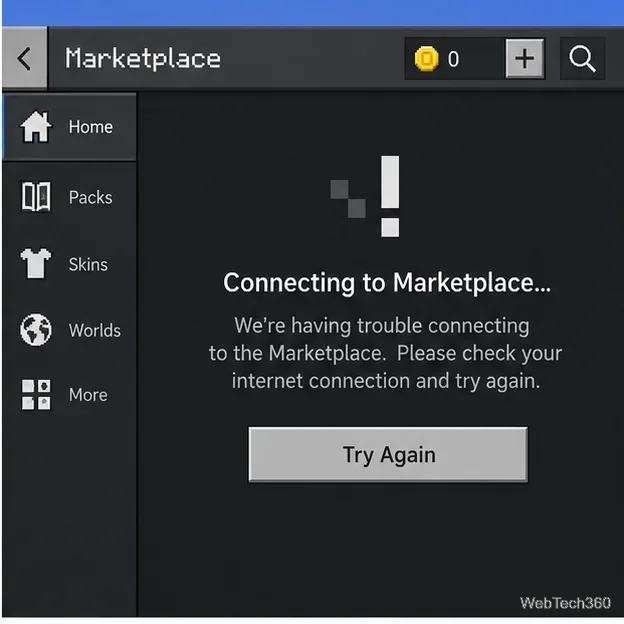
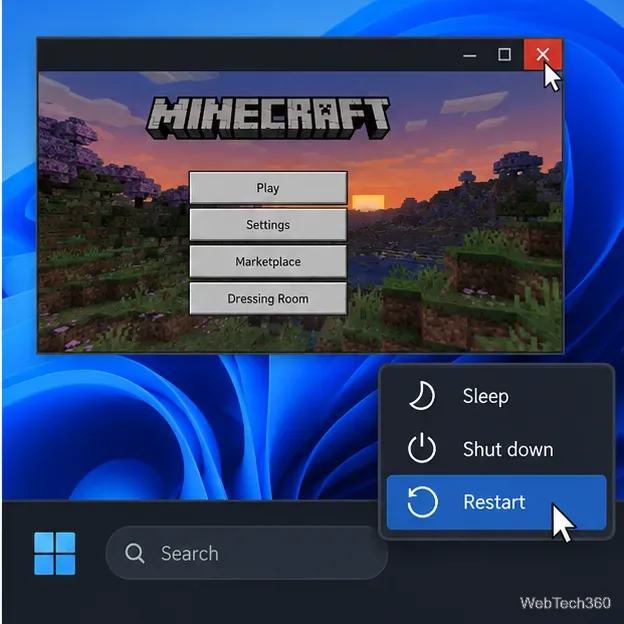
Do not just return to the title screen. Close Minecraft completely, restart the PC, console, phone, or tablet, then open the game again. Minecraft's current Marketplace troubleshooting specifically recommends signing out, fully closing the game, restarting the device, and trying again.
If the error appeared immediately after opening Marketplace, wait a few minutes before retrying. Some Marketplace errors are temporary while background sign-in or content processes finish.
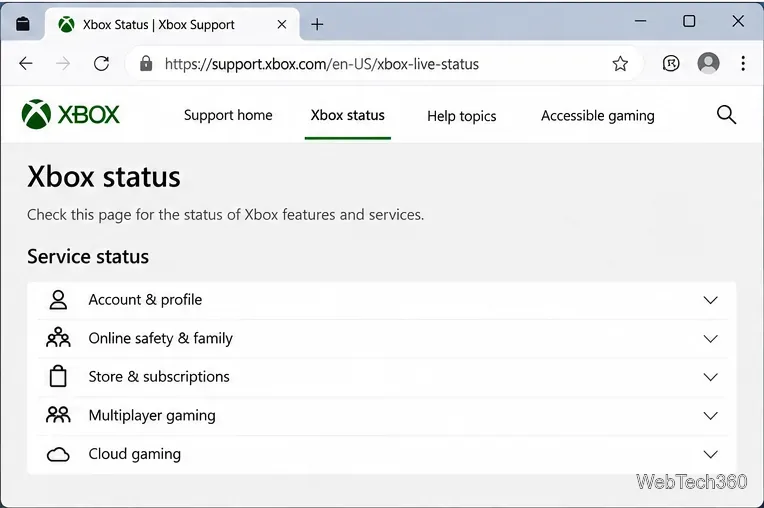
If Minecraft, Xbox services, or your platform's account services are having an outage, local troubleshooting may not help until the service recovers. Check the official Xbox status page. Minecraft also recommends checking platform status when sign-in errors occur.
Open another website or online app on the same device to confirm the connection is actually working. Then pause large downloads or streams and, on Wi-Fi, move closer to the router or test Ethernet if practical.
Minecraft's network troubleshooting guide also recommends returning manually configured DNS to automatic and checking firewall, antivirus, VPN, proxy, or router rules that could block or slow the connection. If Marketplace works on a different home network or mobile hotspot, that strongly points to the original network configuration rather than the game installation.
A stale Marketplace cache can keep the store stuck on loading or cause repeated error screens. Minecraft now provides a dedicated control for this.
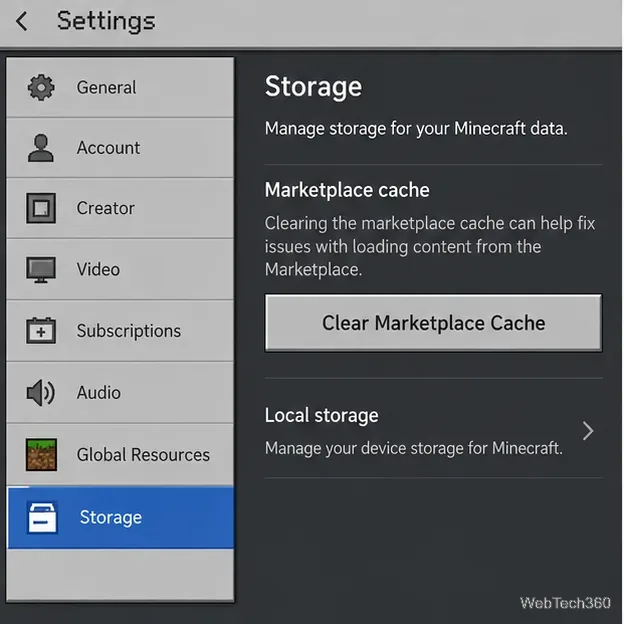
This is a much better first repair step than uninstalling the whole game. See Minecraft's current Marketplace error-code troubleshooting for the official sequence.
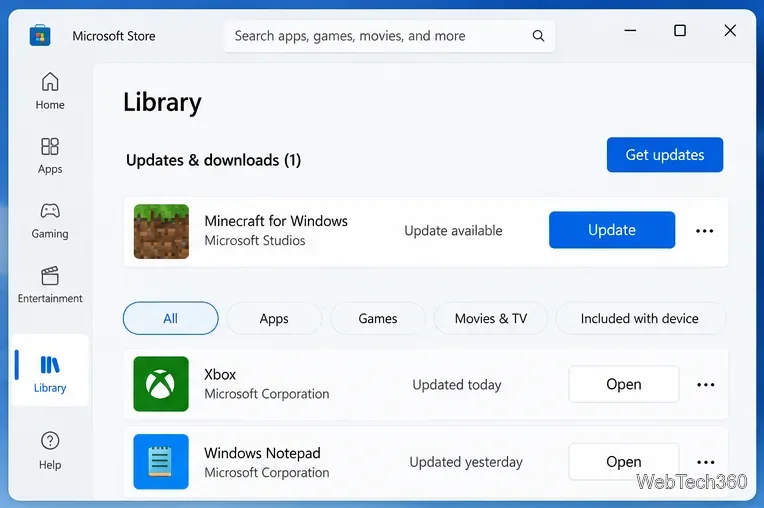
An outdated Bedrock build can prevent online features from working correctly. Install the latest game update for your platform, then restart Minecraft.
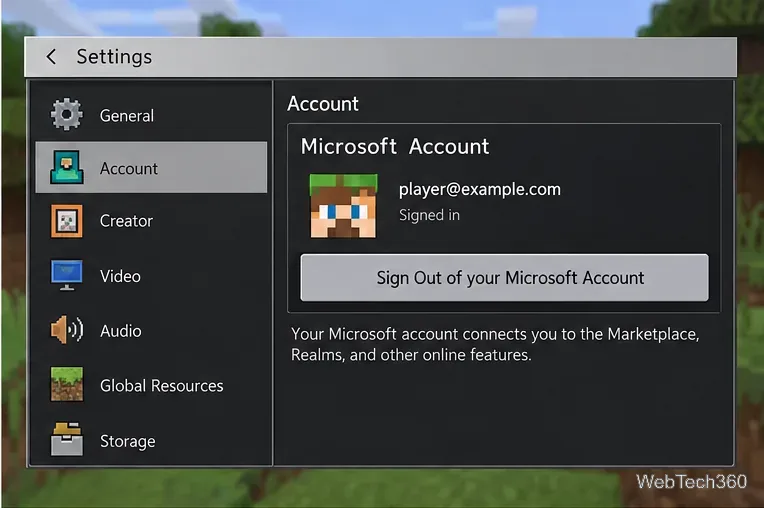
A Marketplace session can fail even while the main menu still appears signed in. Refreshing the account session reconnects Minecraft to authentication services.
On PlayStation, Nintendo Switch, and mobile, Minecraft's current instructions use Settings > Account > Sign out of your Microsoft Account, followed by signing in again. If you use Minecraft Launcher, open the profile menu, log out, and select Microsoft Login to reconnect. The official steps are in Reset Your Microsoft Account Sign-in in Minecraft.
That is a different problem from Marketplace being offline. First confirm you are signed into the same Microsoft account used for the purchase. Then open Marketplace > My Library and check Owned or Marketplace Pass. Depending on the item, Minecraft may offer Download, Create this World, or Equip.
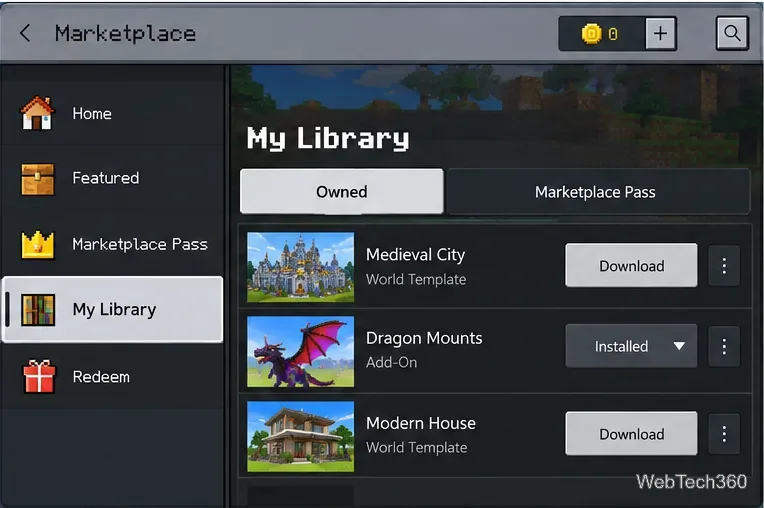
Minecraft documents this flow in How to Access Minecraft Marketplace Content.
Do not jump straight to deleting the game. Reinstallation is no longer one of the primary Marketplace connection fixes in Minecraft's current troubleshooting guidance, and local worlds or device-specific data can complicate a reinstall if they are not backed up correctly.
Instead, note the exact error code or message, confirm whether other online Minecraft features work, and use the official Minecraft Marketplace Help section. For payment, purchase, or account problems, use official Microsoft/Minecraft support rather than treating the issue as a game-file problem.
Use a screenshot test, cable and port checks, monitor diagnostics, display settings, and driver rollback to pinpoint lines on a Windows 10 monitor.
Show two other time zones beside your Windows 10 clock. Set up each additional clock, give it a clear label, and find it in the taskbar calendar.
Find the File Explorer extension that delays right-click menus in Windows 10, test it safely with ShellExView, and restore any menu features you still need.
Stop Windows 10 from powering down a specific network adapter or USB device with plan-level settings and Device Manager controls, plus tips to avoid excess battery drain.
Check whether Windows 10 uses a digital license or product key, find a firmware-stored OEM key, and save license details securely for a reinstall.
Identify a Windows 10 Task Manager process by checking its executable path, file properties, publisher, linked services, and a Microsoft Defender scan.
Create a searchable Windows 10 folder inventory with PowerShell. Save every file and subfolder path as plain text or export details to a sortable CSV.
Add a custom reminder, quote, or label to your Windows 10 desktop with a Rainmeter text skin. Create the INI file, load it, then adjust its font and position.
Use Bluetooth Swift Pair on Windows 10 to pair a compatible accessory from a notification, with setup steps and fixes when the prompt does not appear.
Learn what common laptop function key symbols mean, how Fn and Fn Lock affect them, and how to confirm the right shortcut for your Windows 10 laptop model.








