How to Create a List of All Items in a Folder on Windows 10

Create a searchable Windows 10 folder inventory with PowerShell. Save every file and subfolder path as plain text or export details to a sortable CSV.
If Windows 10 shows “The code execution cannot proceed because MSVCP140.dll was not found”, the affected program usually cannot load the Microsoft Visual C++ runtime it was built to use. The safest fix is to install or repair the official Microsoft Visual C++ Redistributable, then repair or reinstall the app if needed. Do not download a loose copy of MSVCP140.dll from a third-party DLL site.
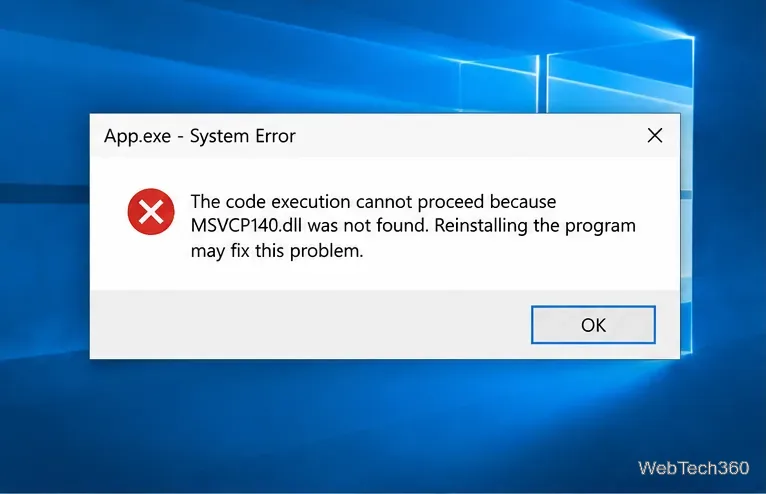
MSVCP140.dll is part of Microsoft’s Visual C++ runtime. Microsoft currently recommends the latest supported Visual C++ v14 Redistributable for apps built with Visual Studio 2017, 2019, 2022, or 2026. The Redistributable installed on the PC must be at least as recent as the build tools used to create the app.
On a 64-bit Windows 10 PC, an older or 32-bit application can still require the x86 runtime. If you do not know whether the app is 32-bit or 64-bit, installing both Microsoft’s x64 and x86 packages is a practical way to cover both app architectures.
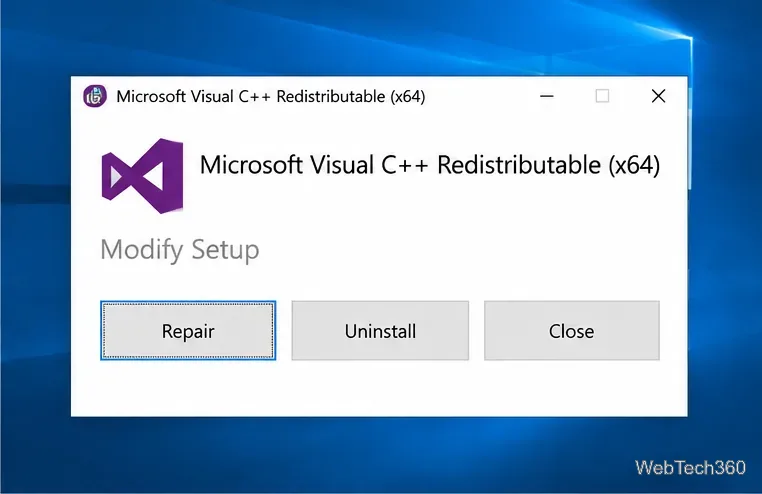
If the error started after an app update, crash, interrupted installation, or cleanup operation, the runtime may already be present but damaged. Windows 10 still exposes installed desktop programs through Settings > Apps > Apps & features and through Control Panel.
Microsoft also documents repair options for desktop programs in its Windows app and program repair guide.
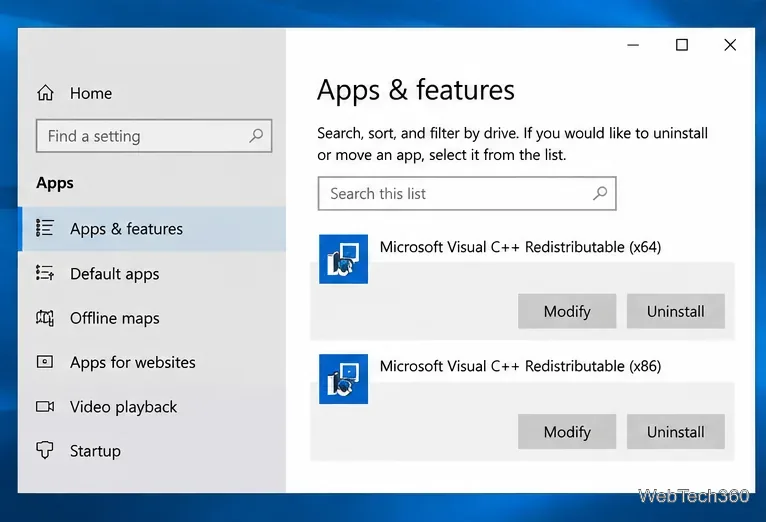
If the Visual C++ runtime is healthy but only one program fails, the program’s own installation may be incomplete or corrupt. First use the app’s built-in repair option if one is available. Otherwise, uninstall the app, restart Windows, and reinstall the latest supported build from the software publisher’s official site or store.
Pay attention to which executable triggers the error. If the message appears only when opening one plugin, launcher, or helper process, repairing the entire Windows installation is usually unnecessary.
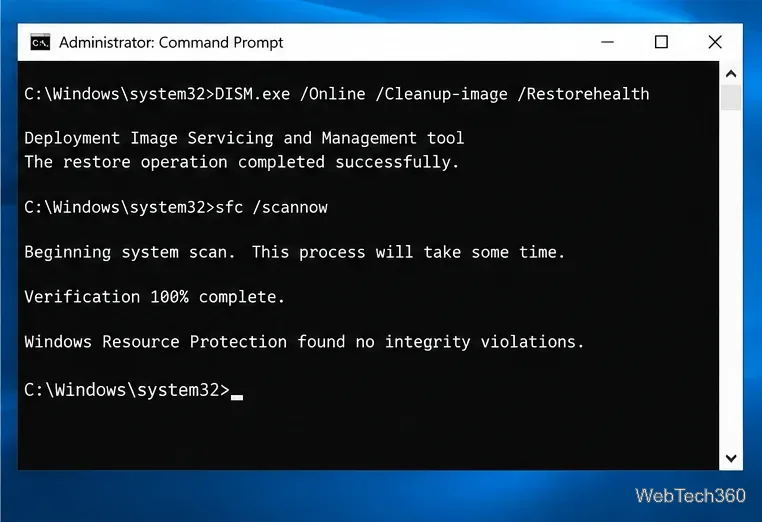
If multiple programs suddenly report missing DLLs or Windows itself is behaving abnormally, check the Windows component store and protected system files. Microsoft recommends running DISM before System File Checker.
DISM.exe /Online /Cleanup-image /RestorehealthThen run:
sfc /scannowDo not close the window until the SFC verification reaches 100%. Microsoft explains the process and possible results in its System File Checker repair guide.
Windows 10 reached end of support on October 14, 2025. The troubleshooting steps above still apply to Windows 10, but Microsoft no longer provides normal free security updates or technical support for the operating system. If you continue using Windows 10, review Microsoft’s Windows 10 end-of-support guidance and your available upgrade or Extended Security Updates options.
Create a searchable Windows 10 folder inventory with PowerShell. Save every file and subfolder path as plain text or export details to a sortable CSV.
Add a custom reminder, quote, or label to your Windows 10 desktop with a Rainmeter text skin. Create the INI file, load it, then adjust its font and position.
Use Bluetooth Swift Pair on Windows 10 to pair a compatible accessory from a notification, with setup steps and fixes when the prompt does not appear.
Learn what common laptop function key symbols mean, how Fn and Fn Lock affect them, and how to confirm the right shortcut for your Windows 10 laptop model.
Turn off your Windows 10 display instantly with ScreenSleep, set a keyboard shortcut, and see when to use the built-in screen timeout instead.
Fix the “running scripts is disabled on this system” PowerShell error on Windows 10 with a current-user policy, a temporary session option, and safe steps for downloaded scripts.
Change the Windows 10 drag-selection color with a backup-first registry walkthrough, RGB examples, troubleshooting tips, and steps to restore your original values.
Check your router’s connected-device list or scan a local network with Fing Desktop on a supported PC. Learn what each method can show and how to verify unfamiliar entries.
Messenger does not offer a documented per-friend online alert. Learn how Active Status works, where to check the green dot, and which notifications you can enable instead.
Use 7-Zip to find an exact filename or wildcard match inside a ZIP or other supported archive on Windows 10 without unpacking its files.








