How to Fix Lines on a Monitor Screen in Windows 10

Use a screenshot test, cable and port checks, monitor diagnostics, display settings, and driver rollback to pinpoint lines on a Windows 10 monitor.
If your Bluetooth headset is connected to Windows 10 but you hear no sound, start by selecting the headset as the active output device. If that does not work, check the default playback device, repair the Bluetooth pairing, verify the Windows 10 Stereo/Hands-Free profiles, and update the Bluetooth and audio drivers. The steps below follow Microsoft's current troubleshooting guidance while keeping the Windows 10 menu paths.
Windows 10 support note: Microsoft ended standard support for Windows 10 on October 14, 2025. The operating system still runs, but Microsoft recommends moving to Windows 11 or using an eligible Extended Security Updates option. See Microsoft's Windows 10 end-of-support information.
Windows can keep sending audio to laptop speakers, a monitor, HDMI, or another headset even when your Bluetooth headset says Connected.
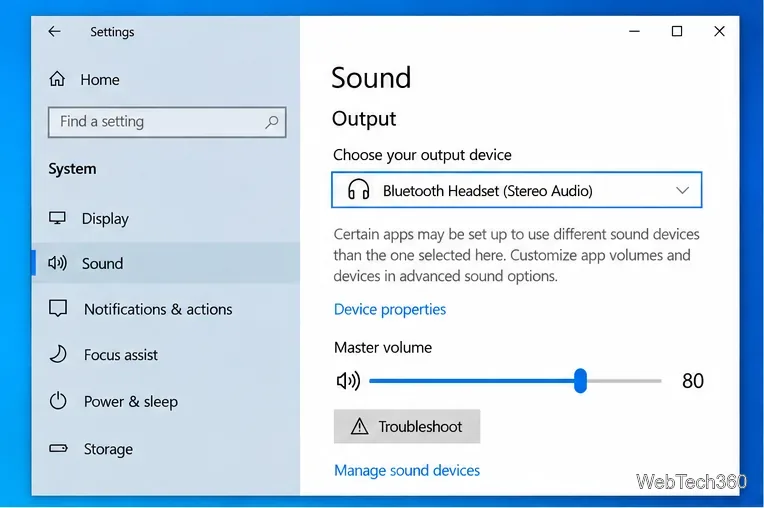
If some apps still use another output, open the classic Sound panel. Go to Settings > System > Sound, open Sound Control Panel under Related settings, select the headset on the Playback tab, and choose Set Default. Microsoft also recommends this when Windows is playing through the wrong device.
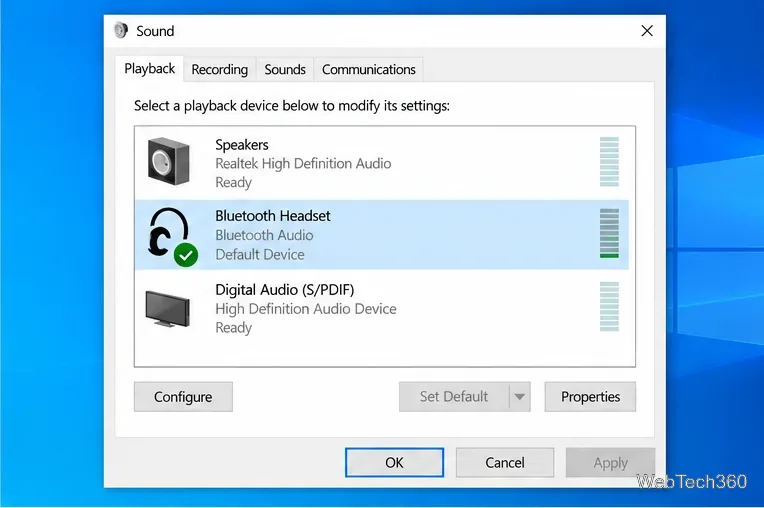
Microsoft now directs Windows 10 users to the automated Bluetooth troubleshooter in the Get Help app. Open Get Help, search for Bluetooth problems, and follow the diagnostic prompts.
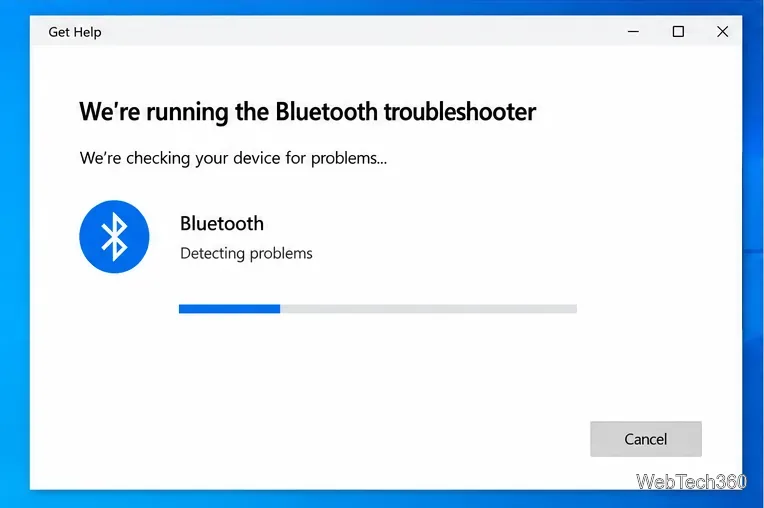
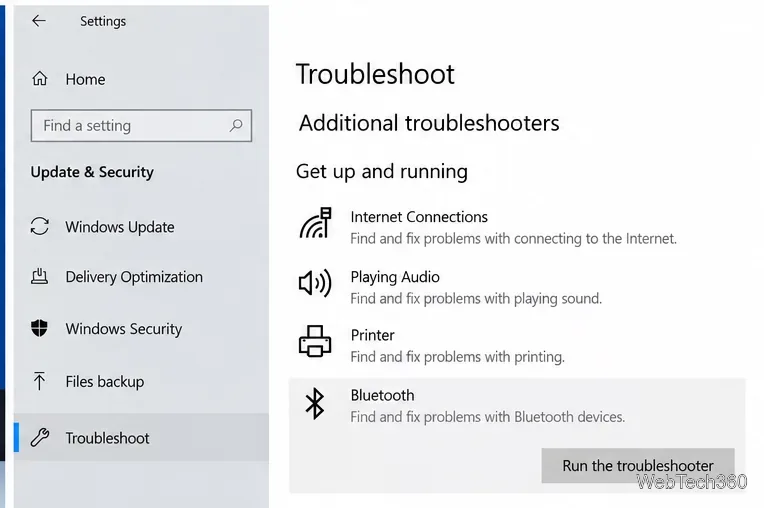
On older Windows 10 installations you may still see Settings > Update & Security > Troubleshoot > Additional troubleshooters. If that legacy page is missing or redirects you, use Get Help instead.
A stale pairing can leave the device connected without a working audio endpoint. Re-pairing forces Windows to rebuild the Bluetooth connection.
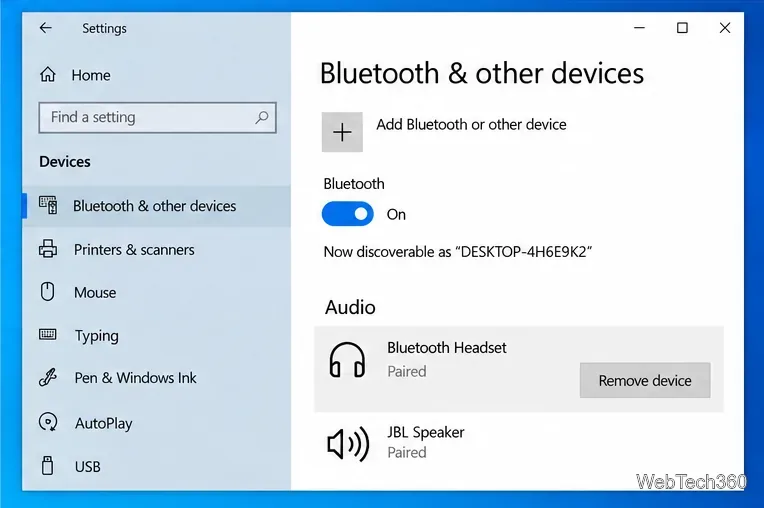
If pairing still behaves oddly, turn Bluetooth off in the same page, wait about 10 seconds, turn it on again, and restart the PC. Microsoft includes both Bluetooth power cycling and a PC restart in its Bluetooth connected but no sound guidance.
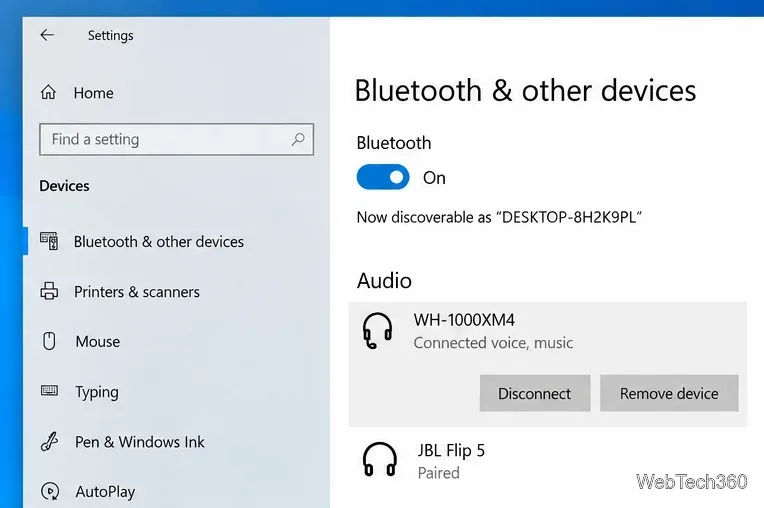
Windows 10 can expose two outputs for a classic Bluetooth headset: Device Name Stereo for high-quality A2DP playback and Device Name Hands-Free for headset microphone use. For music, videos, and games when you do not need the headset mic, choose the Stereo output.
This distinction is important because Microsoft documents that Windows 10 uses separate A2DP and HFP endpoints. When an app opens the Bluetooth microphone, the headset can switch into Hands-Free mode and the Stereo stream may be discarded. See Microsoft Learn: Bluetooth Classic audio.
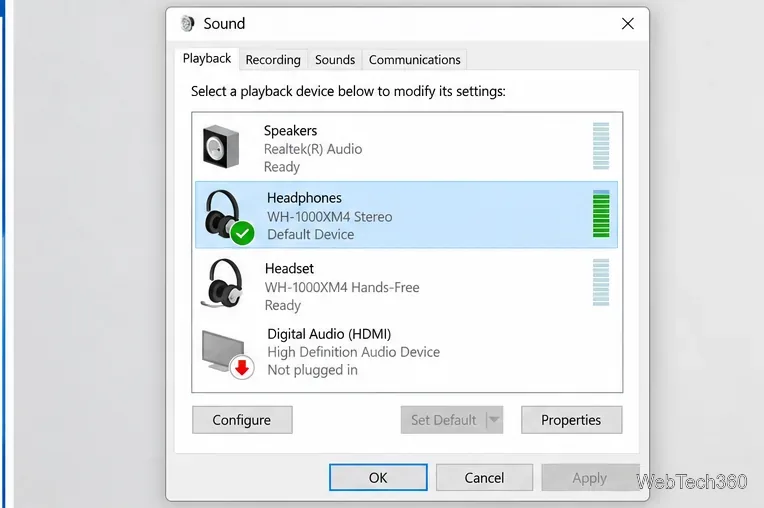
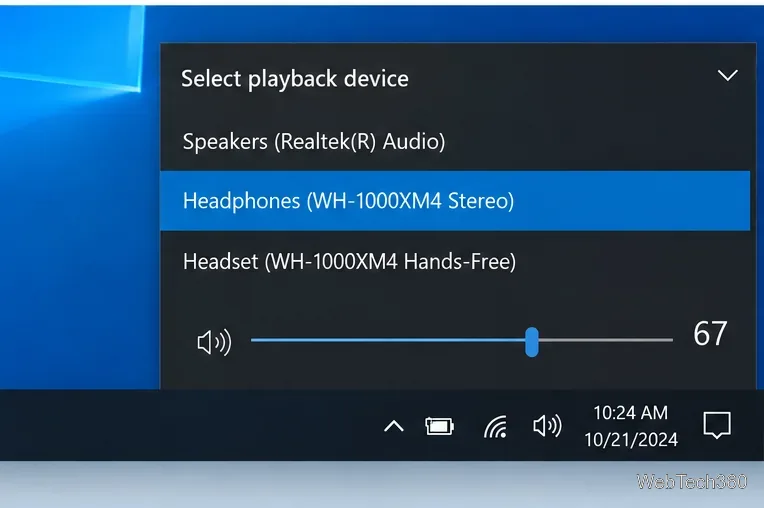
If the headset is selected but remains silent, right-click the taskbar speaker icon, choose Sounds, open Playback, select the Bluetooth device, and choose Properties. On the Advanced tab, Microsoft specifically suggests trying 2 channel, 16 bit, 48000 Hz (DVD Quality) for Bluetooth audio. If the device exposes an Enhancements tab, temporarily select Disable all enhancements and test again.
Open Device Manager, expand Bluetooth, right-click the PC's Bluetooth adapter, and choose Update driver > Search automatically for drivers. Also check Sound, video and game controllers for the audio device. Restart Windows after a driver update.
If Windows says the best driver is already installed, Microsoft recommends checking the PC manufacturer's support site for a newer Bluetooth package. See Microsoft's Bluetooth driver instructions.
If Windows system sounds work but one app is silent, right-click the volume icon and open Volume mixer. Make sure that app is not muted and is using the intended playback device. Microsoft notes that app-specific volume or output selection can override the system default; see its app audio troubleshooting guide.
Finally, pair the headset with a phone or another computer. If it also has no sound there, the problem is likely in the headset, its battery, firmware, or hardware rather than Windows. If another Bluetooth headset works normally on the same PC, focus on the original headset and its manufacturer-specific support.
Use a screenshot test, cable and port checks, monitor diagnostics, display settings, and driver rollback to pinpoint lines on a Windows 10 monitor.
Show two other time zones beside your Windows 10 clock. Set up each additional clock, give it a clear label, and find it in the taskbar calendar.
Find the File Explorer extension that delays right-click menus in Windows 10, test it safely with ShellExView, and restore any menu features you still need.
Stop Windows 10 from powering down a specific network adapter or USB device with plan-level settings and Device Manager controls, plus tips to avoid excess battery drain.
Check whether Windows 10 uses a digital license or product key, find a firmware-stored OEM key, and save license details securely for a reinstall.
Identify a Windows 10 Task Manager process by checking its executable path, file properties, publisher, linked services, and a Microsoft Defender scan.
Create a searchable Windows 10 folder inventory with PowerShell. Save every file and subfolder path as plain text or export details to a sortable CSV.
Add a custom reminder, quote, or label to your Windows 10 desktop with a Rainmeter text skin. Create the INI file, load it, then adjust its font and position.
Use Bluetooth Swift Pair on Windows 10 to pair a compatible accessory from a notification, with setup steps and fixes when the prompt does not appear.
Learn what common laptop function key symbols mean, how Fn and Fn Lock affect them, and how to confirm the right shortcut for your Windows 10 laptop model.








