Home
» WINDOWS
»
How to Fix OBS Studio Crashing on Windows 10
How to Fix OBS Studio Crashing on Windows 10
If OBS Studio keeps closing on your Windows 10 PC, first test it in Safe Mode. Safe Mode disables third-party plugins, scripts, and WebSocket integrations, so it can quickly show whether an add-on is involved. If OBS also crashes in Safe Mode, check competing overlays, graphics drivers, the installation, and crash reports in that order.
Prepare a safe test
Note when the crash happens: at launch, when you add a source, when you start recording, or when you stop. Change one thing at a time so you can tell which test matters. Before reinstalling or changing profiles, export both your OBS Profile and Scene Collection. A Profile stores output and stream settings; a Scene Collection stores scenes and sources, so one export does not back up the other. See OBS’s guides to Profiles and Scene Collections.
OBS’s current requirements still list Windows 10, but Microsoft ended support for most Windows 10 PCs on October 14, 2025. Windows 10 continues to run, though eligible Extended Security Update enrollment or edition-specific support may affect update coverage. End of support is not, by itself, a diagnosis for an OBS crash; plan to move to a supported Windows version when you can. OBS system requirements · Microsoft’s Windows 10 support notice.
How to fix OBS crashing on Windows 10
1. Try OBS Safe Mode
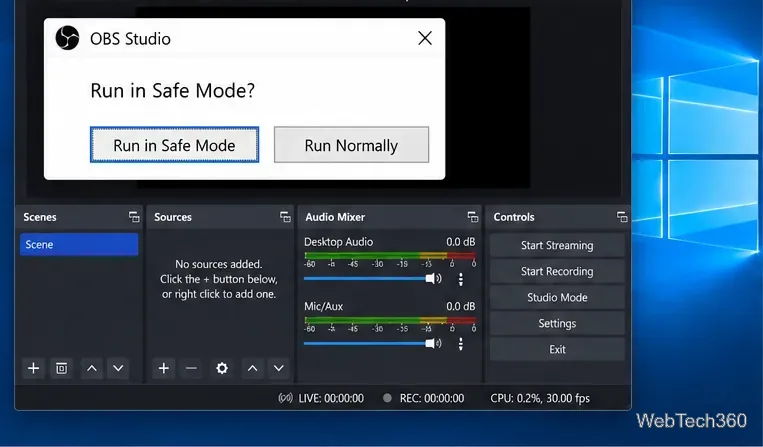
If OBS asks whether to start in Safe Mode after an improper close, choose Run in Safe Mode. Then repeat the action that caused the crash. Safe Mode disables all third-party plugins, scripts, and WebSockets for that launch. If OBS is stable there but crashes in a normal launch, focus on recently installed or updated add-ons rather than changing Windows compatibility settings.
Choose Run in Safe Mode when OBS reports that its previous session did not close properly.
2. Start Safe Mode from a shortcut
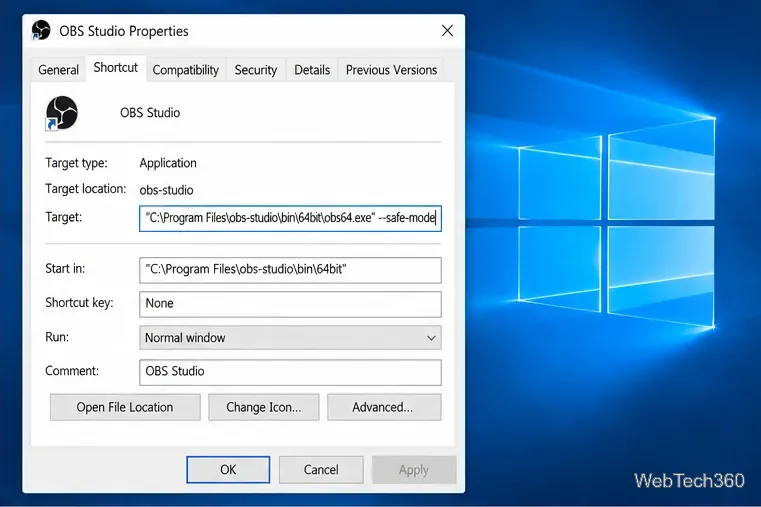
If the recovery prompt does not appear, make a copy of your OBS shortcut, right-click it, and open Properties. In the Target field, leave the quoted path to obs64.exe intact, add one space after the closing quote, then append --safe-mode. Select Apply and launch OBS from that shortcut. Remove the flag from the copied shortcut when you want to test a normal launch. OBS documents this launch parameter and the Windows shortcut method in its launch-parameters guide.
Append the Safe Mode flag after the closing quote in the shortcut Target field.
3. Close overlays and other capture apps
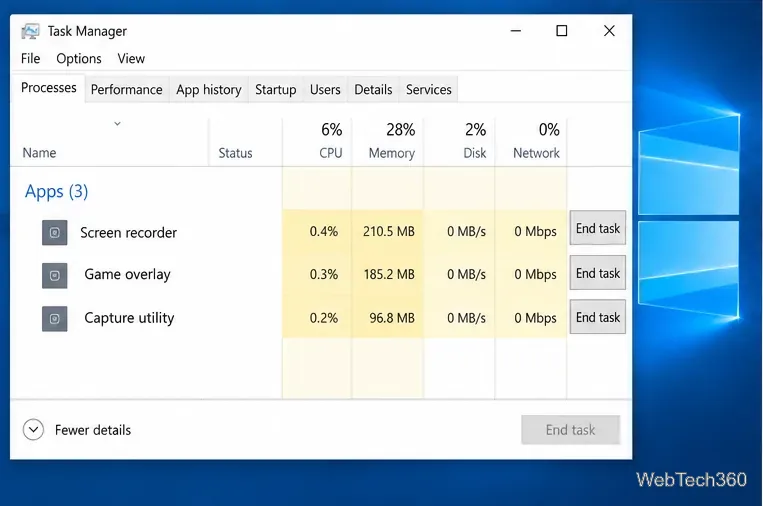
Quit other screen recorders and on-screen displays before opening OBS. FPS counters, GPU-monitoring overlays, game overlays, and a second capture tool can compete for the same graphics hooks. OBS specifically lists tools such as MSI Afterburner, RivaTuner, Discord overlays, Overwolf, and FRAPS among potential conflicts. Close them fully or turn off their overlay feature, then repeat your test. The OBS conflict list has more examples.
Close competing screen capture and overlay apps before testing OBS again.
4. Isolate a recently changed plugin or script
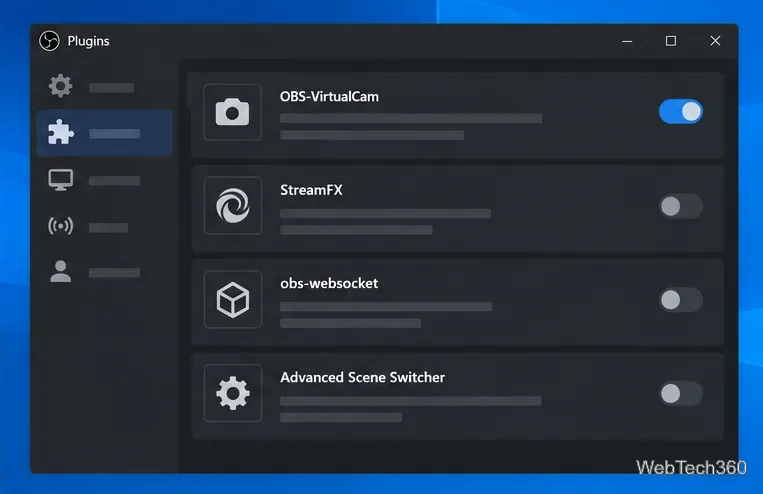
If Safe Mode works, update or disable add-ons you installed just before the crashes began. A plugin may not support your OBS version or Windows setup. Use OBS’s Plugin Manager if your build provides it; otherwise follow the plugin maker’s removal instructions. For scripts, disable the recently added script from OBS when the program opens. Re-enable items one at a time and test between changes. OBS explains plugin compatibility and removal in its Plugins Guide.
Disable a recently added or updated plugin, then test OBS before changing another add-on.
5. Install the current stable OBS release
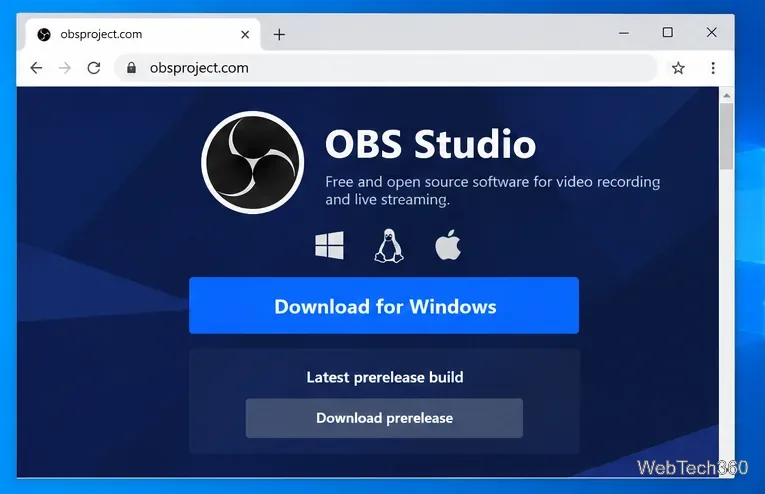
Use the official OBS download page and choose the stable Windows installer. Avoid beta or release-candidate builds while troubleshooting. If the crash started immediately after an OBS update and the other checks do not help, you can compare with one earlier stable release from the official release archive. Treat that as a temporary diagnostic: back up first, and remember that plugins may not work with an older version. Do not download old installers from third-party sites.
Use the stable Windows download while troubleshooting; avoid the prerelease option.
6. Update the graphics driver and check GPU selection
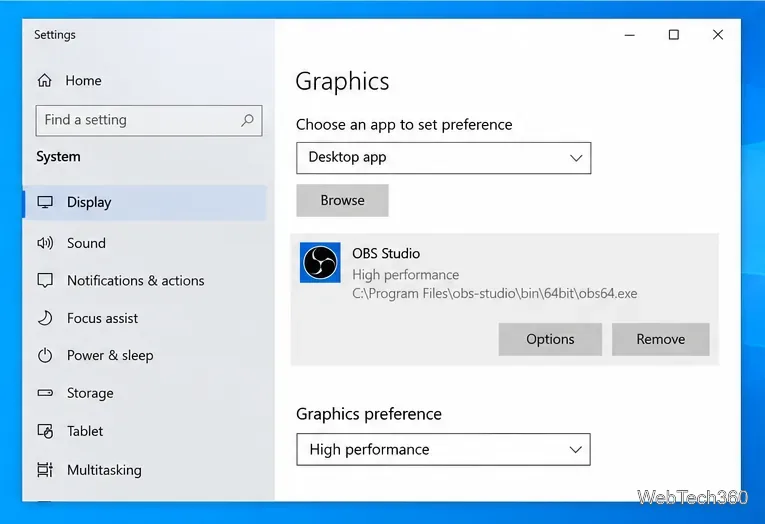
Install a current graphics driver from your PC maker or GPU manufacturer, then restart Windows. On a laptop with integrated and discrete graphics, mismatched GPU selection can affect game or window capture. Open Settings → System → Display → Graphics, select OBS Studio, and choose Options. OBS recommends High performance for Game Capture or Window Capture, and Power saving for Display Capture on multi-GPU systems. This is a targeted check for capture-related crashes or failures, not a universal fix for every launch crash. Follow the OBS GPU selection guide.
For Game Capture or Window Capture on a multi-GPU laptop, check the OBS graphics preference.
7. Reinstall OBS if its program files may be damaged
After exporting your profile and scene collection, close OBS and uninstall it from Settings → Apps → Apps & features. Restart the PC, download the stable installer from OBS, and install it again. Test OBS before reinstalling optional plugins. Do not delete the %APPDATA%\obs-studio folder as a first step: it contains user configuration, and removing it can erase settings without addressing a conflicting overlay or driver.
8. Use the logs to identify what remains
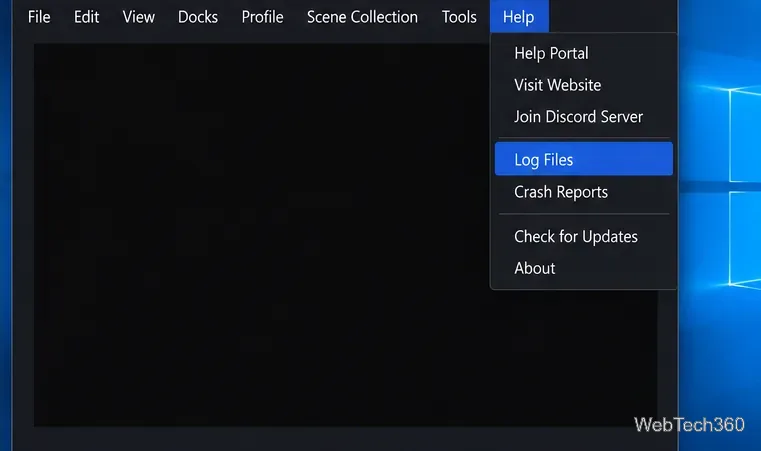
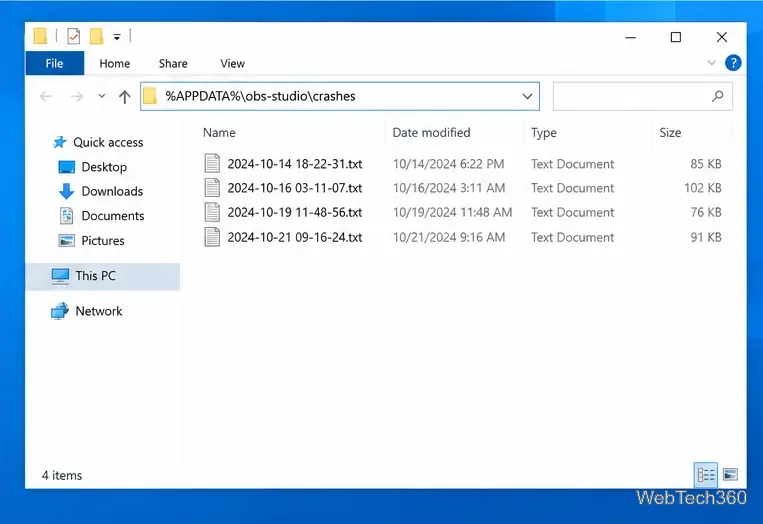
If OBS still crashes, open Help → Log Files and save or upload the log for the session that failed. Check Help → Crash Reports for a crash report as well. If OBS will not open, press Win + R, enter %APPDATA%\obs-studio\crashes, and note the newest report. Include the crash trigger, OBS version, and any recent plugin or driver change when you ask for help through the OBS Help Portal.
Open Help to locate the log and crash-report tools when OBS can still start.If OBS will not start, open its crash-report folder from the Windows Run dialog.
For the quickest diagnosis, compare a normal OBS launch with Safe Mode, then change only the add-on, overlay, driver, or version linked to the failure. That keeps your scenes and output settings intact while narrowing down the cause.