How to Open a Linux Shell in a Folder on Windows 10

Open a Linux shell in any Windows 10 folder with File Explorer, PowerShell, and WSL. Check the Linux path and fix common setup issues.
If Outlook search is not working on Windows 10, first check whether you use new Outlook or classic Outlook. The fixes are different. New Outlook has a Settings option on the ribbon and manages search mainly through its own Search and Offline settings. Classic Outlook relies heavily on Windows Search indexing, so indexing problems are a common reason searches return no results or miss recent messages.
Microsoft's Outlook search troubleshooting guidance recommends checking indexing, Windows Search, profiles, and Office repair. Test search after each fix.
If you see Settings on the Outlook ribbon, you are using new Outlook. Go to Settings > General > Search and confirm the search scope you want. If older messages are missing, open Settings > General > Offline and increase Days of email to save, then allow Outlook time to sync.
If there is no Settings option on the ribbon, use the classic Outlook steps below.
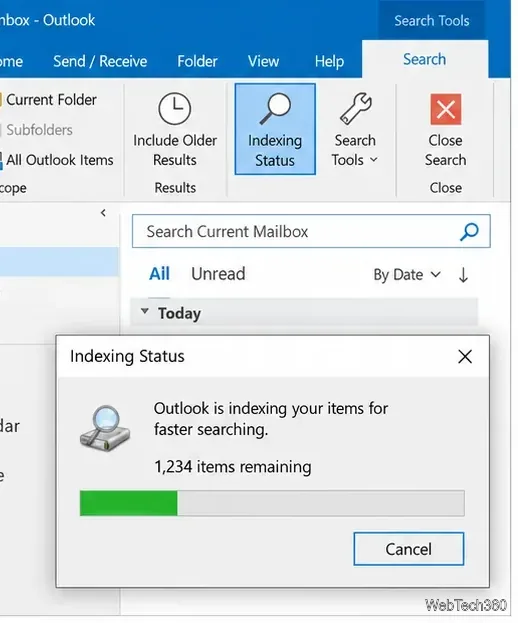
In classic Outlook, click the Search box, then choose Search Tools > Indexing Status. If Outlook reports items remaining to be indexed, leave Outlook open and wait a few minutes. Check again to see whether the number is falling. Search results can be incomplete until indexing finishes.
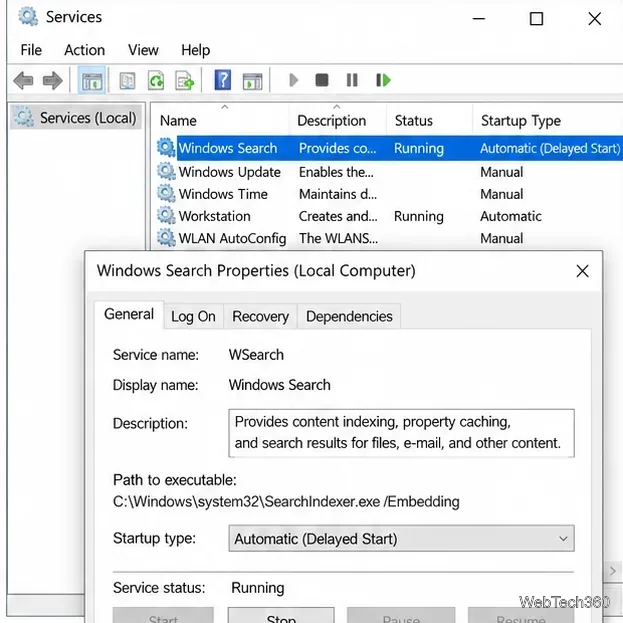
Press Windows key + R, type services.msc, and press Enter. Open Windows Search. Set Startup type to Automatic (Delayed Start) if it is disabled or configured incorrectly, then make sure Service status is Running. Restart Outlook afterward.
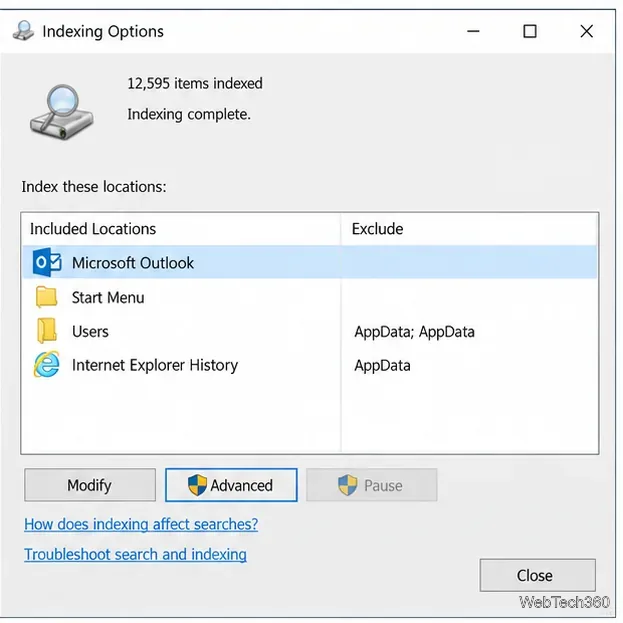
Close Outlook, open Control Panel, search for Indexing Options, and open it. In the Included Locations list, confirm that Microsoft Outlook appears. If it does not, select Modify and enable Microsoft Outlook, then save the change.
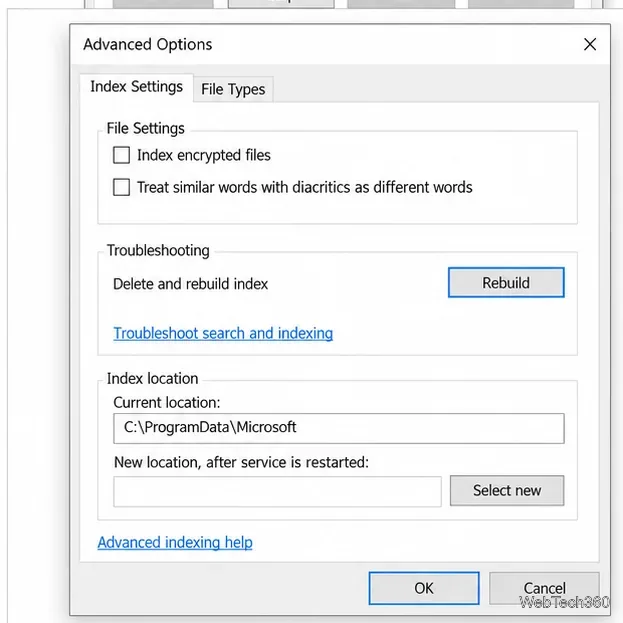
If Indexing Status never reaches zero or the index appears corrupted, close Outlook and return to Control Panel > Indexing Options. Choose Advanced, then select Rebuild under Troubleshooting. Windows will recreate the search catalog from scratch.
Search results may be incomplete while the new index is being built.
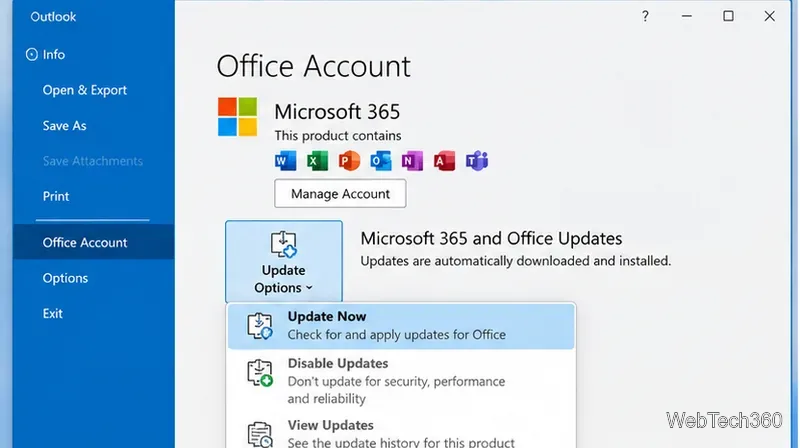
Open classic Outlook and go to File > Office Account > Update Options > Update Now. Install any available Office updates, then restart Outlook. Microsoft documents this update path in its Microsoft 365 and Office update instructions.
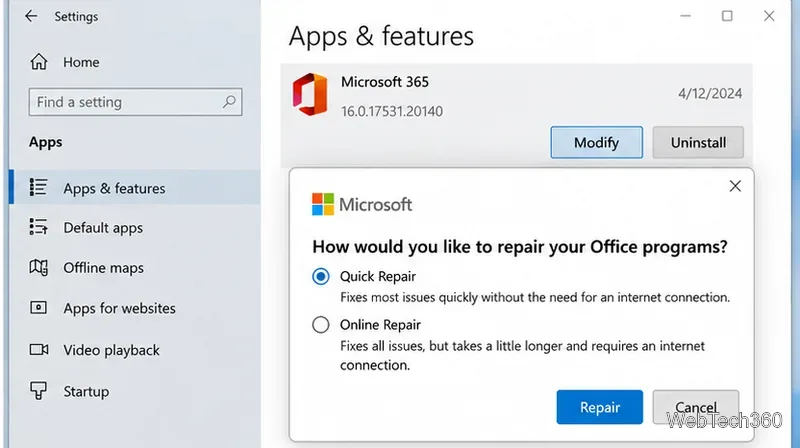
If Outlook files or search components are damaged, repair the Office installation. In Windows 10, right-click Start, open Apps & features, select your Microsoft 365 or Office product, and choose Modify. Try Quick Repair first. If the problem remains, run Online Repair, which is more thorough and requires an internet connection.
See Microsoft's Office repair instructions for the supported repair options.
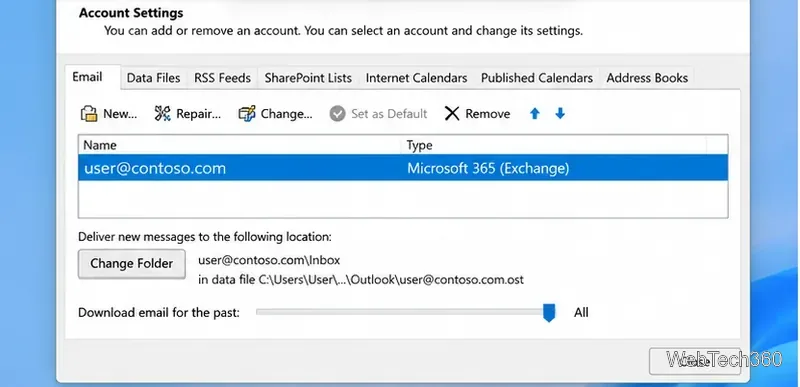
Search can only index mail that is available to the Outlook client. In classic Outlook, go to File > Account Settings > Account Settings, select the account, choose Change, and move Download email for the past farther to the right or to All. Finish the wizard and restart Outlook.
Allow time for the extra mail to download and be indexed.
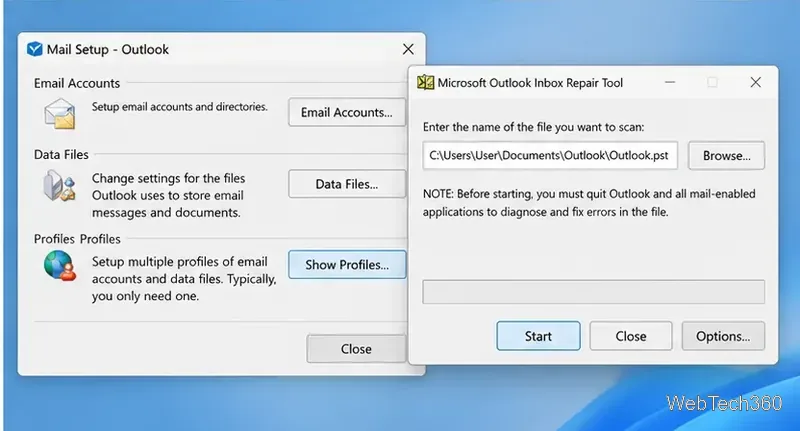
If search is still broken, test a fresh Outlook profile. Use File > Account Settings > Manage Profiles, or open Mail in Control Panel, then choose Show Profiles > Add. If search works in the new profile, the old profile is likely damaged.
If a local .pst file may be corrupted, back it up, close Outlook, and run SCANPST.EXE. Microsoft documents the process in Repair Outlook Data Files (.pst and .ost). Exchange .ost cache files can be recreated from the server.
Check the search scope before doing more repairs. Try Current Folder or the specific mailbox, and narrow results by sender, subject, or date. Deleted Items can be included through File > Options > Search.
Microsoft ended standard Windows 10 support on October 14, 2025. These fixes still apply to PCs that remain on Windows 10, but Microsoft recommends Windows 11 or an eligible Extended Security Updates path. See the Windows 10 end-of-support guidance.
Open a Linux shell in any Windows 10 folder with File Explorer, PowerShell, and WSL. Check the Linux path and fix common setup issues.
Use a screenshot test, cable and port checks, monitor diagnostics, display settings, and driver rollback to pinpoint lines on a Windows 10 monitor.
Show two other time zones beside your Windows 10 clock. Set up each additional clock, give it a clear label, and find it in the taskbar calendar.
Find the File Explorer extension that delays right-click menus in Windows 10, test it safely with ShellExView, and restore any menu features you still need.
Stop Windows 10 from powering down a specific network adapter or USB device with plan-level settings and Device Manager controls, plus tips to avoid excess battery drain.
Check whether Windows 10 uses a digital license or product key, find a firmware-stored OEM key, and save license details securely for a reinstall.
Identify a Windows 10 Task Manager process by checking its executable path, file properties, publisher, linked services, and a Microsoft Defender scan.
Create a searchable Windows 10 folder inventory with PowerShell. Save every file and subfolder path as plain text or export details to a sortable CSV.
Add a custom reminder, quote, or label to your Windows 10 desktop with a Rainmeter text skin. Create the INI file, load it, then adjust its font and position.
Use Bluetooth Swift Pair on Windows 10 to pair a compatible accessory from a notification, with setup steps and fixes when the prompt does not appear.








