How to Fix Lines on a Monitor Screen in Windows 10

Use a screenshot test, cable and port checks, monitor diagnostics, display settings, and driver rollback to pinpoint lines on a Windows 10 monitor.
If Outlook keeps sending legitimate email to the Junk or Spam folder, do not turn spam filtering off. Mark one affected message as not junk, check whether the sender is blocked, add the address to Safe Senders, and review rules that may be moving the mail. For Gmail, Yahoo, iCloud, or another third-party account in new Outlook, the fix may need to be made with that provider.
This restores the message and tells Outlook the classification was wrong.
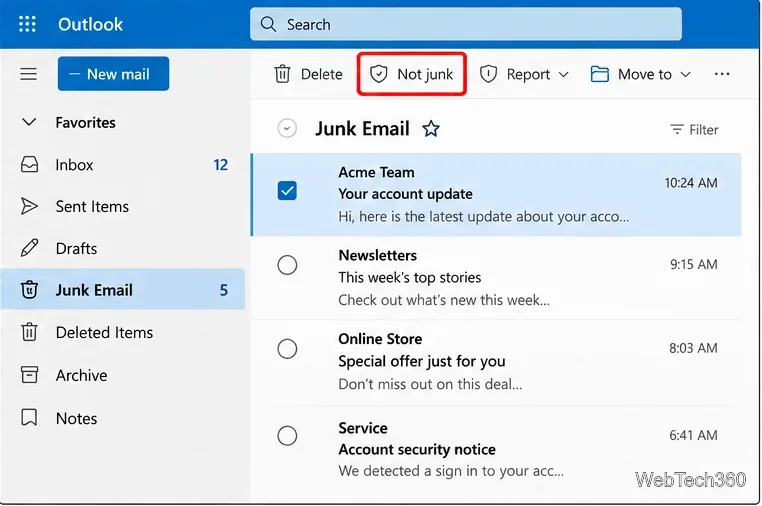
Microsoft recommends checking Junk Email for false positives and marking them as not junk. See Microsoft's guidance for mail sent to Junk by mistake.
A trusted address can keep going to Junk if it was blocked earlier. In new Outlook for Windows or Outlook.com:
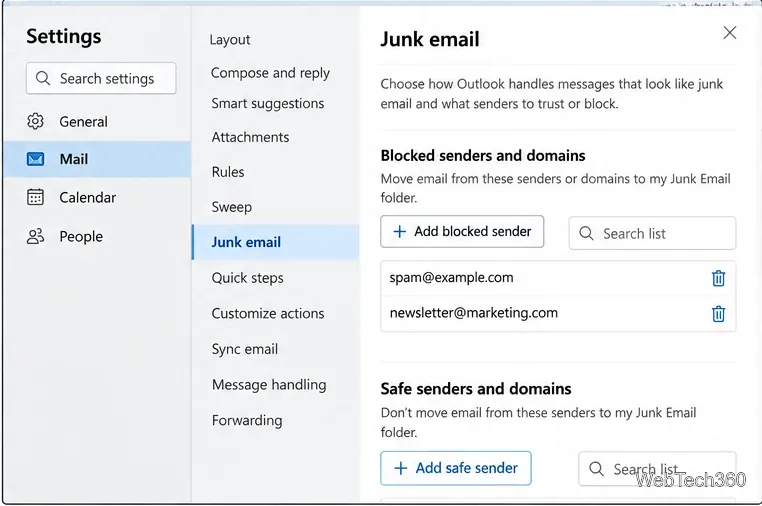
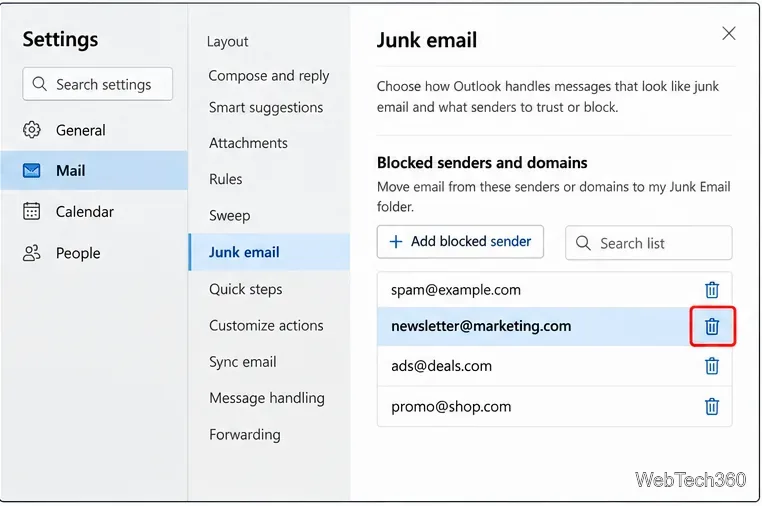
Microsoft documents these controls for current Outlook versions in Block or unblock senders in Outlook.
If the sender is important and trustworthy, add the specific email address to Safe Senders. Add an entire domain only when you trust every address using that domain.
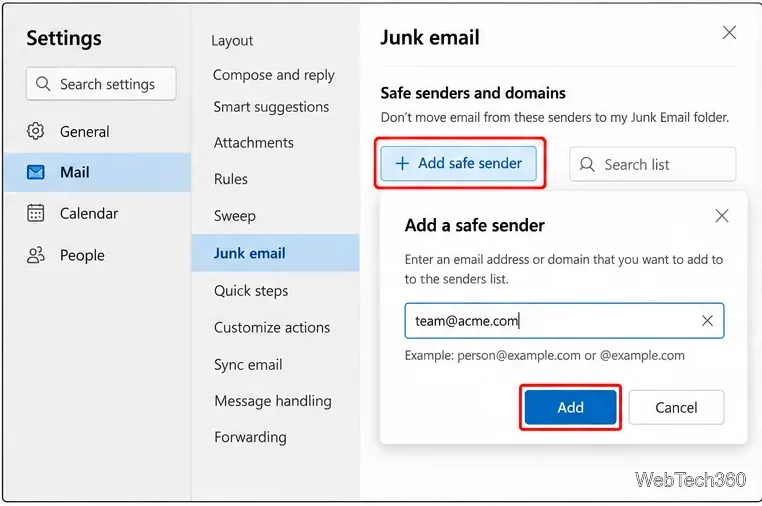
This is safer than relying on the old advice to simply save the sender as a contact. In classic Outlook, trusting Contacts is a separate Junk E-mail option, and managed mail systems can also filter messages before the desktop app sees them.
In classic Outlook for Windows, open Home > Block > Junk E-mail Options. Review the Safe Senders and Blocked Senders tabs, and add the trusted address if necessary. You can also enable Also trust e-mail from my Contacts if that matches how you manage trusted senders.
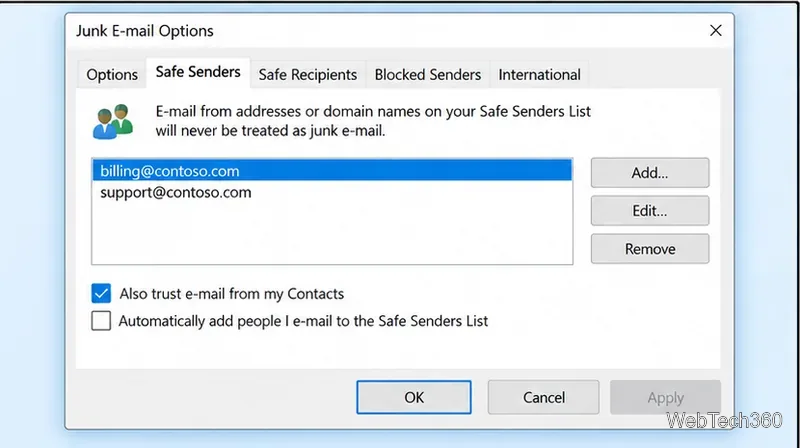
Microsoft's overview of the Junk Email Filter in classic Outlook explains these lists.
A rule may be the reason expected mail disappears from the Inbox. In new Outlook and Outlook.com, open Settings > Mail > Rules. In classic Outlook, use File > Manage Rules & Alerts. Look for rules that move mail from the affected sender, domain, or subject to Junk Email, Deleted Items, or another folder.
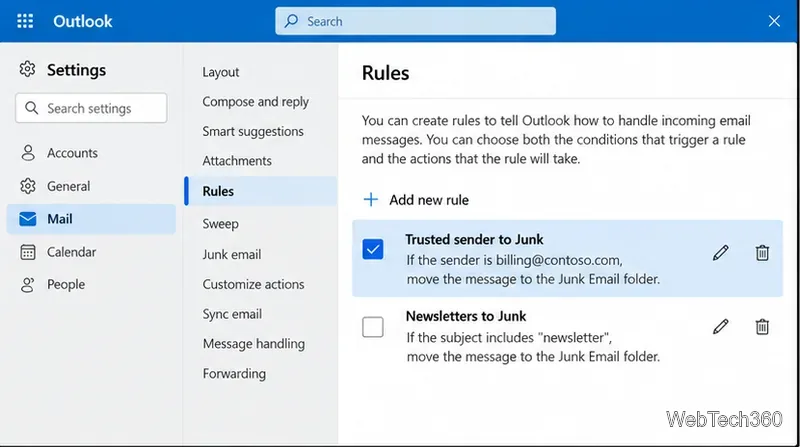
If you edit a rule, make its condition specific. Stop processing more rules can prevent a later rule from undoing an earlier action.
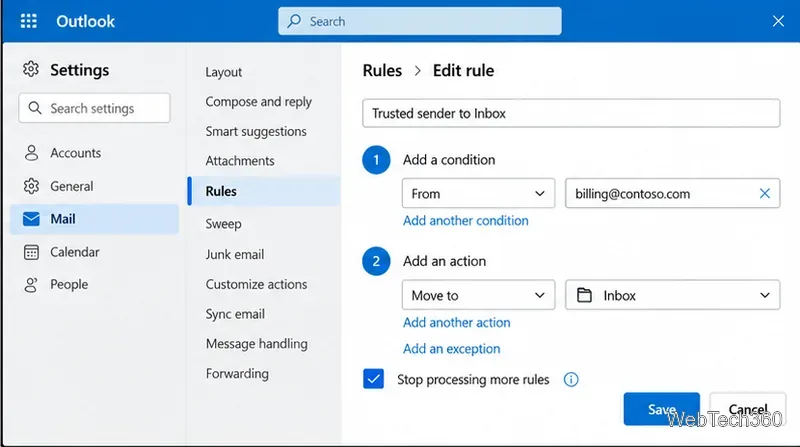
Do not depend on a rule to override spam filtering: classification can occur before normal inbox rules are applied. Rules are best for organizing mail that has already reached the mailbox. See Microsoft's current Outlook rules guide.
Microsoft notes that some sender-blocking and rule features for Gmail, Yahoo, iCloud, and other domain-based services in new Outlook must be configured with the email provider. If a Gmail message is already in Spam before Outlook syncs it, changing an Outlook Safe Senders list may not fix the original classification.
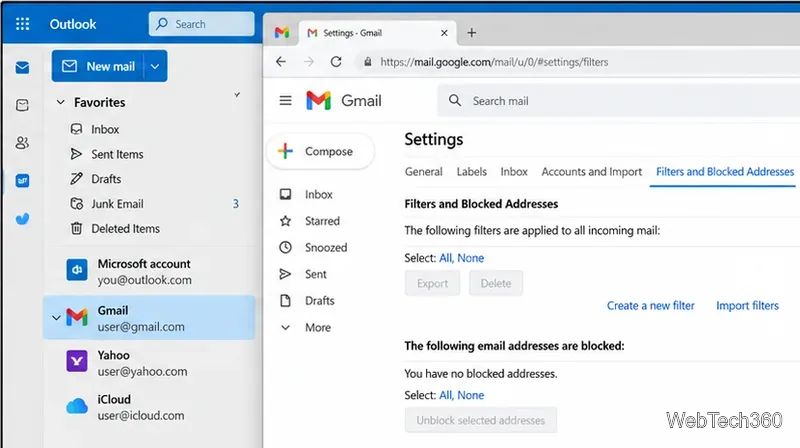
Open the provider's webmail and inspect its Spam/Junk folder, blocked-address list, filters, and trusted-sender options. Correct the setting there, then move the message back to the Inbox if needed.
Microsoft 365 or Exchange mail can also be filtered by organization policies or another security gateway before it reaches Outlook. If the same sender still goes to Junk after you mark it not junk, remove blocks, and add it to Safe Senders, ask your mail administrator to review the spam verdict and tenant or gateway filtering.
Use a screenshot test, cable and port checks, monitor diagnostics, display settings, and driver rollback to pinpoint lines on a Windows 10 monitor.
Show two other time zones beside your Windows 10 clock. Set up each additional clock, give it a clear label, and find it in the taskbar calendar.
Find the File Explorer extension that delays right-click menus in Windows 10, test it safely with ShellExView, and restore any menu features you still need.
Stop Windows 10 from powering down a specific network adapter or USB device with plan-level settings and Device Manager controls, plus tips to avoid excess battery drain.
Check whether Windows 10 uses a digital license or product key, find a firmware-stored OEM key, and save license details securely for a reinstall.
Identify a Windows 10 Task Manager process by checking its executable path, file properties, publisher, linked services, and a Microsoft Defender scan.
Create a searchable Windows 10 folder inventory with PowerShell. Save every file and subfolder path as plain text or export details to a sortable CSV.
Add a custom reminder, quote, or label to your Windows 10 desktop with a Rainmeter text skin. Create the INI file, load it, then adjust its font and position.
Use Bluetooth Swift Pair on Windows 10 to pair a compatible accessory from a notification, with setup steps and fixes when the prompt does not appear.
Learn what common laptop function key symbols mean, how Fn and Fn Lock affect them, and how to confirm the right shortcut for your Windows 10 laptop model.








