How to Open a Linux Shell in a Folder on Windows 10

Open a Linux shell in any Windows 10 folder with File Explorer, PowerShell, and WSL. Check the Linux path and fix common setup issues.
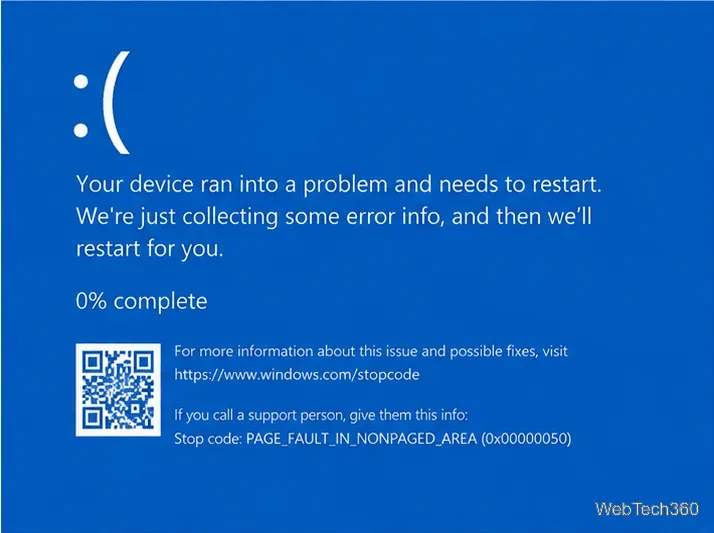
PAGE FAULT IN NONPAGED AREA is the Windows stop error 0x00000050. Microsoft describes it as an invalid system-memory reference. Common causes include a bad or incompatible driver, faulty RAM or other hardware, a damaged NTFS volume, or a problematic system service. If the blue screen happened once and never returned, a restart may be enough. If it keeps coming back, work through the checks below in order.
One current caveat: standard support for Windows 10 ended on October 14, 2025. If your PC is not receiving Extended Security Updates, Microsoft recommends moving to a supported Windows version. See Microsoft's Windows 10 end-of-support notice.
Before changing anything, photograph the blue screen. If it names a driver file ending in .sys, that clue can point directly to the failing device or software. Microsoft's 0x50 bug-check documentation confirms that a faulty driver, service, antivirus component, NTFS corruption, or failing hardware can trigger this stop code.
Shut the PC down and disconnect hardware added shortly before the crashes began, such as a USB adapter, external drive, PCIe card, or new RAM. Restart and test again.
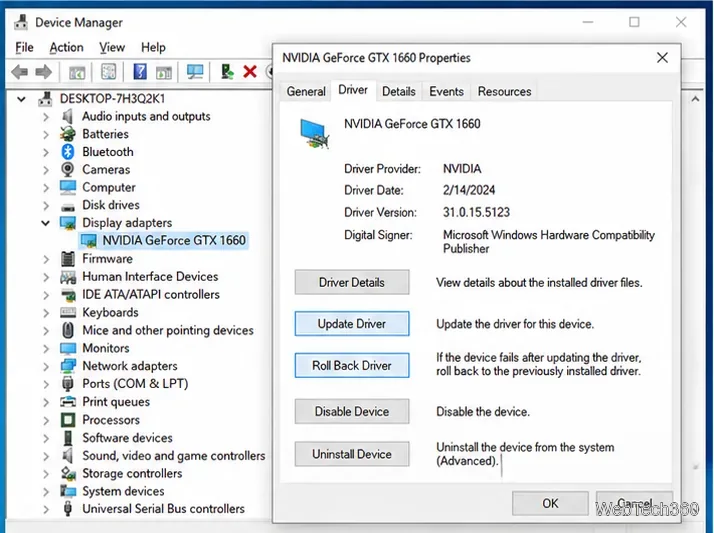
Open Settings > Update & Security > Windows Update and install any updates available to your Windows 10 installation. Then open Device Manager and check the device related to any driver named on the blue screen.
Right-click the device and choose Update driver. If the crashes started immediately after a driver update, open Properties > Driver and use Roll Back Driver when available. Microsoft recommends Windows Update first, then a driver from the device manufacturer's official site if necessary. Avoid third-party driver-download sites.
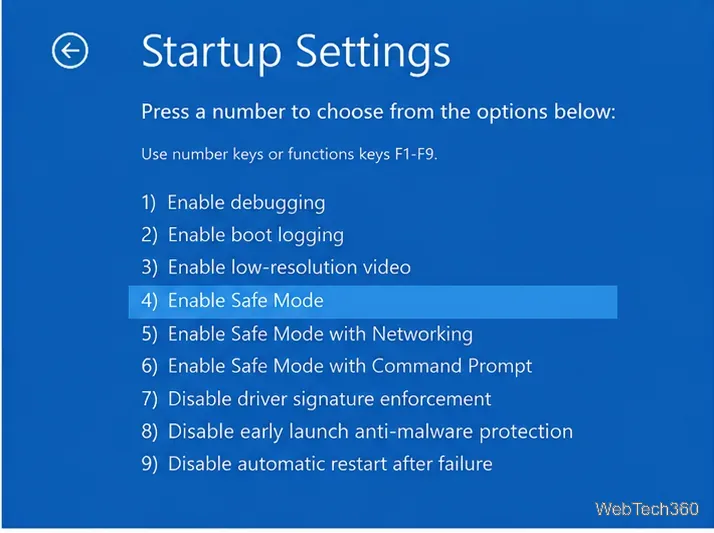
If Windows still starts, hold Shift while choosing Restart, then select Troubleshoot > Advanced options > Startup Settings > Restart. Press 4 or F4 for Safe Mode. Microsoft notes that Safe Mode loads only a limited set of files and drivers, making it useful for narrowing down third-party software and driver problems. See Windows startup settings.
If the PC is stable in Safe Mode, uninstall the most recent driver, utility, antivirus product, or system-level app added before the crashes began.
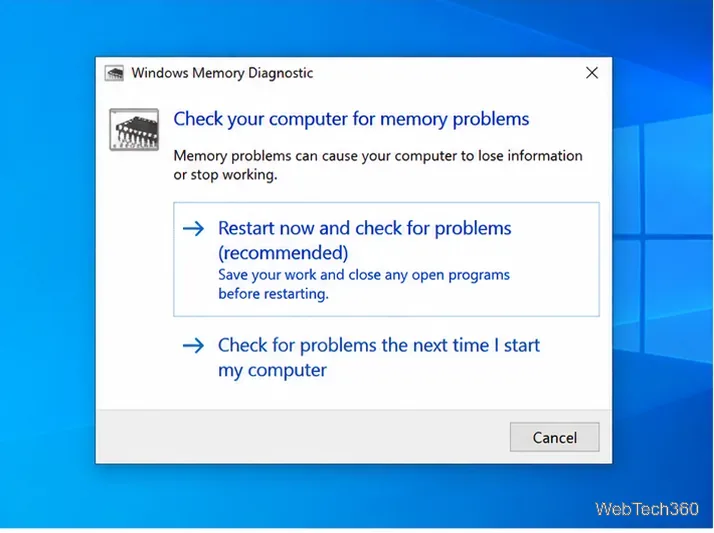
Press Win + R, type mdsched.exe, and choose Restart now and check for problems. Save your work first because the PC will reboot. If Windows Memory Diagnostic reports errors, test the memory with the PC manufacturer's diagnostics and, if you are comfortable working inside the machine, reseat the RAM or test one module at a time. Replace a module that consistently fails.
A clean memory test does not rule out every hardware fault, but repeated 0x50 crashes with memory errors are a strong reason to investigate RAM before reinstalling Windows.
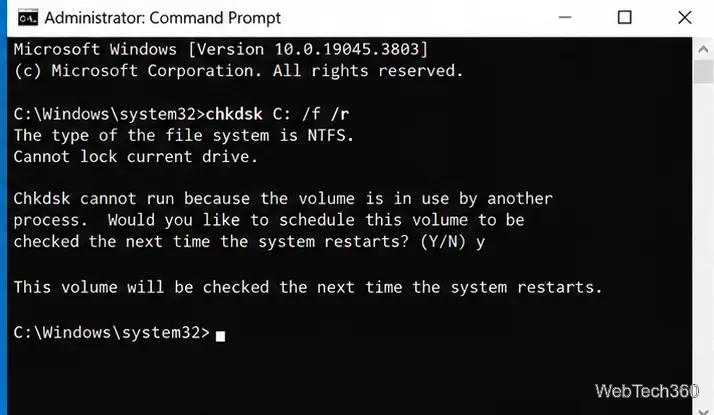
Microsoft specifically recommends checking the disk for recurring PAGE_FAULT_IN_NONPAGED_AREA errors. Open Command Prompt as administrator and run:
chkdsk C: /f /r
If Windows says the volume is in use, type Y to schedule the scan and restart. The /r option checks for bad sectors as well as file-system problems, so the scan can take a long time. Microsoft's advanced stop-error troubleshooting guidance lists CHKDSK for this bug check.
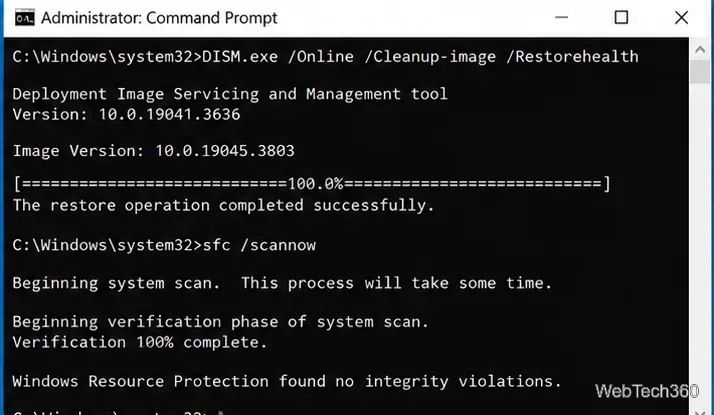
Corrupted Windows files can make driver and memory-related crashes harder to diagnose. In an elevated Command Prompt, run DISM first, then SFC:
DISM.exe /Online /Cleanup-image /Restorehealthsfc /scannow
Let each command finish completely, then restart. Microsoft currently recommends this order because DISM supplies the files SFC may need to repair protected Windows components. See the official DISM and System File Checker instructions.
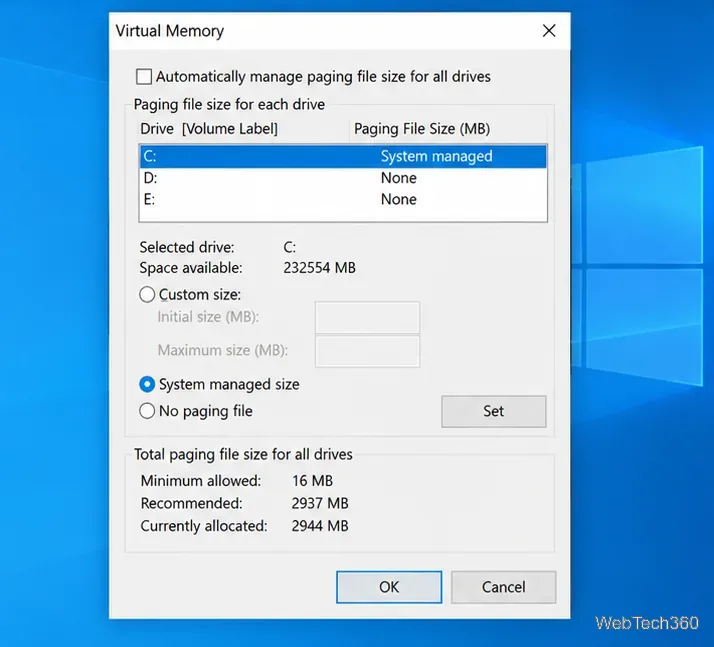
A disabled or severely restricted page file can create memory-pressure problems and prevent Windows from managing virtual memory normally. Press Win + R, type sysdm.cpl, then open Advanced > Performance Settings > Advanced > Virtual memory > Change. For most PCs, enable Automatically manage paging file size for all drives, or use System managed size for the Windows drive. Microsoft's page-file documentation explains how paging extends available committed memory.
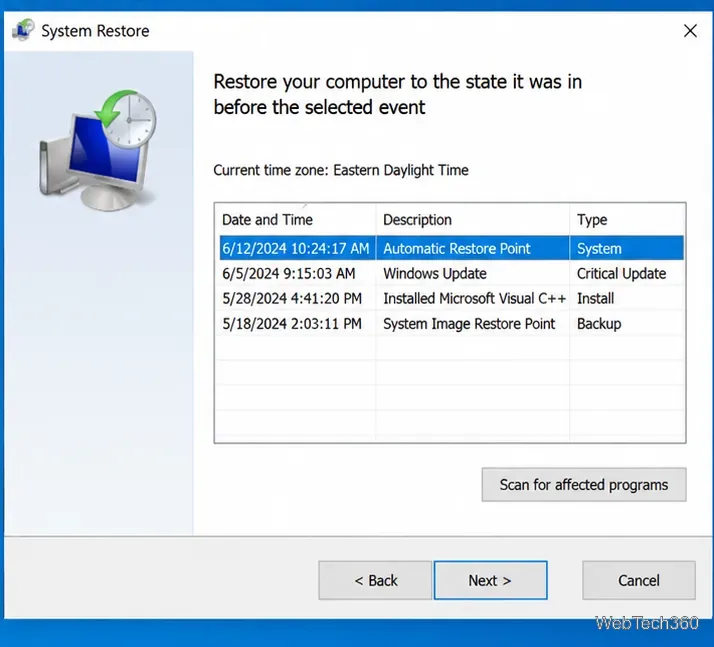
If the blue screens began after a recent app, driver, or system change, press Win + R, type rstrui.exe, and select a restore point from before the problem started. System Restore rolls back system files, registry settings, drivers, and installed programs without deleting personal files. Microsoft's System Restore guide also explains how to run it from Windows Recovery Environment.
If no restore point works and hardware tests pass, back up important files and consider Reset this PC. The Keep my files option reinstalls Windows while preserving personal files, but it removes installed apps and settings. If BitLocker or device encryption is enabled, make sure you have the recovery key before using recovery tools. See Microsoft's reset instructions.
Back up your data and move to hardware diagnostics or repair if Windows Memory Diagnostic reports errors, the PC crashes with several unrelated driver names, CHKDSK finds recurring disk damage, or the same stop code appears after a clean recovery. In those cases, continuing to reinstall software is unlikely to solve a failing RAM module, SSD, motherboard, or other component.
Open a Linux shell in any Windows 10 folder with File Explorer, PowerShell, and WSL. Check the Linux path and fix common setup issues.
Use a screenshot test, cable and port checks, monitor diagnostics, display settings, and driver rollback to pinpoint lines on a Windows 10 monitor.
Show two other time zones beside your Windows 10 clock. Set up each additional clock, give it a clear label, and find it in the taskbar calendar.
Find the File Explorer extension that delays right-click menus in Windows 10, test it safely with ShellExView, and restore any menu features you still need.
Stop Windows 10 from powering down a specific network adapter or USB device with plan-level settings and Device Manager controls, plus tips to avoid excess battery drain.
Check whether Windows 10 uses a digital license or product key, find a firmware-stored OEM key, and save license details securely for a reinstall.
Identify a Windows 10 Task Manager process by checking its executable path, file properties, publisher, linked services, and a Microsoft Defender scan.
Create a searchable Windows 10 folder inventory with PowerShell. Save every file and subfolder path as plain text or export details to a sortable CSV.
Add a custom reminder, quote, or label to your Windows 10 desktop with a Rainmeter text skin. Create the INI file, load it, then adjust its font and position.
Use Bluetooth Swift Pair on Windows 10 to pair a compatible accessory from a notification, with setup steps and fixes when the prompt does not appear.








