How to Open a Linux Shell in a Folder on Windows 10

Open a Linux shell in any Windows 10 folder with File Explorer, PowerShell, and WSL. Check the Linux path and fix common setup issues.
Quick answer: If Windows 10 says the printer has experienced a configuration problem, start with the printer troubleshooter, then remove and reinstall the printer, update or reinstall its driver, and reset the Print Spooler if jobs remain stuck. The error is broad, so the fastest approach is to rule out connection, driver, queue, and app-specific problems in that order.
Important: Microsoft ended standard support for Windows 10 on October 14, 2025. A Windows 10 PC can still print, but Microsoft recommends moving to a supported Windows version for ongoing security and technical support. See Microsoft's Windows 10 end-of-support notice.
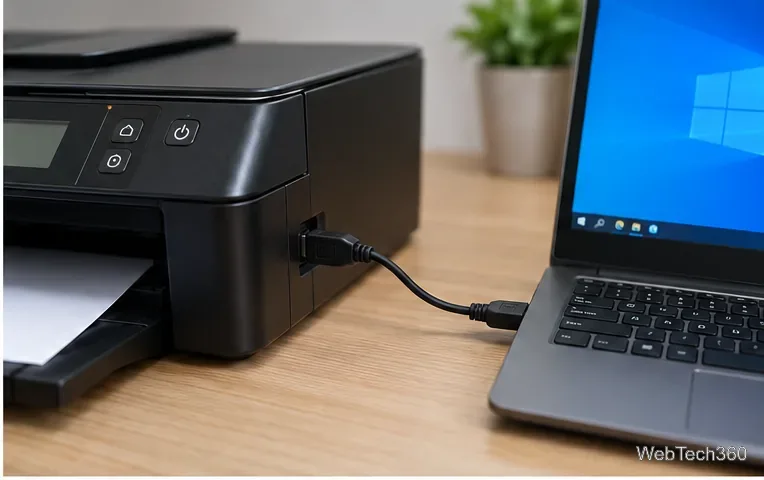
First, eliminate simple hardware and connection issues. Turn the printer off, unplug it for about 30 seconds, reconnect it, and turn it back on. Confirm that paper is loaded, doors are closed, and the printer itself is not reporting a jam or ink/toner problem.
Microsoft's current Windows 10 guidance is to begin with the automated printer troubleshooter in the Get Help app. Open Start, search for Get Help, launch it, and search for the printer troubleshooter. Follow the diagnostic prompts and apply any recommended fix.
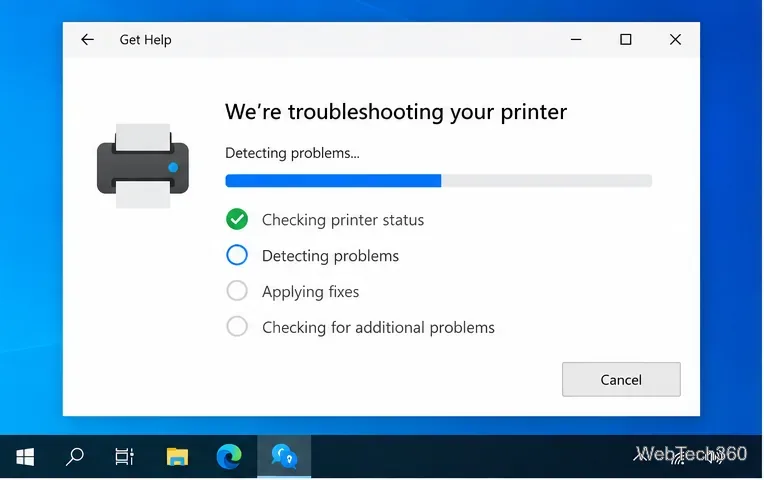
If the troubleshooter does not resolve the error, continue with the steps below. Microsoft's full workflow is available in Fix printer connection and printing problems in Windows.
A stale or damaged printer configuration can survive a restart. Reinstalling the printer forces Windows to rebuild that configuration.
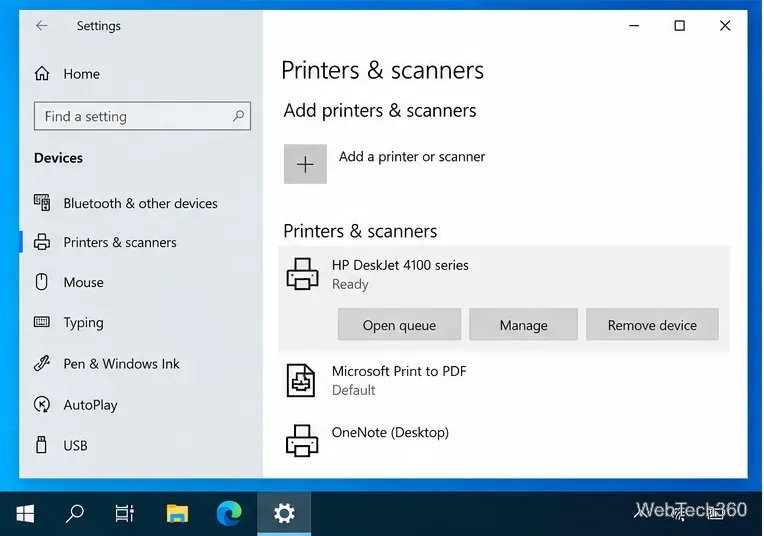
For a network printer, confirm it is powered on and reachable on the same network before reinstalling it. Microsoft documents the supported install and removal steps in Add or install a printer in Windows.
An incompatible or damaged driver can also trigger printing failures. Microsoft recommends checking Windows Update for printer drivers first. You can also use Device Manager to update or reinstall the printer device.
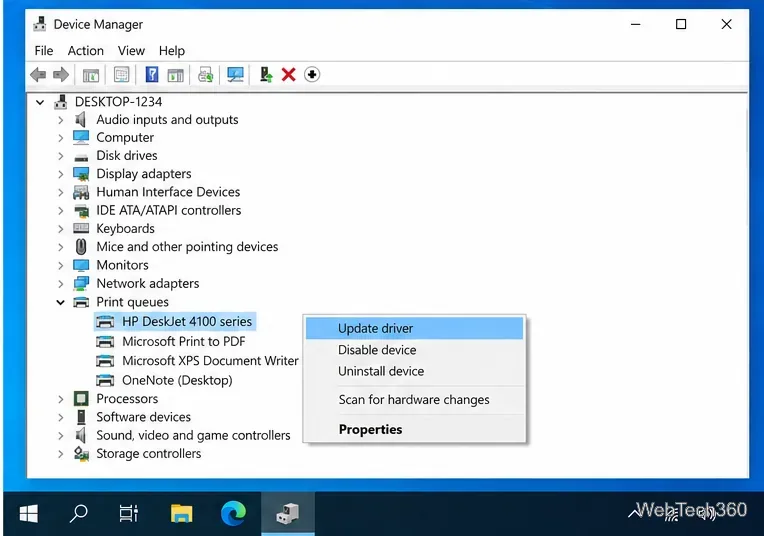
If your printer manufacturer still provides a Windows 10 driver or firmware package for your exact model, download it only from the manufacturer's official support site. See Microsoft's printer driver installation guidance for the supported options.
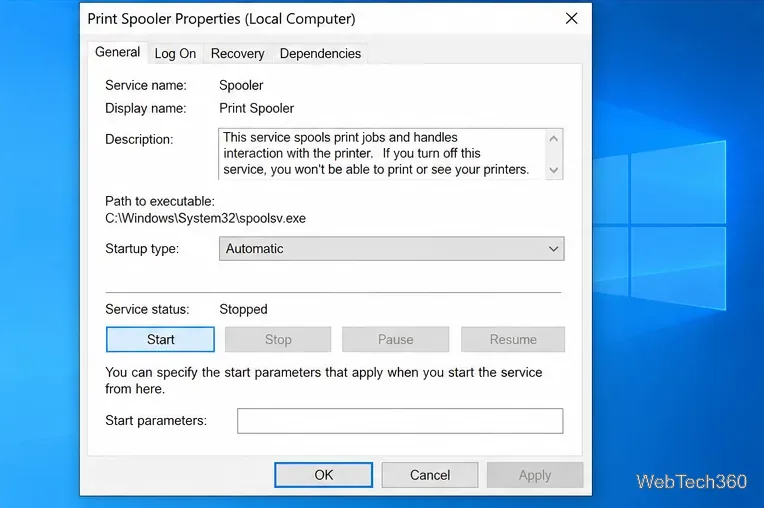
If print jobs are stuck, disappear, or immediately fail, reset the Print Spooler. This clears temporary queue files that can prevent Windows from sending a clean job to the printer.
services.msc, and press Enter.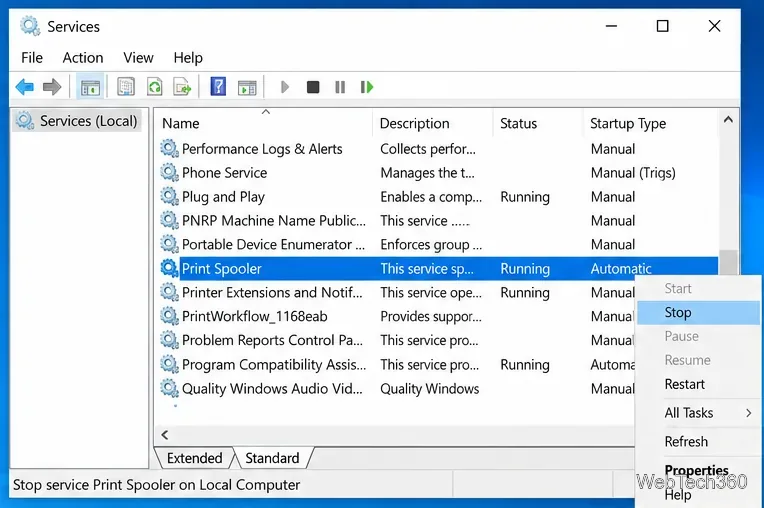
%WINDIR%\System32\spool\PRINTERS in the address bar.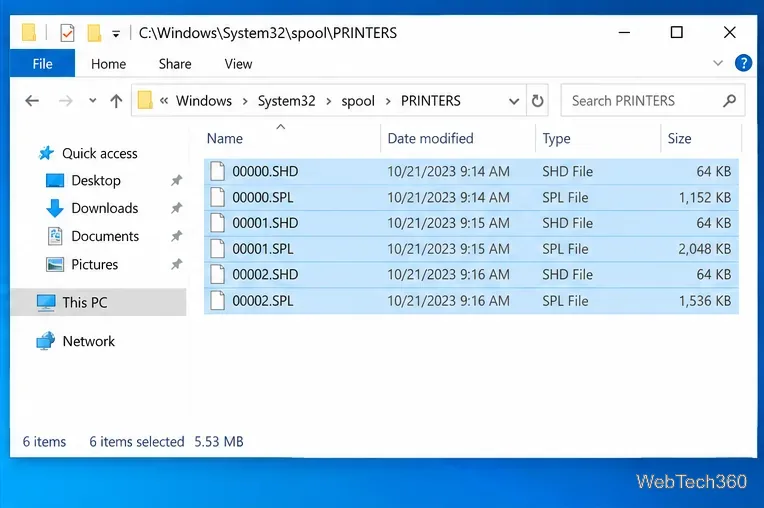
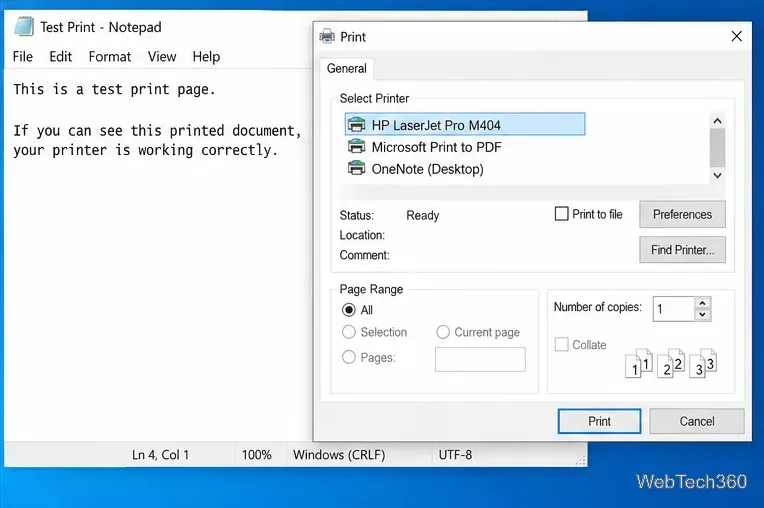
Open Notepad, type a short line, and print it. If the Notepad test works but the original app still shows a configuration error, the printer and Windows printing service are probably working; focus on that app, document, or its print settings instead.
If the printer fails in every app after these steps, check the printer's own display or status page, network connection, and manufacturer support page. A printer that cannot complete its built-in self-test or reports a hardware fault needs printer-specific troubleshooting rather than more Windows configuration changes.
Open a Linux shell in any Windows 10 folder with File Explorer, PowerShell, and WSL. Check the Linux path and fix common setup issues.
Use a screenshot test, cable and port checks, monitor diagnostics, display settings, and driver rollback to pinpoint lines on a Windows 10 monitor.
Show two other time zones beside your Windows 10 clock. Set up each additional clock, give it a clear label, and find it in the taskbar calendar.
Find the File Explorer extension that delays right-click menus in Windows 10, test it safely with ShellExView, and restore any menu features you still need.
Stop Windows 10 from powering down a specific network adapter or USB device with plan-level settings and Device Manager controls, plus tips to avoid excess battery drain.
Check whether Windows 10 uses a digital license or product key, find a firmware-stored OEM key, and save license details securely for a reinstall.
Identify a Windows 10 Task Manager process by checking its executable path, file properties, publisher, linked services, and a Microsoft Defender scan.
Create a searchable Windows 10 folder inventory with PowerShell. Save every file and subfolder path as plain text or export details to a sortable CSV.
Add a custom reminder, quote, or label to your Windows 10 desktop with a Rainmeter text skin. Create the INI file, load it, then adjust its font and position.
Use Bluetooth Swift Pair on Windows 10 to pair a compatible accessory from a notification, with setup steps and fixes when the prompt does not appear.








