How to Fix Lines on a Monitor Screen in Windows 10

Use a screenshot test, cable and port checks, monitor diagnostics, display settings, and driver rollback to pinpoint lines on a Windows 10 monitor.
PS4 error CE-34788-0 means the console cannot use the system software update file you provided. PlayStation’s official guidance points first to the file itself: make sure you downloaded the correct PS4 file and that the USB folders and filename are exactly right. This is more specific than a general “corrupt firmware” problem, so a power-cycle or random reset is not the best first fix.
For a normal manual update, use Sony’s current PS4 update file and place it on a FAT32- or exFAT-formatted USB drive in the exact path PS4/UPDATE/PS4UPDATE.PUP. Then start the console in Safe Mode and choose the USB update option.
Open the official PS4 system software page on a PC or Mac. For this error during a normal update, download the PS4 console update file. Do not use the separate reinstallation file unless you intentionally plan to initialize the console and erase its data.
If you already have a file from an earlier attempt, delete it and download a fresh copy from PlayStation. This also avoids common filename problems such as a browser saving the file as PS4UPDATE (1).PUP.
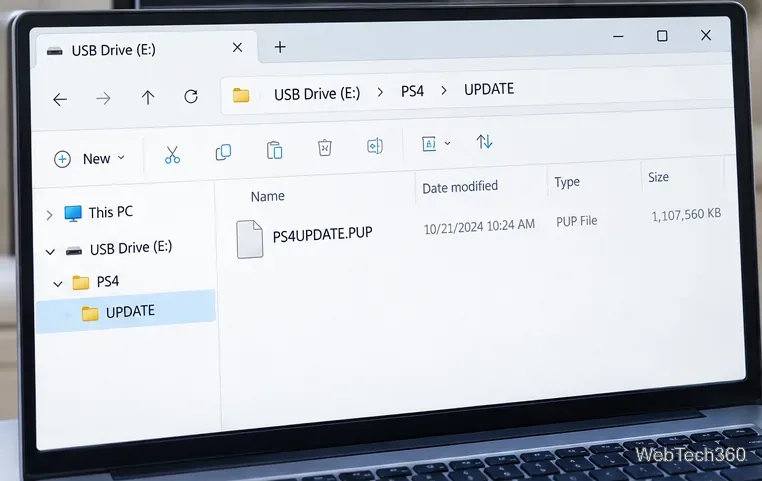
The USB drive must use FAT32 or exFAT. If you need to reformat it, copy off any files you want to keep first because formatting erases the drive.
The folder names and filename should use uppercase letters. The final path should be USB drive/PS4/UPDATE/PS4UPDATE.PUP, not an extra nested folder such as PS4/PS4/UPDATE.
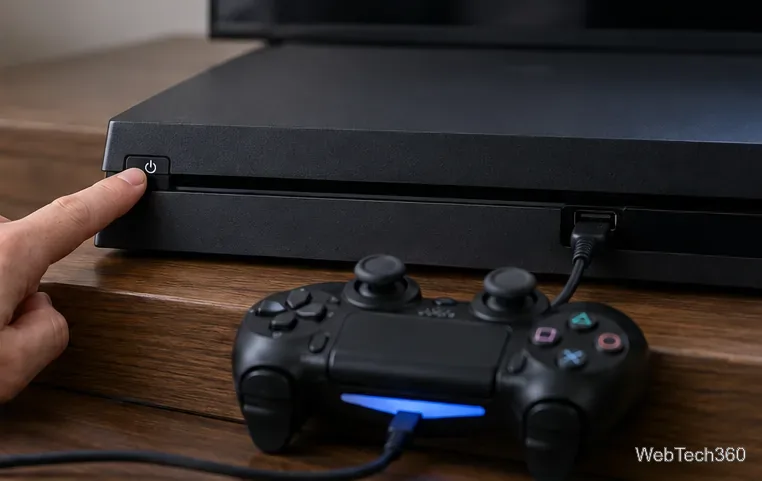
Turn the PS4 completely off. Connect a DUALSHOCK 4 controller with a USB cable. Press and hold the console’s power button, then release it after the second beep. PlayStation’s manual-update instructions describe this as holding the button for about seven seconds until the console beeps twice.
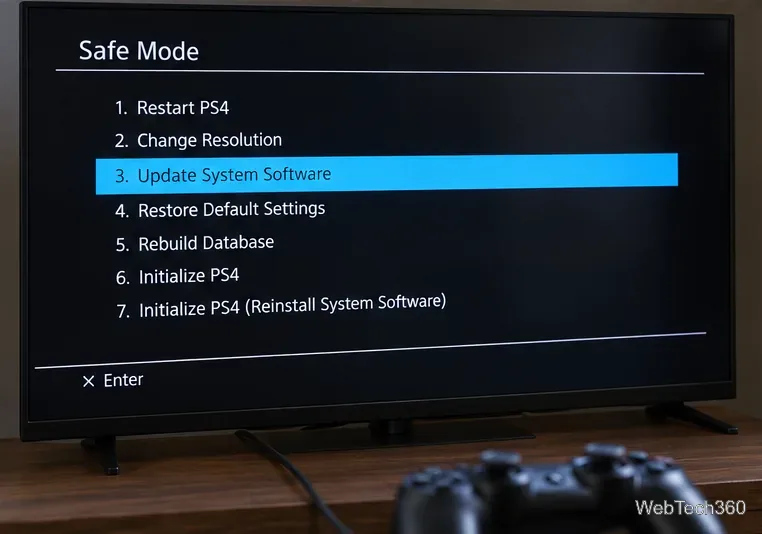
With the prepared USB drive connected to the console, use the controller to select Update System Software in Safe Mode.
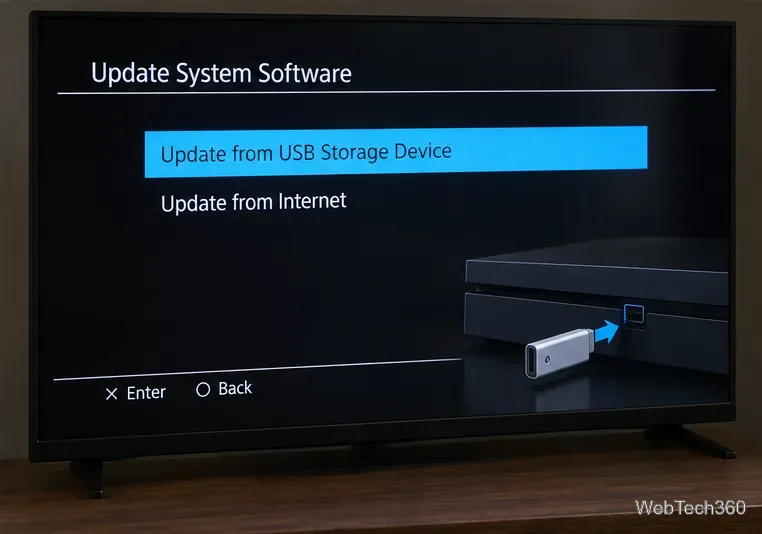
Next, choose Update from USB Storage Device and confirm with OK. Keep the PS4 powered on while the update is installing. Sony specifically warns not to turn off the system during installation because interrupting the process can damage the system.
Recheck the items that directly trigger this error before trying anything destructive:
PS4, UPDATE, and PS4UPDATE.PUP are all uppercase and correctly nested.If the manual update still fails, PlayStation says you may need to reinstall the system software. Reinstallation erases all data on the PS4. Use the separate PS4 reinstallation file and choose Initialize PS4 (Reinstall System Software) only when you understand that consequence and have backed up anything that can still be saved.
If the console still cannot accept official update or reinstallation files after you have verified the USB structure and downloaded fresh files, use PlayStation Support for repair diagnostics.
According to PlayStation’s CE-34788-0 support page, the message is simply that the update file cannot be used. It does not by itself prove that the PS4’s internal storage or firmware is permanently corrupted. In many cases, correcting the download, file type, USB format, or folder structure is the right fix.
Use a screenshot test, cable and port checks, monitor diagnostics, display settings, and driver rollback to pinpoint lines on a Windows 10 monitor.
Show two other time zones beside your Windows 10 clock. Set up each additional clock, give it a clear label, and find it in the taskbar calendar.
Find the File Explorer extension that delays right-click menus in Windows 10, test it safely with ShellExView, and restore any menu features you still need.
Stop Windows 10 from powering down a specific network adapter or USB device with plan-level settings and Device Manager controls, plus tips to avoid excess battery drain.
Check whether Windows 10 uses a digital license or product key, find a firmware-stored OEM key, and save license details securely for a reinstall.
Identify a Windows 10 Task Manager process by checking its executable path, file properties, publisher, linked services, and a Microsoft Defender scan.
Create a searchable Windows 10 folder inventory with PowerShell. Save every file and subfolder path as plain text or export details to a sortable CSV.
Add a custom reminder, quote, or label to your Windows 10 desktop with a Rainmeter text skin. Create the INI file, load it, then adjust its font and position.
Use Bluetooth Swift Pair on Windows 10 to pair a compatible accessory from a notification, with setup steps and fixes when the prompt does not appear.
Learn what common laptop function key symbols mean, how Fn and Fn Lock affect them, and how to confirm the right shortcut for your Windows 10 laptop model.








