How to Create a List of All Items in a Folder on Windows 10

Create a searchable Windows 10 folder inventory with PowerShell. Save every file and subfolder path as plain text or export details to a sortable CSV.
If VLC shows a scrambled, blocky, green, duplicated, or otherwise garbled picture while the same video looks normal in another player, the most useful fixes are to change hardware decoding or the video output module. For network streams, increasing VLC's network cache can also help. Do not start by installing a third-party codec pack: VLC uses its own built-in codecs, so external DirectShow/VfW codec packs generally do not change how VLC decodes a file.
Before changing settings, install the latest VLC build from the official VideoLAN download page. VideoLAN's Windows FAQ also notes that display-adapter drivers can be a cause of garbled video, so updating the graphics driver from your GPU or PC manufacturer is a sensible first check.
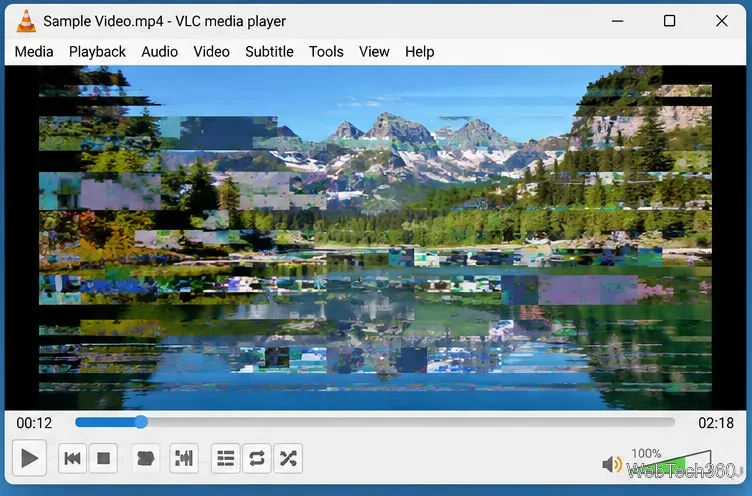
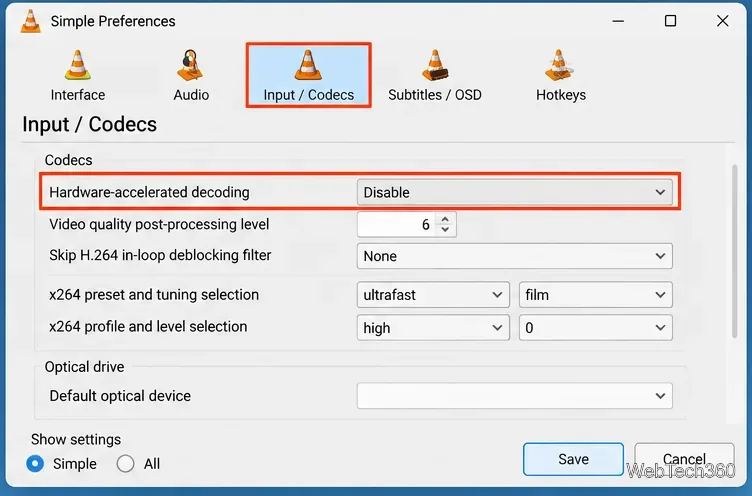
A GPU decoding problem is one of the first things to rule out when VLC alone displays corrupted frames. VLC normally benefits from hardware decoding, especially with high-resolution video, but a driver or GPU-path problem can produce visual errors.
If disabling hardware decoding fixes the picture, you can leave it disabled or later test the automatic/hardware option again after updating the graphics driver. VLC's official Windows troubleshooting documentation specifically recommends testing GPU decoding on and off when H.264/AVC or VC-1 playback has image errors.
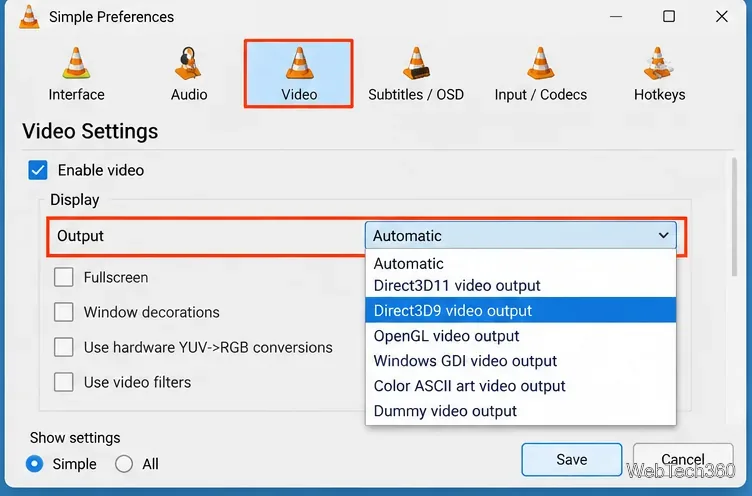
If hardware decoding does not solve the problem, switch the renderer that VLC uses to draw video on screen. VideoLAN's official VLC for Windows FAQ recommends changing the video output module for black, white, or garbled output.
Test one output at a time. If one renderer fixes the image, keep it selected. The older advice to disable “Accelerated video output (Overlay)” mainly applies to older Windows/VLC configurations; modern VLC installations may not show that option at all.
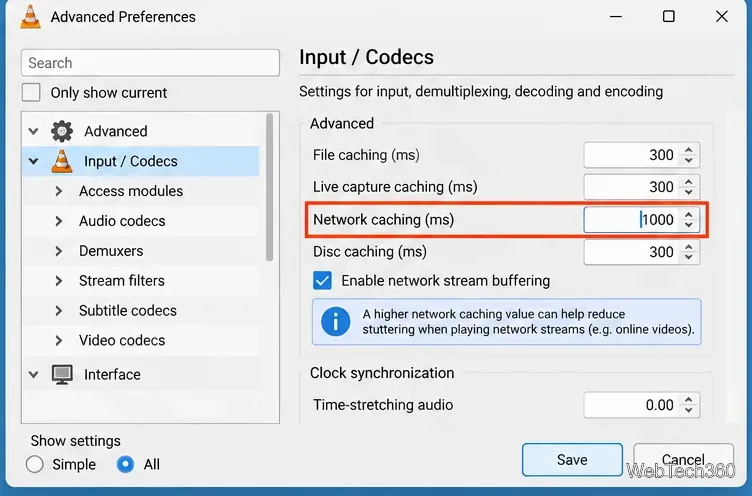
If the problem happens while playing an HTTP stream, internet radio/video feed, NAS share, or another network source, insufficient buffering can look like stutter, pauses, or broken playback. In that case, increase Network caching; it is not the main fix for a normal file stored on your local drive.
A larger cache can smooth an inconsistent network stream, but it also increases the delay before playback starts or after you seek.
If the video is on a USB drive, optical disc, NAS, mapped network drive, or slow external disk, copy it to an internal SSD or other local folder and play that copy. If the local copy works, the bottleneck is more likely the source device, connection, or transfer rate than VLC's decoder.
Also test the file in another player. If every player shows the same corruption at the same timestamps, the video itself may be incomplete or damaged. If only VLC is affected, continue with VLC-specific settings.
With the video open, choose Tools > Codec Information to see which video codec VLC detected. This is useful when the problem affects every file encoded the same way.
Do not install random codec packs to repair VLC. VideoLAN states that VLC relies on its own codecs rather than external VfW or DirectShow codec filters. Instead, update VLC and test its decoding/output options.
If scrambled playback began after you changed several preferences and you no longer know which setting is responsible, reset VLC to its defaults. Open Tools > Preferences, click Reset Preferences, confirm the reset, and restart VLC. VideoLAN's preferences documentation specifically recommends a reset when incorrect settings or a broken plugin cache cause problems.
These steps target the most common causes without replacing system codecs or making permanent changes to the media file itself.
Create a searchable Windows 10 folder inventory with PowerShell. Save every file and subfolder path as plain text or export details to a sortable CSV.
Add a custom reminder, quote, or label to your Windows 10 desktop with a Rainmeter text skin. Create the INI file, load it, then adjust its font and position.
Use Bluetooth Swift Pair on Windows 10 to pair a compatible accessory from a notification, with setup steps and fixes when the prompt does not appear.
Learn what common laptop function key symbols mean, how Fn and Fn Lock affect them, and how to confirm the right shortcut for your Windows 10 laptop model.
Turn off your Windows 10 display instantly with ScreenSleep, set a keyboard shortcut, and see when to use the built-in screen timeout instead.
Fix the “running scripts is disabled on this system” PowerShell error on Windows 10 with a current-user policy, a temporary session option, and safe steps for downloaded scripts.
Change the Windows 10 drag-selection color with a backup-first registry walkthrough, RGB examples, troubleshooting tips, and steps to restore your original values.
Check your router’s connected-device list or scan a local network with Fing Desktop on a supported PC. Learn what each method can show and how to verify unfamiliar entries.
Messenger does not offer a documented per-friend online alert. Learn how Active Status works, where to check the green dot, and which notifications you can enable instead.
Use 7-Zip to find an exact filename or wildcard match inside a ZIP or other supported archive on Windows 10 without unpacking its files.








