How to Access a Network Location in Command Prompt on Windows 10

Use pushd to open a UNC network path in Windows 10 Command Prompt, run commands in the shared folder, and return with popd.
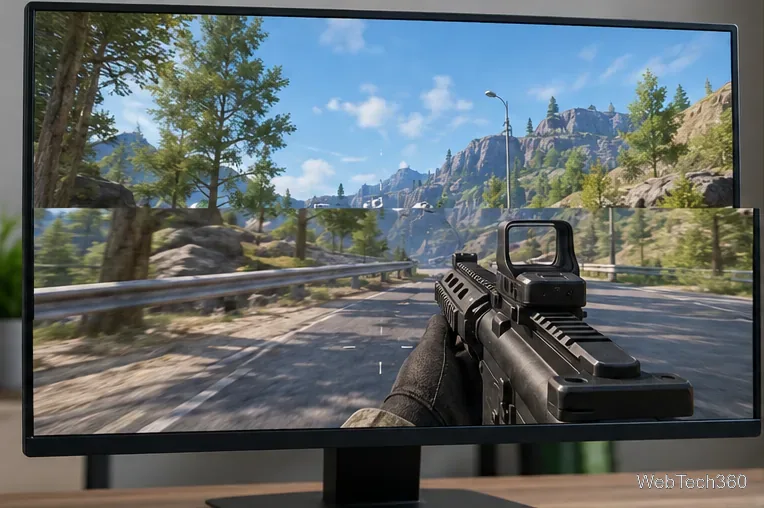
Screen tearing happens when the display shows parts of two or more frames during one refresh. It usually appears as a horizontal split or misaligned band while the camera, window, or video is moving. The most effective fixes are to use the correct display refresh rate and then synchronize frame delivery with V-Sync or variable refresh rate (VRR).
Before changing game settings, check whether the problem affects the whole desktop or only one game. If you see flashing, colored blocks, random pixels, or corruption even when nothing is moving, that is more likely a driver, cable, monitor, or GPU problem than ordinary tearing.
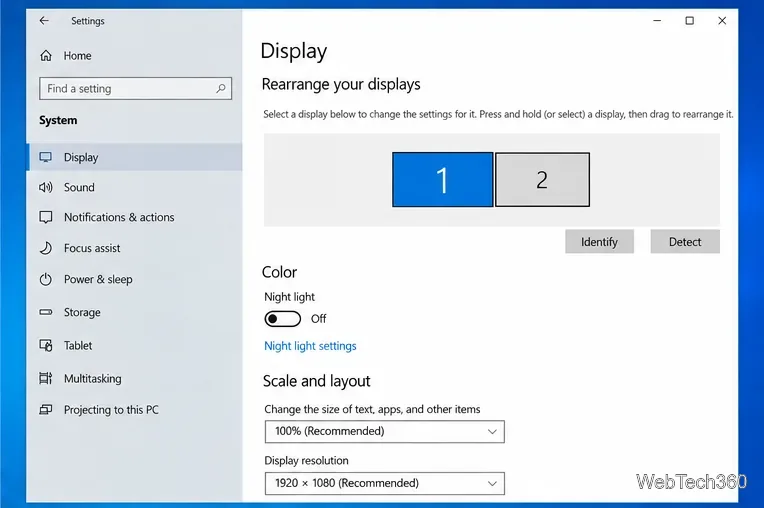
Start with the monitor's native resolution. Microsoft recommends using the option marked Recommended because lower or non-native resolutions can look stretched or soft.
See Microsoft's Windows display-resolution guidance.
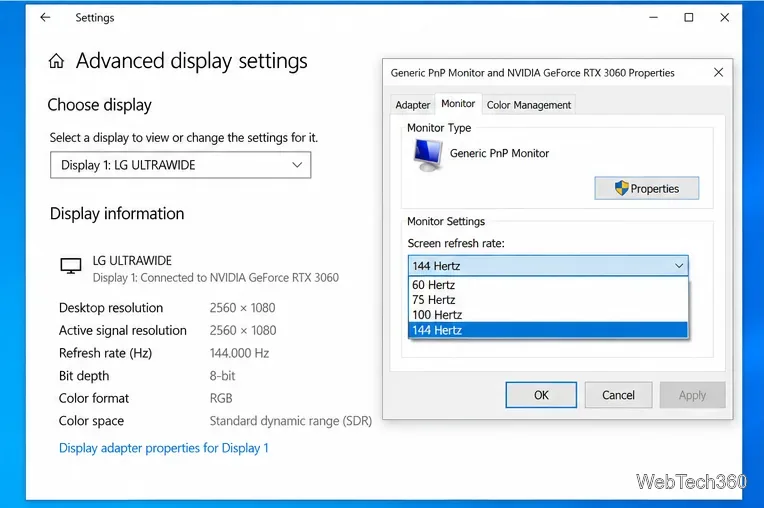
A monitor running at an unintended refresh rate can make motion look worse and can complicate synchronization. In Windows 10, go to Settings > System > Display > Advanced display settings, choose the affected monitor, and select a refresh rate the display supports. Some Windows 10 builds expose the list through Display adapter properties > Monitor.
Use the highest stable rate supported by your monitor and connection rather than randomly lowering it. Microsoft's refresh-rate instructions also note that the available rates depend on the display.
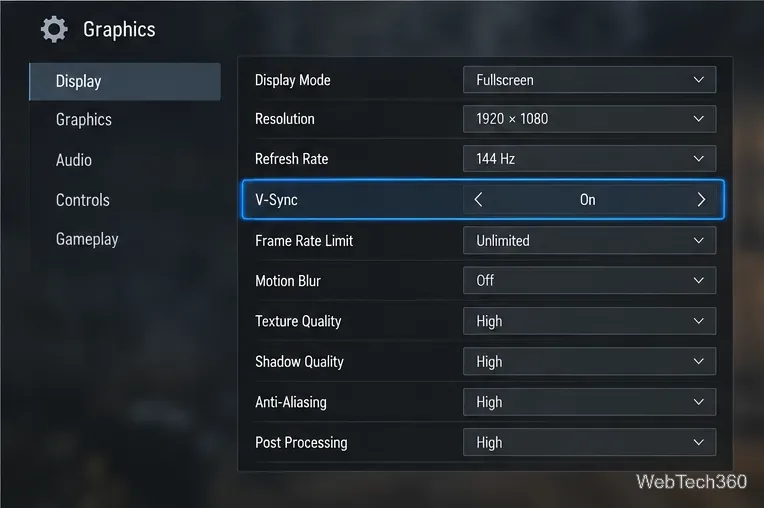
For a fixed-refresh monitor, V-Sync is the simplest direct fix for tearing. It synchronizes the application's frame presentation with the display refresh. NVIDIA's own control-panel documentation states that turning Vertical sync on is useful for eliminating tearing.
V-Sync can add latency, and frame pacing may feel uneven if the GPU cannot keep up with the monitor. If your monitor supports VRR, use the next method instead of relying only on fixed-refresh V-Sync. See NVIDIA's Vertical sync reference.
VRR lets the display vary its refresh timing to follow the GPU's frame delivery, reducing or eliminating tearing and stutter within the monitor's supported VRR range.
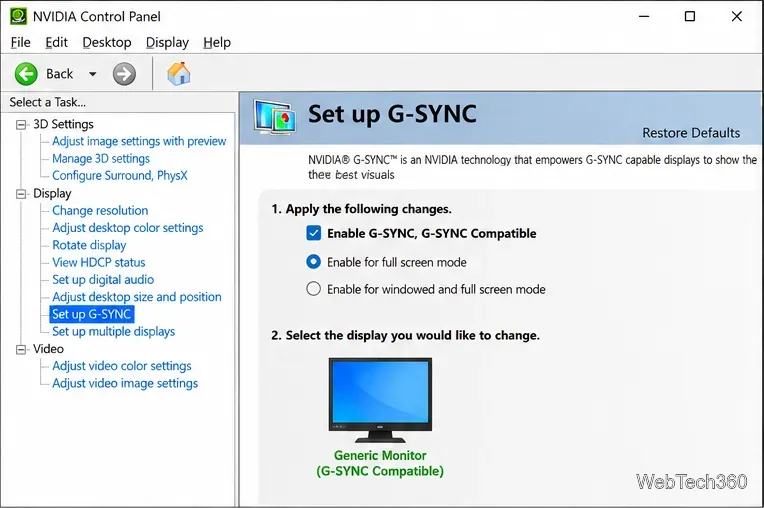
Open NVIDIA Control Panel > Display > Set up G-SYNC, check Enable G-SYNC, G-SYNC Compatible, choose full-screen or windowed and full-screen mode, and apply it to the correct display. NVIDIA documents these steps in its G-SYNC setup guide.
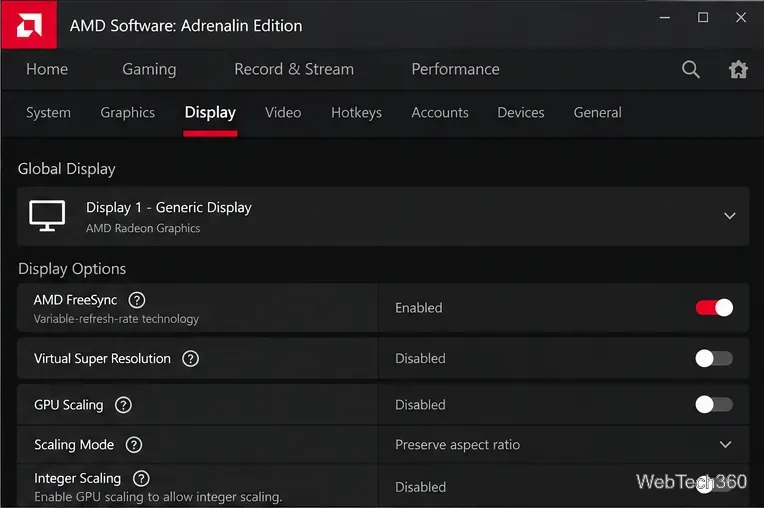
First enable FreeSync or Adaptive-Sync in the monitor's on-screen menu if required. Then open AMD Software: Adrenalin Edition, search for Display, select the correct monitor, and confirm AMD FreeSync is enabled. AMD says FreeSync is normally enabled by default on compatible systems. See AMD's current FreeSync setup instructions.
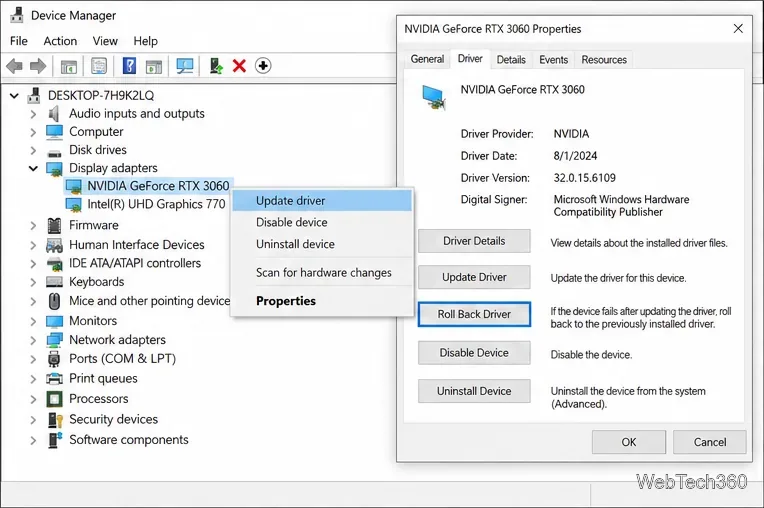
Microsoft recommends Windows Update as the normal source for hardware-driver updates. You can also open Device Manager > Display adapters, right-click the GPU, and choose Update driver. If tearing began immediately after a driver update, open the GPU's Properties > Driver tab and test Roll Back Driver when that button is available.
Use Microsoft's driver update and rollback instructions, or install a compatible driver directly from NVIDIA, AMD, Intel, or your PC manufacturer.
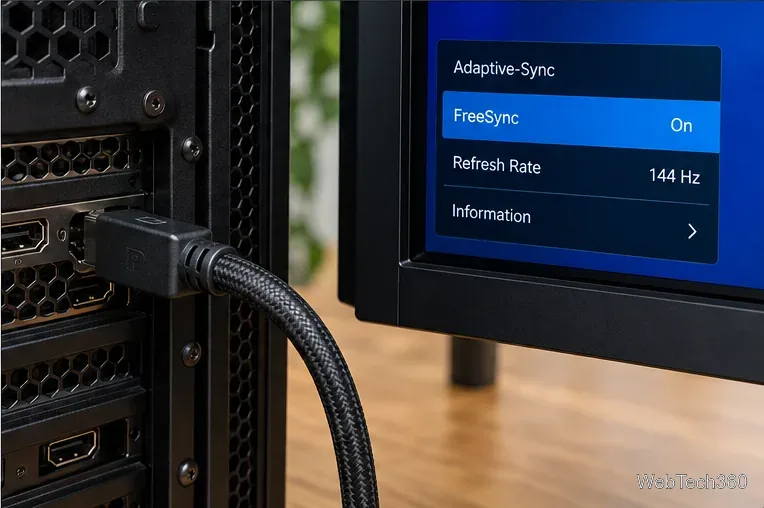
If the expected refresh rate or VRR option is missing, verify the display side as well as Windows. Make sure Adaptive-Sync, FreeSync, or the monitor's equivalent setting is enabled in its on-screen menu. Reseat the display cable, test another known-good cable or GPU port, and temporarily bypass adapters, docks, or switches. On a desktop with a discrete graphics card, connect the gaming monitor to the graphics card's video output rather than a motherboard output unless your system is intentionally configured otherwise.
Reset that game's per-app graphics overrides, confirm its selected resolution and refresh rate match Windows, and test both exclusive fullscreen and borderless/windowed modes. If the game has a frame-rate limiter, choose a limit your system can sustain consistently; a limiter can reduce large frame-rate swings, but it is not a substitute for V-Sync or VRR when the goal is to eliminate tearing.
Windows 10 reached end of support on October 14, 2025. The settings above still work on Windows 10 PCs, but Microsoft no longer provides normal free security updates or technical support for the operating system. If the PC is eligible, consider moving to Windows 11; otherwise review Microsoft's Windows 10 end-of-support options.
Use pushd to open a UNC network path in Windows 10 Command Prompt, run commands in the shared folder, and return with popd.
Learn how to install a Rainmeter skin from an INI file by placing it in the right Skins folder, preserving its resources, refreshing Rainmeter, and loading it in Manage.
Open one folder in its own File Explorer window with Shift or the context menu, or change Folder Options to make every folder open separately.
Pin a frequently used Control Panel applet, such as Power Options or Sound, to the Windows 10 Start menu for one-click access.
Choose a supported Windows 10 hotkey for switching input languages, assign shortcuts to individual layouts, or disable an accidental shortcut.
Move a Windows 10 app to the display you want, use its game monitor setting, and handle full-screen apps with a practical primary-monitor workaround.
Use a transparent PNG and a Rainmeter skin to keep an image watermark above windows, adjust its transparency, and make it click-through on Windows 10.
Convert stereo audio to mono on Windows 10 with Audacity. Mix both channels into one mono track, export a new file, and verify the channel count.
Use Windows 10 Clipboard history to save recent text and images, paste an earlier clip with Windows key + V, and manage sync, pinned items, and privacy.
Learn how to zoom in on a video in Windows 10 with VLC’s Interactive Zoom, or use Windows Magnifier when the clip is playing in another app.








