How to Fix Lines on a Monitor Screen in Windows 10

Use a screenshot test, cable and port checks, monitor diagnostics, display settings, and driver rollback to pinpoint lines on a Windows 10 monitor.
If Steam says “1 file failed to validate and will be reacquired,” the message is not automatically a sign that your game is broken. Valve notes that one or more files can fail verification normally because they are local configuration files that should not be replaced. If the game launches and works normally, you can usually ignore the result. If the game still crashes, refuses to launch, or repeatedly downloads the same replacement file, work through the fixes below.
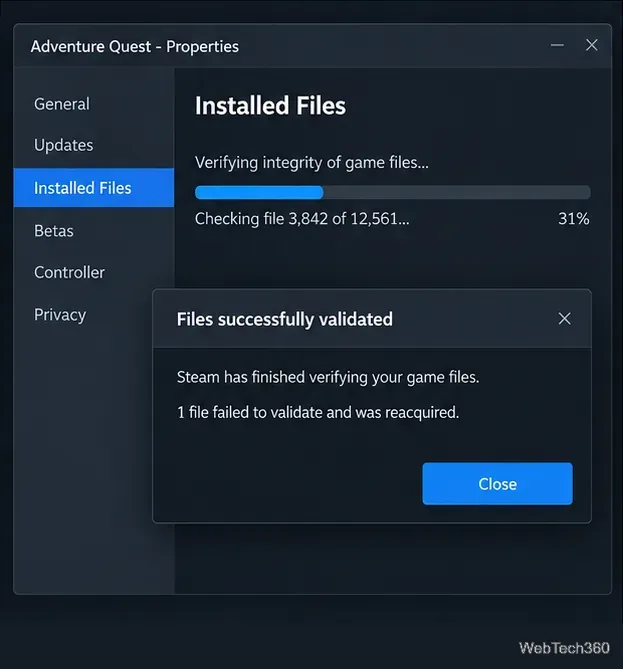
Start with Valve’s current verification procedure. A restart clears locked files and stops background processes that may have been using the game directory.
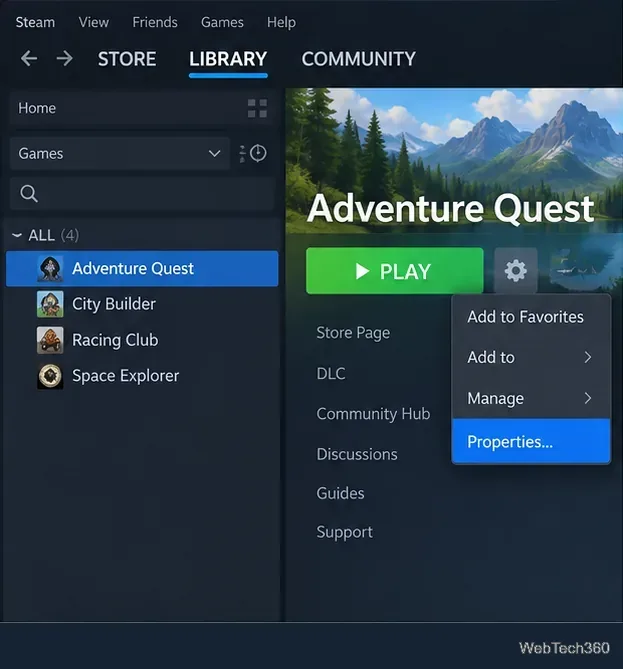
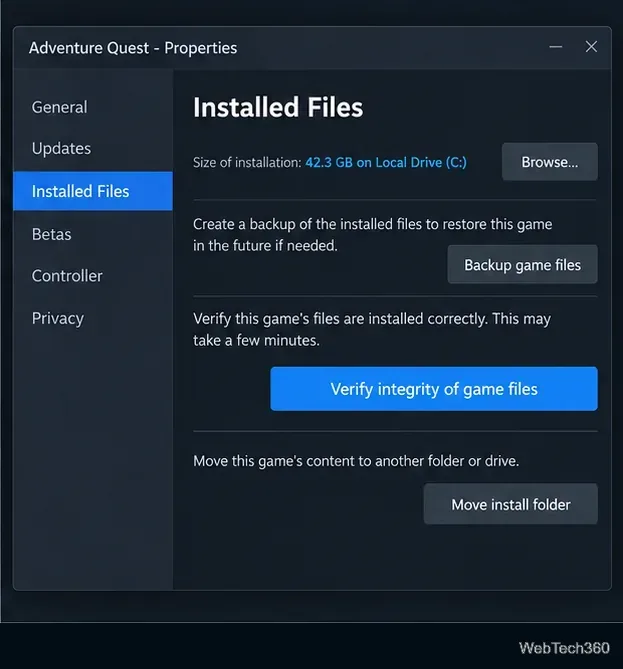
Valve advises against verifying several games at the same time or running the check while another disk-intensive task is active. See the official Steam file verification instructions.
After verification, check Steam’s Downloads area and allow any queued replacement file or game update to finish before launching the game again. If the download is stuck, repeatedly restarts, or never completes, clear the download cache.
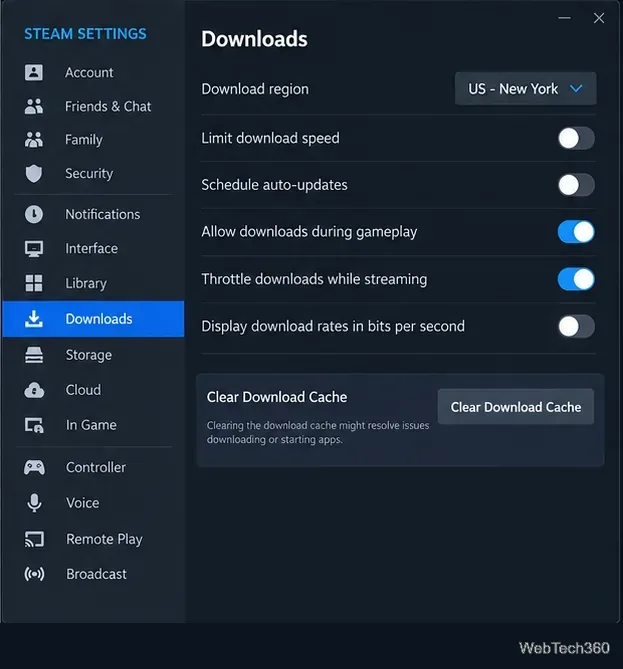
Valve says clearing the download cache does not remove installed games, but it does require you to log in again. The current procedure is documented on Steam Support.
If Steam cannot write the replacement file, the library folder may have a permissions problem. Valve provides a built-in repair option for this.
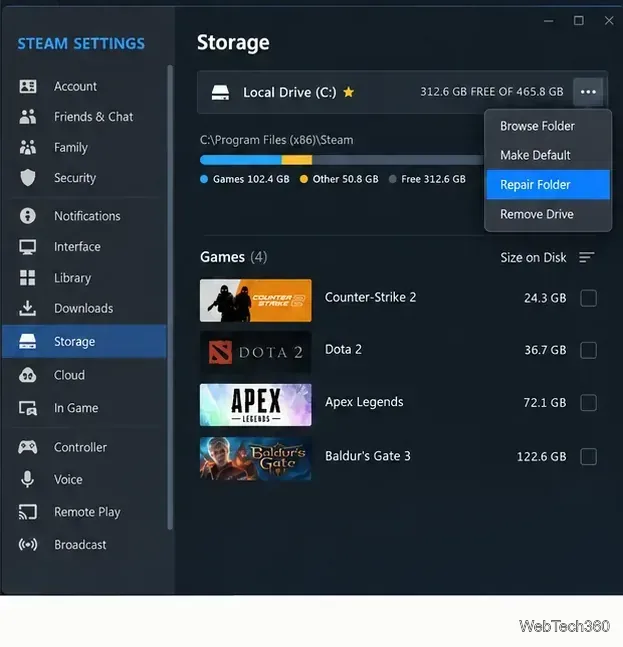
This is also one of Valve’s recommended fixes for Steam update and installation problems. The same support page explains how to move a game to another Steam library if you need to test a different drive: Steam update and installation troubleshooting.
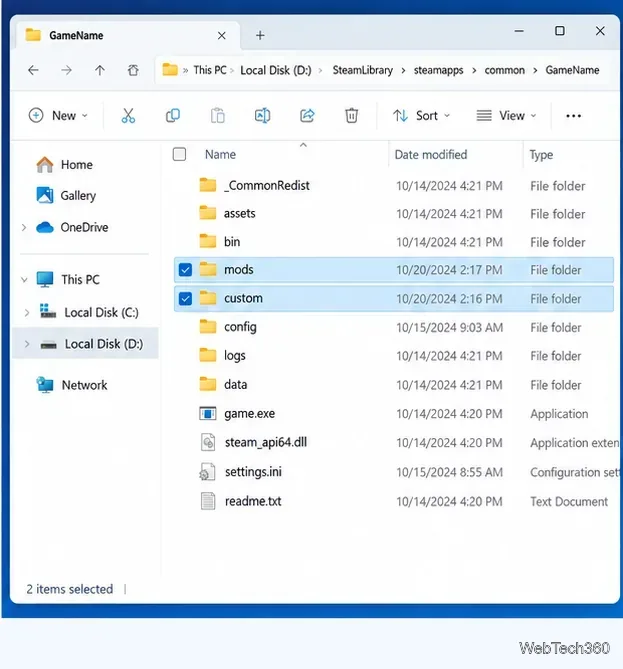
Mods are not always a problem, but anything that directly replaces textures, DLLs, executables, or other core game files can make verification restore the original Steam version. Disable or remove the modification, restart the PC, and verify the game again. Valve specifically recommends removing custom textures, skin changers, and software that modifies game files when troubleshooting interference with Steam.
If antivirus software quarantines a game file, do not blindly restore it. First confirm that the detection is a false positive using your security vendor’s guidance. Valve’s antivirus troubleshooting page recommends treating malware warnings seriously and creating exclusions only when you are confident the file is safe.
A single failed configuration file is not a reason to assume your SSD or hard drive is failing. Check the disk when verification keeps finding corrupted files, several games are affected, or Steam reports write or disk errors.
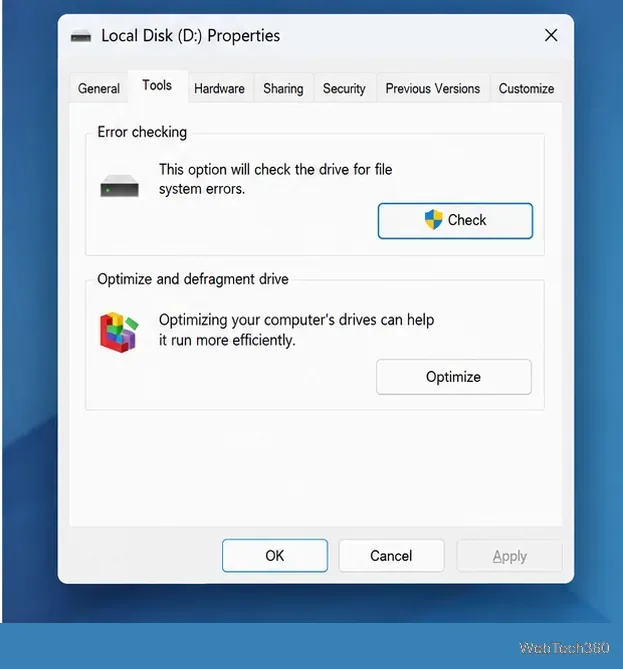
Microsoft documents the same Error Checking path in its Windows support guidance. If the drive repeatedly reports errors, back up important data and consider moving the game to another Steam library rather than repeatedly reacquiring files on the same disk.
Usually, no. The old advice to uninstall Steam as an early troubleshooting step is unnecessarily disruptive. Valve warns that uninstalling Steam deletes installed game content. If the Steam client itself appears damaged after the fixes above, Valve instead recommends downloading the current Steam installer and reinstalling it to the same existing Steam location, which can repair client files while preserving installed games. Back up anything important before making installation changes.
For most players, the practical rule is simple: if verification reports one failed file but the game works, leave it alone. If the game does not work, verify after a restart, make sure the replacement download completes, clear the download cache, repair the library folder, and only then investigate mods, security software, or the storage drive.
Use a screenshot test, cable and port checks, monitor diagnostics, display settings, and driver rollback to pinpoint lines on a Windows 10 monitor.
Show two other time zones beside your Windows 10 clock. Set up each additional clock, give it a clear label, and find it in the taskbar calendar.
Find the File Explorer extension that delays right-click menus in Windows 10, test it safely with ShellExView, and restore any menu features you still need.
Stop Windows 10 from powering down a specific network adapter or USB device with plan-level settings and Device Manager controls, plus tips to avoid excess battery drain.
Check whether Windows 10 uses a digital license or product key, find a firmware-stored OEM key, and save license details securely for a reinstall.
Identify a Windows 10 Task Manager process by checking its executable path, file properties, publisher, linked services, and a Microsoft Defender scan.
Create a searchable Windows 10 folder inventory with PowerShell. Save every file and subfolder path as plain text or export details to a sortable CSV.
Add a custom reminder, quote, or label to your Windows 10 desktop with a Rainmeter text skin. Create the INI file, load it, then adjust its font and position.
Use Bluetooth Swift Pair on Windows 10 to pair a compatible accessory from a notification, with setup steps and fixes when the prompt does not appear.
Learn what common laptop function key symbols mean, how Fn and Fn Lock affect them, and how to confirm the right shortcut for your Windows 10 laptop model.








