How to Open a Linux Shell in a Folder on Windows 10

Open a Linux shell in any Windows 10 folder with File Explorer, PowerShell, and WSL. Check the Linux path and fix common setup issues.
If a Steam game opens and immediately closes, start with a full restart, then check the game update, its system requirements, and the integrity of its installed files. Valve’s current launch guidance also recommends updating your operating system and drivers and temporarily disabling non-essential software that may interfere with Steam. The steps below move from the quickest fixes to the more disruptive ones.
Restart the computer first rather than only closing the game. Then open Steam and let any client or game update finish before pressing Play. A partially applied update can leave files in a state that will not launch correctly.
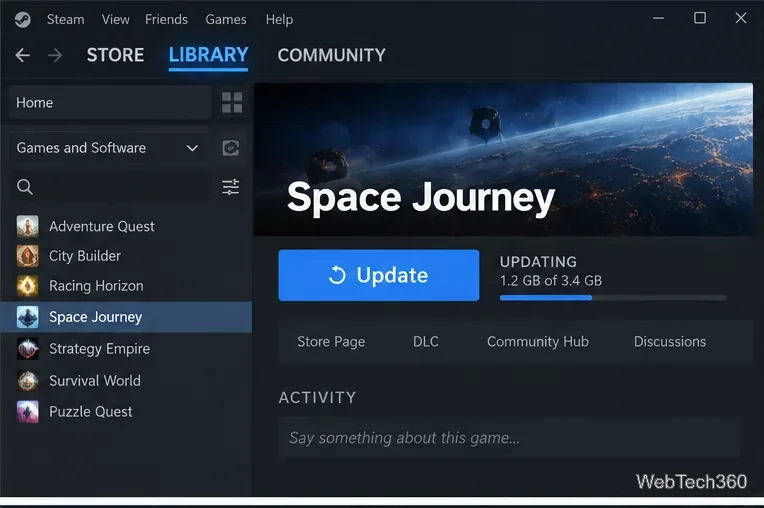
If Steam shows a download in progress, open Downloads and wait until it completes. Valve recommends beginning launch troubleshooting after a fresh restart in its official game launch troubleshooting guide.
Open the game’s Steam store page and compare its minimum requirements with your computer. Pay attention to the required operating system, CPU, memory, graphics hardware, DirectX or Vulkan requirements, and free storage. A game that barely meets the minimum may also fail when memory or GPU resources are tied up by other apps.
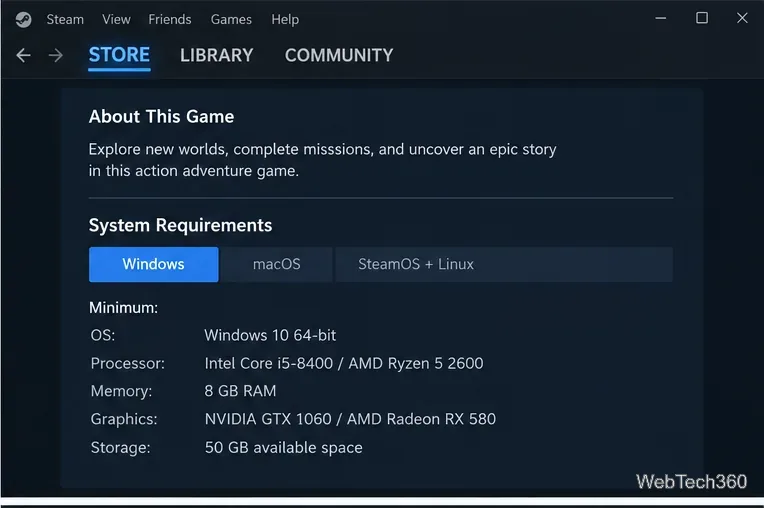
On macOS or Linux, also confirm that the title actually supports that platform. If you are using Steam Play/Proton on Linux, a game without native Linux support can have compatibility issues that are separate from Steam itself.
Corrupted or incomplete files are one of the most common causes of a crash at startup. Steam can compare the local installation with the expected files and replace files that are damaged or missing.
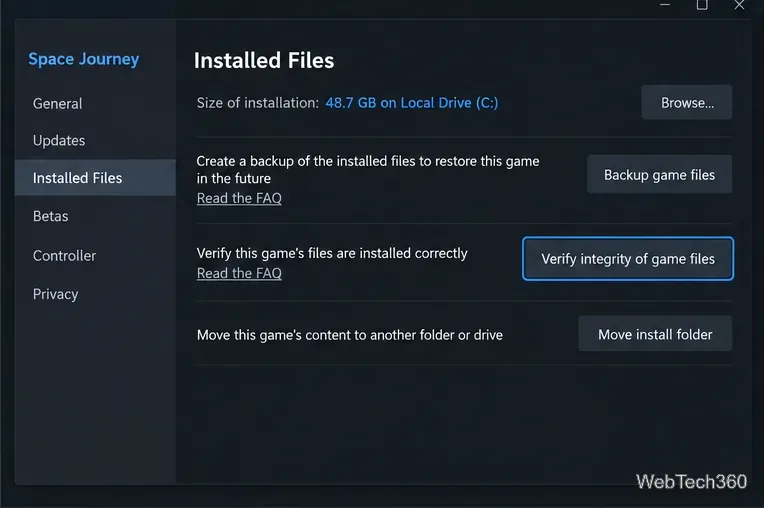
Valve notes that one or more local configuration files may sometimes fail verification and that this can be normal. See the Steam file verification instructions.
Install pending operating-system updates, restart, and then update the graphics driver. On Windows, check Settings > Windows Update. Microsoft also documents optional driver updates under Windows Update, although GPU vendors or your PC manufacturer may provide newer game-ready drivers.
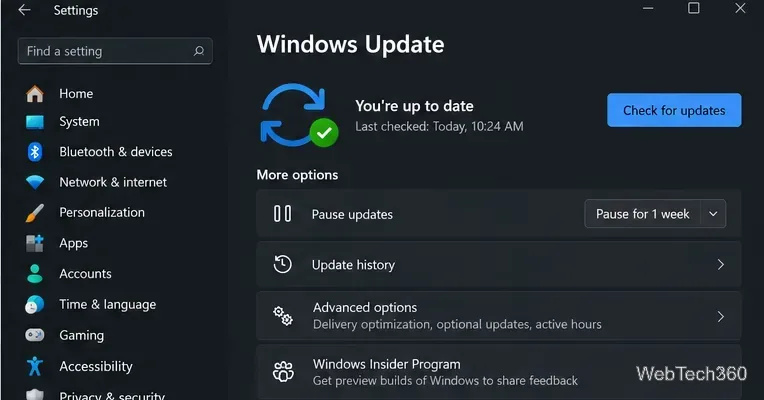
Use the driver source appropriate for your hardware, such as the PC manufacturer or the official AMD, NVIDIA, or Intel support site. Microsoft’s driver update guidance explains how Windows handles recommended and optional drivers.
If downloads or updates have behaved strangely, clear the Steam download cache. Go to Steam > Settings > Downloads > Clear Download Cache, confirm, and sign back in when prompted.
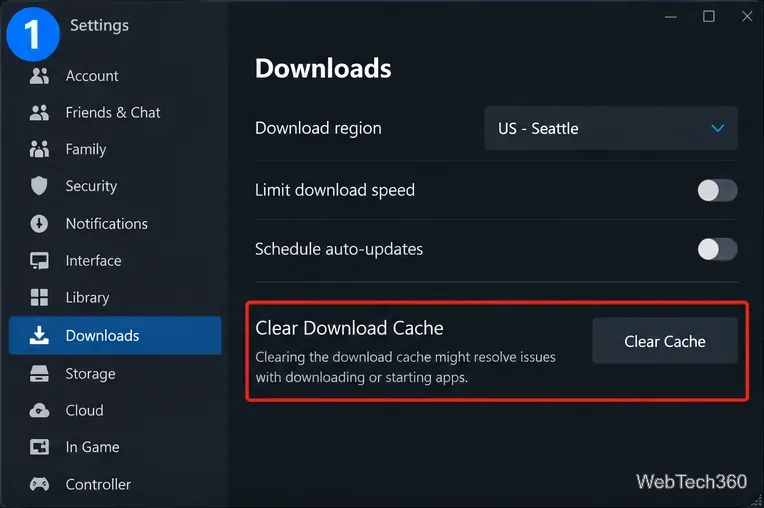
Valve specifically says this can help with games that will not download or start. See Steam’s Clear Download Cache support page.
If the game is installed in a library whose permissions or metadata are damaged, repair that library. Open Steam > Settings > Storage, open the menu for the affected drive or library, and choose Repair Folder.
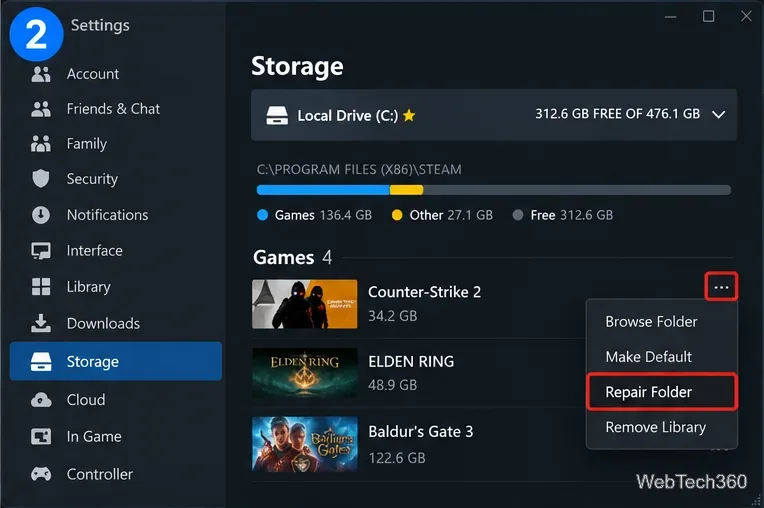
This option is part of Valve’s current update and installation troubleshooting.
Temporarily close non-essential programs, especially overlays, capture tools, hardware monitoring utilities, VPNs, aggressive antivirus tools, download managers, and performance “boosters.” Then restart Steam and test the game again.
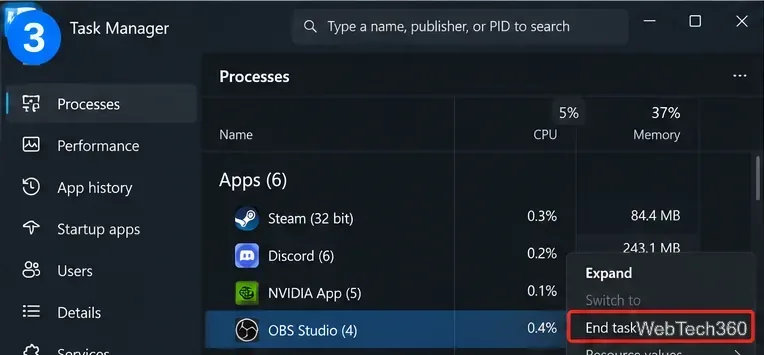
Do not permanently disable security software just to make a game run. Valve’s interfering programs guidance recommends testing conflicts and using properly configured exceptions only when you are confident a detection is a false positive.
If verification and library repair do not help, reinstall the affected title. Before uninstalling, back up local saves or confirm that the game supports Steam Cloud and that your saves have synchronized. Cloud support is not available for every game.
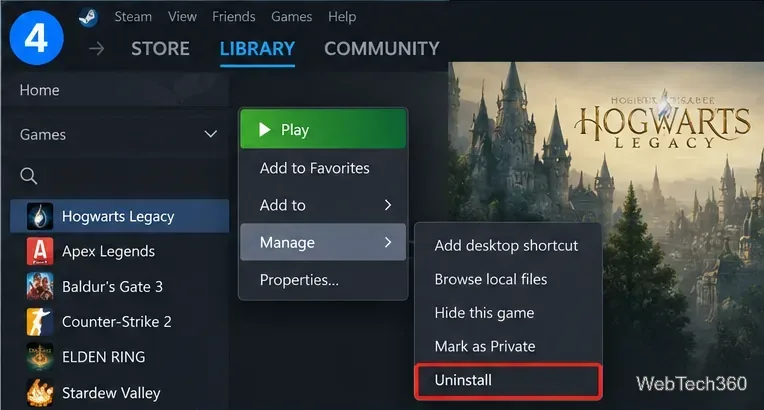
In Steam Library, right-click the game, choose Manage > Uninstall, and then install it again from your library. Uninstalling a purchased game does not remove the license from your Steam account.
At this point, look for a game-specific error message, crash log, anti-cheat error, or launcher problem and use the developer’s official support channel. If several unrelated Steam games crash in the same way, the cause is more likely to be system-wide—such as a driver, security application, unstable overclock, failing storage, or other background software—than a single game installation.
Open a Linux shell in any Windows 10 folder with File Explorer, PowerShell, and WSL. Check the Linux path and fix common setup issues.
Use a screenshot test, cable and port checks, monitor diagnostics, display settings, and driver rollback to pinpoint lines on a Windows 10 monitor.
Show two other time zones beside your Windows 10 clock. Set up each additional clock, give it a clear label, and find it in the taskbar calendar.
Find the File Explorer extension that delays right-click menus in Windows 10, test it safely with ShellExView, and restore any menu features you still need.
Stop Windows 10 from powering down a specific network adapter or USB device with plan-level settings and Device Manager controls, plus tips to avoid excess battery drain.
Check whether Windows 10 uses a digital license or product key, find a firmware-stored OEM key, and save license details securely for a reinstall.
Identify a Windows 10 Task Manager process by checking its executable path, file properties, publisher, linked services, and a Microsoft Defender scan.
Create a searchable Windows 10 folder inventory with PowerShell. Save every file and subfolder path as plain text or export details to a sortable CSV.
Add a custom reminder, quote, or label to your Windows 10 desktop with a Rainmeter text skin. Create the INI file, load it, then adjust its font and position.
Use Bluetooth Swift Pair on Windows 10 to pair a compatible accessory from a notification, with setup steps and fixes when the prompt does not appear.








