How to Open a Linux Shell in a Folder on Windows 10

Open a Linux shell in any Windows 10 folder with File Explorer, PowerShell, and WSL. Check the Linux path and fix common setup issues.
If TeamViewer says “Commercial use suspected” or “Commercial use detected” even though you use it only for personal connections, the official fix is to request a reset of the affected TeamViewer IDs. Reinstalling the app, deleting registry keys, or changing your MAC address does not remove the commercial-use flag. TeamViewer’s current support guidance says the flag is cleared only after its specialist team approves a reset request.
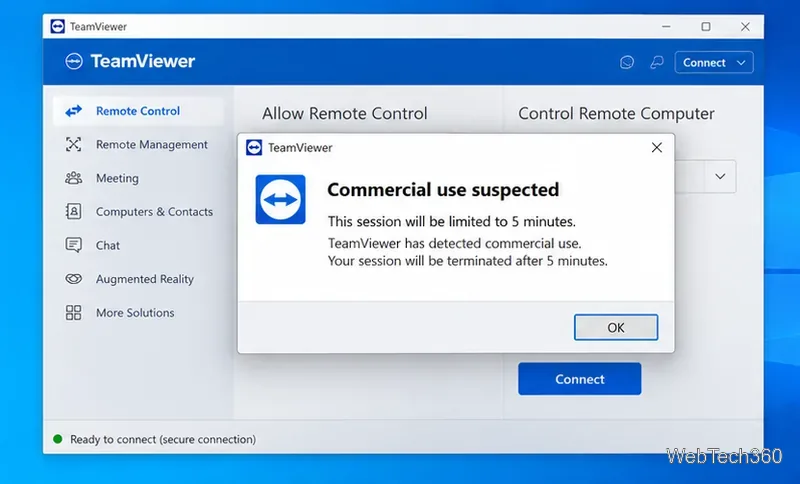
TeamViewer’s free version is for personal, non-commercial use. Its official definition includes connecting between your own private devices or helping family and friends without financial compensation. Work-related access is commercial even when no customer pays you directly.
| Usually personal use | Commercial use |
|---|---|
| Helping a friend or family member for free | Supporting customers or coworkers |
| Connecting to your own private home computer | Connecting to a work computer or company network |
| Managing devices only in your private life | Using TeamViewer as part of paid or indirectly compensated work |
See TeamViewer’s definition of private use before requesting a reset. If your use is genuinely business-related, skip to the licensing section below.
Write down the TeamViewer ID of the Windows 10 PC you are using and the IDs of the devices you connect to. TeamViewer says you should submit both the local and remote IDs, because a remote device can remain flagged even after your own ID is cleared. The reset form accepts up to 10 IDs per submission.
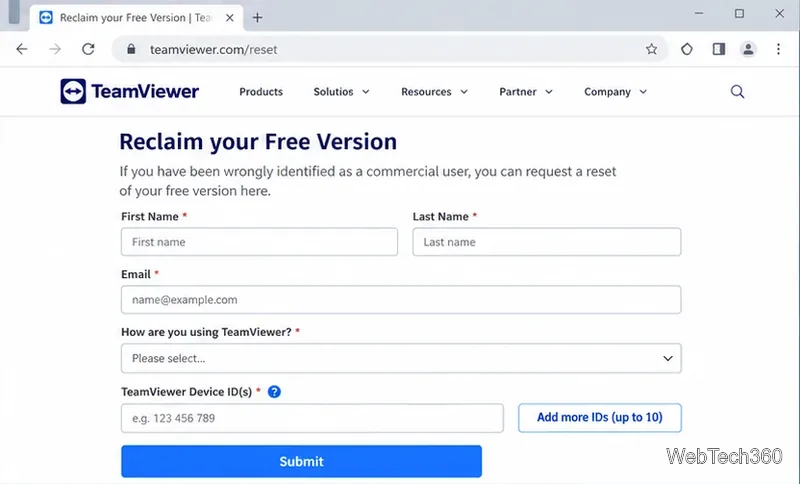
TeamViewer’s reset page says a response may take up to 72 hours, while its support article also notes that heavy request volume can stretch handling toward seven business days. Avoid sending repeated requests for the same ID; TeamViewer says duplicate follow-ups can push the request back in the queue. The company also asks users to complete the reset request in English.
After TeamViewer confirms the reset, restart TeamViewer on the affected PC. A full Windows restart is also reasonable if the warning remains cached in a running service. Then retry the connection. If the warning returns only when connecting to one particular device, that remote TeamViewer ID may still be flagged and should be included in a reset request as well.
Older guides sometimes recommend changing the network adapter’s MAC address or repeatedly reinstalling TeamViewer. That is no longer the correct fix. TeamViewer explicitly states that uninstalling the program does not remove commercial suspicion; the flag must be reviewed through the reset process. Changing a MAC address can also create network problems and does not replace TeamViewer’s account or ID review.
You can read the current TeamViewer commercial-use reset guidance for the latest rules and troubleshooting notes.
A clean reinstall can still help when the app is damaged, fails to launch, or keeps stale local settings. Use it for a software problem, not as a way to clear the commercial-use flag.
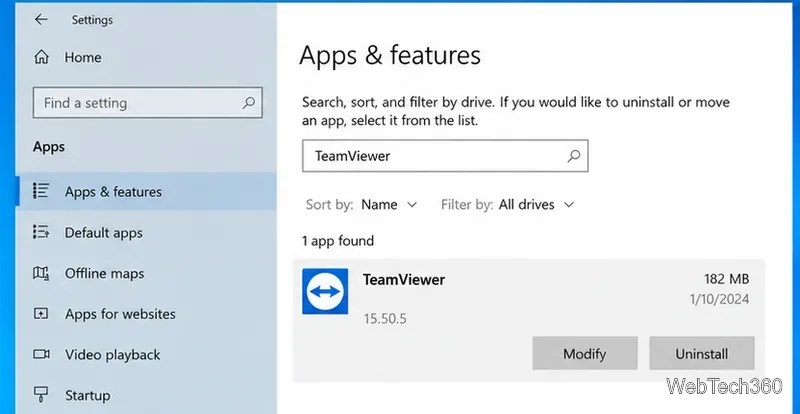
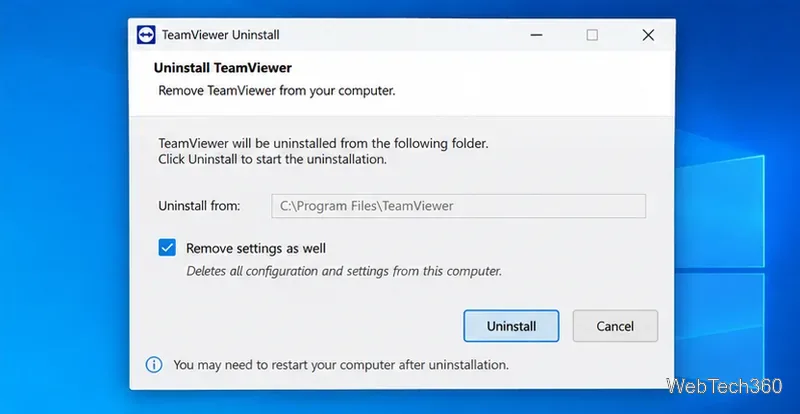
TeamViewer’s official uninstall guide also documents an advanced Registry cleanup. Use that only if normal removal fails and follow its backup warning; Registry deletion is not required for a licensing reset.
If you connect to work devices, support customers or coworkers, use TeamViewer inside an organization, or otherwise use it for directly or indirectly compensated activity, TeamViewer classifies that as commercial use. In that case, the proper solution is a paid plan rather than a reset request. Check the current TeamViewer plans and licensing options for the license that fits your use.
No. TeamViewer says uninstalling or reinstalling the program does not clear the commercial-use suspicion. A falsely flagged personal-use ID must be submitted through the official reset process.
The remote device can also be flagged. Submit every TeamViewer ID involved in the connection, not just the Windows 10 PC you are currently using.
Open a Linux shell in any Windows 10 folder with File Explorer, PowerShell, and WSL. Check the Linux path and fix common setup issues.
Use a screenshot test, cable and port checks, monitor diagnostics, display settings, and driver rollback to pinpoint lines on a Windows 10 monitor.
Show two other time zones beside your Windows 10 clock. Set up each additional clock, give it a clear label, and find it in the taskbar calendar.
Find the File Explorer extension that delays right-click menus in Windows 10, test it safely with ShellExView, and restore any menu features you still need.
Stop Windows 10 from powering down a specific network adapter or USB device with plan-level settings and Device Manager controls, plus tips to avoid excess battery drain.
Check whether Windows 10 uses a digital license or product key, find a firmware-stored OEM key, and save license details securely for a reinstall.
Identify a Windows 10 Task Manager process by checking its executable path, file properties, publisher, linked services, and a Microsoft Defender scan.
Create a searchable Windows 10 folder inventory with PowerShell. Save every file and subfolder path as plain text or export details to a sortable CSV.
Add a custom reminder, quote, or label to your Windows 10 desktop with a Rainmeter text skin. Create the INI file, load it, then adjust its font and position.
Use Bluetooth Swift Pair on Windows 10 to pair a compatible accessory from a notification, with setup steps and fixes when the prompt does not appear.








