How to Open a Linux Shell in a Folder on Windows 10

Open a Linux shell in any Windows 10 folder with File Explorer, PowerShell, and WSL. Check the Linux path and fix common setup issues.
“Confirm form resubmission” usually is not a browser failure. It appears when you try to reload a page that was reached by submitting data with an HTTP POST request. Repeating that request could repeat the action too, so the browser asks before it sends the form again. That matters for contact forms, comments, purchases, payments, account changes, and any other action that should not accidentally run twice.
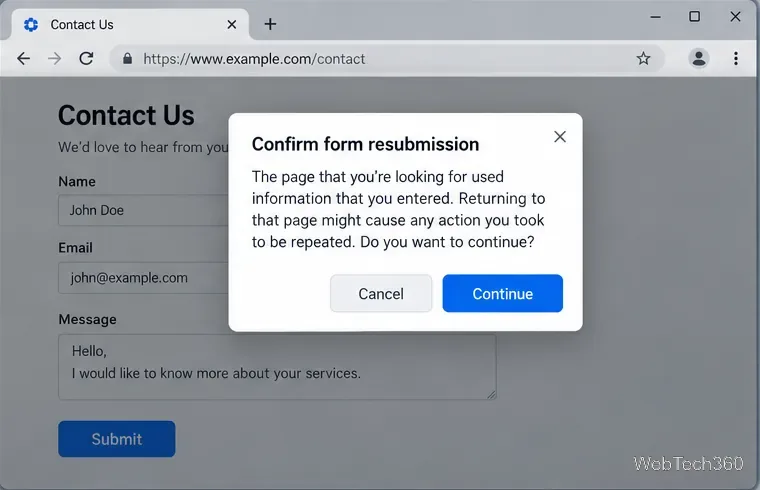
If you are a visitor, the safest fix is normally to avoid refreshing the result page, confirm whether the submission already succeeded, and return to the original form through the website rather than forcing a reload. If you own the website, the durable fix is to redirect successful POST requests to a normal GET page.
A traditional HTML form can send data with GET or POST. POST places the submitted data in the request body and is commonly used when a request creates or changes something. If the server responds directly to that POST with the page you are viewing, refreshing the page means repeating the same POST. The browser therefore warns you before resending it.
This is different from a simple connection error. The warning can appear even when the first submission worked perfectly. Before you resubmit an order, payment, booking, comment, or support request, check for a confirmation page, email receipt, account history, or other sign that the first request already completed.
If the warning appeared immediately after pressing Refresh, choose Cancel rather than automatically continuing. Open the website from its menu, home page, bookmark, or a fresh tab and navigate back to the form. This avoids deliberately replaying the previous POST request.
For a long message or application, copy any text you still have before navigating away. A site may not restore what you typed after the session changes.
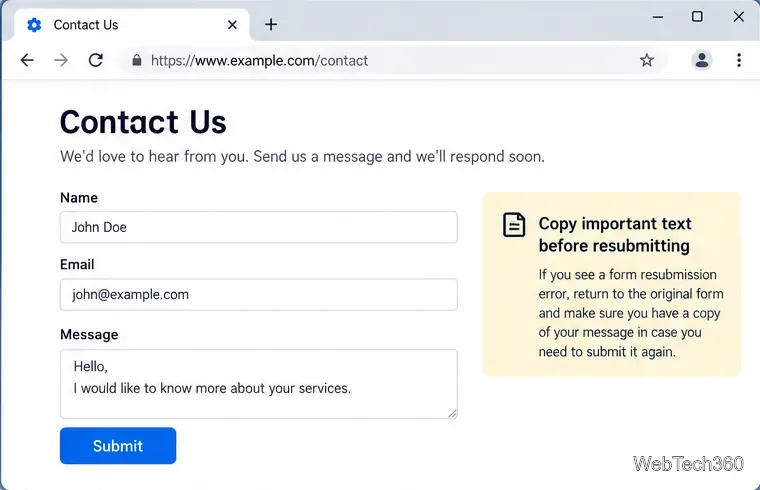
Do this before entering the same information again. A second POST can create duplicate comments, tickets, reservations, or charges if the site does not protect against duplicates. If you cannot tell whether a high-value transaction succeeded, use the site's order history or contact its support team instead of repeatedly clicking Submit.
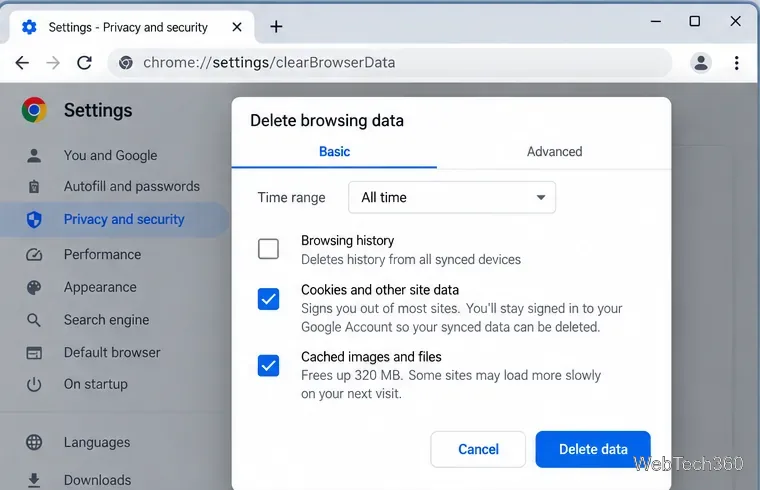
Broken or outdated cookies and cached files can cause some sites to loop, lose a session, or load an old page. Clearing data can help in those cases, but it is not required simply because you refreshed a POST result.
In Chrome on a computer, open the three-dot menu and choose Delete browsing data. Google documents the current options, including cookies/site data and cached images/files, in its Chrome browsing-data guide. Clearing cookies can sign you out of websites, so use the narrowest scope that solves the problem.
In Firefox, you can clear data for the current site from the icon to the left of the address bar, then choose Clear Cookies and Site Data. Mozilla's Firefox site-data instructions also explain how to remove data for a specific site or all sites.
If a form repeatedly fails without you refreshing it, test extensions that alter pages or network traffic, such as content blockers, privacy tools, script managers, VPN/proxy extensions, or form helpers. In Chrome, go to More > Extensions > Manage extensions and switch suspect extensions off temporarily; Google's extension management guide documents the current controls.
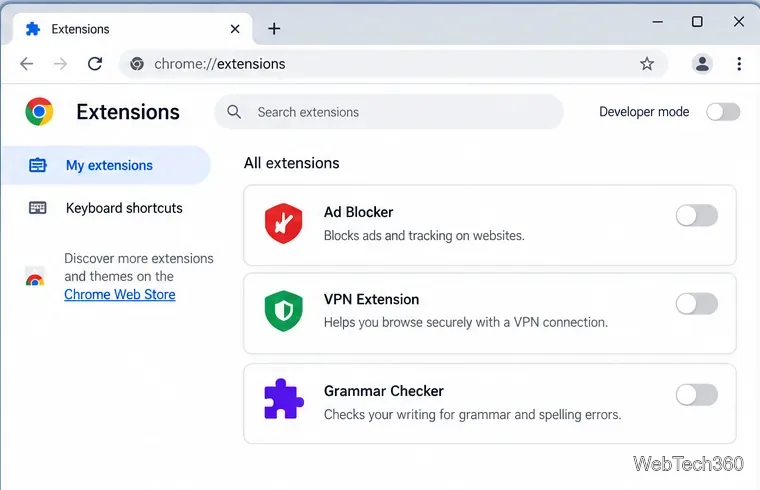
In Firefox, open Menu > Add-ons and themes > Extensions and turn extensions off one at a time. Mozilla also provides official steps for disabling Firefox add-ons. Re-enable anything that is not related to the problem.
If other sites work normally and this warning consistently returns after submitting one particular form, the website's form flow is probably the main issue. Changing browsers may hide a symptom in some cases, but it does not repair the underlying POST history. Avoid repeated submissions and report the problem to the site owner if necessary.
The standard way to prevent a successful form submission from becoming the browser's current POST page is the POST/Redirect/GET pattern. Process the POST on the server, then return a redirect to a separate confirmation URL. A 303 See Other response specifically tells the browser to retrieve the redirected resource with GET. MDN notes that this pattern lets a client view a confirmation after POST without making refresh repeat the original operation.
POST /contact

HTTP/1.1 303 See Other
Location: /contact/thanks

GET /contact/thanks
See the MDN 303 See Other reference and its HTTP redirection guide for the method-change behavior. Do not use a 307 redirect for this purpose when you want the follow-up request to become GET, because 307 preserves the original method and body.
Do not switch every POST form to GET merely to suppress the warning. GET is intended for retrieving data and places form values in the URL when used by an HTML form; it is not appropriate for passwords or actions that change server state. MDN's form submission documentation explains the practical differences between GET and POST.
JavaScript fetch() can submit a form without a full-page navigation, but the server should still protect important operations against accidental duplicate requests. For conventional multi-page forms, POST/Redirect/GET remains the clearest fix for the refresh warning.
Open a Linux shell in any Windows 10 folder with File Explorer, PowerShell, and WSL. Check the Linux path and fix common setup issues.
Use a screenshot test, cable and port checks, monitor diagnostics, display settings, and driver rollback to pinpoint lines on a Windows 10 monitor.
Show two other time zones beside your Windows 10 clock. Set up each additional clock, give it a clear label, and find it in the taskbar calendar.
Find the File Explorer extension that delays right-click menus in Windows 10, test it safely with ShellExView, and restore any menu features you still need.
Stop Windows 10 from powering down a specific network adapter or USB device with plan-level settings and Device Manager controls, plus tips to avoid excess battery drain.
Check whether Windows 10 uses a digital license or product key, find a firmware-stored OEM key, and save license details securely for a reinstall.
Identify a Windows 10 Task Manager process by checking its executable path, file properties, publisher, linked services, and a Microsoft Defender scan.
Create a searchable Windows 10 folder inventory with PowerShell. Save every file and subfolder path as plain text or export details to a sortable CSV.
Add a custom reminder, quote, or label to your Windows 10 desktop with a Rainmeter text skin. Create the INI file, load it, then adjust its font and position.
Use Bluetooth Swift Pair on Windows 10 to pair a compatible accessory from a notification, with setup steps and fixes when the prompt does not appear.








