Home
» WINDOWS
»
How to Fix the “docs.google.com Refused to Connect” Error
How to Fix the “docs.google.com Refused to Connect” Error
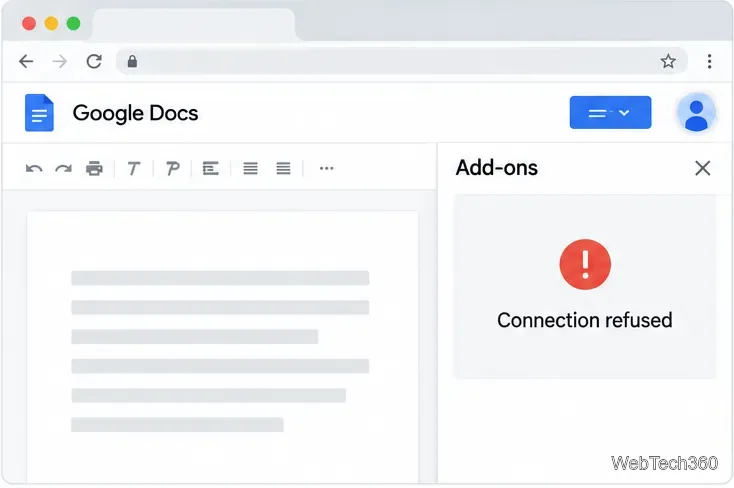
The “docs.google.com refused to connect” message often appears when a browser cannot load Google Docs inside an embedded panel, such as an add-on window. First open Docs directly. If it loads, focus on the browser session, cookies, extensions, or work-account policy. The message alone does not identify one cause, so try these checks in order.
Connection refused appears inside the add-on panel.
Confirm where the failure occurs
Open a regular tab to Google Docs and open a document. If Docs works but an add-on panel fails, the issue is likely specific to embedded content or its sign-in. If Docs itself will not load, continue to the site-data and extension checks.
To install an add-on in a standard Docs file, choose Extensions > Add-ons > Get add-ons. If that menu is missing, convert a Microsoft Office file to Google Docs format first. Google also notes some add-ons need browser support for third-party cookies; see Google’s add-on help.
Fix the browser session
1. Sign in with the intended account
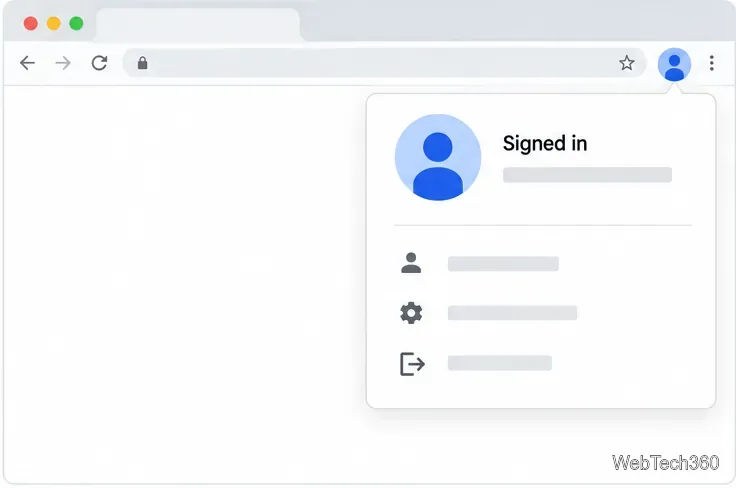
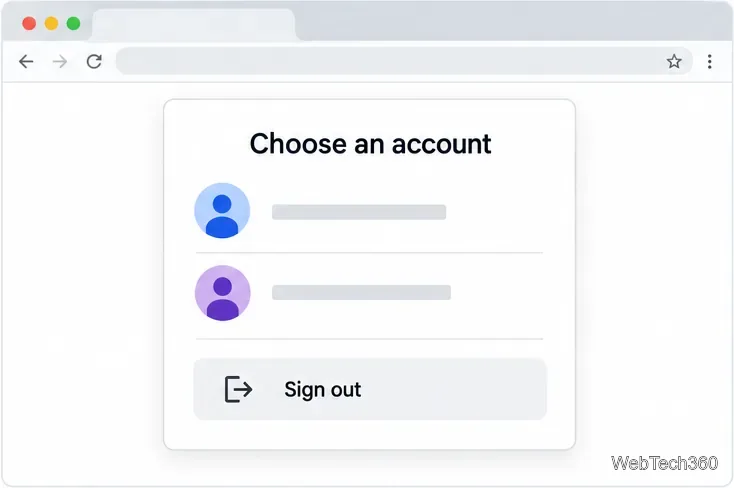
Click your Google profile picture and confirm you are using an account that can access the document. Google supports multiple signed-in accounts, but switching may open a separate window. To test for a mixed session, sign out of all Google accounts, sign in only to the one you need, and reopen Docs. This is a troubleshooting test, not proof that multiple accounts caused the error. See Google’s account-switching instructions.
Confirm which Google account is active.A sign-out test resets the account session.
2. Use a separate Chrome profile
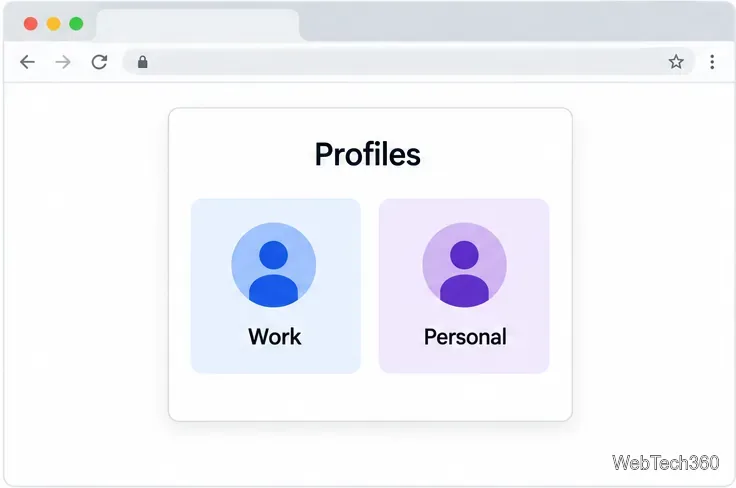
For regular work and personal account switching, create a separate Chrome profile: click the profile icon, choose Add Chrome profile, then sign in to Docs with the intended account. Chrome keeps browsing information and settings separate by profile, giving you a clean session without changing your main one. See Chrome profile instructions.
Separate profiles isolate browser sessions.
Check cookies and browser data
3. Review third-party cookies
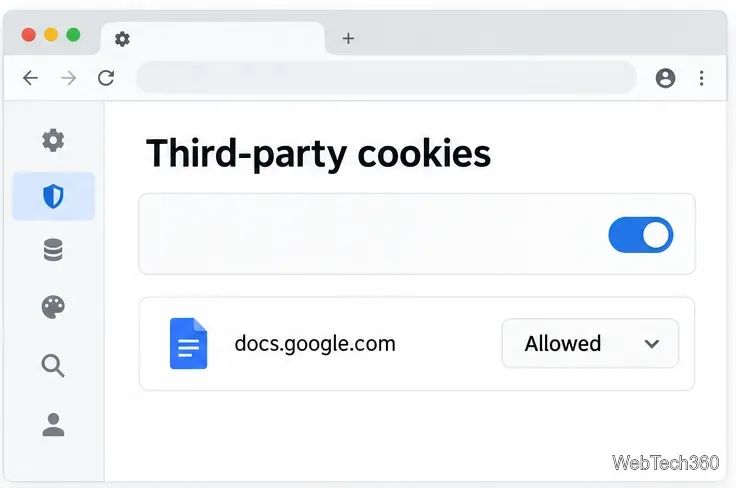
Google says some Docs add-ons may not work correctly without third-party cookie support. In Chrome, go to Settings > Privacy and security > Third-party cookies. If cookies are blocked, try a temporary exception for the trusted Google surface involved, then reload. Avoid enabling cookies globally just for this test. Incognito is not a reliable comparison: Chrome blocks third-party cookies there by default. On a managed device, an administrator may control this setting. See Chrome’s cookie and site-data guidance.
Review a site-specific cookie exception.
4. Remove stale Docs site data
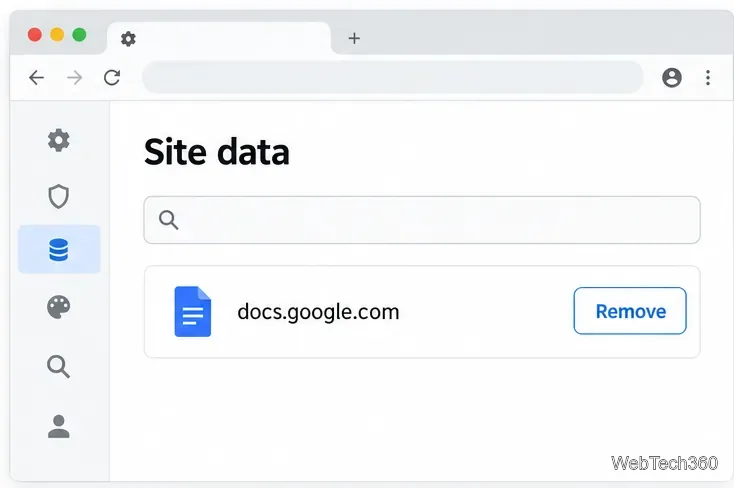
Old site data can prevent a sign-in from refreshing. In Chrome, open Settings > Privacy and security > Third-party cookies > See all site data and permissions, search for docs.google.com, and delete its data. Reopen Docs and sign in again. This may sign you out of Docs or clear its saved preferences, so try the Docs entry before clearing all browsing data. The Chrome’s cookie and site-data guidance page has the current steps.
Remove stored Docs site data.
5. Test without browser extensions
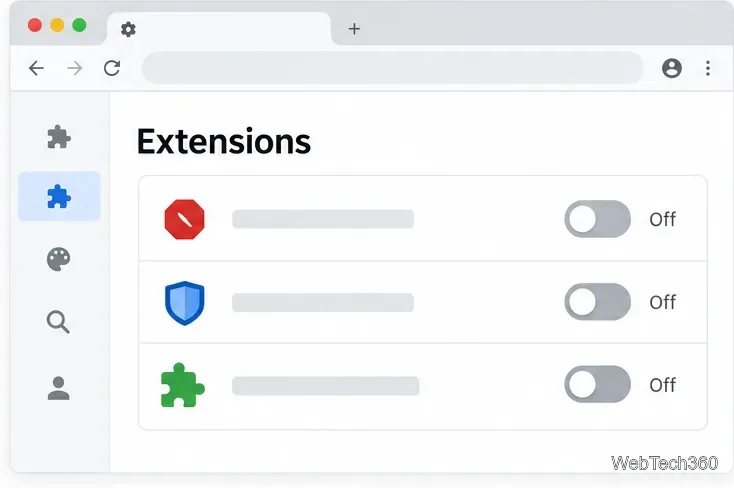
Privacy, ad-blocking, or script-control extensions can interfere with embedded pages. Temporarily turn off one extension at a time, reload the add-on, then re-enable it. If your organization manages extensions, do not bypass its policy. You can also test the same document in another supported browser. If it works there, the problem is likely limited to the original browser profile or settings.
Temporarily test with extensions off.
Check the add-on and account permissions
6. Verify the add-on is still installable
If only one add-on fails, check its official Marketplace listing. Google is moving editor add-ons from the Chrome Web Store to Workspace Marketplace; an add-on that has not moved cannot be newly installed there. The listing may also say the app is region-limited or requires administrator installation.
7. Ask your Workspace administrator
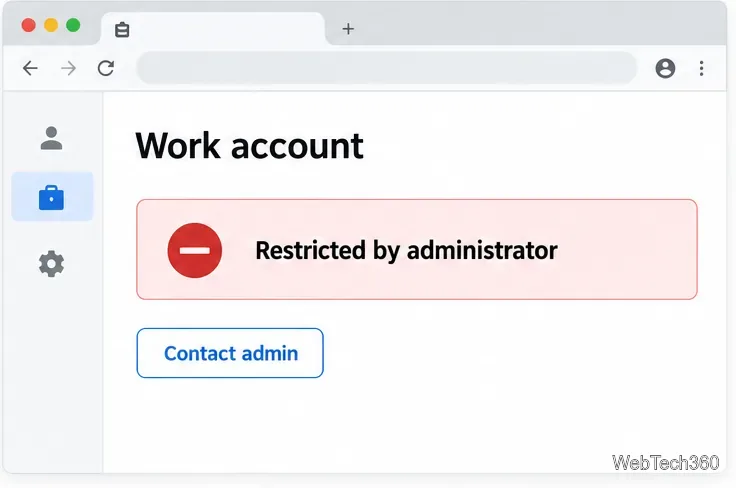
If the error affects only a work or school account, or the listing requires admin approval, ask your Workspace administrator whether that app is allowed for your account. Admins can permit all Marketplace apps, allow only approved apps, or block user installs. They may also manage cookie settings on work devices. A browser reset cannot override an organization policy. See Google’s Marketplace installation messages and Workspace administrator app controls guidance.
A Workspace admin may restrict app installation.
If the error remains
Note whether Docs opens directly, whether other add-ons work, and whether another profile or browser changes the result. Share the exact error and a screenshot with document details hidden. Contact the add-on publisher for a single-app failure, or your organization’s administrator for a managed account or locked setting.