How to Access a Network Location in Command Prompt on Windows 10

Use pushd to open a UNC network path in Windows 10 Command Prompt, run commands in the shared folder, and return with popd.
If Intel’s graphics installer stops with “The driver being installed is not validated for this computer”, do not force a random driver file. The message usually means your PC has an OEM-customized graphics driver, a legacy non-DCH driver, or a package that does not match the hardware. The safest fix is to use the PC manufacturer’s driver first, then move to Intel’s current DCH package only when your hardware is supported.
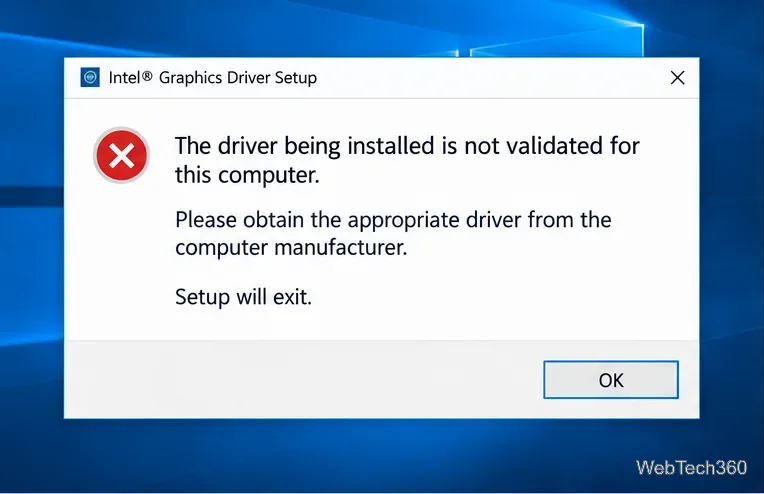
Intel’s current guidance for this exact error starts by identifying the processor generation and checking the computer manufacturer’s driver. See Intel’s Computer Manufacturer Graphics Driver Detected support page before changing an OEM driver.
Open Settings > System > About or System Information and note the processor model. Then identify the Intel graphics device in Device Manager > Display adapters. Download a driver only for that processor or graphics family and for 64-bit Windows 10 if that is what your PC uses.
Start with the support page for your laptop, desktop, or motherboard manufacturer. OEM packages can include display routing, power-management, hotkey, panel, or docking customizations that a generic Intel package has not been validated against. Intel also recommends the OEM driver first when one is available.
On many newer Intel systems, the validation error appears when the installed OEM driver is an older non-DCH package. DCH is a Windows driver packaging model; it is not a separate “gaming” driver tier.
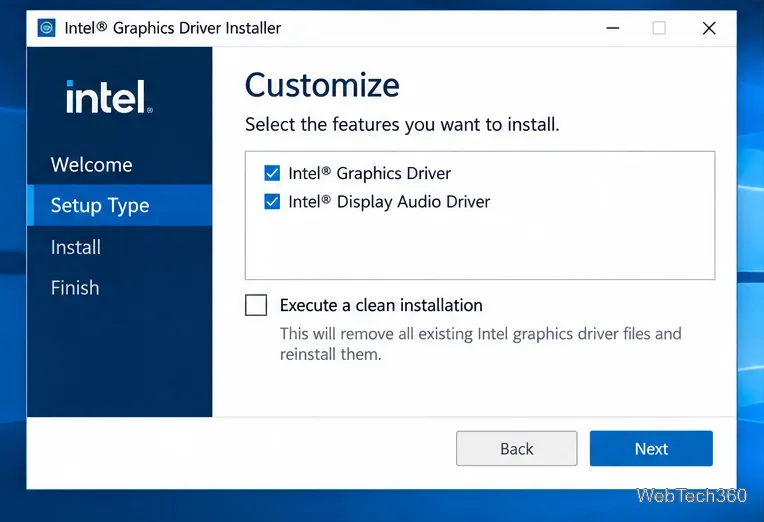
Intel states that graphics DCH drivers from version 26.20.100.8141 onward are unlocked for upgrades between OEM and Intel generic DCH drivers on supported systems. If the generic driver causes flickering, crashes, display-output problems, or other platform-specific issues, reinstall the latest driver from your PC manufacturer.
Intel still documents a manual Device Manager method for moving from a legacy graphics driver to a DCH driver. Use it only with a driver package that actually supports your Intel graphics device.
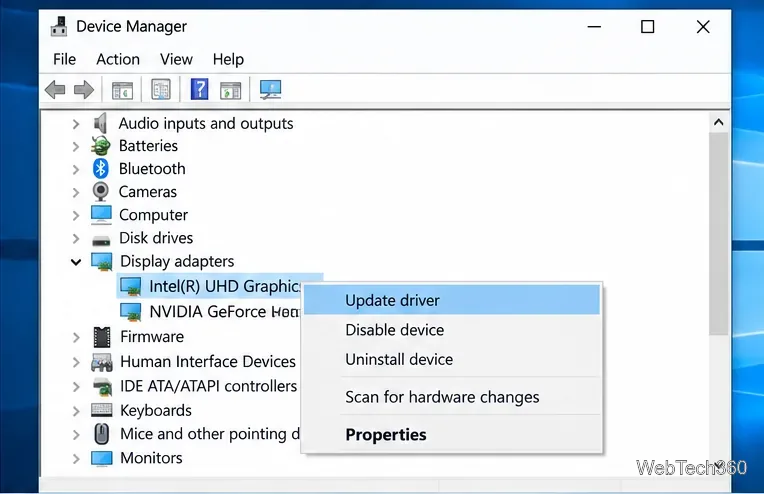
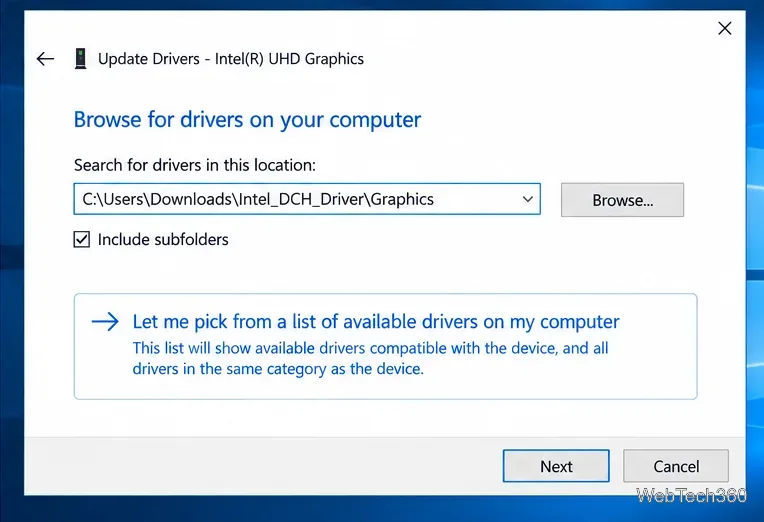
This replaces the old advice to select a hard-coded file such as igcc_dch.ini. Intel’s current manual instructions tell you to select the extracted driver directory and let Windows choose the compatible driver files.
Intel says older platforms can show the same message because an OEM driver blocks a generic Intel package. If the manufacturer still provides a graphics driver, use it. If OEM support has ended and Intel still offers a compatible generic driver, a clean installation can be a fallback—but it can remove customizations or cause device-specific problems.
Intel’s clean-install procedure recommends downloading the correct package first, using the installer’s clean-install option when available, and restarting when prompted. If a manual removal is required, disconnect from the internet before uninstalling the Intel graphics device so Windows does not immediately reinstall another package.
After restarting, open Device Manager > Display adapters > Intel graphics > Properties > Driver and check the driver version. If the new driver introduces instability or missing OEM features, roll back the driver if Windows offers that option or reinstall the latest OEM graphics package.
One final current-support note: Microsoft ended standard Windows 10 support on October 14, 2025. Windows 10 PCs still run, but Microsoft recommends moving to Windows 11 when possible or using an applicable Extended Security Updates option. See Microsoft’s Windows 10 end-of-support guidance.
Use pushd to open a UNC network path in Windows 10 Command Prompt, run commands in the shared folder, and return with popd.
Learn how to install a Rainmeter skin from an INI file by placing it in the right Skins folder, preserving its resources, refreshing Rainmeter, and loading it in Manage.
Open one folder in its own File Explorer window with Shift or the context menu, or change Folder Options to make every folder open separately.
Pin a frequently used Control Panel applet, such as Power Options or Sound, to the Windows 10 Start menu for one-click access.
Choose a supported Windows 10 hotkey for switching input languages, assign shortcuts to individual layouts, or disable an accidental shortcut.
Move a Windows 10 app to the display you want, use its game monitor setting, and handle full-screen apps with a practical primary-monitor workaround.
Use a transparent PNG and a Rainmeter skin to keep an image watermark above windows, adjust its transparency, and make it click-through on Windows 10.
Convert stereo audio to mono on Windows 10 with Audacity. Mix both channels into one mono track, export a new file, and verify the channel count.
Use Windows 10 Clipboard history to save recent text and images, paste an earlier clip with Windows key + V, and manage sync, pinned items, and privacy.
Learn how to zoom in on a video in Windows 10 with VLC’s Interactive Zoom, or use Windows Magnifier when the clip is playing in another app.








