How to Open a Linux Shell in a Folder on Windows 10

Open a Linux shell in any Windows 10 folder with File Explorer, PowerShell, and WSL. Check the Linux path and fix common setup issues.
If the Epic Games Launcher is not working—for example, it will not open, shows a blank or black window, cannot sign in, or fails to download or update games—start with the simple checks below. Epic's current support guidance focuses on service status, launcher updates, cache cleanup, permissions, graphics drivers, background software, network troubleshooting, and reinstalling.
Before changing Windows or macOS settings, check the Epic Games Public Status page. If Epic Games Store login or download services are having an outage, local troubleshooting will not fix it; wait for the incident to be resolved and try again.
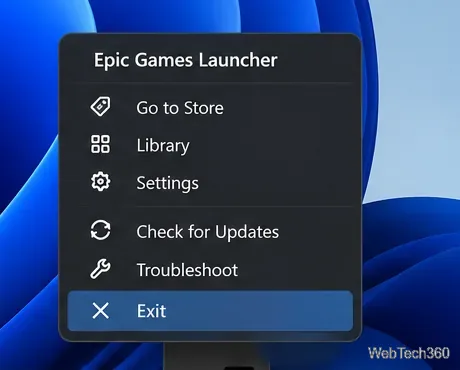
If services are operating normally, fully exit the launcher and reopen it. On Windows, use the Epic icon in the system tray and choose Exit. If the launcher opens, go to Settings and select RESTART AND UPDATE when that option appears. Epic documents this in its launcher update instructions.
Also verify that the computer still meets Epic's current launcher system requirements. For the standard launcher, Epic lists 64-bit Windows 10 or Windows 11, or macOS 13.5 or later, with at least 4 GB of memory and 3 GB of storage. Epic's newer Launcher Early Preview has separate requirements, including supported Linux distributions, so check the correct version before assuming the operating system is compatible.
A damaged web cache can cause blank pages, display errors, or a launcher that opens but behaves incorrectly. Epic specifically recommends clearing the cache for these symptoms.
%localappdata%, and press Enter.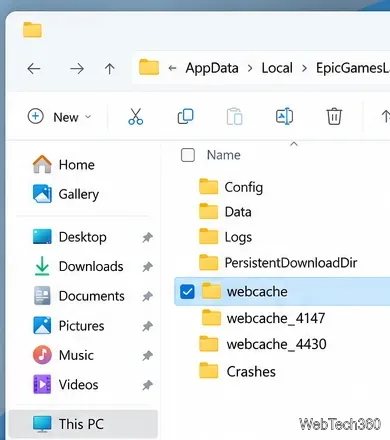
If you use Epic Games Launcher Early Preview, Epic instead says to open Epic Games logo > Settings > About and use Clear and restart under Cached data. On macOS, quit the launcher, open Finder > Go > Go to Folder, enter ~/Library/Caches/com.epicgames.EpicGamesLauncher, then remove the webcache folder. See Epic's cache-clearing guide for the current paths.
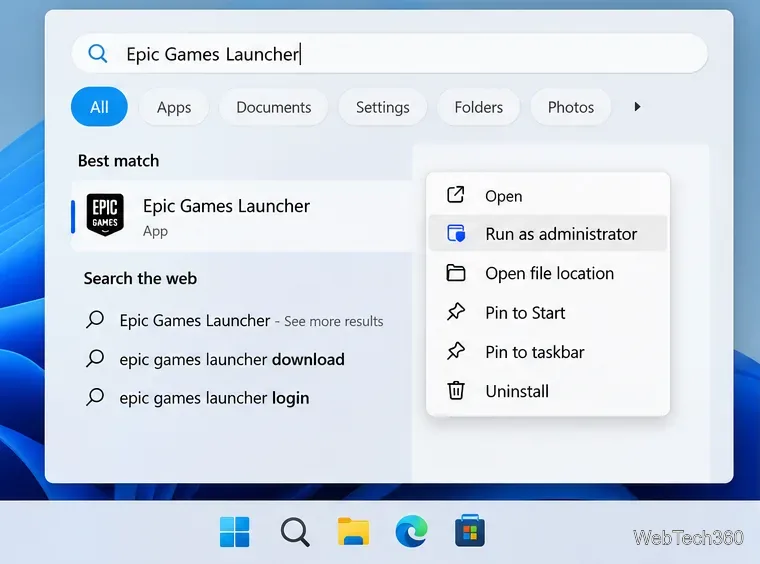
If the launcher starts but cannot install, update, or launch a title, test it with elevated permissions. Right-click the Epic Games Launcher shortcut and choose Run as administrator. This is an Epic-supported fix for permission-related launch and installation errors.
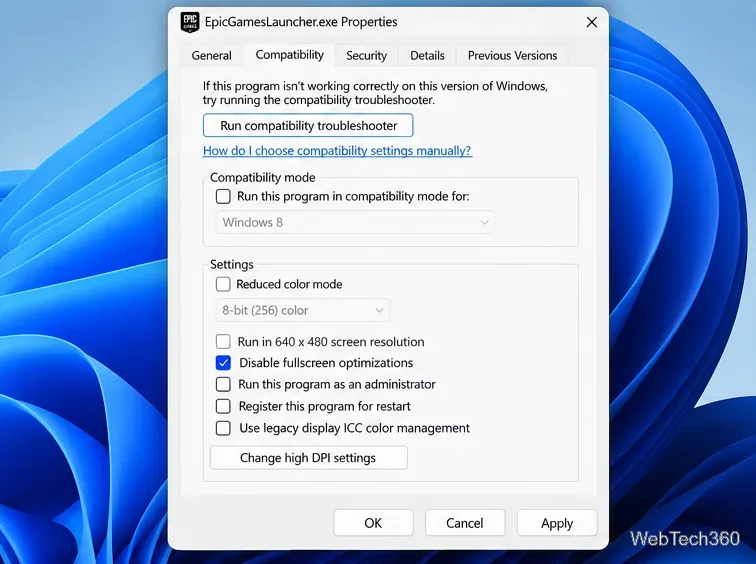
For visual glitches or unusually low launcher frame rate, Epic also recommends testing Disable fullscreen optimizations: close the launcher, open the properties of EpicGamesLauncher.exe, choose the Compatibility tab, enable that option, and apply the change. Do not enable random legacy compatibility modes unless an Epic support article for your exact error tells you to.
Crashes can also come from outdated GPU drivers or conflicting background software. Install graphics drivers directly from NVIDIA, AMD, or Intel rather than using an unknown third-party driver updater. If necessary, try a Windows clean boot or macOS Safe Mode to identify a background program that is interfering with the launcher. Epic lists both steps in its launcher troubleshooting guide.
If the launcher opens but cannot sign in, browse the store, or download games, restart your modem/router and test a wired connection if available. Epic's connection troubleshooting guide also covers public DNS, clock synchronization, proxy settings, firewall rules, DNS flushing, and background downloads. On a school or work network, do not remove a required proxy; ask the network administrator instead.
If none of the fixes above work, reinstall the launcher from the official Epic Games download page. Back up anything you need first: Epic's current reinstall instructions warn that uninstalling the launcher can remove installed games. On Windows, Epic recommends running System File Checker before reinstalling. On macOS, its procedure also removes remaining Epic Games Launcher support, cache, preference, log, and cookie files before installing a fresh copy.
Follow Epic's official reinstall procedure rather than deleting random folders. If a fresh install still fails, collect the launcher logs and contact Epic Support with the exact error code; that is more useful than stacking unsupported command-line switches or registry tweaks.
For most systems, the fastest order is: check Epic's status, restart/update, clear the cache, test permissions and drivers, then investigate the network or reinstall. This avoids destructive changes while covering the causes Epic currently documents most often.
Open a Linux shell in any Windows 10 folder with File Explorer, PowerShell, and WSL. Check the Linux path and fix common setup issues.
Use a screenshot test, cable and port checks, monitor diagnostics, display settings, and driver rollback to pinpoint lines on a Windows 10 monitor.
Show two other time zones beside your Windows 10 clock. Set up each additional clock, give it a clear label, and find it in the taskbar calendar.
Find the File Explorer extension that delays right-click menus in Windows 10, test it safely with ShellExView, and restore any menu features you still need.
Stop Windows 10 from powering down a specific network adapter or USB device with plan-level settings and Device Manager controls, plus tips to avoid excess battery drain.
Check whether Windows 10 uses a digital license or product key, find a firmware-stored OEM key, and save license details securely for a reinstall.
Identify a Windows 10 Task Manager process by checking its executable path, file properties, publisher, linked services, and a Microsoft Defender scan.
Create a searchable Windows 10 folder inventory with PowerShell. Save every file and subfolder path as plain text or export details to a sortable CSV.
Add a custom reminder, quote, or label to your Windows 10 desktop with a Rainmeter text skin. Create the INI file, load it, then adjust its font and position.
Use Bluetooth Swift Pair on Windows 10 to pair a compatible accessory from a notification, with setup steps and fixes when the prompt does not appear.








