How to Open a Linux Shell in a Folder on Windows 10

Open a Linux shell in any Windows 10 folder with File Explorer, PowerShell, and WSL. Check the Linux path and fix common setup issues.
An Orange Screen of Death on Windows 10 is an unusual crash or freeze in which the display turns orange, sometimes with a stop message, before Windows restarts or becomes unusable. The color by itself does not identify one specific fault, so the safest approach is to troubleshoot it like other Windows stop errors while paying extra attention to the graphics driver and recent display-related changes.
If Windows is still responsive and the desktop is only tinted orange, this is probably a color, Night light, monitor, cable, or graphics-settings problem rather than a system crash. The steps below are for an orange screen that freezes, crashes, or forces a restart.
Start with the least disruptive checks. Press Windows + Ctrl + Shift + B once; Microsoft documents this shortcut as a way to reset the graphics driver when display output is misbehaving. If the PC responds, save your work and restart it normally.
If the orange screen appeared after connecting new hardware, shut the PC down and disconnect nonessential USB devices, docks, external displays, capture devices, and adapters. Reconnect them one at a time after Windows is stable. Also return any CPU, GPU, or memory overclock or undervolt to stock settings. Avoid repeated hard power-offs unless Windows is completely frozen, because forced shutdowns can risk file corruption.
Microsoft's general guidance for stop errors also recommends checking recent hardware and driver changes: troubleshoot unexpected restarts and stop-code errors.
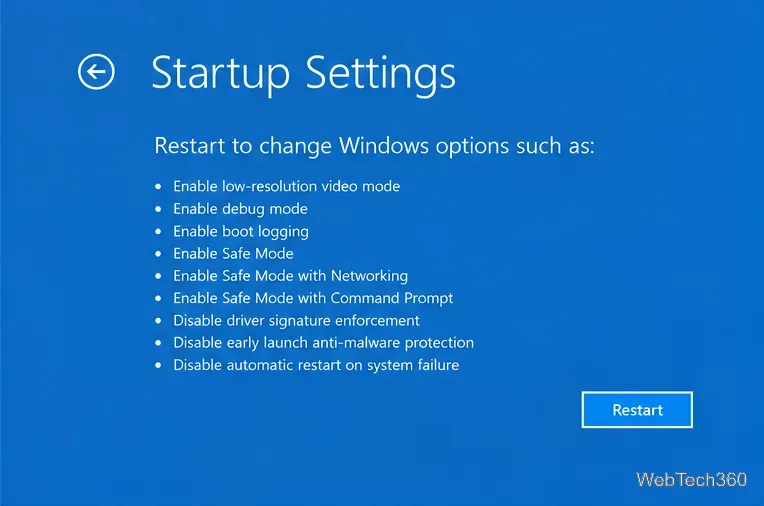
If Windows crashes during normal startup, open the Windows Recovery Environment. Windows may enter it automatically after repeated failed starts. From WinRE, choose Troubleshoot > Advanced options > Startup Settings > Restart, then select Safe Mode. Microsoft explains the recovery environment and startup tools in its Windows RE documentation.
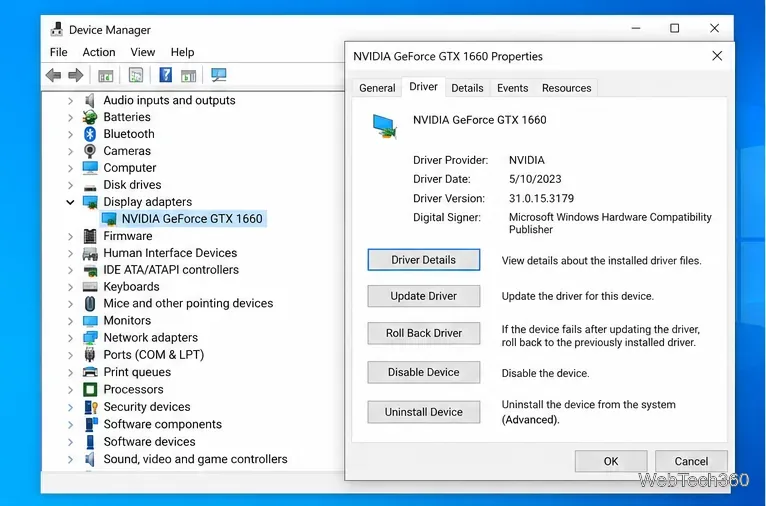
Once Windows is stable, open Device Manager > Display adapters. Right-click your GPU and open Properties > Driver. If the problem began immediately after a driver update, use Roll Back Driver when available. Otherwise, try Update driver. If the driver appears damaged, choose Uninstall device and restart so Windows can attempt to reinstall it.
Microsoft recommends Windows Update first, then the device maker if Windows cannot find a suitable driver. See Microsoft's driver instructions. For manual downloads, use only the official NVIDIA, AMD, Intel, or your PC manufacturer's support page. Avoid generic third-party driver-updater utilities.
If the orange screen began after a Windows update, driver package, game overlay, display utility, or other new software, remove or roll back that specific change rather than uninstalling unrelated programs.
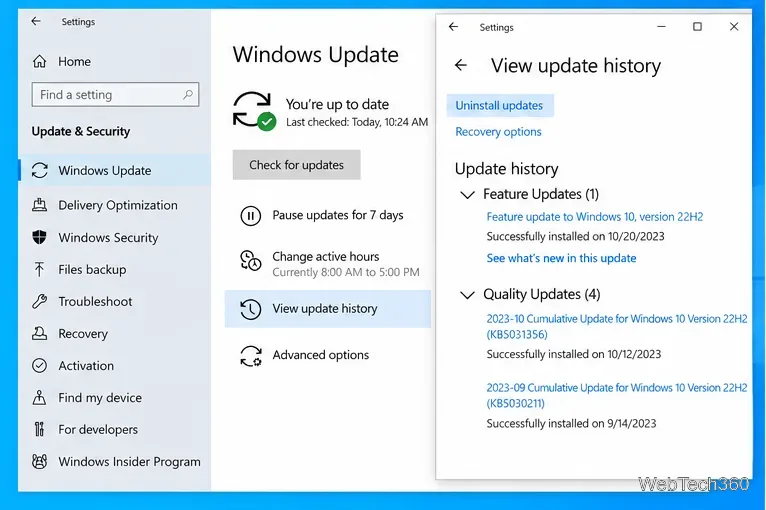
For a recent Windows update, go to Settings > Update & Security > Windows Update > View update history > Uninstall updates. Microsoft notes that some updates cannot be removed and warns that uninstalling security updates has risks; use its official uninstall-update instructions.
If you cannot identify the conflicting app or service, a clean boot can help isolate background software. Re-enable items gradually until the crash returns.
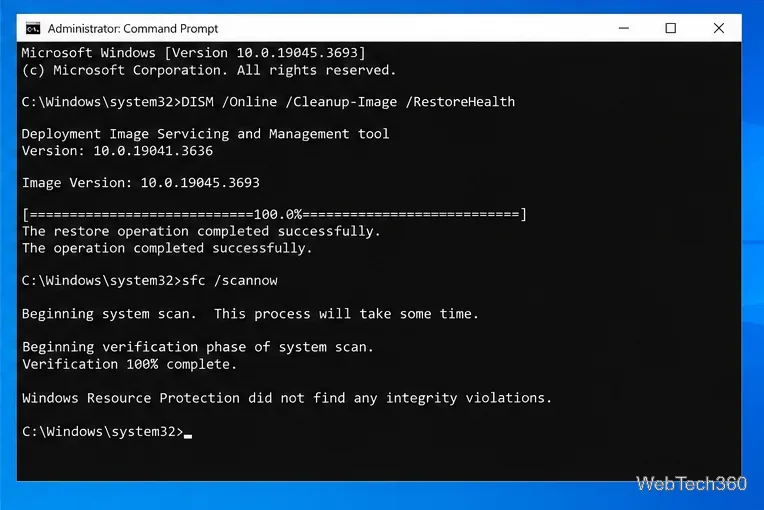
Corrupted Windows components can contribute to stop errors. Open Command Prompt as administrator and run these commands in order:
DISM /Online /Cleanup-Image /RestoreHealth
sfc /scannow
Let each command finish before closing the window, then restart. Microsoft recommends DISM followed by SFC when Windows system files may be damaged; see the System File Checker guidance.
If crashes continue, run Windows Memory Diagnostic by pressing Windows + R, entering mdsched.exe, and choosing to restart and test memory. Microsoft includes memory testing among its advanced stop-error checks. On a desktop, also power the PC off and verify that the graphics card and display cables are firmly seated. If the system overheats, clean airflow paths and confirm that fans are working.
If instability began after changing BIOS/UEFI performance settings, restore the firmware defaults using instructions from your PC or motherboard manufacturer. Only install a BIOS/UEFI update that is specifically intended for your exact model, and do not interrupt power during a firmware update.
When the problem started after a known software or driver change, System Restore can return system files, registry settings, drivers, and installed programs to an earlier restore point without deleting personal files. Microsoft lists System Restore and other recovery choices in Windows recovery options.
Finally, remember that standard Windows 10 support ended on October 14, 2025. Microsoft recommends moving eligible PCs to Windows 11; for unsupported hardware, its official guidance also describes the Windows 10 Consumer Extended Security Updates option. See Windows 10 end-of-support information.
If the orange screen persists even in Safe Mode, after a clean driver reinstall, or during memory testing, treat it as a possible hardware fault and have the GPU, RAM, power supply, and motherboard checked before replacing Windows or repeatedly reinstalling drivers.
Open a Linux shell in any Windows 10 folder with File Explorer, PowerShell, and WSL. Check the Linux path and fix common setup issues.
Use a screenshot test, cable and port checks, monitor diagnostics, display settings, and driver rollback to pinpoint lines on a Windows 10 monitor.
Show two other time zones beside your Windows 10 clock. Set up each additional clock, give it a clear label, and find it in the taskbar calendar.
Find the File Explorer extension that delays right-click menus in Windows 10, test it safely with ShellExView, and restore any menu features you still need.
Stop Windows 10 from powering down a specific network adapter or USB device with plan-level settings and Device Manager controls, plus tips to avoid excess battery drain.
Check whether Windows 10 uses a digital license or product key, find a firmware-stored OEM key, and save license details securely for a reinstall.
Identify a Windows 10 Task Manager process by checking its executable path, file properties, publisher, linked services, and a Microsoft Defender scan.
Create a searchable Windows 10 folder inventory with PowerShell. Save every file and subfolder path as plain text or export details to a sortable CSV.
Add a custom reminder, quote, or label to your Windows 10 desktop with a Rainmeter text skin. Create the INI file, load it, then adjust its font and position.
Use Bluetooth Swift Pair on Windows 10 to pair a compatible accessory from a notification, with setup steps and fixes when the prompt does not appear.








