Home
» WINDOWS
»
How to Fix the “Printer Attention Required” Error in Windows 10
How to Fix the “Printer Attention Required” Error in Windows 10
The “Printer Attention Required” message can mean a printer-side paper or cartridge alert, or a Windows queue, connection, or driver problem. Check the printer first, then print a Windows test page to locate the fault.
If the printer shows a code, look it up in the manual for that exact model; Windows may show only a summary.
Fix the “Printer Attention Required” error step by step
1. Check the printer display, covers, and paper path
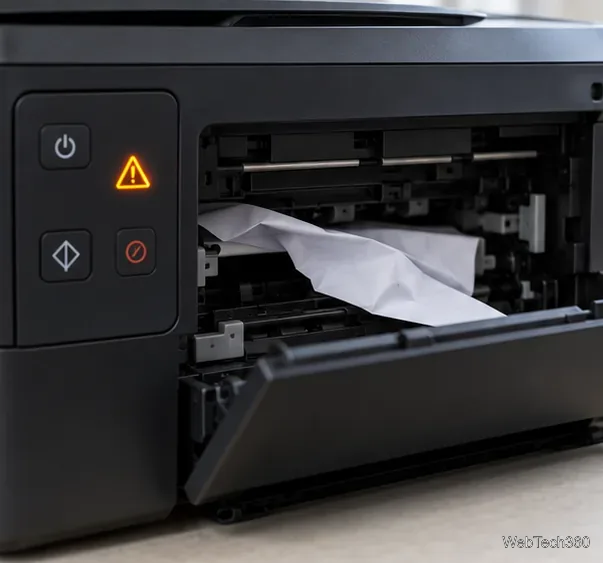
Warning light and paper in the feed path.
Check the printer’s screen and lights. Close every access door, load a supported paper size, and adjust the guides without bending the sheets. Clear any jam as the manual directs; forcing paper can tear it inside the mechanism.
2. Check ink or toner only if the printer reports a problem
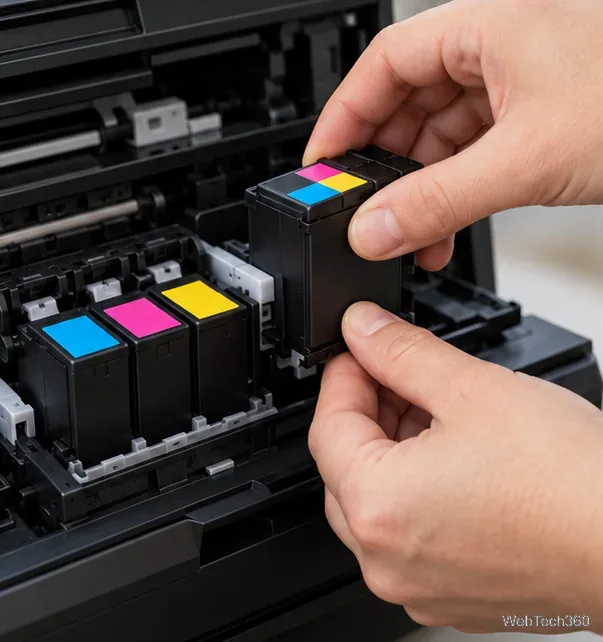
Reseat the cartridge as its manual directs.
Check the panel for a low, empty, unrecognized, or incorrectly installed ink or toner message. Reseat the cartridge as its manual directs, confirm the model, and remove any specified shipping seal. Replace it if the printer reports it empty, incompatible, or damaged; cartridge behavior varies, so do not assume refilling is the cause.
3. Verify the USB or Wi-Fi connection
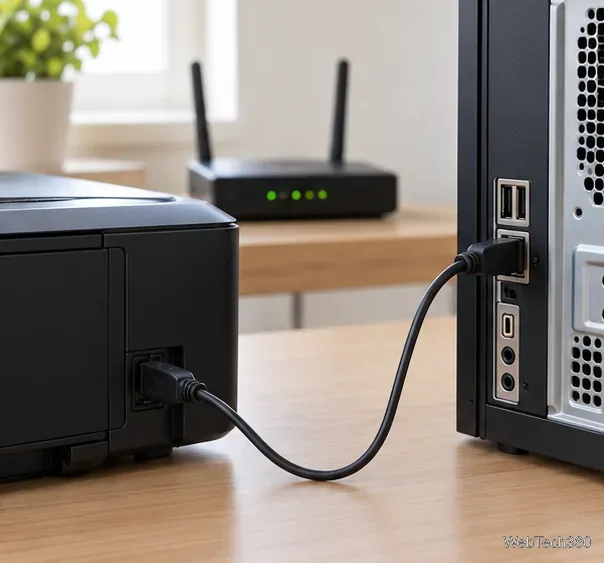
Check the cable or confirm both devices share Wi-Fi.
Reconnect both ends of a USB cable and, temporarily, connect directly to the PC instead of through a hub. For Wi-Fi, confirm the printer and PC use the same network. Power the printer off for 60 seconds, restart it, and restart the PC if needed.
4. Print a test page to locate the fault
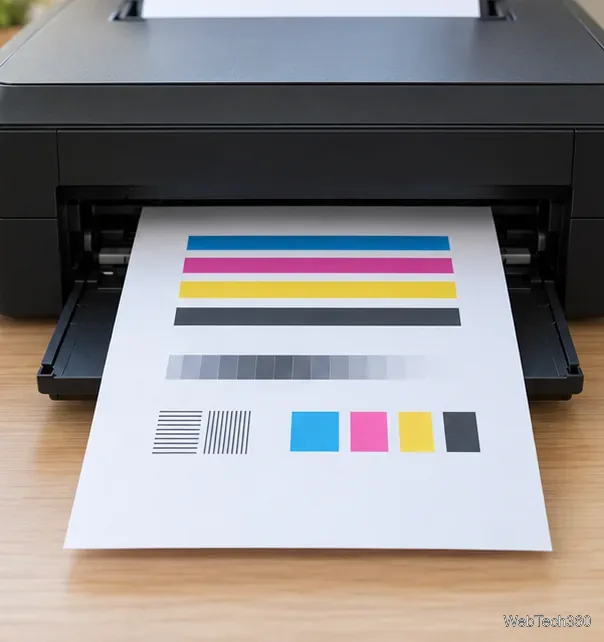
A diagnostic page helps isolate the fault.
If available, print a self-test from the printer’s panel using its manual. Then test Windows: open Start > Settings > Devices > Printers & scanners, select the printer, choose Manage > Printer properties, and select Print Test Page on the General tab. Labels can vary by driver. If the printer’s report fails, investigate the device. If it works but the Windows page fails, check the connection, queue, or driver. If only one app fails, check its selected printer and settings. See Microsoft’s Windows printing troubleshooting guide.
5. Cancel stuck print jobs
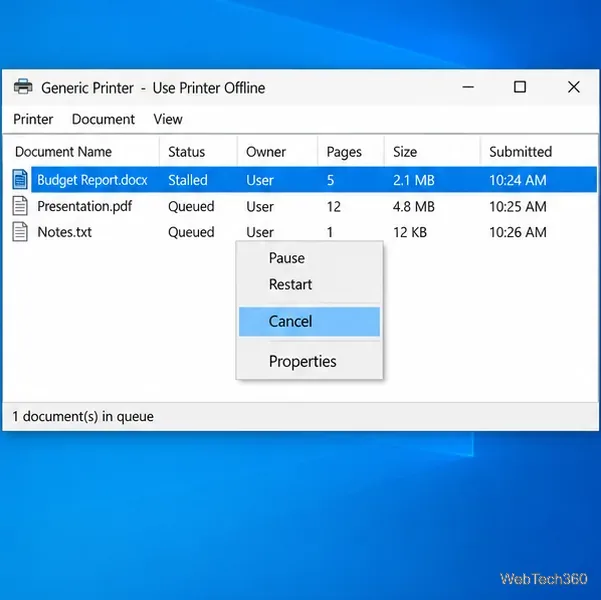
Cancel stuck jobs before resubmitting.
Open Settings > Devices > Printers & scanners, select the printer, then choose Open queue. Right-click stalled jobs and choose Cancel; canceled copies must be submitted again. Confirm the app is using the intended printer.
6. Restart the Print Spooler
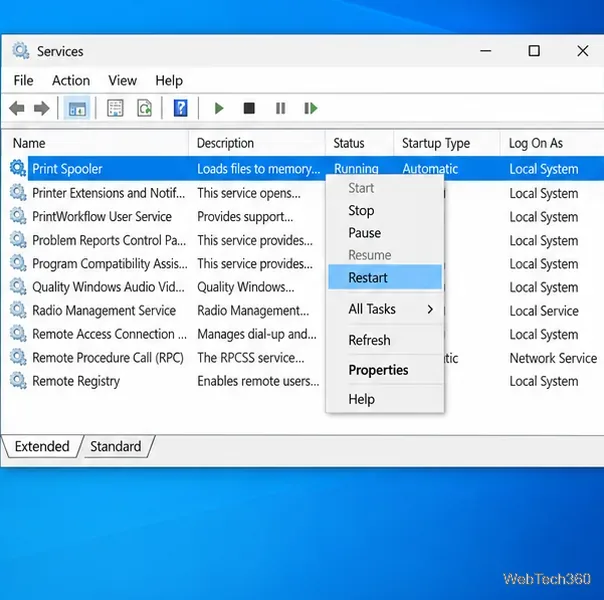
Restart Print Spooler after clearing stuck jobs.
The Print Spooler manages Windows jobs. Press Windows key + R, enter services.msc, and press Enter. Right-click Print Spooler, choose Restart, and test again. If the queue remains stuck, Microsoft’s stuck print job instructions explain how to stop the service, remove files inside C:\Windows\System32\spool\PRINTERS, and start the service again. That advanced step deletes every pending job in the folder; delete only its contents, not the folder itself.
7. Run the Windows printer troubleshooter
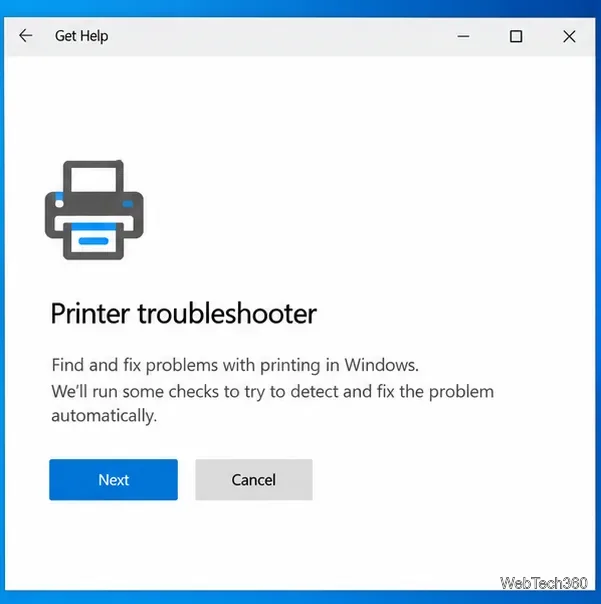
Start printer diagnostics in Get Help.
Open Get Help from Start, search for printer troubleshooting, and follow the prompts. Microsoft currently points Windows 10 users to this automated troubleshooter. If it does not fix the issue, continue with the relevant queue, connection, or driver step.
8. Update or reinstall the printer
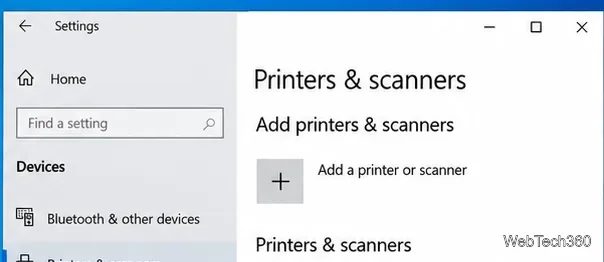
Add the printer again from Settings.
Check Windows Update for a printer driver. If needed, use the manufacturer’s official support page for the exact model and Windows version; avoid third-party driver-updater downloads. To reinstall, open Settings > Devices > Printers & scanners, select the printer, and choose Remove device. Restart the PC, return to that page, and select Add a printer or scanner. Follow Microsoft’s printer installation steps. Its driver guidance recommends Windows Update first, then the manufacturer’s official download when needed.
If the error keeps returning
If the printer still displays a fault after clearing paper and checking supplies, note its exact code and contact the manufacturer. If only one app fails but the Windows test page works, troubleshoot that app instead of reinstalling the printer. Record which tests printed and where the message appears.
Windows 10 Home and Pro reached end of support on October 14, 2025. Printer troubleshooting still applies, but those editions no longer receive standard free security updates; some LTSC editions follow separate lifecycle dates. See Microsoft’s Windows 10 lifecycle notice for details.