How to Fix Lines on a Monitor Screen in Windows 10

Use a screenshot test, cable and port checks, monitor diagnostics, display settings, and driver rollback to pinpoint lines on a Windows 10 monitor.
“This Webpage Is Not Available” means your browser could not load the address you requested. In current Chrome versions, the same family of problems often appears as “This site can’t be reached.” The cause can be the website itself, a temporary connection problem, browser data or extensions, a VPN or security filter, or a DNS/network configuration issue.
Start with the quick checks below and stop as soon as the page works again. Google’s current Chrome connection-error guidance recommends checking the URL, connection, browser, extensions, browsing data, and security software before resorting to deeper network changes.
First, confirm that the address is spelled correctly, including the domain ending. Reload the page once, then open two or three unrelated websites.
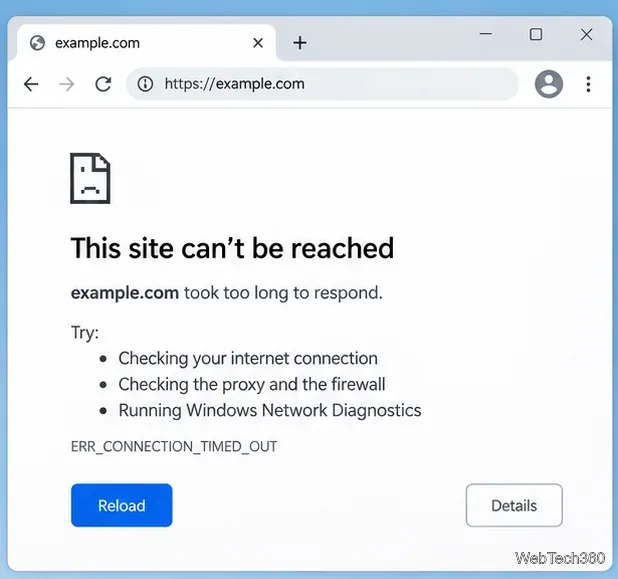
Chrome’s common error reference explains that ERR_NAME_NOT_RESOLVED points to a hostname-resolution problem, while ERR_CONNECTION_TIMED_OUT means the connection took too long.
Update and restart the browser first. In Chrome, try the page in an Incognito window. If it loads there, an extension, cookie, or cached site file is a likely cause.
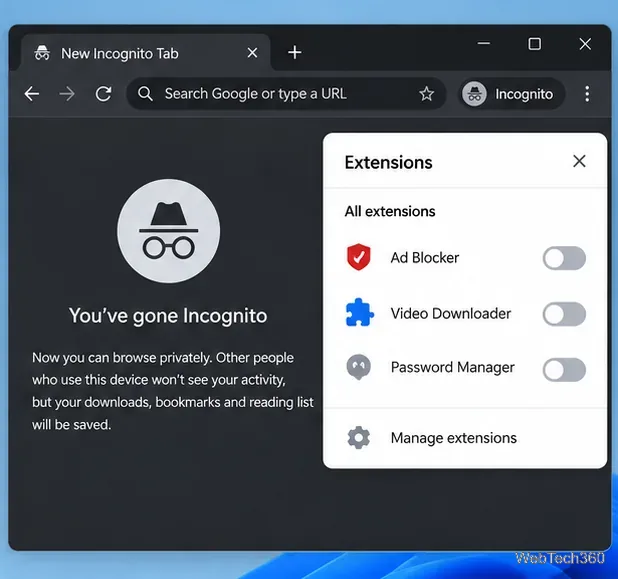
See Google’s official instructions for managing Chrome extensions and deleting browsing data.
If several websites are unavailable, confirm that Wi-Fi or Ethernet is connected. Restart the browser, then restart the PC. If other devices on the same network also have trouble, reboot the modem/router and wait for it to reconnect fully.
Temporarily disconnect any VPN and check Settings > Network & internet > Proxy for a manual proxy you did not intend to use. A VPN or proxy can cause connection resets, timeouts, or routing problems.
Also check whether a firewall or antivirus product is blocking the browser or the specific site. Do not permanently disable security protection or whitelist a site that produces a malware warning. If you temporarily disable a security feature for a trusted-site test, turn it back on immediately afterward.
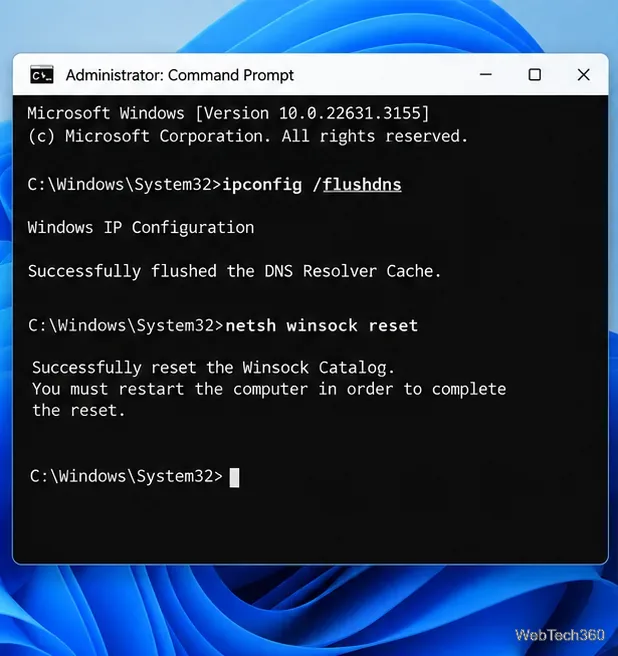
Windows can retain stale DNS information or corrupted network-socket settings. Microsoft documents DNS flushing and Winsock/TCP-IP reset commands as network troubleshooting steps.
Open Command Prompt as administrator, then run:
netsh winsock reset
netsh int ip reset
ipconfig /flushdns
Restart Windows after the commands finish, then test the website again. Microsoft’s current Windows network troubleshooting guide also includes DHCP release/renew commands for cases where the PC cannot obtain a usable address.
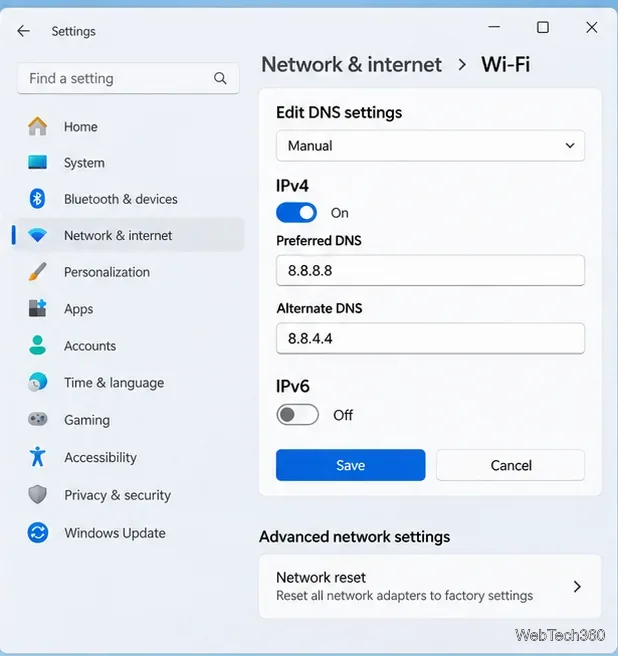
If the connection works but domain names still fail to resolve, test a known public DNS resolver. Google Public DNS officially uses 8.8.8.8 and 8.8.4.4 for IPv4. Google also publishes IPv6 addresses and configuration guidance in its Public DNS documentation.
On Windows, open Settings > Network & internet, open the properties for your active Wi-Fi or Ethernet connection, and edit its DNS server assignment. Record the existing DNS values before changing them so you can restore them later.
If nothing else works on Windows, use Network reset as the final step. In Windows 11, Microsoft places it under Settings > Network & internet > Advanced network settings > Network reset. In Windows 10, use Settings > Network & Internet > Status > Network reset. Microsoft warns that this removes and reinstalls network adapters and restores their settings to defaults, so VPN clients or virtual-network software may need to be set up again afterward.
If one website fails on multiple devices and networks while other sites work, the problem is probably on the website’s side. Likewise, a company, school, or managed network may intentionally block certain destinations. In those cases, changing your browser or repeatedly resetting Windows is unlikely to help; wait for the site operator to restore service or contact the network administrator.
Use a screenshot test, cable and port checks, monitor diagnostics, display settings, and driver rollback to pinpoint lines on a Windows 10 monitor.
Show two other time zones beside your Windows 10 clock. Set up each additional clock, give it a clear label, and find it in the taskbar calendar.
Find the File Explorer extension that delays right-click menus in Windows 10, test it safely with ShellExView, and restore any menu features you still need.
Stop Windows 10 from powering down a specific network adapter or USB device with plan-level settings and Device Manager controls, plus tips to avoid excess battery drain.
Check whether Windows 10 uses a digital license or product key, find a firmware-stored OEM key, and save license details securely for a reinstall.
Identify a Windows 10 Task Manager process by checking its executable path, file properties, publisher, linked services, and a Microsoft Defender scan.
Create a searchable Windows 10 folder inventory with PowerShell. Save every file and subfolder path as plain text or export details to a sortable CSV.
Add a custom reminder, quote, or label to your Windows 10 desktop with a Rainmeter text skin. Create the INI file, load it, then adjust its font and position.
Use Bluetooth Swift Pair on Windows 10 to pair a compatible accessory from a notification, with setup steps and fixes when the prompt does not appear.
Learn what common laptop function key symbols mean, how Fn and Fn Lock affect them, and how to confirm the right shortcut for your Windows 10 laptop model.








