How to Open a Linux Shell in a Folder on Windows 10

Open a Linux shell in any Windows 10 folder with File Explorer, PowerShell, and WSL. Check the Linux path and fix common setup issues.
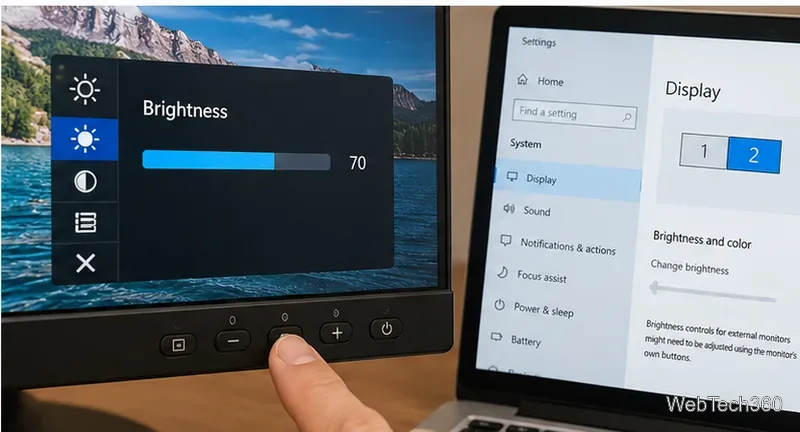
If the Windows 10 brightness slider is not working, first check whether you are controlling the laptop's built-in screen or an external monitor. Microsoft says the Windows brightness slider is intended for supported built-in displays; many external monitors must be adjusted with the monitor's own buttons. On a laptop or all-in-one PC, an unresponsive slider is worth troubleshooting through the display driver and monitor device.
Windows 10 reached end of support on October 14, 2025. These steps still apply, but Microsoft recommends moving to Windows 11 when possible or using an eligible Extended Security Updates option. See Microsoft's Windows 10 support notice.
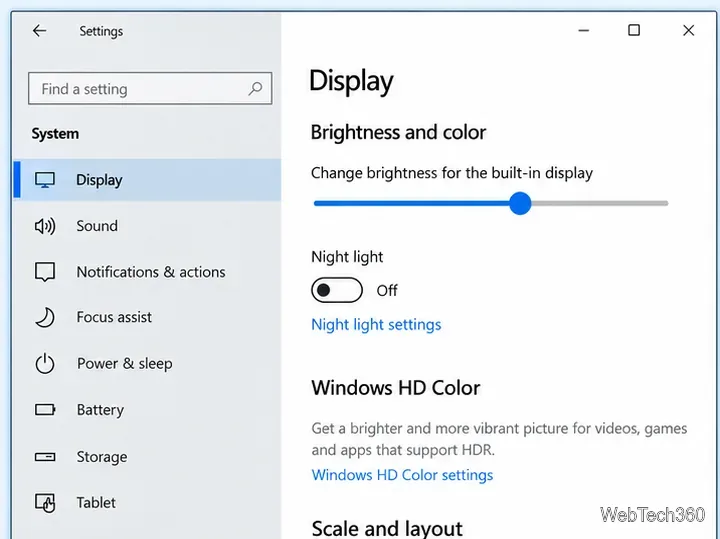
Open Settings > System > Display and move the brightness slider. You can also open Action Center from the taskbar and move its brightness control. If your laptop has dedicated brightness keys, test those too.
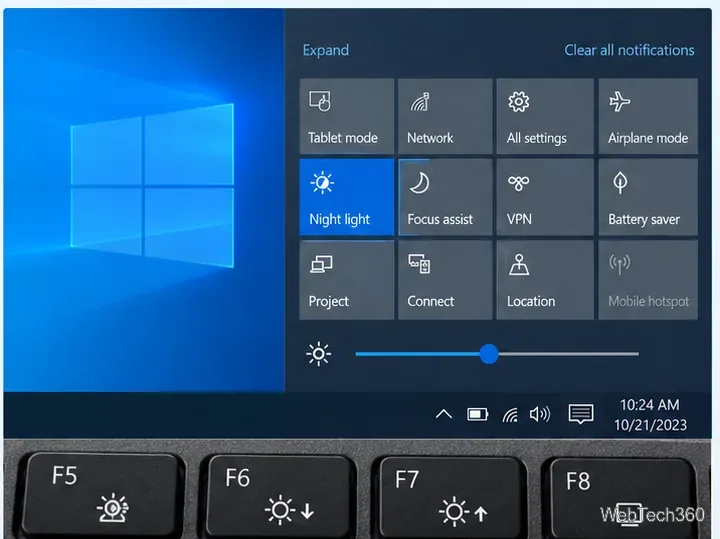
If the slider is missing on a desktop connected only to an external monitor, that can be normal. Microsoft's display brightness guide says external monitors may require their own controls.
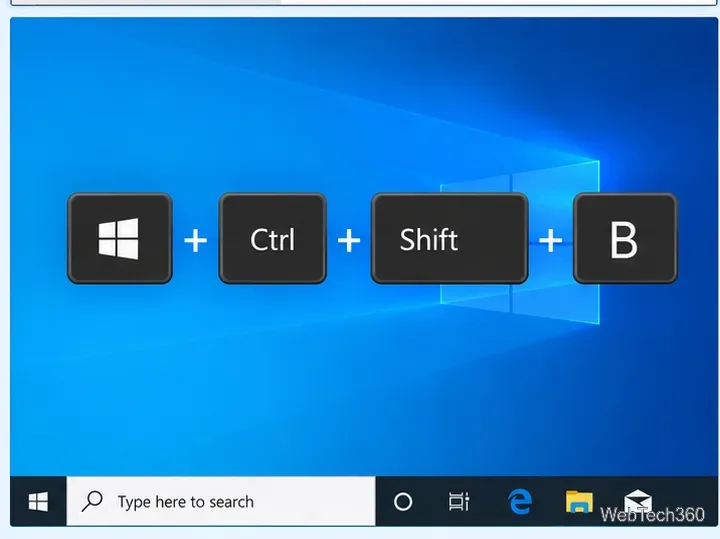
Press Windows+Ctrl+Shift+B. Windows resets the graphics driver, and the screen may briefly flicker or go dark. Microsoft recommends this shortcut as an early display troubleshooting step. If brightness starts working afterward, no further change may be needed.
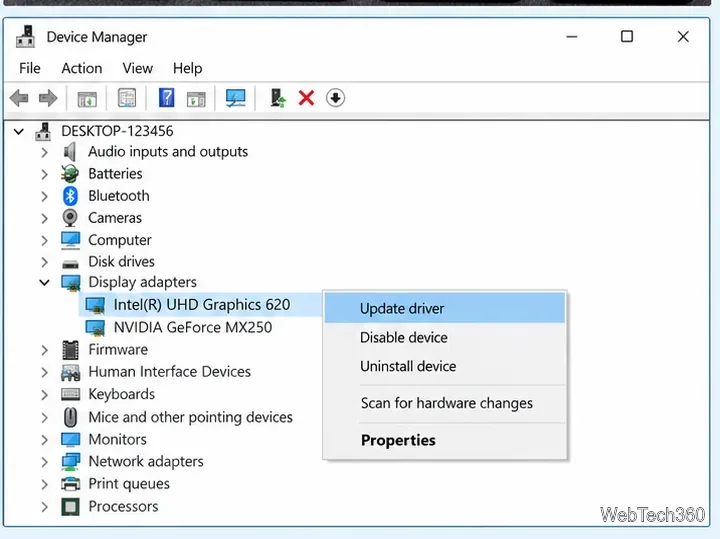
Right-click Start, open Device Manager, expand Display adapters, right-click a display adapter, and choose Update driver. Select Search automatically for drivers. If more than one display adapter is listed, check each one.
Microsoft says Windows Update is normally the preferred source for recommended driver updates. Avoid third-party driver-download sites; if Windows cannot find a suitable driver, use the PC or graphics hardware manufacturer's official support page. Microsoft's Device Manager driver guide covers automatic and manual installation.
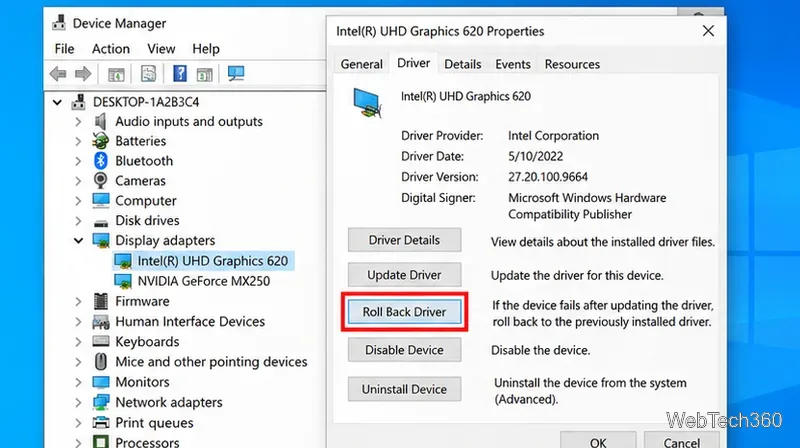
If brightness stopped working after a Windows or graphics-driver update, open the display adapter's Properties, select the Driver tab, and choose Roll Back Driver. Restart when prompted. If the button is unavailable, Windows does not have a previous driver package to restore.
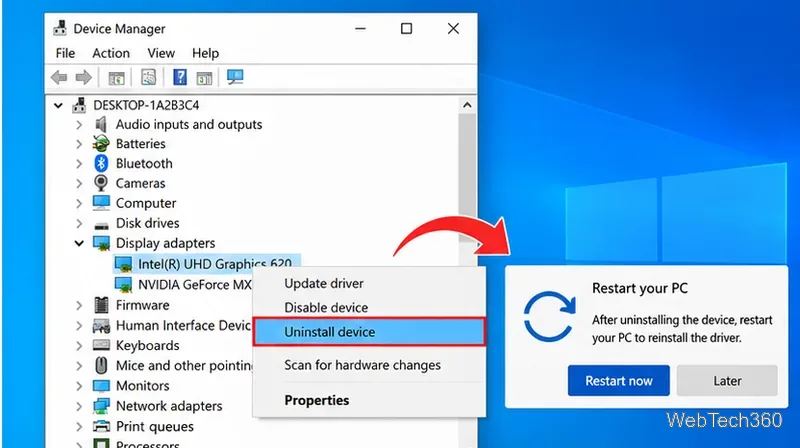
If updating or rolling back does not help, open Device Manager > Display adapters, right-click the adapter, and select Uninstall device. Restart Windows afterward. Microsoft says Windows will attempt to reinstall the driver after the restart, so save your work first.
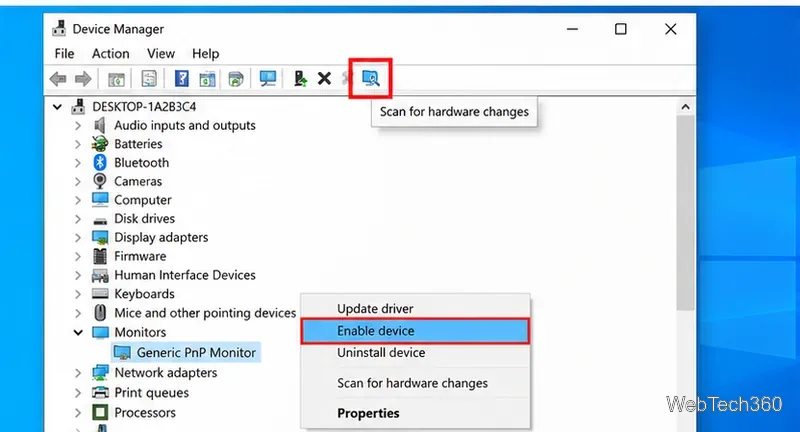
Expand Monitors. If the built-in display or Generic PnP Monitor entry is disabled, right-click it and choose Enable device. If the monitor entry is missing, use Action > Scan for hardware changes. There is no need to disable a monitor that is already working normally.
On PCs with an ambient-light sensor, go to Settings > System > Display and, if available, turn off Change brightness automatically when lighting changes for testing. Microsoft notes that manual adjustment should still work when automatic brightness is enabled, so this step is more useful when brightness changes unexpectedly than when the slider is missing.
If the only active display is external, use the monitor's physical buttons, joystick, or on-screen menu to change brightness. For connection problems, Microsoft's external-monitor troubleshooting guide also recommends restarting, resetting the graphics driver, and rolling back a display driver when an update caused the issue.
Do not change undocumented FeatureTestControl registry values unless your PC manufacturer specifically documents that change for your exact model. Microsoft's current brightness guidance focuses on supported display settings and driver repair, and a wrong registry edit can create additional problems.
If the built-in display is detected and a clean display-driver reinstall still does not restore brightness control, check your laptop maker's support page for a model-specific graphics, chipset, or hotkey package. A persistent failure can also indicate firmware, sensor, panel, or other hardware trouble.
Open a Linux shell in any Windows 10 folder with File Explorer, PowerShell, and WSL. Check the Linux path and fix common setup issues.
Use a screenshot test, cable and port checks, monitor diagnostics, display settings, and driver rollback to pinpoint lines on a Windows 10 monitor.
Show two other time zones beside your Windows 10 clock. Set up each additional clock, give it a clear label, and find it in the taskbar calendar.
Find the File Explorer extension that delays right-click menus in Windows 10, test it safely with ShellExView, and restore any menu features you still need.
Stop Windows 10 from powering down a specific network adapter or USB device with plan-level settings and Device Manager controls, plus tips to avoid excess battery drain.
Check whether Windows 10 uses a digital license or product key, find a firmware-stored OEM key, and save license details securely for a reinstall.
Identify a Windows 10 Task Manager process by checking its executable path, file properties, publisher, linked services, and a Microsoft Defender scan.
Create a searchable Windows 10 folder inventory with PowerShell. Save every file and subfolder path as plain text or export details to a sortable CSV.
Add a custom reminder, quote, or label to your Windows 10 desktop with a Rainmeter text skin. Create the INI file, load it, then adjust its font and position.
Use Bluetooth Swift Pair on Windows 10 to pair a compatible accessory from a notification, with setup steps and fixes when the prompt does not appear.








