How to Open a Linux Shell in a Folder on Windows 10

Open a Linux shell in any Windows 10 folder with File Explorer, PowerShell, and WSL. Check the Linux path and fix common setup issues.
If the Windows key is not working on Windows 10, first find out whether the problem is the keyboard itself or the Windows shell. Click the Start button with the mouse, then test shortcuts such as Win+R and Win+E. If Start opens with the mouse but the key and shortcuts do nothing, focus on the keyboard, Win Lock, remapping, and drivers. If Start is also unresponsive, restart Windows Explorer and repair Windows system files.
Support note: Microsoft ended standard Windows 10 support on October 14, 2025. Existing PCs still run, but most consumer installations no longer receive regular security fixes. Microsoft recommends moving to a supported Windows release; see its Windows support lifecycle guidance.
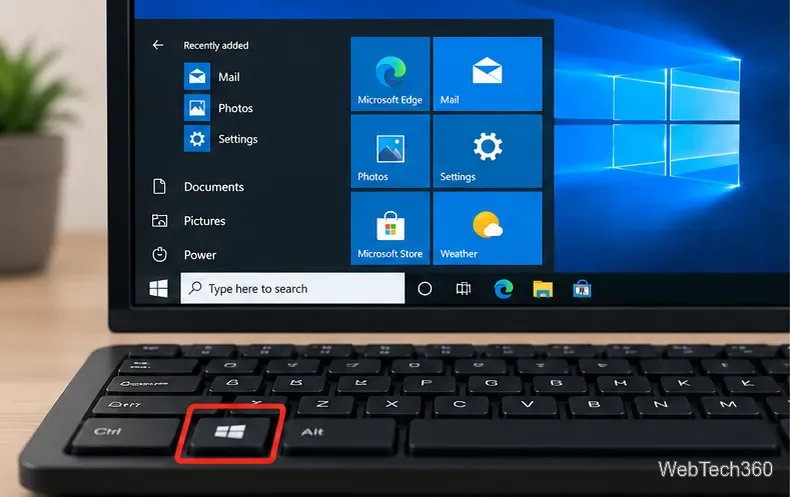
Start with the simplest causes. Connect another keyboard if possible, replace the battery on a wireless keyboard, reconnect Bluetooth, and try a different USB port. If only one keyboard has the problem, the fault is probably hardware or keyboard firmware rather than Windows.
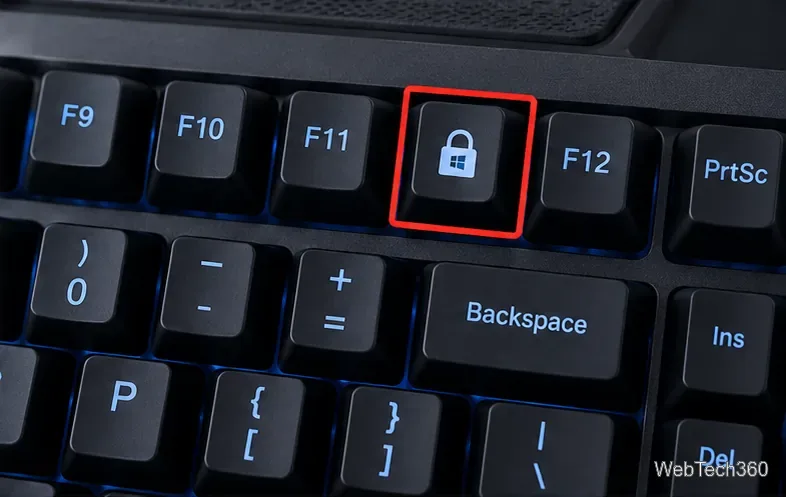
Gaming keyboards often include a Win Lock feature that disables the Windows key to prevent accidental presses during games. Look for a lock or Windows-logo key, or check the keyboard manufacturer's manual for the correct shortcut. Also close software that can remap keys, such as keyboard vendor utilities, PowerToys Keyboard Manager, AutoHotkey scripts, or other key-mapping tools.
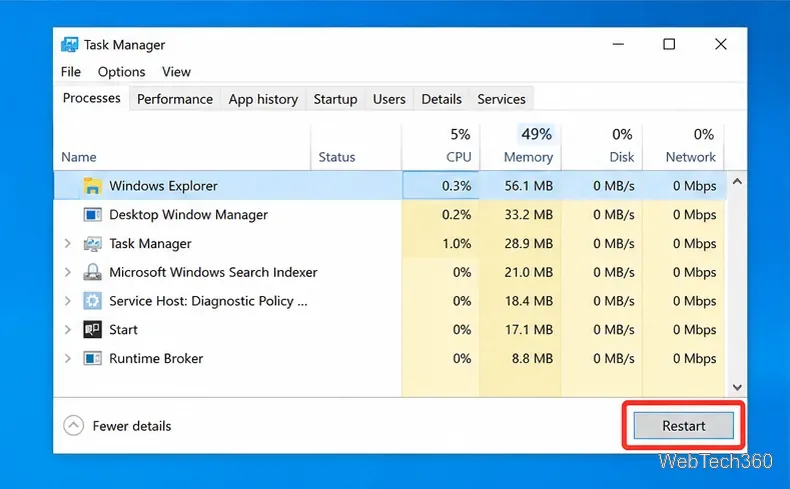
If clicking Start also fails, restart the Windows shell before changing drivers or the registry:
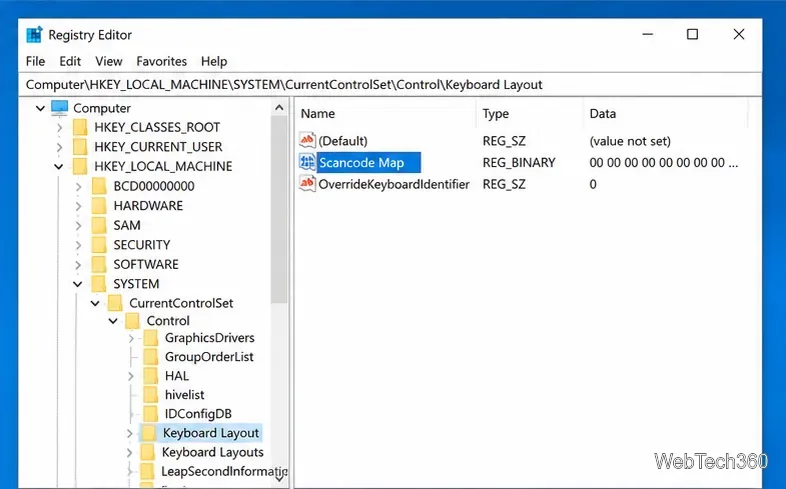
This advanced fix is useful only when the key was disabled or remapped through the registry. Before editing the registry, follow Microsoft's registry backup guidance.
regedit, and press Enter.HKEY_LOCAL_MACHINE\SYSTEM\CurrentControlSet\Control\Keyboard Layout.Scancode Map value exists and you did not intentionally create or need that remap, export the Keyboard Layout key as a backup, then delete only the Scancode Map value.Do not delete the entire Keyboard Layout key.
A damaged keyboard driver can also prevent keys from being detected correctly. Microsoft documents reinstalling device drivers through Device Manager:
devmgmt.msc.If the problem began after a vendor driver update, use the latest compatible driver from the keyboard or PC manufacturer. See Microsoft's Device Manager driver instructions.
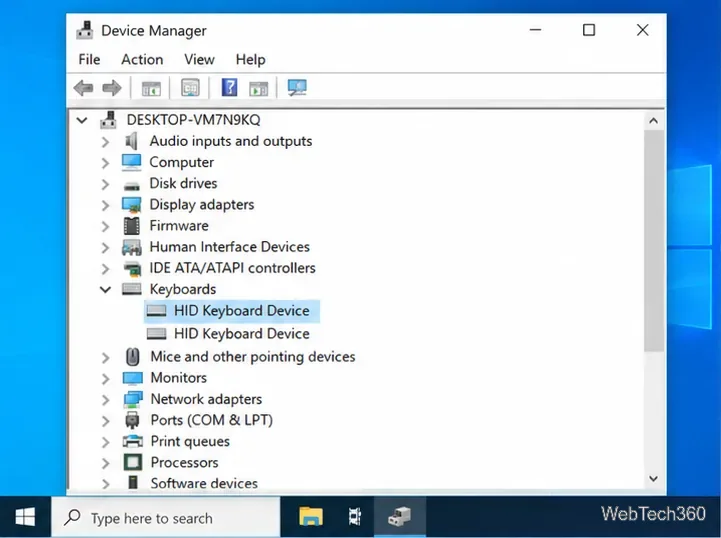
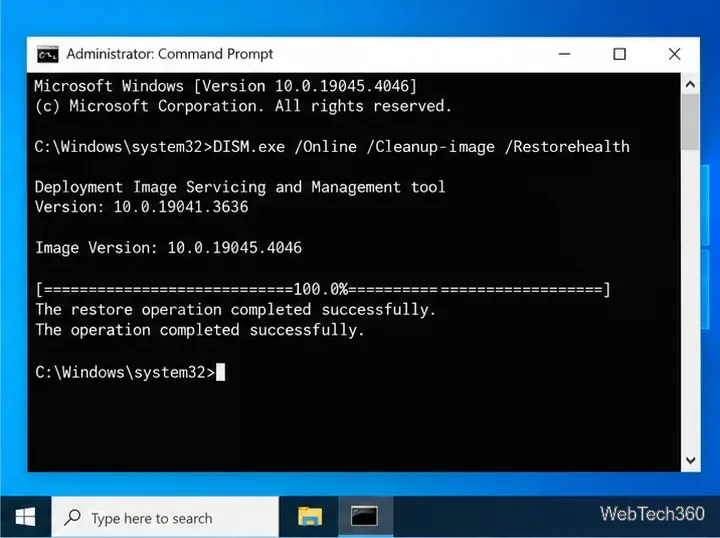
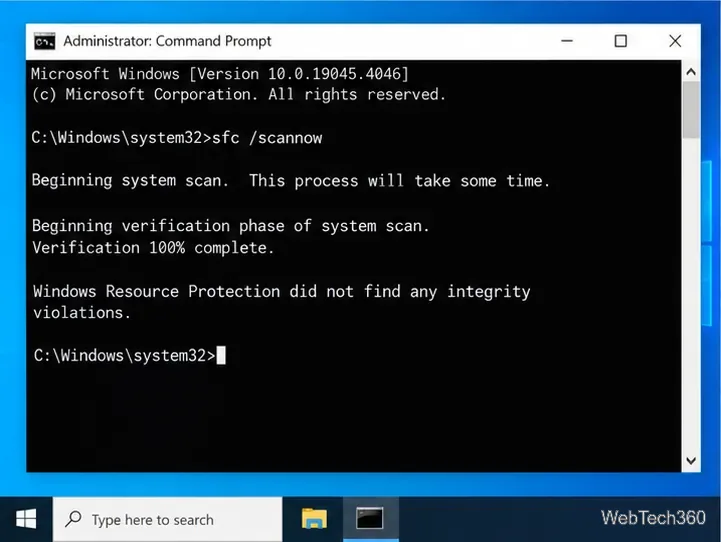
If the Start menu or other Windows components are malfunctioning, repair the component store and protected system files. Microsoft recommends running DISM before SFC.
cmd, and select Create this task with administrative privileges.DISM.exe /Online /Cleanup-Image /RestoreHealth and wait for it to finish.sfc /scannow and wait until verification reaches 100%.Microsoft explains the expected results and recovery steps in its DISM and System File Checker guide.
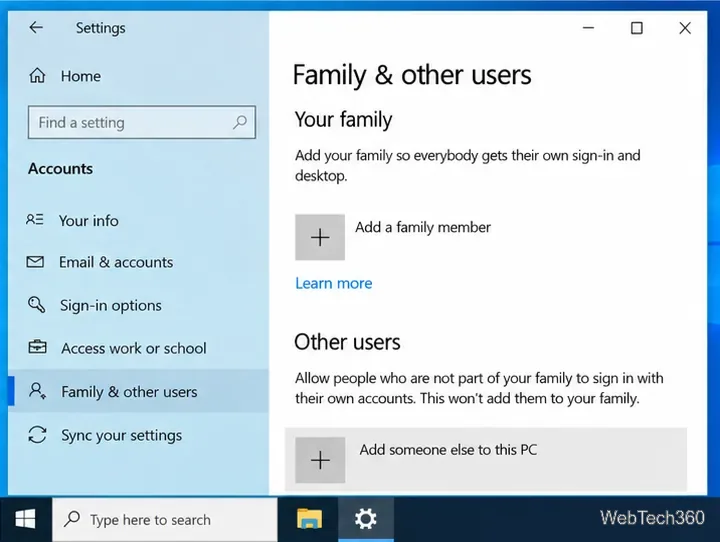
If the key works in a new account, the problem is likely limited to the original user profile or its per-user configuration. Open Settings > Accounts > Family & other users, choose Add someone else to this PC, and create a test account. Microsoft's user-account guide also explains how to add a local account.
If a second keyboard works, replace or service the original keyboard. If every keyboard fails but Start still opens with the mouse, recheck Win Lock, remapping software, and the keyboard driver. If Start and other shell features remain broken after DISM and SFC, consider Windows recovery options, beginning with the least disruptive option available to your system. Back up important files before using System Restore, Reset this PC, or reinstalling Windows.
Open a Linux shell in any Windows 10 folder with File Explorer, PowerShell, and WSL. Check the Linux path and fix common setup issues.
Use a screenshot test, cable and port checks, monitor diagnostics, display settings, and driver rollback to pinpoint lines on a Windows 10 monitor.
Show two other time zones beside your Windows 10 clock. Set up each additional clock, give it a clear label, and find it in the taskbar calendar.
Find the File Explorer extension that delays right-click menus in Windows 10, test it safely with ShellExView, and restore any menu features you still need.
Stop Windows 10 from powering down a specific network adapter or USB device with plan-level settings and Device Manager controls, plus tips to avoid excess battery drain.
Check whether Windows 10 uses a digital license or product key, find a firmware-stored OEM key, and save license details securely for a reinstall.
Identify a Windows 10 Task Manager process by checking its executable path, file properties, publisher, linked services, and a Microsoft Defender scan.
Create a searchable Windows 10 folder inventory with PowerShell. Save every file and subfolder path as plain text or export details to a sortable CSV.
Add a custom reminder, quote, or label to your Windows 10 desktop with a Rainmeter text skin. Create the INI file, load it, then adjust its font and position.
Use Bluetooth Swift Pair on Windows 10 to pair a compatible accessory from a notification, with setup steps and fixes when the prompt does not appear.








